How to Split PDF in Preview: Separate One Mac PDF Into Smaller Files Without Losing the Pages You Need
To split PDF in Preview, open the file on your Mac, show the thumbnail sidebar, select the pages for the first smaller file, then drag those pages into a new PDF or save them out as a separate document.
If you only need one reduced copy instead of several outputs, Extract Pages is usually the better fit, and if the page ranges get messy, a dedicated Split PDF tool is faster than manual Preview juggling.
That is the short answer. The part that actually saves time is knowing which Preview method keeps the original safe, how to name the smaller files so they still make sense tomorrow, and when to stop forcing a manual workflow once the document gets longer than your patience.
Fastest path: if the PDF is short and the split points are obvious, Preview is perfectly fine. If you need several outputs, exact ranges, or one-file-per-page without manual repetition, switch straight to a dedicated split workflow.
In a hurry? Jump to Quick start: split PDF in Preview in a few minutes.
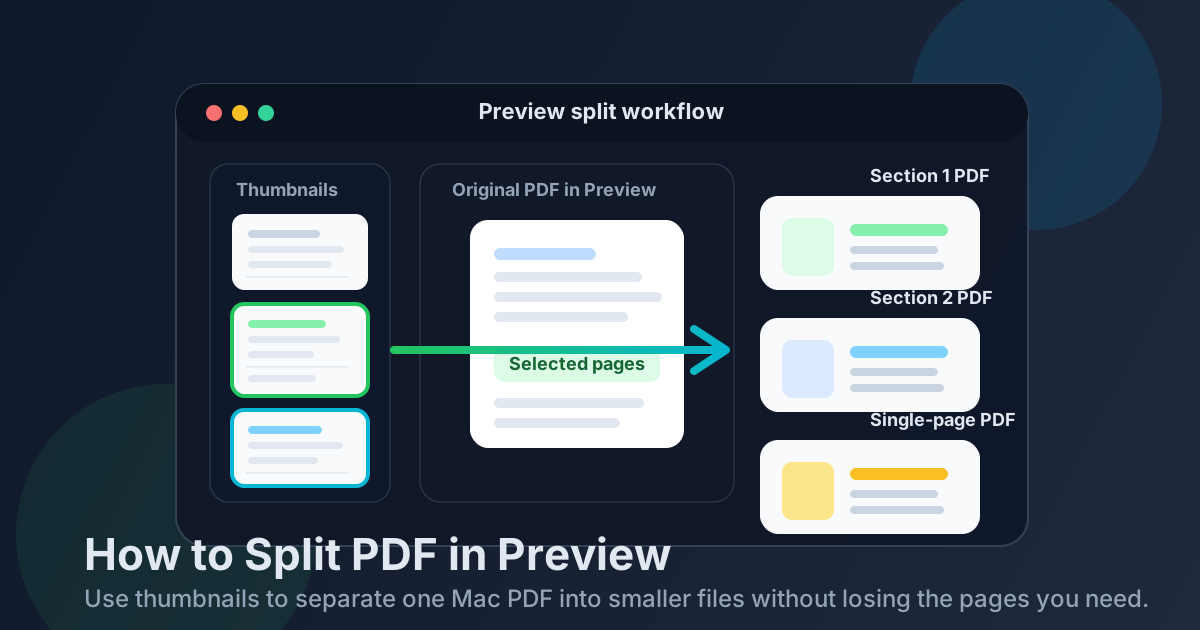
Table of contents
- Quick start: split PDF in Preview in a few minutes
- When Preview is actually a good split tool
- Step-by-step: split a PDF in Preview
- The two safest Preview methods
- Split vs extract vs delete pages
- Common Preview mistakes and how to avoid them
- When to switch from Preview to a dedicated split workflow
- Related LifetimePDF tools and Mac guides
- FAQ
Quick start: split PDF in Preview in a few minutes
If the document is already a normal PDF and you mostly want to peel off a section, chapter, appendix, or a few individual pages, this is the shortest reliable Preview workflow:
- Open the PDF in Preview on your Mac.
- Turn on the thumbnail sidebar so you can see the full page order.
- Select the pages that belong in the first smaller file.
- Drag those selected thumbnails into a new PDF or save them as a separate document.
- Rename the output clearly, then repeat for the next section if needed.
When Preview is actually a good split tool
Preview is good at small, visual, Mac-shaped PDF jobs. If the document is not huge, the section breaks are obvious, and you can recognize the pages just by looking at the thumbnails, Preview is often enough.
It is especially comfortable when you are already working locally in Finder and only need one or two smaller outputs. You do not have to install anything, you can see the page order immediately, and the workflow stays close to the document instead of turning into a bigger production than the task deserves.
| Situation | Best move | Why it works |
|---|---|---|
| One short PDF with obvious sections | Use Preview | You can see the page boundaries and create smaller files without much ceremony. |
| You only need one kept-pages copy | Use Extract Pages | It is cleaner than pretending a one-output job is a full split. |
| You need many outputs or exact page ranges | Use Split PDF | A dedicated split workflow is faster and less repetitive than manual page handling in Preview. |
| You are likely to remove or reorder pages right after | Split, then clean up | It is easier to review the smaller outputs first and only do extra cleanup where it is actually needed. |
In plain language: Preview is good when the document still feels small enough to hold in your head.
Step-by-step: split a PDF in Preview
Here is the practical workflow most Mac users actually need.
1) Open the source PDF and show thumbnails
The thumbnail sidebar matters because splitting is really a page-selection problem. Once the sidebar is visible, you can spot chapter breaks, signature pages, appendices, or duplicate scans much more quickly.
2) Decide whether you want sections, page ranges, or one file per page
Make that decision before saving anything. If the goal is one file per page, the workflow is repetitive but simple. If the goal is three section files, decide the boundaries first so you do not keep redoing the same pages.
3) Select the pages for the first smaller file
Click the relevant thumbnails in the sidebar. For a contiguous block, select the first page of the section and continue through the last page you want in that output. For a simple split job, the less improvising you do, the safer the result usually is.
4) Create the new PDF from those selected pages
Once the correct pages are selected, create a new smaller PDF from them. On many Mac setups, dragging the selected thumbnails out of Preview creates a fresh PDF file you can save immediately. If your workflow is based on duplicating the original and trimming it down, save the result with a clear new name before you move on.
5) Repeat for the next output without damaging the source
This is where people get careless. If you plan to delete pages from copies, duplicate the original first. If you are dragging out selected pages, keep the original untouched until every smaller file has been checked once.
6) Review the first and last page of each new file
You do not need a dramatic quality-control ritual. Just confirm the section starts where it should start, ends where it should end, and did not accidentally borrow a page from the neighboring section.
Need a cleaner way to make several outputs? When the split is bigger than Preview feels comfortable with, use a dedicated split workflow and keep Preview for the final visual check.
The two safest Preview methods
There are really two sensible ways to split in Preview, and choosing the right one prevents a lot of needless confusion.
Method 1: Select pages and create a new PDF
This is the cleaner method when you want to keep the source untouched. Select the page thumbnails for one section, create a new PDF from that selection, save it with a clear name, and then go back for the next section. It is calm, reversible, and hard to mess up if you work one output at a time.
Method 2: Duplicate first, then remove pages you do not need
This is better when the smaller output will keep most of the original and lose only a few pages. Duplicate the original PDF first, then delete the pages that do not belong in that copy. The important word there is duplicate. Deleting from the only copy is how simple jobs turn into slightly embarrassing recovery missions.
Split vs extract vs delete pages
These jobs sound similar, which is why people choose the wrong tool and then wonder why the workflow feels clumsy.
- Split PDF means one source file becomes several smaller PDFs.
- Extract Pages means one source file becomes one smaller PDF that keeps only the chosen pages.
- Delete Pages means you mostly want the same file, just without some pages.
If you only need pages 4-8 as one reduced copy, use Extract Pages. If one long scanner packet should become a cover-letter PDF, an exhibits PDF, and a signature PDF, that is a Split PDF job. If the file is fine except for two blank scanner pages, use Delete Pages.
Common Preview mistakes and how to avoid them
Saving vague filenames
A split workflow is technically successful and still annoying if the outputs are named document-new.pdf and document-new-2.pdf. Use names based on purpose or page ranges instead.
Editing the only copy of the original
Preview feels so casual that people forget the file is real. If your method involves deleting pages, duplicate first. The original should stay available until the new files are confirmed.
Splitting when extraction would be cleaner
If you only need one smaller document, do not create three files just because the word split came to mind first. A smaller kept-pages copy is usually easier to make and easier to explain later.
Checking nothing before sending
Open each output once. You do not need to reread every page, but you should confirm the first page, the last page, and the filename. That quick review catches most real mistakes.
Using Preview for a job that is already too large
Preview is not bad. It is just manual. Once the document is long or the split map gets complicated, repetition becomes the risk. That is usually the moment to switch tools instead of trying to prove a point to your PDF.
When to switch from Preview to a dedicated split workflow
Preview starts losing its charm when the document is long, the page ranges are scattered, or you need a lot of smaller outputs. In those situations, a purpose-built split tool is less about speed for its own sake and more about reducing easy mistakes.
Preview is still fine when:
- the PDF is short,
- the split points are visually obvious,
- you only need one or two outputs, and
- you want a simple local Mac workflow.
A dedicated split workflow is usually better when:
- you need many outputs or exact page ranges,
- the file should become one PDF per page,
- you are handling a long scanner dump,
- you expect to compress, extract, or reorganize the result immediately after splitting.
In other words, Preview is good for a tidy little job. Split PDF is better for the moment the job stops being little.
Good cleanup order: split the document first, review the outputs, then extract, delete, reorder, or compress only where it actually helps.
Related LifetimePDF tools and Mac guides
Splitting in Preview is often one step in a bigger Mac document workflow. These tools and guides pair well with it:
- Split PDF for faster multi-output jobs.
- Extract Pages when you only want one reduced copy.
- Delete Pages for removing scanner junk or stray sheets.
- Compress PDF if the new files are still too large to send.
- How to Split PDF on Mac for the broader Mac workflow beyond Preview.
- How to Extract Pages from PDF on Mac if you realize the job is really about keeping one selected section.
- How to Merge PDFs in Preview if the next step is putting cleaned-up sections back together in a better order.
- How to Compress a PDF on Mac if the finished files are still bulky.
Need smaller PDFs without turning Preview into a bookkeeping exercise?
Use Preview when the sections are obvious. Use Split PDF when the document is longer, the outputs are many, or the page ranges need cleaner control.
FAQ: How to split PDF in Preview
How do I split PDF in Preview on Mac?
Open the PDF in Preview, show the thumbnail sidebar, select the pages for the first smaller file, create a new PDF from those selected pages, save it with a clear name, and repeat for the next section.
Can Preview split one PDF into multiple files?
Yes. Preview can split one PDF into multiple smaller files, but it is more manual than a dedicated split tool. It works best when the document is short and the sections are visually obvious.
Is splitting in Preview the same as extracting pages?
No. Splitting usually creates several smaller PDFs. Extracting pages usually creates one smaller PDF that keeps only the chosen pages.
Will splitting a PDF in Preview reduce quality?
Usually no. Splitting normally preserves the original page quality because you are separating existing PDF pages rather than turning them into screenshots or printing them again.
When should I stop using Preview and use Split PDF instead?
Switch when the document is long, the ranges are complicated, you need many outputs, or you want one-file-per-page without repeating the same manual steps over and over.
Published by LifetimePDF — Pay once. Use forever.