How to Split PDF on Mac: Use Preview or Safari to Break One File Into Smaller Parts
To split PDF on Mac, open the file in Preview if you only need a simple manual split, or use a browser-based Split PDF tool in Safari when you want faster page ranges, chapter-style sections, or one file per page.
If you only need to keep a few pages in one smaller document instead of making several outputs, use Extract Pages rather than a full split workflow.
That is the short answer. The part that saves time on Mac is knowing whether the job is really a split, an extract, or a delete-pages cleanup, because those three tasks sound similar but they produce different results. Once that is clear, the workflow becomes simple: pick the pages, create the smaller files, name them well, and stop before the folder fills up with vague filenames like section-final-final-2.
Fastest path: use Split PDF when one Mac PDF should become several smaller files, use Extract Pages when you only need one reduced copy, and compress the outputs only if the destination still rejects the size.
In a hurry? Jump to Quick start: split PDF on Mac in a few minutes.
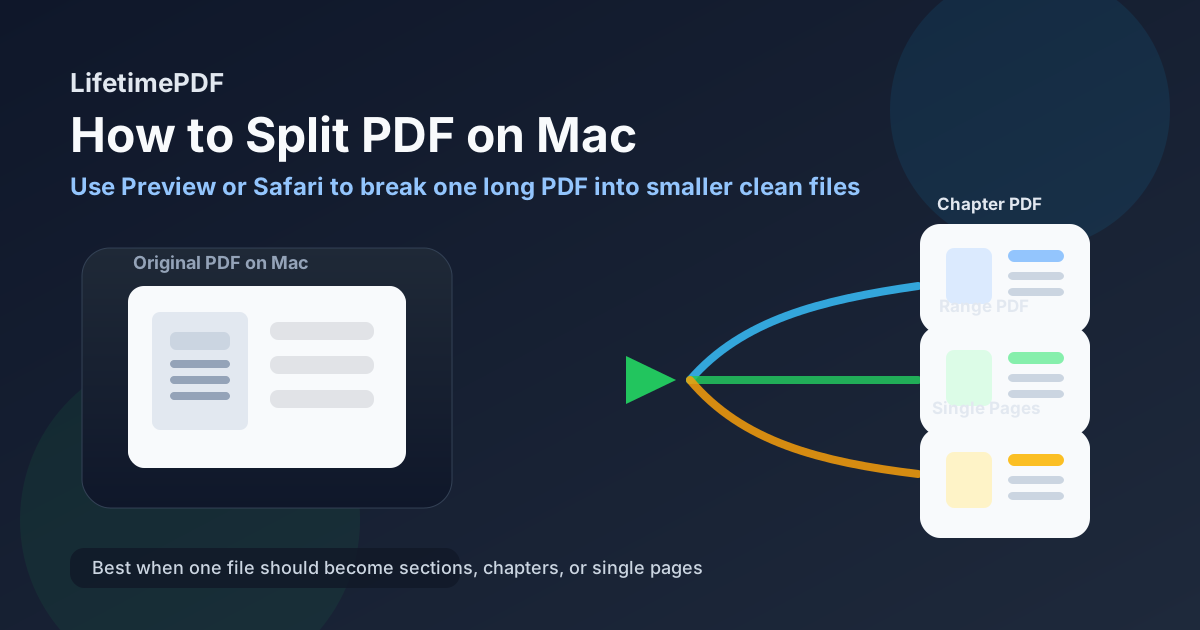
Table of contents
- Quick start: split PDF on Mac in a few minutes
- Best ways to split a PDF on Mac
- Step-by-step: use Preview on Mac
- Step-by-step: use Safari with LifetimePDF
- Split PDF vs extract pages vs delete pages
- When splitting a PDF is the smartest move
- Common Mac problems and quick fixes
- Privacy, quality, and file-handling tips
- Related LifetimePDF tools and guides
- FAQ (People Also Ask)
Quick start: split PDF on Mac in a few minutes
If the goal is to turn one large PDF into smaller parts, this is the cleanest Mac workflow:
- Decide whether you need single pages, a few larger sections, or one smaller file containing a chosen range.
- Use Preview on your Mac for simple visual page handling, or open Split PDF in Safari for a more direct split workflow.
- Pick the page ranges or section breaks carefully.
- Save the new smaller PDFs with names that explain what they are.
- Open the outputs once before sending them anywhere.
Best ways to split a PDF on Mac
Mac users usually want one of two things. Sometimes the job is light: break off a few pages, create one smaller section, or separate a short packet into obvious parts. In that case, Preview is often enough. Other times the PDF is longer, the page ranges are clearer than the visuals, or you need a repeatable workflow that feels less improvised. That is when a browser-based tool in Safari becomes the better option.
| Method | Best for | Why people choose it |
|---|---|---|
| Preview on Mac | Simple visual jobs, short documents, occasional manual splits | Built in, familiar, and good when you can see the sections you want immediately |
| Safari + Split PDF | Page ranges, several outputs, repeatable workflows, cleaner control | Faster when you already know the sections or want one file per page without fiddly manual steps |
| Safari + Extract Pages | One smaller kept-pages copy instead of multiple outputs | Better when you only want one reduced file rather than a true split |
The useful distinction is not native versus browser. The useful distinction is whether you need a manual visual edit or a purpose-built split workflow. If you are separating a contract into signature section, exhibit section, and full reference packet, a dedicated split tool usually feels cleaner. If you just need to peel off a small appendix while you are already in Preview, the native route can be perfectly fine.
Step-by-step: use Preview on Mac
Preview is where many Mac users start because it is already there and it handles ordinary page work well. For straightforward splitting jobs, that convenience matters.
- Open the PDF in Preview.
- Turn on View > Thumbnails so you can see the page structure.
- Identify the sections that should become separate files, such as pages 1-3, 4-8, and 9-12.
- Select one section at a time and create a new file from it.
- Save each smaller PDF with a clear name like
invoice-pages-1-3.pdforappendix-a.pdf. - Open the saved files once to confirm the order and page count.
Preview is especially good when the document is short, the sections are obvious, and you want to work visually. For example, maybe a scanned packet has one page per receipt, or a report has one appendix you want to separate. When you can see the boundaries clearly, Preview keeps the job close to the document and avoids overcomplicating it.
The limitation is speed at scale. If the PDF is long, the split points are scattered, or you need many outputs, Preview can start to feel like manual bookkeeping. That is when Safari plus a dedicated split tool becomes easier to trust.
Step-by-step: use Safari with LifetimePDF
If you already know the structure of the split, a browser workflow is often faster. It is also helpful when you want the same predictable process every time, no matter which Mac you are sitting at.
- Open Split PDF in Safari.
- Upload the original PDF from your Mac.
- Choose how the file should be divided, such as one file per page or a few logical ranges.
- Run the split and download the new smaller PDFs.
- Rename the outputs clearly and store them in one folder so the results stay organized.
This method works well when the instructions are already clear. If someone says, “Send pages 1-2 as one file, 3-6 as another, and the signature page separately,” it is usually quicker to follow a dedicated split workflow than to improvise a sequence of manual Preview edits.
It is also the better route when you want one file per page for uploads, exhibits, or archive cleanup. Preview can get you there, but a tool built for splitting tends to reduce the chance of missed pages, accidental overwrites, or vague output names.
Good Mac workflow: split first, review the outputs, then compress only the files that truly need it.
Split PDF vs extract pages vs delete pages
These three jobs are close cousins, which is exactly why people mix them up. But the end result is different each time.
- Split PDF means one source document becomes multiple new files.
- Extract Pages means one source document becomes one smaller file containing only selected pages.
- Delete Pages means you mostly want the same document, just with a few pages removed.
If you only need the signature page and the summary page from a long report, that is usually an Extract Pages job. If the report should become a summary PDF, an appendix PDF, and an exhibits PDF, that is a split job. If the report is fine except for two blank scanner pages, that is a Delete Pages job.
When splitting a PDF is the smartest move
Splitting a PDF on Mac makes the most sense when the original file is correct but too bundled together for the next step. Common examples include:
- Contracts and legal packets: separate exhibits, signature sections, and main agreement pages.
- Scanned paper batches: turn one scanner dump into one file per receipt, statement, or form.
- School or research PDFs: break a large file into chapter-sized reading chunks.
- Portal uploads: split one combined packet when the destination requires separate attachments.
- Archive cleanup: separate one oversized PDF into smaller labeled files that are easier to revisit later.
In all of these cases, the main benefit is not just file size. It is clarity. Smaller PDFs are easier to review, easier to name, easier to send, and less likely to expose unrelated material.
Common Mac problems and quick fixes
The outputs are confusingly named
This is the most common practical failure. The split itself succeeds, but later nobody knows which file is which. Use names based on page ranges or purpose, not vague labels like copy-2 or final-new.
I split when I really needed one smaller file
That means the job was probably extraction, not splitting. Go back to Extract Pages and create one clean reduced file instead of several separate outputs.
The files are still too large
Splitting often helps, but image-heavy scans can still stay bulky. If the smaller PDFs are still awkward to upload or email, run the finished outputs through Compress PDF after the split.
I accidentally lost track of the original
Keep the source file untouched. A good split workflow creates new outputs while leaving the original PDF alone so you can redo the job if one section ends up wrong.
The page boundaries were wrong
Open the outputs immediately and confirm the first and last page of each smaller PDF. A thirty-second review now is much better than discovering later that page four belongs in the other file.
Privacy, quality, and file-handling tips
Splitting is often a privacy improvement as much as a convenience step. If a recipient only needs one section of a larger PDF, sending just that smaller file reduces unnecessary exposure. It also makes the receiving side easier because the other person does not have to hunt through unrelated pages.
- Keep the original untouched so you always have a clean source.
- Name outputs by purpose or range so they stay understandable later.
- Review each output once to confirm page order and page count.
- Compress only if needed so you do not add unnecessary steps.
- Use extraction instead when one reduced file is all the situation needs.
The good news is that splitting usually does not reduce quality. In normal PDF workflows, you are separating existing pages into new PDF files rather than reprinting them or turning them into screenshots. That means the pages typically stay as crisp as the original.
Related LifetimePDF tools and guides
Split jobs often connect to one or two other tools. These are the most useful companions:
- Split PDF for turning one source file into multiple outputs.
- Extract Pages when you only want one smaller kept-pages copy.
- Delete Pages if you are removing a few pages but keeping most of the original intact.
- Compress PDF if the split outputs are still too large.
- How to Extract Pages from PDF on Mac if you realize the job is really about keeping selected pages.
- How to Merge PDFs on Mac if the next step is putting separate sections back together in a better order.
- Scan to PDF on Mac if your source started as paper pages.
Practical sequence: split the PDF into the sections you actually need, check the outputs once, then compress or clean them up only if the destination requires it.
FAQ
How do I split a PDF on Mac without Adobe Acrobat?
Use Preview on your Mac for simple manual splitting, or open a browser-based Split PDF tool in Safari when you want a faster workflow for page ranges, chapter sections, or one file per page.
Can Preview split a PDF into separate files on Mac?
Yes, but it is more manual than a dedicated split workflow. Preview is good for simpler visual jobs. If you need multiple outputs quickly, a Split PDF tool is usually easier.
What is the difference between split PDF and extract pages on Mac?
Split PDF turns one larger document into multiple smaller files. Extract Pages creates one new PDF that keeps only the selected pages.
Can I split a PDF into single pages on Mac?
Yes. That is useful when you need one page per file for uploads, scanned receipts, exhibits, or separate review items.
Will splitting a PDF reduce quality on Mac?
Usually no. Splitting normally preserves the original page quality because the pages are being separated into new PDFs rather than converted into screenshots or reprinted.