How to Redact a PDF on iPad: Permanently Hide Sensitive Info Before You Share It
To redact a PDF on iPad, open LifetimePDF's Redact PDF tool in Safari or Chrome, choose the file from Files, Mail, iCloud Drive, Google Drive, or Downloads, black out every sensitive detail, and export the cleaned copy before you share it.
If the file still reveals context through repeated names, signatures, metadata, scan borders, or extra pages, fix those too so the final iPad copy is actually safe to send.
That is the short answer. The useful part is avoiding the classic tablet mistake of hiding something in a preview, feeling done, and then attaching the untouched original from Files or Mail because both versions look nearly identical on the screen. On iPad, the safest workflow is usually simple: start with the exact PDF you plan to send, redact it once carefully, reopen the finished copy in Files, and only then protect or forward it.
Fastest path: open Redact PDF on your iPad, clean the content first, review the exported copy once in Files, then use metadata cleanup or password protection only if the remaining file still needs them.
In a hurry? Jump to Quick start: redact a PDF on iPad in 3 minutes.
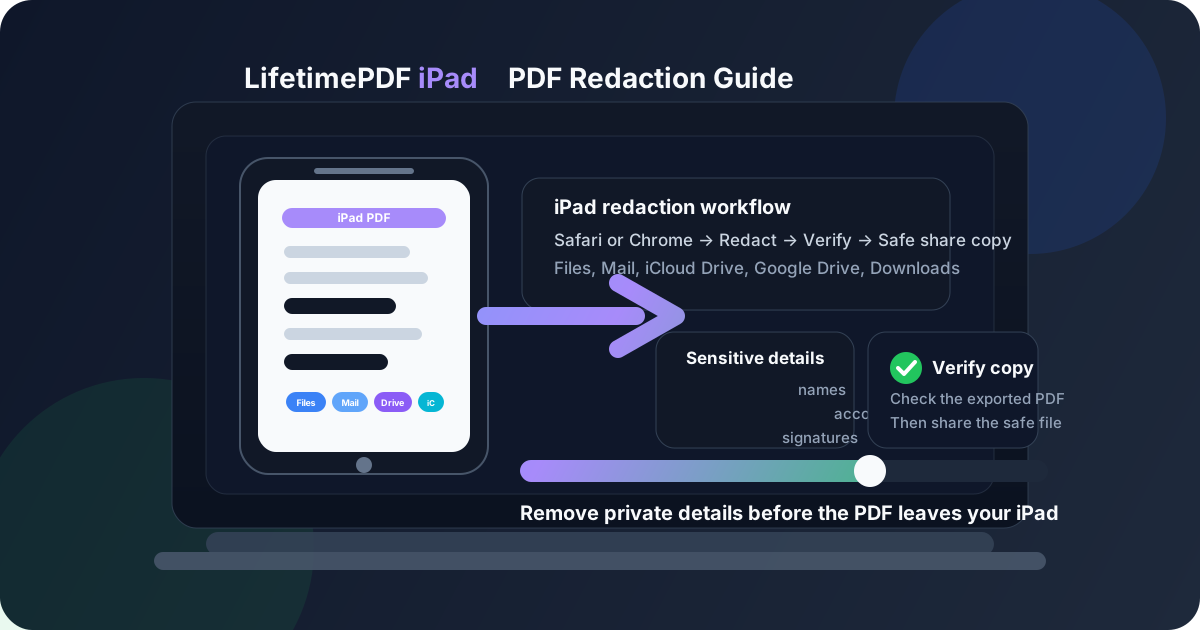
Table of contents
- Quick start: redact a PDF on iPad in 3 minutes
- The safest iPad workflow for redacted PDFs
- Step-by-step: redact a PDF from Files, Mail, iCloud Drive, Google Drive, or Downloads
- What to redact before you share a file from iPad
- Files markup vs real redaction on iPad
- Common iPad PDF sources and the best move for each
- Metadata, passwords, and safer iPad sharing
- Common iPad redaction problems and quick fixes
- Related LifetimePDF tools and guides
- FAQ
Quick start: redact a PDF on iPad in 3 minutes
If the PDF is already on your iPad and you just need a safe version to send, this is the workflow most people actually want:
- Open Redact PDF in Safari or Chrome.
- Choose the file from Files, a saved Mail attachment, iCloud Drive, Google Drive, or Downloads.
- Black out every sensitive name, number, signature, image, or repeated reference that should not appear in the outgoing copy.
- Download the redacted PDF with a filename you will recognize instantly.
- Reopen the finished copy in Files and check the actual redacted version before you upload, message, or email it.
The safest iPad workflow for redacted PDFs
On iPad, the hard part is rarely drawing a box over a line of text. The real friction is file handling and verification. The PDF might be sitting in Files, attached to Mail, opened from a portal download, synced through iCloud Drive, or coming from Google Drive after somebody else touched it. Once you know which copy is the source and which copy is the safe output, the rest becomes much calmer.
A browser-based workflow is often the cleanest route because it gives you one deliberate sequence: upload, redact, export, reopen, verify, and only then decide whether the file also needs metadata cleanup or password protection. That is easier than relying on a temporary preview and hoping the visible black box means the share copy is genuinely safe.
| Situation | Best move | Why it works |
|---|---|---|
| A contract, statement, form, or report needs partial sharing | Redact the share copy | You keep the useful document while removing the details the recipient should never see. |
| The recipient only needs part of the packet | Delete or extract pages first | The safest private page is the one you never send at all. |
| The PDF came from Mail, a portal, or cloud storage | Choose the exact file deliberately | That reduces the chance of redacting one version and sharing another. |
| The cleaned PDF is still confidential | Protect the already redacted copy | Passwords control access, but redaction is what removes information permanently from the shared version. |
In plain English: redaction works best when you treat the final PDF like a deliberate handoff, not a cosmetic touch-up.
Step-by-step: redact a PDF from Files, Mail, iCloud Drive, Google Drive, or Downloads
Here is the practical iPad workflow most people actually need.
1) Start with the file you really plan to send
If the PDF is still inside Mail, sitting in a browser preview, or mixed into a noisy Downloads folder, save it or locate it clearly first. Working from the exact file you plan to send prevents the classic iPad mistake of carefully cleaning one copy and then attaching the untouched original from somewhere else.
2) Open Redact PDF in Safari or Chrome
Go to LifetimePDF Redact PDF on your iPad. A browser workflow is convenient because it gives you one clear path to upload, redact, export, and inspect the final copy without needing a desktop app.
3) Redact every place the private detail appears
Do not stop after the first obvious line. Check headers, footers, tables, appendix pages, signature blocks, image captions, handwritten notes, and repeated labels. Names, account numbers, case IDs, invoice references, and internal notes often show up more than once in PDFs people open on iPad.
4) Export the cleaned copy
Treat the exported PDF as a new file meant for outside eyes. Give it a clear name such as statement-redacted.pdf, lease-safe-share.pdf, or claim-clean-copy.pdf so it does not get lost in Files, Recents, or cloud storage.
5) Reopen the final PDF in Files and verify it
Do not judge privacy work from memory. Open the finished file in Files, zoom in on the redacted areas, search for the hidden terms when appropriate, and confirm the outgoing copy is the cleaned version. That single review pass catches a surprising amount of preventable iPad confusion.
6) Clean metadata or protect the final copy if needed
If the file title, author, subject, or other properties still reveal too much, use PDF Metadata Editor. If the remaining content is still confidential, add access control with PDF Protect after the content cleanup is done.
Need the shortest reliable privacy sequence? choose the right file → redact → export → verify in Files → clean metadata → protect if needed.
What to redact before you share a file from iPad
People tend to notice the obvious big number in the middle of the page and miss the smaller details around it. On iPad, especially with scanned forms and portal exports, the risky pieces often repeat quietly.
- Personal identifiers: addresses, birth dates, ID numbers, employee numbers, account numbers, or partial government IDs.
- Financial details: bank information, payment references, invoice line items, salary figures, or transaction descriptions.
- Contract details: signatures, initials, internal clauses, side comments, approval notes, or unrelated parties.
- Medical or education information: private history, student identifiers, record numbers, or protected notes.
- Embedded context: repeated names in headers, footer references, watermarks, stamps, appendix labels, or scan notes in the margins.
Files markup vs real redaction on iPad
This distinction matters because many iPad users already have Files or Mail open and assume the page only needs to look hidden. Privacy work is stronger when the shared copy is built as a safe output, not just a document with dark shapes sitting on top of the page.
| Approach | What it does well | Where it falls short |
|---|---|---|
| Simple visual cover-up | Hides content on screen quickly | It can leave you uncertain about whether the outgoing file is really the safe version you meant to send. |
| Dedicated redacted share copy | Creates a cleaned file intended for sharing after private details are handled | Still needs one quick verification pass so repeated details and metadata do not get missed. |
| Password protection | Controls who can open the file | It does not replace redaction when some content should never appear in the shared document at all. |
Files preview is good for checking the finished result. It is not a substitute for deciding whether the recipient should ever receive the underlying information in the first place. The useful mindset is simple: if the recipient should never see it, redact it. If the information may remain but access should be restricted, protect the already redacted file afterward.
Common iPad PDF sources and the best move for each
Files app or local folders
These are often the easiest to fix because you already know where the file lives. Redact the document, save the cleaned copy with a clear name, and open that exact version once before you share it.
Mail attachments
Save the attachment first or choose it deliberately from the iPad file picker. Then redact the saved copy and attach the corrected version when you reply. That extra step prevents a surprisingly common tablet mistake: cleaning the PDF and then emailing the untouched original.
iCloud Drive PDFs
If the document syncs across devices or shared folders, save the safe copy with an unmistakable name before replacing anything. That makes it easier to confirm you are sharing the cleaned version rather than the internal original.
Google Drive files
If the PDF came from a shared folder, make sure you are choosing the current version. Shared Drive files and synced copies can create confusion if several people touched the document recently.
Notes scans and camera-based PDFs
These often contain thick borders, shadows, crooked pages, or handwritten context in the margins. If the scan is messy, use Crop PDF or Rotate PDF before or immediately after redaction review so the final copy is easier to verify.
Portal downloads and compliance packets
These are where people get punished for rushing. Repeated names, case numbers, policy numbers, and internal references often appear in headers or footers long after the main text looks clean. Slow down for one extra review pass.
Metadata, passwords, and safer iPad sharing
Page content is not the only thing that can leak information. PDFs may also carry document titles, author fields, subjects, keywords, or filenames that say more than the redacted pages do.
Clean file properties when context matters
Use PDF Metadata Editor if the properties still mention a client name, matter number, patient name, internal project, or another identifier that should not follow the file outside your organization.
Protect the already redacted copy if access still matters
Open PDF Protect after redaction when the remaining document is still confidential. That keeps the jobs separate and sane: redaction removes what should never travel, and password protection controls who opens what remains.
Common iPad redaction problems and quick fixes
I redacted the page, but the PDF still feels too revealing
That usually means the file should have been shortened, cropped, or cleaned at the metadata level too. Remove extra pages, trim scan borders, and check the document properties before you share it.
I keep opening the wrong version
Save the finished copy with a clear name like contract-redacted.pdf or statement-safe-share.pdf. On iPad, this prevents a surprising number of avoidable mistakes.
The document is a scan and hard to inspect
Fix orientation first with Rotate PDF, crop wasted borders if needed, then redact. If the final shared copy still needs searchable text, use OCR PDF afterward.
I am worried I missed repeated details
Search for the name, ID, account fragment, or project label, then inspect headers, footers, tables, appendix pages, and any repeated side notes. Repetition is where most real-world misses happen.
The cleaned PDF still contains too many pages
Use Extract Pages or Delete Pages so the share copy includes only what the recipient actually needs.
Related LifetimePDF tools and guides
Redacting a PDF on iPad often turns into one or two extra cleanup steps. These are the most useful companion tools:
- Delete Pages — remove pages nobody needs to receive.
- Extract Pages — keep only the exact pages you want to share.
- PDF Metadata Editor — clean title, author, subject, and related file properties.
- PDF Protect — add a password to the already redacted copy.
- Rotate PDF — fix sideways scanned pages before review.
- OCR PDF — make the cleaned scan searchable when appropriate.
Related reading on LifetimePDF: Redact PDF, How to Redact a PDF on iPhone, How to Crop a PDF on iPad, How to Rotate a PDF on iPad, How to OCR a PDF on iPad, How to Password Protect a PDF on iPad, and Remove PII From PDF Metadata.
Ready to make a safe iPad share copy?
Best iPad privacy order: choose the right file → redact → verify in Files → clean metadata → protect if needed.
FAQ: How to redact a PDF on iPad
How do I redact a PDF on iPad without Adobe Acrobat?
Open a browser-based PDF redaction tool in Safari or Chrome on your iPad, choose the file from Files, Mail, iCloud Drive, Google Drive, or Downloads, redact the sensitive details, export the cleaned copy, and review it before sharing.
Can I redact a PDF from Files, Mail, or Google Drive on iPad?
Yes. Choose the file through the iPad file picker, redact the exact version you plan to share, and rename the exported copy clearly so it does not get mixed up with the original attachment or cloud file.
Should I password-protect a PDF before or after redacting it on iPad?
Usually after. Redaction removes the information that should never appear in the outgoing file, while password protection controls access to the already cleaned copy that remains.
Can I use Markup in Files or Mail to redact a PDF on iPad?
Markup is useful for notes and quick visual edits, but privacy-sensitive work is safer when you create a dedicated redacted share copy and verify the final exported PDF before sending it.
Can I redact scanned PDFs on iPad?
Yes. If the scan is crooked, full of dark borders, or padded with extra pages, clean those issues too, then verify the finished copy and run OCR afterward only if the final shared version still needs searchable text.
Published by LifetimePDF — Pay once. Use forever.