Redact PDF: Permanently Remove Sensitive Details Before You Share the File
Yes — you can redact PDF files by covering sensitive text or images in a true redaction workflow, exporting a cleaned copy, and verifying the hidden details are gone before you share the file.
If the document is scanned, still has extra pages, or needs cleanup first, do that prep before redaction so you secure the final version instead of repeating the work.
That is the practical answer most people need. They are not trying to become document-forensics specialists. They are trying to send a contract, HR packet, invoice, bank statement, legal exhibit, onboarding file, medical form, or client deliverable without leaking information that should never leave the original copy. Good redaction is not about making the page look hidden. It is about making the outgoing file safer to share.
Fastest practical path: trim the file first if needed, redact every sensitive area, export the clean copy, verify it once, then protect it if the remaining content is still confidential.
In a hurry? Jump to Quick start: redact a PDF in a few minutes.
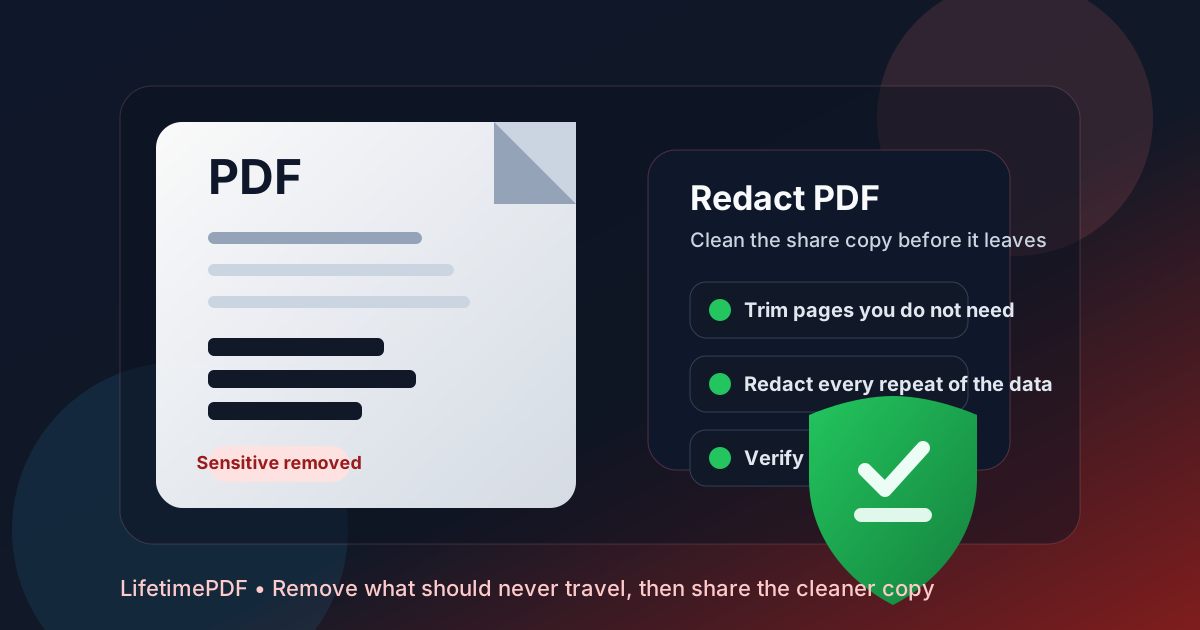
Table of contents
- Quick start: redact a PDF in a few minutes
- What redacting a PDF really means
- When redacting is the right move
- Step-by-step: the clean redact PDF workflow
- How to verify the hidden content is actually gone
- Scanned PDFs, screenshots, and OCR timing
- Common redaction mistakes and the fastest fixes
- Metadata, passwords, and safer sharing
- Related LifetimePDF tools and guides
- FAQ (People Also Ask)
Quick start: redact a PDF in a few minutes
If you only need the dependable workflow, use this order:
- Open Redact PDF.
- If the recipient only needs part of the document, remove the rest with Delete Pages or Extract Pages first.
- Cover every name, number, signature, image, note, or table cell that should not appear in the shared version.
- Export the redacted copy and reopen it once.
- Search for hidden terms, inspect headers and footers, and only then send or archive the cleaned file.
What redacting a PDF really means
People often use “redact” to mean “put a black box over it.” That is not always enough. Real redaction is about creating a safer outgoing document where sensitive information is no longer exposed in the copy you share. That is why redact PDF is a different job from highlighting, cropping, blurring, or password-protecting a file.
| Your goal | Best move | Why it helps |
|---|---|---|
| Hide a social security number, account number, salary figure, or private note | Redact the PDF | The shared copy should no longer expose the hidden detail |
| Stop casual opening of the file | Protect the already redacted copy | Password protection controls access, but does not replace redaction |
| Send only a few pages | Delete or extract pages before redaction | It reduces exposure and shortens the review checklist |
| Share a scanned document safely | Redact first, then OCR later only if needed | Privacy comes before convenience or searchability |
The useful mindset is simple: if the recipient should never see the information, redact it. If the information can remain in the file but access should be restricted, protect it. Those steps often belong in the same workflow, but they solve different problems.
When redacting is the right move
Redaction makes sense whenever the document still has value, but parts of it should not travel. That is common in real work because PDFs often collect more context than the next person actually needs.
- Contracts and legal exhibits: share language and structure without exposing pricing, signatures, internal notes, or unrelated names.
- HR and onboarding files: remove addresses, IDs, compensation data, tax references, or account details before sending packets onward.
- Invoices and statements: keep proof of payment or totals while hiding account numbers, internal references, or unrelated line items.
- Client deliverables: reuse the format of a real report or proposal without leaking private project information.
- Medical, education, or compliance records: share only the exact information required and nothing more.
Step-by-step: the clean redact PDF workflow
The best redaction workflow is not complicated. It is just deliberate. Most mistakes happen when people rush past the order of operations.
1. Start with the right version
Use the document you truly plan to send, upload, or archive. If the file still needs a signature, page reorder, or wording change, do that before redaction when possible.
2. Remove pages nobody needs
If the recipient only needs three pages from a twenty-page packet, use Delete Pages or Extract Pages first. It is easier to verify a smaller file, and it avoids the problem of hiding data that never needed to leave in the first place.
3. Redact every occurrence, not just the obvious one
Names, IDs, totals, signatures, side notes, repeated headers, email addresses, and small footer references often appear more than once. Check tables, appendix pages, watermarks, and repeated line items instead of focusing only on the largest block in the middle of the page.
4. Export the redacted copy
Treat the exported PDF as a new file: the one intended for outside eyes. Keep the original untouched copy for internal use if you may need it later.
5. Verify before you send
Verification is part of redaction, not a bonus step. Reopen the finished file, search for hidden terms, inspect the redacted areas closely, and review each page once while your eyes are still fresh.
Need the shortest reliable sequence? trim → redact → export → verify → protect the cleaned copy if it is still sensitive.
How to verify the hidden content is actually gone
Most redaction failures are not advanced attacks. They are everyday misses: a footer left behind, a repeated name in a table, a page that looked fine at normal zoom but still exposed something in the margin. A short verification habit catches most of that.
- Search for unique hidden terms such as a surname, invoice ID, or account fragment.
- Inspect the redacted areas up close at higher zoom, especially near table borders and line wraps.
- Check headers, footers, and repeated fields because those are missed more often than body text.
- Reopen the PDF once so you are reviewing the exported file, not the editor preview.
- If the stakes are high, compare versions with Compare PDFs and do a page-by-page pass.
Scanned PDFs, screenshots, and OCR timing
Scanned documents behave differently because the visible text may really be part of an image. That does not make redaction impossible. It just changes the order a bit.
For sensitive scans, a safer default is rotate or crop if needed → redact → verify → OCR later only if you still need searchability. That order keeps privacy ahead of convenience. If you OCR first, you may make the document easier to search, but you have not yet solved the problem of which information should disappear from the outgoing version.
- Rotate PDF if the scan is sideways or upside down.
- Crop PDF if oversized scanner edges make review harder.
- OCR PDF after redaction when the cleaned copy still needs searchable text.
Common redaction mistakes and the fastest fixes
“I hid the text, but the file still contains too much.”
That usually means page trimming should have happened first. Remove pages or split the packet before you redact again.
“I protected the PDF, but the recipient should never see some of the content at all.”
Start over with redaction on a clean copy. Passwords control access to the file. They do not substitute for removing sensitive information from the shared version.
“The document is a scan, and it is hard to review.”
Rotate or crop the scan so the page is easier to inspect, then redact. If the cleaned file still needs searchability afterward, run OCR on that already redacted version.
“I am not sure whether I missed repeated details.”
Search for the name, number, or phrase, then review tables, headers, footers, and appendices. Repeated information is where most avoidable misses happen.
Metadata, passwords, and safer sharing
Page content is only one part of the risk. PDFs can also carry title, author, subject, and other properties that reveal more context than you intended. If the cleaned file is still sensitive, two follow-up habits help a lot.
Clean file properties when context matters
Use PDF Metadata Editor if the filename, title, author, or subject fields should be changed before external sharing.
Protect the already redacted copy if needed
Open PDF Protect after redaction when the remaining document still deserves controlled access. That gives you a cleaner split of responsibilities: redaction removes what should never travel, and protection controls who opens what remains.
Handling a sensitive external share? Clean the content first, then clean the file properties, then add access control.
Related LifetimePDF tools and guides
Redaction is usually one step in a larger document workflow. These tools and guides fit naturally around the same job:
- Redact PDF — hide sensitive content in the share copy.
- Delete Pages — remove pages nobody needs to receive.
- Extract Pages — keep only the exact page range required.
- PDF Metadata Editor — change or remove file properties before sending the document out.
- PDF Protect — add a password after redaction if access still needs control.
- OCR PDF — restore searchability to a cleaned scanned copy when appropriate.
Related blog guides
- Redact PDF Online Free
- Redact PDF Online Permanently
- Redact PDF Without Monthly Fees
- PDF Metadata Editor
- Delete Pages From PDF
- Protect PDF
Want the least messy privacy workflow? send the smallest useful file, redact what must disappear, verify it once, then protect the cleaned copy only if the remaining content is still confidential.
Good default order: trim → redact → verify → clean metadata if needed → protect the final copy.
Published by LifetimePDF — Pay once. Use forever.
FAQ (People Also Ask)
How do I redact a PDF?
Open a PDF redaction tool, upload the file, cover every sensitive text block or image, export the cleaned copy, and verify the hidden content is really gone before you share it.
Is drawing a black box over text enough?
Not always. A visual cover-up can still leave the underlying content exposed. Real redaction produces a safe share copy where the hidden information is not available in the outgoing file.
Should I redact a PDF before or after adding a password?
Usually before. Redaction removes information that should never appear in the shared file, while password protection controls access to the already cleaned copy.
Can I redact scanned PDFs too?
Yes. Scanned PDFs can be redacted like regular PDFs. If you need searchable text afterward, OCR is usually a later step for the already redacted file rather than the starting point.
How do I verify that redacted content is really gone?
Reopen the exported PDF, search for hidden terms, inspect headers and footers, try selecting nearby text, and do a page-by-page review before sharing the document externally.