How to Password Protect a PDF on iPad: Lock a File Before You Share It
To password protect a PDF on iPad, open a browser-based PDF Protect tool in Safari, choose the file from Files or Mail, add and confirm a password, then save the protected copy back to your iPad.
If the document contains information people should never see, redact that content first and use password protection as the final access-control step.
That is the short answer. The useful part is knowing which iPad workflow wastes the least time, how to avoid protecting the wrong version, when the built-in preview is enough, and why a password helps with access but does not magically remove sensitive information from the pages themselves. A clean tablet workflow keeps the file safer without turning a simple document task into version chaos.
Fastest path: open LifetimePDF's PDF Protect tool in Safari, choose the file from Files or Mail, add the password carefully, save the protected copy, then send the password separately.
In a hurry? Jump to Quick start: protect a PDF on iPad in 3 minutes.
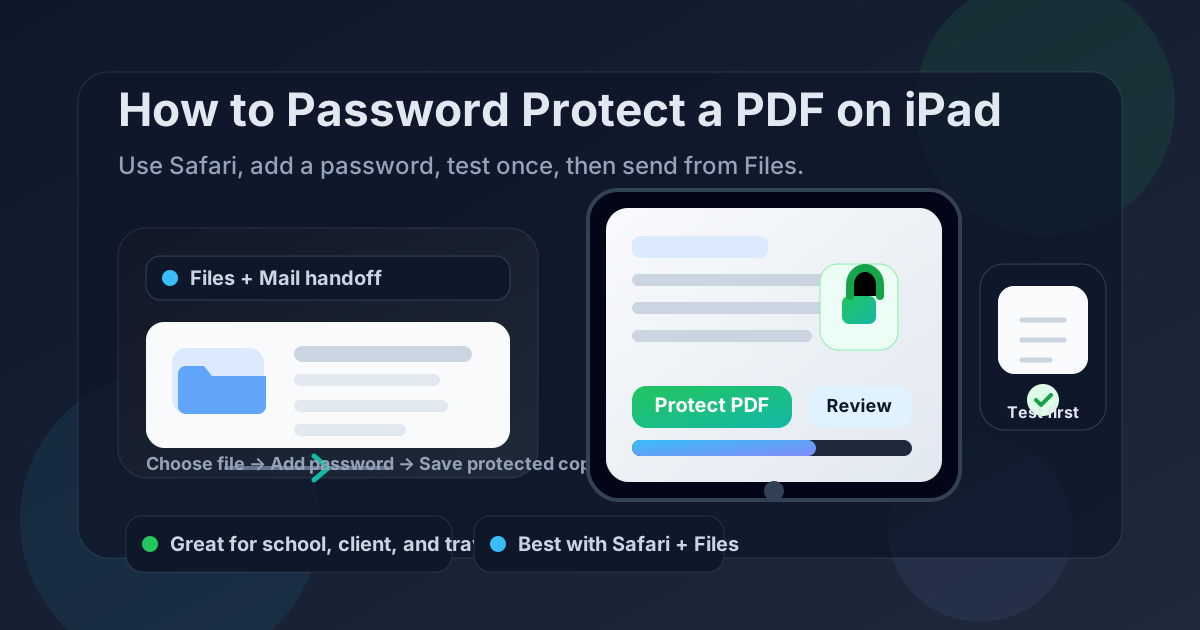
Table of contents
- Quick start: protect a PDF on iPad in 3 minutes
- Why iPad is one of the easiest devices for protecting PDFs
- Step-by-step: add a password to a PDF in Safari on iPad
- Files and Markup vs a dedicated PDF protection tool
- How to choose a strong password without locking yourself out
- When to redact first instead of relying on a password alone
- Working with PDFs from Mail, Files, and portals
- How to save and send the protected PDF from iPad
- Common iPad problems and quick fixes
- Related LifetimePDF tools for secure iPad workflows
- FAQ (People Also Ask)
Quick start: protect a PDF on iPad in 3 minutes
If the PDF is final and you just need to lock it before sending, use this workflow:
- Open PDF Protect in Safari on your iPad.
- Choose the PDF from Files, Mail, Messages, Downloads, or another app.
- Enter and confirm the password carefully.
- Download the protected PDF and save it back to Files.
- Open it once yourself to confirm the password prompt works.
- Send the password through a separate channel if practical.
Why iPad is one of the easiest devices for protecting PDFs
iPad sits in a sweet spot for PDF work. It is more comfortable than a phone because you can actually see the document and the save flow clearly, but it is still more convenient than opening a laptop for one quick task.
That does not mean the built-in preview handles everything perfectly. For many people, the smoothest iPad workflow is still simple: review the file in Files, open a dedicated protection tool in Safari, save the protected copy back to Files, then send it from there. That keeps the handoff clean and makes it easier to tell which file is the final protected version.
| Method | Best for | Where it struggles |
|---|---|---|
| Files / Quick Look | Opening, previewing, and saving PDFs | Not always the cleanest place to actually add a password and manage the final output version |
| Markup | Quick notes or signatures on a simple file | Password protection is a different job, and a dedicated tool is usually clearer |
| LifetimePDF PDF Protect in Safari | Fast protection with a clear save, test, and send workflow | You still need one quick review so you do not send the original by mistake |
The goal on iPad is not just to add a password. The goal is to know which copy is protected, which copy is final, and which copy you are actually about to share.
Step-by-step: add a password to a PDF in Safari on iPad
Here is the full iPad workflow in the order that creates the least confusion.
1) Make sure the PDF is really final
Before you protect anything, ask one boring but important question: am I done editing this file? If the PDF still needs a signature, form fields, page cleanup, or redaction, finish that first. Protecting too early is how people create a pile of versions and then wonder which one they were supposed to send.
2) Save the file somewhere obvious in Files
If the document came from Mail, Messages, a school portal, a cloud folder, or a client upload page, save it into a location you can find again instantly. A predictable handoff in Files makes the rest of the workflow much easier.
3) Open PDF Protect in Safari
Go to LifetimePDF PDF Protect in Safari. On iPad, the browser route is usually faster than hunting through app menus, especially if this is an occasional task and not a full-time document workflow.
4) Choose the PDF from Files, Mail, or another app
Use the file picker to choose the document. This works well whether the PDF currently lives in Files, started as a saved Mail attachment, or came from a portal download. If the file arrived through email, saving it to Files first usually creates the cleanest path.
5) Add and confirm the password carefully
The larger iPad keyboard helps, but it does not eliminate mistakes. Slow down for a few seconds, enter the password carefully, confirm it exactly, and avoid vague variations you may not remember later. If the document matters, record the password somewhere safe instead of trusting memory alone.
6) Download the protected copy and name it clearly
Save the finished PDF back to Files with a filename that makes the state obvious, such as proposal-protected.pdf or school-form-secure.pdf. That small habit prevents the classic mistake where the original and protected files sit next to each other and look almost identical.
7) Open the protected file once before sharing
Test the file right away. If the password prompt appears and the PDF opens normally after you enter it, you are done. That ten-second check catches most real-world problems while the fix is still easy.
Clean iPad workflow: finish edits first, protect the final copy in Safari, review it once, then share the file and password separately.
Files and Markup vs a dedicated PDF protection tool
iPad's built-in tools are great for previewing, organizing, and lightly annotating PDFs. They are not always the easiest answer for document security workflows.
When Files and Markup are enough
- You only need to review the PDF.
- You want to add a quick note or signature.
- You are organizing the file, not securing it.
When a dedicated protection tool is better
- You specifically need to add a password.
- You want a repeatable workflow from Mail, Files, or portal downloads.
- You want a clearer separation between the original and protected copy.
- You want the shortest path from open file to safe output without improvising in several apps.
In plain English, use iPad's built-in tools for convenience and a dedicated PDF protection workflow when the file actually matters.
How to choose a strong password without locking yourself out
Good PDF protection on iPad is not about inventing the most impossible password you can imagine. It is about choosing one that is strong enough for the job and still realistic for you and the intended recipient to enter correctly.
Better defaults for everyday PDF sharing
- Use a password you can reproduce correctly on a tablet keyboard.
- Avoid obvious choices like birthdays, first names, or the file name.
- Do not send the password in the exact same message as the file unless you absolutely must.
- If the PDF matters, store the password somewhere safe instead of relying on memory.
A long passphrase is often more practical than a chaotic short password. The best password is not just one that looks strong. It is one that the right people can enter correctly without turning a simple file share into a support thread.
When to redact first instead of relying on a password alone
Password protection controls who can open the file. It does not remove content from the document itself. That difference matters.
If the PDF contains account numbers, IDs, addresses, internal comments, signatures, confidential pricing, or any detail the recipient should never see, the better sequence is:
- Redact what should never be visible.
- Review the cleaned file.
- Add the password to the final version.
- Share it more carefully.
Use Redact PDF when access control is not enough. Think of password protection as a locked door. Think of redaction as removing the thing from the room before anyone walks in.
Working with PDFs from Mail, Files, and portals
On iPad, the file source matters more than people expect. Most friction comes from handoff mistakes rather than from the password itself.
From Mail
If the PDF came as an attachment, save it to Files first when possible. Mail is fine for receiving the document, but Files is usually the cleaner place to track which copy became the protected version.
From Files
If the PDF already sits in Files, rename it before or after protection if the original name is vague. Clear names matter on tablets just as much as on desktops.
From school, client, or HR portals
Portal downloads often create confusion because the file arrives, opens in a preview, and then gets re-downloaded later. Save one working copy to Files, protect that version, and upload the protected output rather than juggling several temporary copies.
From cloud storage
iCloud Drive, Google Drive, and other synced folders are convenient, but they do not replace basic filename clarity. Know which version is original and which one is protected before you share anything.
How to save and send the protected PDF from iPad
Once the file is protected, a few small habits make the rest of the workflow much safer:
- Name the file clearly: make it obvious which copy is protected.
- Keep the original and protected version easy to distinguish: if needed, use a separate folder.
- Test before you attach: open the protected PDF once before you send it.
- Use a second channel for the password: email plus text, chat, or phone call is safer than one combined message.
If the attachment is too large for email or a portal, use Compress PDF on the final editable copy, review it, and then protect the version you actually plan to send.
Common iPad problems and quick fixes
Most real-world problems here are normal workflow problems, not mysterious PDF failures.
I protected the file, but I am not sure which copy is the right one
Rename the protected PDF immediately and keep it in a predictable Files location. Do not leave the original and protected versions with nearly identical names and hope future-you guesses correctly.
The PDF came from Mail and I keep reopening the attachment preview
Save the attachment to Files first. Preview is fine for reading, but a saved file is much easier to protect, rename, test, and send back without confusion.
I forgot the password after saving the file
Test the PDF immediately after creating it and store the password safely right away. Once the file is sent, that problem becomes much more annoying for everyone involved.
The file is too large to upload from iPad
Use Compress PDF or remove unnecessary pages before you protect the final version.
The document contains details the recipient should never see
Do not rely on a password alone. Remove or redact that content first, then add the password to the cleaned version.
Related LifetimePDF tools for secure iPad workflows
Password protection often sits in the middle of a larger document workflow. These tools and guides usually help next:
- PDF Protect - add a password to the final PDF.
- Redact PDF - remove sensitive content before sharing.
- Sign PDF - sign the document before you lock it.
- PDF Form Filler - complete fields before adding the password.
- How to Sign a PDF on iPad - finish signature steps before you protect the file.
- How to Fill Out a PDF Form on iPad - complete forms first, then protect the final version.
Protect the final file, not the confusion.
Use a simple iPad workflow: finish the edits, lock the PDF, test it once, and send it with confidence.
FAQ (People Also Ask)
How do I password protect a PDF on iPad without installing an app?
Open a browser-based PDF protection tool in Safari, upload the PDF from Files or Mail, add and confirm the password, save the protected copy, and test it once before sharing. That is usually the quickest no-app workflow on iPad.
Can I add a password to a PDF directly from the iPad Files app?
Files is excellent for choosing, saving, and sharing the document, but most people use a dedicated PDF Protect workflow in Safari to actually add the password. Files then becomes the place where you store and send the final protected copy.
Is password protection enough for confidential PDFs?
Not always. Password protection limits access, but it does not remove the content from the document. If the file contains information recipients should never see, redact that information first and then protect the final cleaned copy.
Should I compress the PDF before or after protecting it?
Usually before. If the file is too large for email or a portal, compress the final editable copy first, review it, and then add the password to the version you actually plan to send.
What is the safest way to send a protected PDF from iPad?
A safer approach is to send the PDF in one channel and the password in another, such as email plus text message, chat, or a quick phone call. That way one forwarded message does not expose both at once.