How to Check PDF Version on Linux: Okular, pdfinfo, and Compatibility Clues Before You Share
To check PDF version on Linux, save the exact file you plan to share, inspect its document properties in Okular, Evince, or a metadata tool such as pdfinfo, and look for the format level such as PDF 1.4, PDF 1.7, or PDF 2.0.
Then compare that version with the destination that actually matters, because a PDF that opens fine on your distro can still fail a portal upload, print workflow, or archive rule if the format level is wrong for that system.
Linux users usually do not need a history lesson on PDF standards. They need a fast answer to a practical question: is this the right file format for where this PDF is about to go? That is why a useful version check starts with the real copy in your file manager, confirms the version in a proper properties view or terminal tool, and ends by comparing the result with the portal, vendor, signing platform, or archive workflow waiting on the other side.
Fastest practical path: open the final Linux copy, confirm the PDF version, compare it with the destination requirement, and validate the file before an important upload, print run, signing job, or archive handoff.
In a hurry? Jump to quick start: check PDF version on Linux in about 6 minutes.
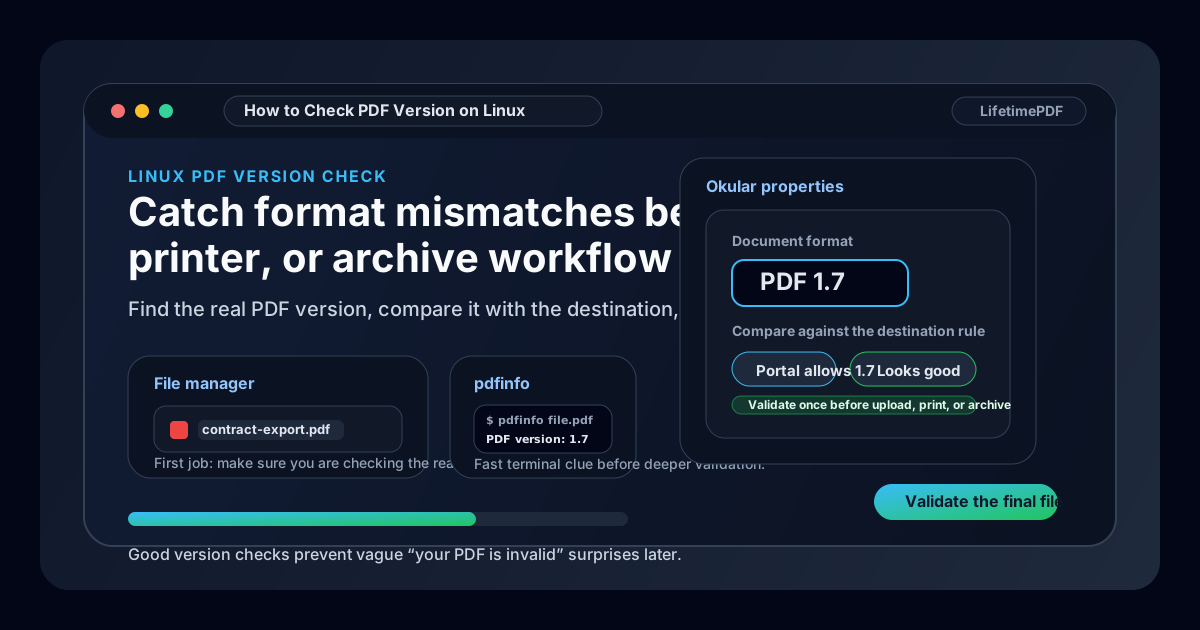
Table of contents
- Quick start: check PDF version on Linux in about 6 minutes
- What PDF version means on Linux
- Where Linux users get misled
- Step-by-step: how to check PDF version on Linux
- Common situations where version matters
- When to keep the file, rebuild it, or validate deeper
- Related LifetimePDF tools and guides
- FAQ
Quick start: check PDF version on Linux in about 6 minutes
If your real question is tell me whether this Linux PDF will behave before I send it, use this order:
- Open the exact PDF you plan to upload, print, sign, archive, or email from Downloads, a shared folder, Nextcloud, Dropbox, an email save, or a local project directory.
- Use Okular, Evince, a document-properties view, pdfinfo, or View PDF Properties to find the actual format level, such as PDF 1.4, PDF 1.7, or PDF 2.0.
- Compare that version with the destination requirement instead of assuming newer always means safer.
- If the workflow is strict, run Validate PDF before you send the file.
- If one copy works and another does not, use Compare PDF Versions to see whether the export path changed something important.
- Only rebuild or convert the PDF after you know the version or validation result is part of the problem.
What PDF version means on Linux
A PDF version tells you which format generation or feature level the file uses. You will usually see values like PDF 1.4, PDF 1.7, or PDF 2.0. That number does not describe everything about the document, but it can explain why one file moves cleanly through a workflow while another one gets rejected, flattened badly, or flagged for compliance review.
On Linux, this matters because the file can look normal in Okular, Evince, Firefox, Chromium, or a file-manager preview while still carrying a format level that an older portal, printer, records system, or signing platform does not like. The version is one of the quickest clues to inspect before you waste time blaming the wrong thing.
| Version clue | What it usually tells you | Why a Linux user might care |
|---|---|---|
| PDF 1.4 | An older compatibility level still common in legacy workflows | Can behave better with older upload systems, print paths, or line-of-business software |
| PDF 1.7 | A mainstream modern format level used by many everyday business documents | Often fine for normal sharing, but still worth checking against strict systems |
| PDF 2.0 | A newer formal standard level | Useful to identify because older or poorly maintained systems may not handle it gracefully |
Where Linux users get misled
Linux gives you a lot of flexibility for inspecting a PDF. The trap is that a clean preview or a successful command feels like proof. A tidy filename in Nautilus or Dolphin, a normal-looking page in Firefox, or a command that exits without errors can make you assume the format details must also be fine. That is often where the trouble starts.
| Linux view | What it is good for | What it cannot safely prove |
|---|---|---|
| File manager preview | Confirming the filename, folder, and which copy you are actually about to share. | The exact embedded PDF version or whether the file will satisfy a strict destination. |
| Firefox or Chromium | Quickly checking whether the file opens and roughly behaves like a normal PDF. | That the format level, standards profile, or structural details meet a portal or archive requirement. |
| Okular or Evince document properties | Seeing the actual PDF version reported by the document. | Whether version is the only problem if the file still contains forms, fonts, signatures, or compliance issues. |
| pdfinfo or another terminal utility | Getting a fast machine-readable look at document details inside the exact Linux copy. | Whether the destination has a hidden business rule unless you compare the result with that workflow. |
| Validation tool | Finding the broader clues around format, structure, and compatibility. | Why a destination is unhappy unless you also interpret the result against the real workflow. |
The big point is simple: Linux previews tell you the file opens here. They do not automatically tell you the file is acceptable there. A proper version check helps bridge that gap before someone else discovers it for you.
Step-by-step: how to check PDF version on Linux
This workflow gives you a dependable answer without turning a routine compatibility check into a giant technical detour.
Step 1: Start with the exact Linux copy that will travel
Open the real file from the folder, email attachment save, cloud-sync path, scan output directory, or project workspace that will actually be used. If you check one copy and upload another, you can easily validate the wrong file and miss the version issue completely.
Step 2: Inspect the version instead of guessing from the source app
A PDF exported from LibreOffice, a browser print dialog, a scanner workflow, a CLI script, or another application does not guarantee you already know the final format level. Use a properties view in Okular or Evince, a metadata check like View PDF Properties, or a quick terminal pass with pdfinfo and look for the actual version reported by the file in hand.
Step 3: Compare the version with the destination requirement
This is the part that matters most. Ask whether the destination has a stated or implied expectation:
- a court or records portal with strict upload rules,
- a print vendor using older compatibility settings,
- a signing system that behaves badly with certain exports,
- an archive workflow that really cares about standards and long-term readability.
If the destination never cares, a version check is mostly informational. If the destination is fussy, the version becomes a serious clue.
Step 4: Validate the file when the stakes are higher than casual sharing
Version alone is only one clue. If the PDF is going somewhere important, run Validate PDF so you can catch structural issues while you still have time to fix them. This is especially useful when the file opens fine locally but still gets rejected somewhere else.
Step 5: Compare against a working copy if the problem is unclear
When one PDF passes and another one fails, comparison is usually smarter than guessing. Compare PDF Versions helps you see whether the difference is just content or whether the export path likely changed something more fundamental.
Step 6: Rebuild only when you have a reason
Do not convert a working file three times in panic. If the version clearly conflicts with the destination, rebuild or re-export the PDF intentionally. Then reopen the final Linux copy and verify the result once more before you send it.
Reliable sequence: open the real Linux copy, inspect the version, compare it with the destination requirement, validate the file if the workflow is strict, then rebuild only if the evidence points there.
Common situations where version matters
Most people do not check PDF version out of curiosity. They check it when a workflow starts acting suspicious.
| Situation | What the version check helps answer | Best next move |
|---|---|---|
| Upload portal rejects the file | Is the PDF using a format level the portal does not accept or handle well? | Confirm the version and run a validation pass before rebuilding anything |
| An older printer or vendor chokes on the PDF | Was the file exported with a newer structure than the print path expects? | Compare with a known-good file and re-export more intentionally if needed |
| Records or compliance staff ask questions | Does the file version line up with the standard or archive workflow they expect? | Check version first, then review validation and archival guidance |
| Two copies from the same Linux workflow behave differently | Did a browser save, OCR step, CLI script, or optimizer change the format level? | Compare versions and inspect related creator or producer clues |
| An automation job suddenly produces touchy PDFs | Did a toolchain change alter the final export format even though the pages still render? | Check version, validate the output, and compare against the last known-good result |
Good outcome
The version matches the workflow, the file validates cleanly, and you can stop worrying about format drama.
Common failure
The PDF opens normally on Linux, so everyone assumes it is fine until a strict destination disagrees.
Best next move
Find the version, compare it with the destination, and validate the final copy before trying random fixes.
When to keep the file, rebuild it, or validate deeper
A version check does not mean every PDF needs surgery. Often the best answer is simply to confirm the version and move on.
Keep the file when it already works for the destination
If the PDF version looks sensible, the file passes validation, and the real destination handles it cleanly, there is usually no prize for converting it again.
Rebuild the file when the version clearly conflicts with the workflow
If a portal, printer, or archive rule expects something different, re-exporting from the source document is often cleaner than piling conversion after conversion onto the same file.
Validate deeper when the version is only part of the story
Plenty of PDF failures are really about fonts, forms, signatures, metadata, accessibility, or damaged structure. That is why version checks work best alongside creator, producer, creation date, and a broader validation check.
Keep
The version fits the workflow, the destination accepts the file, and validation does not reveal anything suspicious.
Rebuild
The destination expects a different format level or the current export path keeps producing a file that fails.
Validate deeper
The version looks fine, but the PDF still behaves strangely, which points to a broader structural or compliance issue.
Where people get fooled
The PDF opens in Okular, the browser preview looks clean, and the terminal command returns without drama, so everyone assumes the file is safe. That local confidence hides a lot of compatibility trouble. The only real proof is checking the version directly and judging it against the workflow that must accept the document next.
FAQ
How do I check PDF version on Linux quickly?
Open the final Linux copy, inspect the document properties or a validation tool, find the reported format level such as PDF 1.4, 1.7, or 2.0, and compare that result with the workflow you care about before you share the file.
Can pdfinfo tell me the real PDF version by itself?
Often yes, and it is a very practical Linux-first way to inspect the file. The catch is that version alone may not explain every failure, so a validation pass is still the safer move for strict destinations.
Do I need Acrobat to check PDF version on Linux?
No. Okular, Evince, document-property panels, metadata tools, and validation workflows are enough for most Linux users. What matters is checking the actual file that will be shared.
Why does PDF version matter if the file already opens on my Linux machine?
Because opening locally only proves your Linux setup can display it. It does not prove the file matches a portal, printer, archive standard, or signing workflow that may have stricter expectations.
Should I convert the PDF immediately if I do not like the version number?
Not automatically. First confirm the destination requirement and run a validation check. If the version really is the problem, rebuild the PDF intentionally and verify the final copy once more before sending it out.
Published by LifetimePDF — Pay once. Use forever.