How to Check if a PDF Is PDF/A Compliant: Fast Validation Steps Before You Archive
Published: June 17, 2026
To check if a PDF is PDF/A compliant, open the file in a viewer that can show archival mode, then confirm the document has usable metadata, no encryption, and a clean searchable structure before you store it long term.
If the file does not show PDF/A mode, throws warnings, or behaves like a fragile scan, treat it as a document that still needs review instead of assuming it is archive-ready.
This matters because archiving is not the same as simply saving a PDF in a folder. A file that opens today can still create headaches later if fonts are missing, metadata is weak, scans are image-only, or the document depends on features that do not age well. A short compliance check now is usually cheaper than discovering five years later that the record is hard to search, hard to trust, or no longer behaves like a stable archive copy.
Fastest path: review the file's metadata and searchability first, confirm there is no encryption, then keep one stable archival copy after the final check.
In a hurry? Jump to Quick start: check PDF/A compliance in about 5 minutes.
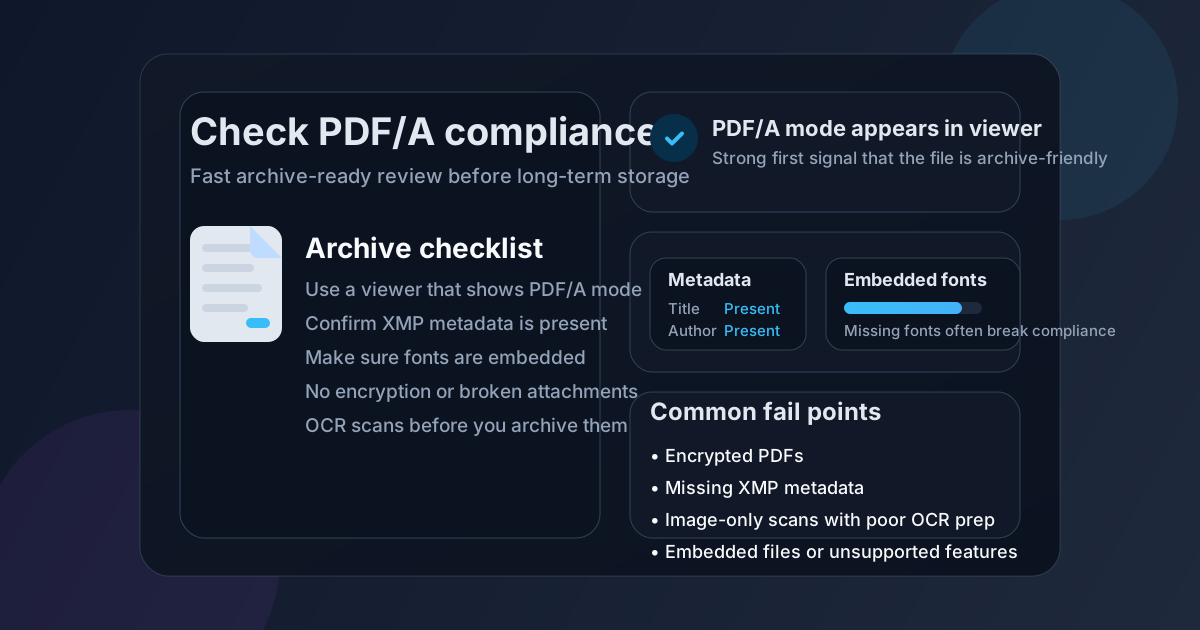
Table of contents
- Quick start: check PDF/A compliance in about 5 minutes
- What PDF/A compliance actually means
- The fastest ways to check a file
- Why PDFs fail PDF/A checks
- Scans, OCR, and why searchability still matters
- Metadata, fonts, and encryption review
- What to do if the file is not archive-ready
- A practical archival workflow for teams
- Related LifetimePDF tools and guides
- FAQ (People Also Ask)
Quick start: check PDF/A compliance in about 5 minutes
If you mainly need a fast confidence check before putting a document into long-term storage, use this order:
- Open the final PDF, not an earlier working draft.
- Look for a viewer message that the file opened in PDF/A mode or is recognized as an archival PDF.
- Review the hidden document fields with PDF Metadata Editor so the title, author, and other properties are intentional.
- If the document came from a scan, test whether the text is searchable. If not, run OCR PDF and verify the result.
- Check that the file is not password-protected or encrypted if the archive policy expects a PDF/A-style preservation copy.
- Keep that reviewed version stable instead of continuing to edit it casually.
What PDF/A compliance actually means
PDF/A is the archival branch of the PDF family. The idea is not just “save this as a PDF and hope for the best.” The goal is to keep a document stable enough that it still renders reliably in the future, without depending on missing fonts, external content, or features that age badly.
In practical terms, an archive-friendly PDF usually aims for these qualities:
- Predictable rendering: the file should look the same later, not shift because fonts or resources are missing.
- Self-contained structure: the document should not rely on outside pieces to display correctly.
- Useful metadata: archives work better when title, author, and related fields are present and accurate.
- Stable access: long-term storage copies generally avoid restrictions that make access harder in the future.
| Signal | What it usually means | Why it matters for archiving |
|---|---|---|
| Viewer shows PDF/A mode | The file is being recognized as an archival-style PDF | A strong first sign the document was prepared with long-term preservation in mind |
| Title and author metadata exist | The file is easier to identify in archives | Better document retrieval later |
| Text is searchable | Scanned pages have a usable text layer or native text | Makes archives much more practical to review and reuse |
| No encryption | The file is less likely to break archival expectations | Long-term access stays simpler and safer |
That last point matters a lot. A document can be visually readable today and still be a poor archival record if it is hard to identify, hard to search, or easy to break with later edits.
The fastest ways to check a file
You do not always need a heavy technical audit to learn something useful. A few fast checks catch the most common problems early.
1) Look for PDF/A mode in the viewer
Some PDF viewers clearly show when a file opened in archival mode. If you see that message, it is a strong positive signal. If you do not see it, do not panic, but do not assume the file is compliant either. Keep checking the file itself.
2) Review metadata once
Open the file in PDF Metadata Editor and confirm that the hidden fields make sense. Archives are easier to search and manage when the title, author, subject, and other properties are intentional instead of inherited junk.
3) Test searchability if the file is scan-based
If the PDF came from a scanner, copier, or phone capture, try searching for a visible word or copying one short line. If those tests fail, the file may still be visually readable but operationally weak as an archive copy. That is when OCR PDF becomes useful.
4) Check for obvious restrictions
A password-protected or encrypted file is often a poor archival candidate when the goal is durable future access. If the storage workflow expects a preservation copy, restricted access is one of the first things to question.
Best workflow order: identify the file, verify the metadata, confirm searchability, then lock in the archival copy instead of continuing to tinker with it.
Why PDFs fail PDF/A checks
Most failures are not mysterious. They usually come from a few repeat offenders.
Encryption or password protection
Archival copies are meant to survive and remain accessible. Restrictions that are convenient for short-term distribution can become a long-term liability.
Missing or weak metadata
A file with vague or empty hidden fields may still open, but it becomes harder to organize properly in a document library. That problem gets worse as the archive grows.
Font and rendering issues
If a file relies on resources that are not truly embedded or stable, the document may not display the same way later. That is exactly the kind of drift archival formats try to avoid.
Image-only scans with no text layer
A picture of a document is not always a good archive document. It may preserve appearance, but it can still be painful to search, quote, or review.
Late edits to an “already archived” copy
One quiet problem is that teams sometimes validate a file, then keep editing, compressing, or re-exporting it afterward. At that point the reviewed version and the final stored version are no longer the same document.
Scans, OCR, and why searchability still matters
Some people think archive-ready means visual-only preservation. In real workflows, that is rarely enough. If someone has to find a date, policy number, clause, or client name later, a fully image-only scan becomes a drag on the archive instead of a useful part of it.
That is why scan quality and OCR still matter even in a PDF/A conversation. A well-preserved file is not only stable. It is also practical.
Use OCR when
- the PDF came from paper scans or phone captures,
- search inside the document fails on visible text,
- copy-paste returns nothing useful, or
- you expect to reuse the archive for retrieval, review, or compliance work later.
After running OCR PDF, do not stop there. Test the result with PDF to Text or with a simple in-document search so you know the text layer is actually doing useful work.
Metadata, fonts, and encryption review
If you only remember one compliance section from this article, make it this one. The most common archive problems are not glamorous. They are structural.
Metadata
Review the title, author, subject, and related properties with PDF Metadata Editor. The goal is not to stuff the file with junk tags. It is to make sure the document can still be identified clearly later.
Fonts and stable rendering
A file that displays differently across viewers is not giving you much archival confidence. If fonts look substituted, spacing shifts, or characters render strangely, the archive copy deserves more scrutiny.
Encryption and restrictions
Long-term storage copies usually aim for reliable future access, so restrictions that block opening, copying, or normal reuse are often the wrong fit for the preservation version. If you need a protected distribution copy for sharing, treat that as a different deliverable from the clean archive copy.
| Check | Healthy sign | Warning sign |
|---|---|---|
| Metadata | Title and author are intentional and useful | Empty fields, draft names, or random inherited values |
| Rendering | Pages display consistently and cleanly | Font substitutions, odd spacing, or display drift |
| Searchability | Visible words can be searched or extracted | Image-only pages with no usable text layer |
| Access model | Archival copy opens predictably | Password protection or encryption blocking long-term access |
What to do if the file is not archive-ready
A failed check does not automatically mean you need to throw the document away. It usually means you need a cleaner preparation pass.
- Fix the scan first if the file is image-only or poor quality.
- Run OCR so the document becomes more searchable and usable.
- Correct metadata so the archive copy is labeled clearly.
- Keep one stable final version instead of repeatedly re-exporting the file.
- Use compression carefully only if the finished archival copy needs size reduction without damaging readability.
If you need a broader backgrounder on archival standards, read What is PDF/A? The Ultimate Guide to Long-Term Document Archiving after you finish the practical check.
A practical archival workflow for teams
The cleanest way to manage this is to treat archiving as a finishing step, not as a vague intention.
- Finalize the visible document.
- Review metadata once.
- Make scans searchable if the file needs it.
- Check for restrictions that do not belong on a preservation copy.
- Store the reviewed version as the archive copy.
- Create separate distribution copies later if you need password protection or other delivery-specific changes.
That small separation between archive copy and distribution copy prevents a lot of quiet damage. Teams often mix those goals together and end up with a file that is neither a clean archive nor an ideal shared deliverable.
Related LifetimePDF tools and guides
If you are checking whether a file is truly archive-ready, these tools and guides fit naturally around the workflow:
- PDF Metadata Editor - inspect and clean the hidden fields that help archives stay organized
- OCR PDF - add a searchable text layer to scan-based files
- PDF to Text - test whether extraction works cleanly after OCR
- Compress PDF - reduce size after the archive copy is already stable
- PDF/A Archival Guide - background on the standard and why it matters
- PDF Metadata Checker - a practical hidden-properties review before storage
- Why Is My PDF Not Searchable? - useful when archive files came from weak scans
Ready to clean up the archive copy?
Good archive sequence: finalize the document → review metadata → OCR scans if needed → confirm stable access → store the reviewed copy.
FAQ (People Also Ask)
How do I check if a PDF is PDF/A compliant?
Open the file in a viewer that can show archival mode or PDF/A status, then review the metadata, searchability, and access model. If the file is encrypted, missing clean metadata, or built from weak scans, it may need more cleanup before long-term storage.
What is the easiest sign that a PDF is PDF/A?
One of the easiest signs is when your viewer explicitly says the file opened in PDF/A mode. That is a strong clue, but it is still worth checking metadata and usability so the archive copy is not only technically acceptable but also practical later.
Can a scanned PDF still be PDF/A compliant?
Yes. Scanned files can still be suitable for archiving, especially when they are clean, stable, and paired with a searchable text layer. OCR helps make those records far more useful over time.
Does password protection break PDF/A compliance?
In many archival workflows, yes. Passwords and encryption often work against the long-term access goals that PDF/A-style preservation is trying to support.
What usually causes a PDF to fail PDF/A checks?
The most common issues are encryption, weak or missing metadata, rendering instability, missing embedded resources, and scan-based files that were never cleaned up for searchability or long-term reuse.