Check PDF Version: Find Out Whether a File Is PDF 1.4, 1.7, or PDF 2.0 Before You Upload, Print, or Archive
To check PDF version, open the file properties or a validation view and look for the document format value, such as PDF 1.4, PDF 1.7, or PDF 2.0.
Then compare that version with the workflow you actually care about, because an otherwise fine PDF can still fail a portal upload, printer, signature path, or archive rule if the format level is wrong for the destination.
Most people never need to memorize PDF version history. They only need to answer one practical question: will this file behave where I am about to send it? A quick version check helps you catch compatibility issues before they turn into a vague rejection, a broken print job, or a last-minute re-export scramble.
Fastest practical path: inspect the version, compare it with the destination requirement, and validate the final file before an important upload, archive handoff, or print run.
In a hurry? Jump to quick start: check PDF version in about 4 minutes.
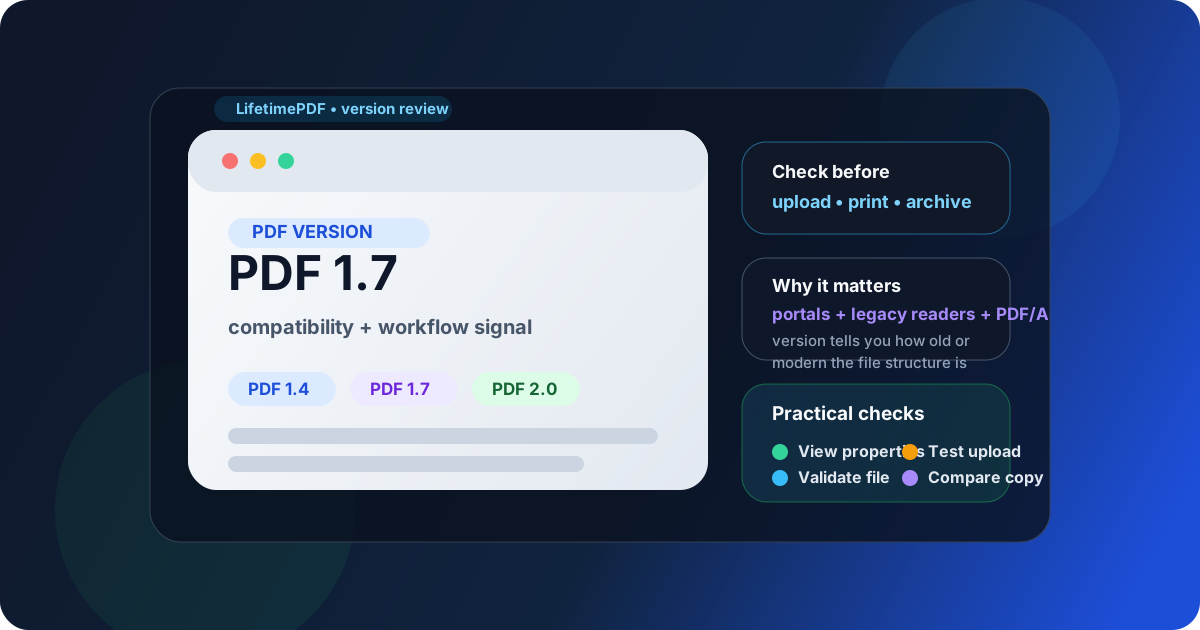
Table of contents
- Quick start: check PDF version in about 4 minutes
- What PDF version actually means
- Why PDF version matters more than people think
- Step-by-step: how to check PDF version cleanly
- Common situations where version becomes important
- When to keep the file, rebuild it, or validate further
- Final checklist before you send the file
- Related LifetimePDF tools and guides
- FAQ
Quick start: check PDF version in about 4 minutes
If your goal is simply make sure this PDF will behave where it is going, the shortest useful workflow is this:
- Open the exact PDF you plan to upload, print, sign, or archive.
- Review the file through View PDF Properties or a validation check that exposes the document format level.
- Find the version value, such as PDF 1.4, PDF 1.7, or PDF 2.0.
- Compare that value with the destination requirement instead of assuming newer always means safer.
- If the file is going to a strict destination, run Validate PDF before you send it.
- If something still feels off, compare the file against a working copy with Compare PDF Versions.
What PDF version actually means
A PDF version tells you which generation or feature level of the PDF format the file uses. That version can influence how reliably the document opens, prints, validates, signs, or passes through older software. It does not tell you everything about the file, but it is an important compatibility clue.
Think of the version as the file's structural dialect. Two PDFs can look identical on screen while behaving differently inside a portal or archive workflow because one was exported with an older format level and the other carries newer features or a different internal structure.
| Version clue | What it usually tells you | Why you might care |
|---|---|---|
| PDF 1.4 | An older but still common compatibility level | May play more nicely with older readers, printers, or legacy upload systems |
| PDF 1.7 | A newer mainstream format level used by many modern workflows | Often fine for everyday business documents, forms, and sharing |
| PDF 2.0 | A newer formal standard level | Useful to know because some old systems may not handle it gracefully even when the PDF looks normal |
Why PDF version matters more than people think
Most compatibility problems do not announce themselves clearly. A site may just reject the upload. A print vendor may say the file is problematic. A recordkeeping team may ask for a different archival standard. The PDF version is not always the only cause, but it is one of the quickest things worth checking.
Legacy systems
Older portals, printer drivers, or viewers may behave better with older compatibility levels than with a brand-new export.
Strict validation
Court filings, archives, and compliance-heavy workflows may care about standards, structure, and version more than casual file sharing does.
Mysterious failures
When a PDF looks fine but still gets rejected or opens oddly elsewhere, the version is one of the fastest clues to inspect.
Version also matters because it helps you ask better follow-up questions. If the PDF is 1.7 and a legacy portal wants something older, you already know the export path may need attention. If the file is 1.4 but still fails, the problem may be forms, fonts, signatures, metadata, or compliance rather than the version itself.
Reliable sequence: identify the version first, then validate the file, then compare it with a known-good copy if the destination still complains.
Step-by-step: how to check PDF version cleanly
1) Start with the exact file that will actually travel
Drafts lie. Downloads change. Email previews are not always the same as the final saved document. If the PDF matters, inspect the exact copy you plan to send, upload, archive, or print.
2) Inspect the properties instead of guessing from the source app
Just because a document came from Word, Excel, a scanner, or a browser print dialog does not mean you know the final PDF version. Open View PDF Properties and look for the actual version reported by the file you have now.
3) Compare the version with the destination requirement
This is the practical step that matters. Ask whether the destination has a stated or implied requirement:
- a court or records portal with strict upload rules,
- a legacy office system that rejects newer exports,
- a print vendor with known compatibility preferences,
- an archive workflow that really cares about standards.
4) Validate the file if the workflow is important
Version alone is only one clue. If the PDF is headed somewhere strict, run Validate PDF so you can catch structural issues while you still have time to fix them.
5) Compare against a working file when the problem is unclear
If one copy uploads and another one fails, comparing them is often more revealing than guessing. Compare PDF Versions is useful when you need to see whether the difference is just content, or whether the export path likely changed something more fundamental.
6) Rebuild only when there is a real reason
Do not convert a working file repeatedly out of panic. Rebuild or re-export the PDF when the version clearly clashes with the workflow, or when validation points to a deeper issue that a cleaner export path can fix.
Common situations where version becomes important
Most people do not check PDF version for fun. They check it when a workflow starts acting suspicious.
| Situation | What the version check helps you answer | Best next move |
|---|---|---|
| Upload portal rejects the PDF | Is the file using a format level the portal does not like? | Validate the file and compare with a known-good upload |
| Older printer or workflow chokes on the file | Was the PDF exported with a newer structure than the system expects? | Re-export from a cleaner path and retest |
| Archive or compliance team asks questions | Does the file version align with the standard they expect? | Check version, then review archive-specific validation |
| Two copies of the same document behave differently | Did the export path change the format level or internal structure? | Compare the versions and inspect related properties |
Version is especially worth checking when:
- the PDF is going somewhere strict, old, or fragile,
- the file works on your machine but not in someone else's workflow,
- you are dealing with signatures, forms, or archive standards,
- you need a cleaner explanation than “the portal just hates it.”
When to keep the file, rebuild it, or validate further
A version check does not mean every file needs surgery. Often the best answer is simply to confirm the version and move on.
Keep the file when it already works for the destination
If the PDF version looks sensible and the file passes validation or behaves normally in the destination workflow, there is usually no benefit in forcing another conversion.
Rebuild the file when the version clearly conflicts with the workflow
If you know a system rejects a newer export path or expects a more conservative output, re-exporting from the source document can be cleaner than layering random fixes on top of a problematic PDF.
Validate further when the version is only part of the story
Plenty of PDF failures are really about fonts, metadata, accessibility, signatures, forms, or damaged structure. That is why version checking works best alongside creator, producer, creation date, and a broader validation check.
Keep
The version fits the workflow, the file opens normally, and validation does not reveal anything suspicious.
Rebuild
The destination expects something different, or the current export path keeps producing a version that fails.
Validate deeper
The version looks fine, but the document still behaves strangely, which points to another hidden issue.
Final checklist before you send the file
Before the PDF leaves your workflow, run this short checklist:
- Did you inspect the exact copy you plan to send instead of an earlier draft?
- Do you know whether the file is PDF 1.4, 1.7, PDF 2.0, or another version level?
- Does that version make sense for the upload portal, print path, archive, or viewer you care about?
- Did you validate the file if the destination is strict?
- If the file still feels suspicious, did you compare it with a working PDF instead of guessing?
- If the PDF was rebuilt, did you reopen the final copy and confirm the version again?
You do not need to turn every PDF into a standards dissertation. You just need to know whether the file in front of you is likely to behave before someone else discovers that it will not.
Ready to check the file before it causes trouble? Confirm the version, validate the final copy, and send a PDF that matches the workflow waiting on the other side.
Best workflow for important files: inspect version → compare with destination requirement → validate the final copy → retest only if needed.
FAQ
How do I check PDF version?
Open the file properties or a validation tool and look for the reported document version, such as PDF 1.4, 1.7, or 2.0. Then compare that version with the upload, print, archive, or viewer requirement you care about.
What does PDF version tell me?
It tells you which format level the file uses. That can affect compatibility with older software, strict portals, validation workflows, and long-term document standards.
Is PDF 2.0 always better than PDF 1.7 or PDF 1.4?
No. Newer does not automatically mean better for every workflow. Some destinations still work more reliably with older compatibility levels, especially when the surrounding software is old or picky.
Why would an upload portal reject a PDF that opens fine on my computer?
Because opening fine locally does not guarantee the file matches the portal's format, structure, or compliance expectations. Version is one of the fastest clues to check when that happens.
Should I convert the PDF immediately if I do not like the version number?
Not automatically. First confirm the destination requirement and validate the file. If the version is truly the problem, rebuild the PDF intentionally instead of stacking random conversions on top of it.
Published by LifetimePDF — Pay once. Use forever.