How to Check PDF Title on Android: Files, Drive, and Metadata Checks Before You Share
To check PDF title on Android, open the real file from Files, Drive, Chrome, or Acrobat, inspect the title stored in its document properties or metadata, and compare it with the filename, first-page heading, and how the PDF appears in Drive, Gmail, or Chrome.
If the title is blank, generic, or still carrying an old template name, fix the metadata or the source file before you share, upload, or archive it.
Android workflows make it easy to assume the clean name you see in Files or Drive is the whole story. It is not. A PDF can look polished in Files, Gmail preview, Drive, Chrome, or a downloaded attachment while still identifying itself as Document, Scan001, or last quarter's report title underneath. The useful goal is not merely opening the file. It is proving the title still matches what the document actually is before someone else sees it in a tab, preview, search result, share flow, or accessibility tool.
Fastest practical path: open the final Android copy, inspect the stored title, compare it with the filename and visible heading, then fix the source or metadata before the PDF leaves your device.
In a hurry? Jump to quick start: check PDF title on Android in about 6 minutes.
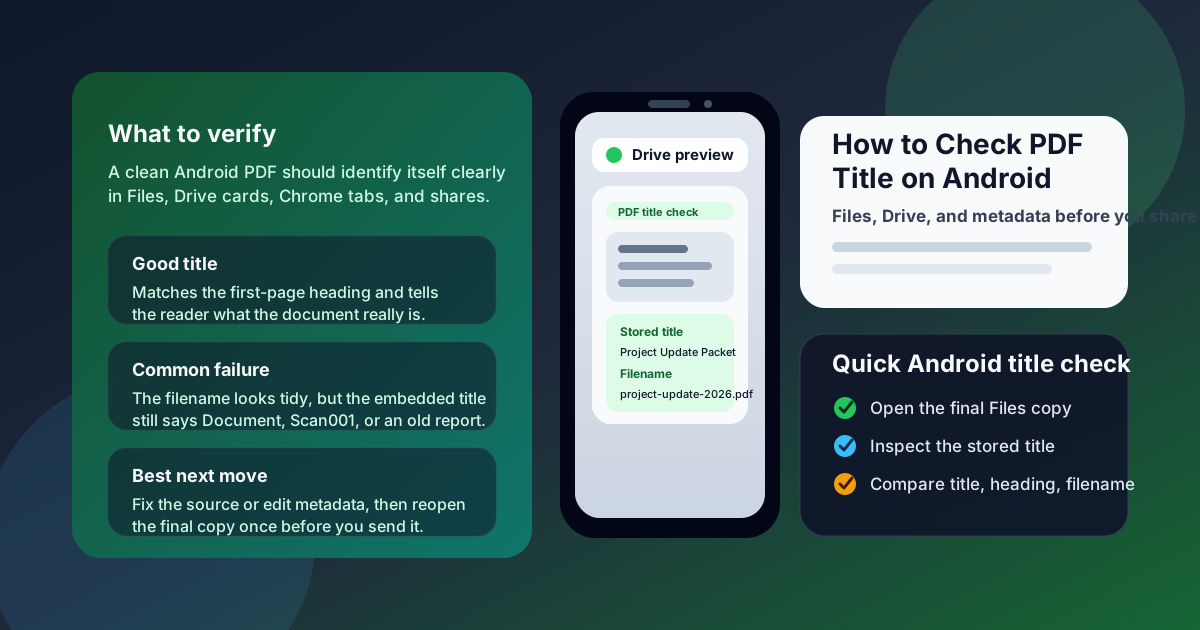
Table of contents
- Quick start: check PDF title on Android in about 6 minutes
- What you are really checking when you review PDF title on Android
- Where Android users get misled
- Step-by-step: how to check PDF title on Android
- Warning signs that the title is weak, stale, or misleading
- When to fix the source versus patch the PDF
- Related LifetimePDF tools and guides
- FAQ
Quick start: check PDF title on Android in about 6 minutes
If your real question is tell me whether this Android PDF still has the right title before I send it, use this order:
- Open the exact PDF you plan to email, upload, archive, or publish from Files, Drive, Gmail, Chrome downloads, Messages, or Acrobat.
- Inspect the stored title in the document properties or metadata instead of assuming the filename or attachment label is enough.
- Compare the title with the first-page heading, the visible purpose of the document, and where people will see it first, such as a Drive preview, a Gmail attachment, or a Chrome tab.
- Replace titles like Document, Untitled, Scan001, or an old project name with something specific, current, and reader-facing.
- If the source file still exists, fix the title there. If not, update the PDF metadata directly with PDF Metadata Editor or follow Change PDF Title and Author.
- Re-open the corrected file once and confirm the title now matches the document in the places people will actually encounter it.
What you are really checking when you review PDF title on Android
Checking PDF title on Android is not just asking whether the document has some name. You are checking whether the file identifies itself clearly before anyone reads page one. That matters because the title can shape Chrome tabs, accessibility announcements, search results, shared-folder clarity, and how easy the PDF is to recognize when several similar files sit next to each other.
In practice, you are looking for three things:
- Title accuracy: the embedded title still describes the real document instead of an older draft, template, or scanner leftover.
- Context consistency: the title, filename, and first-page heading all point to the same general document identity.
- Reader usefulness: the title helps someone understand the file in a tab, preview, search result, or archive without opening six other PDFs for comparison.
Good outcome
The title tells the truth about the file and makes it easier to recognize in Drive, Chrome, search, and shared folders.
Common failure
The visible content changed, but the PDF still carries a stale title from an older export, scan, or template.
Best next move
Inspect the real Android copy, then fix the source or metadata before the title starts confusing other people.
Title also overlaps with accessibility and findability. If the PDF is hard to identify in a tab, an assistive-tech announcement, or a search listing, the problem is not purely cosmetic. It is a usability issue. That is why I prefer treating PDF title as part of a practical Android workflow instead of a tiny metadata chore nobody checks until something goes wrong.
Where Android users get misled
Android gives you several fast ways to preview a PDF. The trap is that speed feels like proof. A tidy filename in Files or a readable first page in Drive can make you assume the embedded title must also be fine. It often is not.
| Android view | What it is good for | What it cannot safely prove |
|---|---|---|
| Files preview | Confirming the file location, filename, and which copy you are about to share. | That the embedded PDF title is accurate or even present. |
| Drive or Gmail preview | Quick attachment triage and version checking. | Whether the stored title still matches the real document after exports, sync, and app handoffs. |
| Chrome tab or portal preview | Showing how the PDF feels in a real browser workflow before a download or upload. | Whether the title you see is the whole story without a direct metadata check. |
| Share sheet or attachment picker | Giving you handoff context and a quick sense of how the file will be passed around. | That the embedded title is clear, current, or useful once the PDF reaches the next person. |
| PDF properties or metadata view | Seeing the stored title directly and comparing it with the document itself. | Whether the title is actually useful to a human unless you judge it in context. |
That last point matters most. A preview can show you how the PDF appears. It cannot automatically tell you whether the title is vague, stale, or quietly misleading for the person receiving it.
Step-by-step: how to check PDF title on Android
This workflow gives you a dependable answer without turning a routine check into a giant metadata project.
Step 1: Start with the real Android copy
Review the exact file that will leave your phone or tablet. If the PDF came from Files, Drive, Gmail, Messages, Chrome downloads, or a portal export, open that final copy directly. Checking one version and sharing another is one of the easiest ways to miss a stale title.
Step 2: Inspect the stored title, not only the filename
Android users get fooled here constantly. A polished filename can hide a bad embedded title, and a messy filename can sit next to a perfectly fine title. Use View PDF Properties or open the metadata in your preferred PDF app so you can see what the document is really carrying.
Step 3: Compare the title with the visible document and its real job
Ask whether the title matches the first meaningful heading, the document purpose, and the audience expectation. If the PDF is a benefits packet, signed contract, onboarding guide, school form, policy update, invoice packet, or project summary, the title should help a reader recognize that immediately. If the document title still sounds like an internal draft, the PDF is carrying the wrong identity forward.
Step 4: Check how the file presents itself in a real Android workflow
Open the file in Drive, Chrome, or your preferred PDF app, glance at how it appears in the tab or preview, and think about where else someone will meet it. Will it live in a crowded Files folder? Arrive as a Gmail attachment? Sit in Drive next to six revisions? Appear in search or a portal later? A title that is technically filled in but still vague can fail those real situations just as badly as a missing one.
Step 5: Fix the source first when you still control it
If the PDF came from Docs, Word, Slides, Google Sheets, LibreOffice, or another editable source, repair the title there first. That keeps future exports clean. If the source is gone, use PDF Metadata Editor or Change PDF Title and Author for direct cleanup. If the source needs recovery, PDF to Word gives you an editable starting point before you export again with Word to PDF.
Step 6: Re-open the fixed file and verify once
This is the step people skip. Re-open the corrected PDF and make sure the title now matches the document in the places that matter. It is the fastest way to catch the classic mistakes: editing the wrong copy, trusting a cached preview, or cleaning the metadata while the visible heading still points somewhere else.
Reliable sequence: open the real Android copy, inspect the stored title, compare it with the filename and heading, fix the source or metadata, then verify the final file once before sharing.
Warning signs that the title is weak, stale, or misleading
These patterns show up constantly in real Android workflows, especially when PDFs bounce through email, downloads, shared folders, scans, and reused templates.
| What you notice | What it usually means | Best next move |
|---|---|---|
| The filename looks right, but the title says Document or Untitled | The PDF metadata was never cleaned even though the file was renamed. | Inspect and update the embedded title directly. |
| The title still names an old project, month, or client | The file likely inherited metadata from a stale template or previous export. | Fix the source document and re-export if possible. |
| The first-page heading and title describe different documents | The PDF identity is inconsistent and may confuse readers in tabs, archives, or previews. | Bring the title, heading, and filename back into the same story. |
| Everything looks fine in Files, but the tab or preview feels vague | The embedded title may be too generic for real-world use even though it technically exists. | Rewrite the title for clarity, not just completeness. |
| The PDF comes from scans, merged files, or repeated conversions | Metadata leftovers from older files may still be attached to the current document. | Check properties deliberately and clean the final copy before sharing. |
My simple smell test: if someone saw the title alone in a crowded Android Files or Drive list and could not confidently identify the file, the PDF probably needs another pass.
Where people get fooled
The visible filename looks organized, the first page looks professional, and the PDF opens cleanly in Files or Drive, so everyone assumes the document title must also be fine. That visual confidence hides a lot of bad metadata. The only real proof is checking the embedded title directly and judging whether it still helps a reader identify the file without guesswork.
When to fix the source versus patch the PDF
Not every Android title problem deserves the same response. The useful question is whether the PDF is almost healthy and only needs a metadata cleanup, or whether the real mistake clearly lives upstream.
Direct PDF cleanup is often enough when
- the visible document is already correct and only the title metadata is weak,
- the source file is unavailable,
- the PDF is a final archive or handoff copy,
- you need a fast correction before sending a file out.
Fix the source and re-export when
- the title keeps returning with every new export,
- the PDF came from a stale template or recycled report,
- the heading, title, and filename are all drifting apart,
- the file will be published, archived, reused, or revised again later,
- metadata problems appear alongside broader issues like document language, bookmarks, or accessibility concerns.
If the PDF matters to more than one reader or more than one revision, upstream repair usually wins. A clean source gives you cleaner exports and saves future-you from fixing the same title all over again.
FAQ
How do I check PDF title on Android quickly?
Open the final PDF on your Android device, inspect the embedded title in the document properties or metadata, compare it with the filename and first-page heading, and fix it if the title is blank, generic, or outdated.
Is the filename the same thing as the PDF title on Android?
No. The filename is the storage name Files, Drive, or another app shows you, while the PDF title is metadata inside the document. They can match, but one does not guarantee the other is correct.
Why does PDF title matter if the visible pages already look right?
Because people often identify the file before reading page one. The title can affect Chrome tabs, accessibility announcements, search, previews, and shared-folder clarity even when the page design looks polished.
Should I fix the title in the source document or directly in the PDF?
If the source still exists, fix it there first so future exports stay consistent. If the source is unavailable, update the PDF metadata directly and verify the corrected title in the final file before sharing it.
Can Drive, Gmail, or Chrome tell me whether the PDF title is truly correct?
Not completely. Drive, Gmail, and Chrome are useful for opening the right file quickly and seeing how it appears in a real workflow, but you still need a direct properties or metadata check to confirm the embedded title is actually right.
Check the title before the PDF leaves your Android device.
A reliable Android title check is simple: inspect the embedded title, compare it with the filename and visible heading, fix the real source of the mismatch, and verify the final copy once before you share it.
Published by LifetimePDF — Pay once. Use forever.