How to Check PDF Output Intent on iPad: Files, Acrobat, and Print-Condition Checks Before You Share
To check PDF output intent on iPad, save the PDF into Files, open the exact copy in a metadata-aware properties or preflight workflow, read the declared output intent, print condition, or linked ICC profile, and compare it with the real destination the file is supposed to serve.
If that declaration does not match the job in front of you, fix it before you export, proof, archive, email, upload, or send the PDF to press.
That is the short iPad answer. The useful answer is that an iPad's larger screen can make Files quick look, Mail preview, Safari preview, Drive preview, and side-by-side multitasking feel more final than they really are. A PDF may look polished on your tablet while still carrying a stale print condition, a missing standards clue, or an inherited export declaration that no longer fits the real handoff.
Fastest practical path: save the real iPad copy, inspect the declared output intent, compare it with the actual destination, then verify page size, bleed, and PDF version before the file leaves your tablet.
In a hurry? Jump to quick start: check PDF output intent on iPad in about 5 minutes.
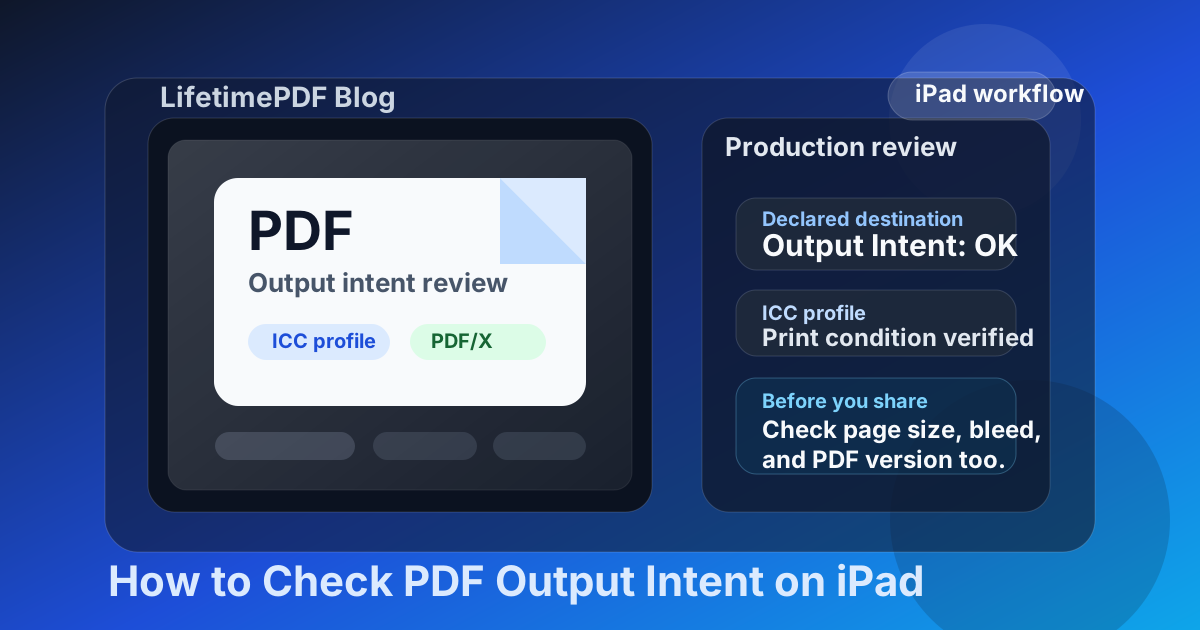
Table of contents
- Quick start: check PDF output intent on iPad in about 5 minutes
- What output intent means on iPad
- Where iPad users get misled
- Step-by-step: how to review output intent on iPad
- What else to check besides output intent
- Common mismatch scenarios and what to do next
- Related LifetimePDF tools and guides
- FAQ
Quick start: check PDF output intent on iPad in about 5 minutes
If your real goal is simply make sure this PDF is declaring the right destination before it leaves your iPad, use this order:
- Save the exact PDF you plan to email, upload, archive, proof, or send to a printer into Files on your iPad, preferably in a clearly named folder instead of a temporary preview cache.
- Do not rely only on a quick open in Mail, Safari, Drive, or a cloud-storage side panel that merely proves the file opened once.
- Open a metadata-aware properties workflow such as View PDF Properties and read the declared output intent or linked ICC profile.
- Ask whether that declaration matches the actual job: office print, proofing, commercial press, PDF/X delivery, or PDF/A-style archival output.
- Check PDF version, page size, and bleed so the rest of the file tells the same production story.
- If the metadata is wrong, stale, or missing for the workflow that matters, rebuild the PDF cleanly and verify the final saved copy again.
What output intent means on iPad
Output intent is the PDF's built-in declaration of the output condition it was prepared for. In practice, that usually means a named print condition, a linked ICC profile, or a destination description that tells another system how the file is supposed to be interpreted.
On iPad, that matters because the device often sits in the middle of the workflow rather than at the beginning or the end. Someone downloads a proof from Mail, marks it up in Files, reviews it side by side with job notes, uploads it from Safari, then assumes the production metadata is still fine because the document looked right during review. If the PDF claims one destination while the real workflow expects another, the problem may not show up until the file is already outside your control.
Output intent helps with
print handoff, proofing, PDF/X checks, archival workflows, and reducing avoidable questions about how the PDF was prepared.
Output intent matters most when
color-sensitive work, production print, standards validation, or long-term archive requirements are part of the job.
Output intent matters less when
the PDF is just a casual reading copy and nobody downstream is relying on production metadata.
Where iPad users get misled
iPad can feel desktop-like, especially in multitasking layouts, but not every opening path answers the same question. A quick open can confirm that the PDF renders. It does not necessarily confirm that the file declares the right production target.
| Opening path | What it is good for | What it cannot safely prove |
|---|---|---|
| Files quick look or a saved local copy on iPad | Confirming that you saved the right file and checking whether it opens normally on your tablet. | That the PDF carries the right declared print condition, ICC profile, or standards-ready production metadata. |
| Mail preview, Safari preview, Drive preview, or a cloud-app side panel | Spotting whether the attachment or download appears to be the right document. | That the final saved PDF is the same copy that will actually be proofed, archived, uploaded, or sent to press. |
| Acrobat Reader or another full viewer on iPad | Giving you a more useful properties and production context than a bare preview. | You still need to compare the declaration with the real job instead of assuming any named profile is automatically correct. |
| Dedicated properties or metadata workflow | Reviewing the file's stated destination before it leaves your iPad. | It does not fix a broken export for you. You still have to decide whether the file should be left alone or rebuilt. |
Step-by-step: how to review output intent on iPad
This workflow gets you to a dependable answer without turning a simple production check into an all-day audit.
1) Save the exact iPad copy first
Do not inspect only a Mail preview, browser tab, or shared-folder preview if another file is the one actually going to the printer or archive. Save the real outgoing PDF into Files first.
2) Read the declared output intent clearly
Use View PDF Properties or another metadata-aware review path so you can see the actual declaration rather than infer it from appearance alone.
3) Compare the declaration with the real destination
Ask one practical question: does this output intent match where the PDF is really going next, or is it a leftover from another preset, another template, or another workflow stage?
4) Check related production signals
Verify the file's PDF version, page size, and bleed box so the metadata and page geometry support the same story.
5) Decide whether the mismatch is real or harmless
A stale declaration on a casual reading copy may not matter. The same stale declaration on a PDF/X or archival workflow often does. Judge it by the real risk, not by perfectionism.
6) Reopen the rebuilt final copy once
If you fix the file, reopen the saved PDF and verify the new declaration. That catches the common tablet mistake where the workflow changed, but the outgoing file did not.
Best default sequence: save the real iPad copy → read the declared destination → compare it with the actual job → verify version, page size, and bleed → re-export only if the file's production story no longer holds together.
What else to check besides output intent
Output intent matters, but it should not be reviewed alone. On iPad production workflows, the more useful question is whether the file's surrounding signals support the same destination.
- PDF version: if the format level conflicts with the delivery requirement, the output intent alone will not save the file.
- Page size: the metadata can say one thing while the physical page geometry points somewhere else.
- Bleed and trim: especially important for print jobs where edge-to-edge artwork matters.
- PDF/X or PDF/A expectations: if the file is entering a standards-aware workflow, the output intent should fit that larger compliance picture.
- The real destination notes: if the printer, archive team, or workflow owner gave you a target condition, compare the PDF against that instruction instead of relying on guesswork.
In other words, output intent is one production clue. It becomes useful when it agrees with the rest of the file and the real business handoff.
Common mismatch scenarios and what to do next
These are the patterns that show up most often when an iPad PDF looks normal but still creates downstream confusion.
Old output intent from a reused export preset
The PDF may have inherited a destination from an earlier job or template. If the current project is different, rebuild the file with the right export settings rather than hoping nobody notices.
Preview looked fine in Split View, but the declaration is missing
A big-screen iPad preview can make the file feel final, but a printer, validator, or archive workflow may still reject it when the production declaration is missing.
Declared condition conflicts with page geometry
If the output intent suggests one production target but the page size or bleed setup suggests another, do not treat the metadata as trustworthy until you resolve the contradiction.
Colors look wrong even though the output intent seems valid
That often means the real problem lives in the source artwork, export preset, or proofing environment. Changing output intent alone is not a magic repair if the workflow behind it was already wrong.
A good iPad habit is to leave correct files alone. If the metadata matches the real job, extra tinkering only creates fresh risk. If the metadata is wrong because the export itself was wrong, the safest fix is usually a clean re-export rather than a cosmetic patch.
FAQ
How do I check PDF output intent on iPad?
Save the exact PDF locally in Files, open a metadata-aware properties or preflight workflow, read the declared output intent or ICC profile, and compare it with the real print, proofing, or archival destination before you approve the file.
Can I check PDF output intent in Files on iPad?
Files is helpful for confirming you saved the right copy, but a fuller properties workflow is better when you need to read the production declaration clearly.
Is output intent the same as an ICC profile?
No. The ICC profile is the profile data itself, while output intent is the PDF-level declaration that references or describes the intended destination condition.
Why should I check output intent before sending a PDF from iPad?
Because the PDF can look completely normal on your iPad while still carrying stale or missing production metadata that creates printer questions, validation failures, or unnecessary back-and-forth once the file leaves your tablet.
Should I change the output intent if the PDF colors look wrong on iPad?
Only if the declared destination is actually wrong. Many color problems begin earlier in the artwork, export settings, or proofing setup, so changing output intent alone is not always the real fix.
Check the declared destination before the file surprises someone downstream.
On iPad, the cleanest production workflow is simple: save the real file, inspect the output intent, compare it with the actual job, verify the surrounding PDF signals, and only rebuild the file when the metadata and workflow genuinely disagree.
Published by LifetimePDF — Pay once. Use forever.