Check PDF Output Intent: Confirm the Right Print Condition or ICC Profile Before You Export, Proof, or Send to Press
To check PDF output intent, inspect the PDF's declared output intent, print condition, or linked ICC profile and compare it with the real destination the file is supposed to serve.
If that declaration is missing, stale, or wrong, fix it before you rely on the PDF for proofing, PDF/X delivery, PDF/A validation, commercial print, or color-sensitive review.
That is the practical answer. A PDF can look perfectly normal on screen and still carry the wrong production assumptions underneath. When the output intent does not match the actual job, the result is usually not an obvious crash. It is slower, messier trouble: confusing validation results, printer questions, color surprises, or a file that seems press-ready until the last handoff.
Fastest practical path: read the declared output intent, compare it with the real print or archive target, then verify page size, bleed, and PDF version before you approve the file.
In a hurry? Jump to the 3-minute output-intent check.
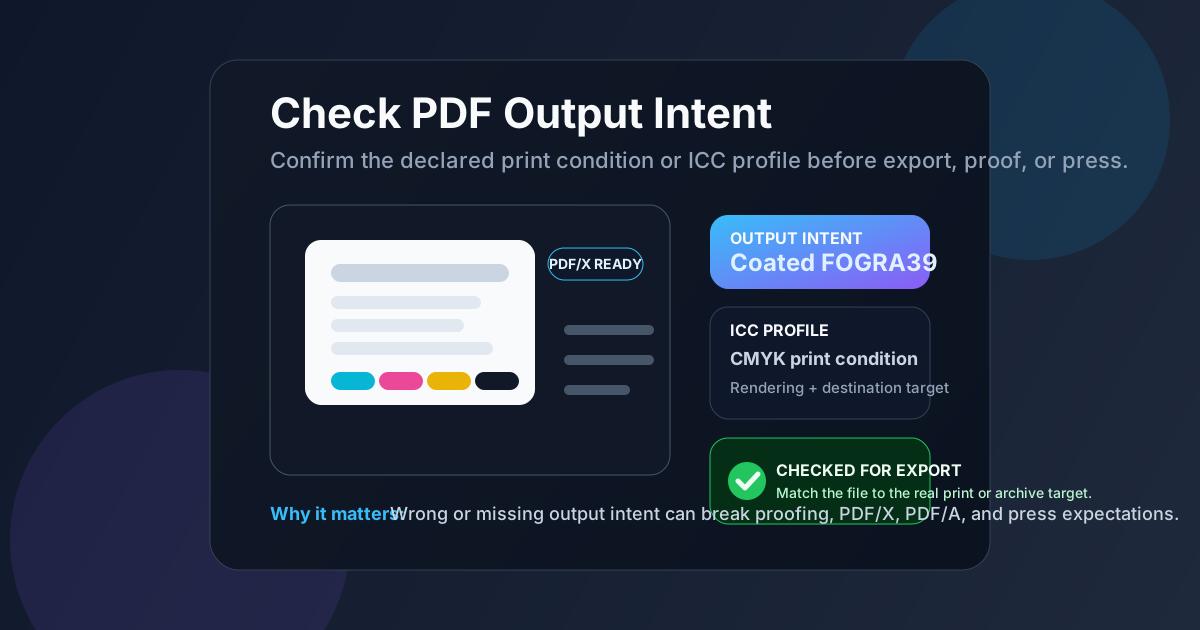
Table of contents
- Quick start: check PDF output intent in 3 minutes
- What PDF output intent actually is
- Output intent vs ICC profiles, color mode, and page geometry
- When output intent matters most
- Step-by-step: how to inspect output intent on a real PDF
- Common output-intent problems and what they usually mean
- When to fix metadata and when to re-export the file
- Related LifetimePDF tools and guides
- FAQ (People Also Ask)
Quick start: check PDF output intent in 3 minutes
If you only need the fastest route from uncertainty to a dependable answer, use this order:
- Open the exact PDF that will be printed, archived, uploaded, or sent to another team.
- Inspect the declared output intent or linked ICC profile in the PDF properties or a metadata-aware preflight view.
- Ask whether that declared destination matches the real job: office print, commercial press, proofing, PDF/X delivery, or PDF/A-style archival output.
- Check nearby production clues such as page size, bleed, and PDF version.
- Fix the declaration only if it is genuinely wrong or missing for the workflow you care about.
What PDF output intent actually is
Output intent is a production hint stored inside the PDF. It tells other systems what output condition the file is meant for, often through a named print condition, a linked ICC profile, or a destination description used in print and archival workflows.
In plain English, it answers a practical question: what kind of output was this PDF prepared for? That could mean a coated print workflow, an uncoated stock, a proofing condition, or another declared destination that matters when color should be interpreted consistently.
Output intent helps with
print handoffs, PDF/X expectations, archival validation, and avoiding guesswork when a file moves between teams or systems.
Output intent matters most when
the PDF is color-sensitive, destined for press, checked for standards compliance, or handled by workflows that look beyond the visible page.
Output intent matters less when
the document is just casual reading material and color-management precision is not part of the job.
That does not make it optional in serious workflows. It means you should care about it in proportion to the real risk. If a printer, proofing process, archive, or validator will use the information, it is worth checking before the file leaves your hands.
Output intent vs ICC profiles, color mode, and page geometry
People often lump several different ideas together. Separating them makes troubleshooting much easier.
| Concept | What it tells you | What it does not tell you |
|---|---|---|
| Output intent | The intended destination or print condition the PDF declares | Whether the source artwork itself was prepared correctly |
| ICC profile | The color-profile data used to describe a device or condition | The whole business context of the PDF handoff by itself |
| RGB or CMYK color mode | How color values are encoded in parts of the file | Which final print condition the PDF is supposed to target |
| Page size or bleed | The physical geometry and edge area of the page | How the file's color destination should be interpreted |
This is why a PDF can have a plausible CMYK-looking workflow and still carry the wrong output intent, or the right output intent but the wrong page size. Production problems often happen when several small mismatches stack together.
When output intent matters most
The same PDF property can feel irrelevant in one workflow and essential in another.
Commercial print and proofing
This is where output intent earns its keep. It tells downstream systems what destination the PDF was built for and reduces avoidable questions about color handling.
PDF/X delivery
Standards-oriented print workflows often expect a declared destination. Missing or contradictory intent data can trigger validation issues or force manual review.
PDF/A and archival checks
When a file is being cleaned up for long-term preservation, output intent can matter as part of consistent, standards-aware metadata rather than only day-to-day printing.
Brand-sensitive handoffs
If marketing, packaging, or proof approval depends on predictable color interpretation, checking the declared destination is a sensible last-mile quality step.
If the PDF is only being read casually in a browser tab, output intent may never become the bottleneck. If the file is headed toward press, proofing, or compliance review, it absolutely can.
Step-by-step: how to inspect output intent on a real PDF
A useful output-intent check should tell you whether the exact file in front of you is safe to leave alone, safe to approve, or worth rebuilding before anyone else touches it.
1) Open the exact outgoing PDF
Do not inspect a proof screenshot, earlier export, or a renamed copy if another file is actually going to the printer or archive. You want the real deliverable.
2) Read the declared output intent or ICC profile
Start with View PDF Properties or another metadata-aware inspection view and look for the destination condition the file declares. If the PDF hides this detail entirely, that absence is already useful information.
3) Compare the declaration with the real job
Ask a simple question: does this file's declared destination make sense for where it is going next? A coated press condition on an office handout may not matter. A vague or missing declaration on a standards-driven press workflow often does.
4) Check nearby production clues
Output intent should not be judged alone. Compare it with the PDF's version, page size, bleed, and surrounding export choices. A file that claims one kind of production target but carries geometry or metadata that points somewhere else deserves a closer look.
5) Decide whether the mismatch is truly harmful
Some PDFs are just informal sharing copies. Others are final deliverables. The same missing declaration can be harmless in one case and a blocker in another. Judge the risk by the workflow, not by perfectionism.
6) Verify the final saved copy
If you do change export settings or replace the file, reopen the finished PDF once. The point is not to assume the new intent was written correctly. It is to confirm it.
Reliable inspection sequence: read the declared destination first, match it to the real workflow, compare page size and bleed, then re-export only if the file's production story no longer holds together.
Common output-intent problems and what they usually mean
Once you start checking this field regularly, a few patterns show up again and again.
Missing output intent
The file may still be usable, but standards-driven print or archival workflows may have less guidance than they expect and may flag the PDF for manual review.
Old output intent from a template
A reused preset or inherited export setting may have stamped the file with a destination that no longer matches the actual job.
Declared condition conflicts with the handoff notes
If the PDF metadata says one thing and the printer instructions say another, somebody downstream will have to guess unless you resolve it first.
Color looks wrong even though output intent seems valid
The problem may live in the source artwork, export conversion, or proofing environment rather than in the destination declaration itself.
The useful habit is not memorizing profile names. It is asking whether the declaration, the file geometry, and the actual job all tell the same story.
When to fix metadata and when to re-export the file
Not every output-intent problem needs the same response.
Leave the file alone when the declaration matches the real workflow
If the PDF is already going to the right destination and the output intent supports that job, extra tinkering adds risk without solving anything.
Correct the handoff only when the mismatch is clerical
If the PDF is otherwise sound and the issue is a clearly stale or misleading declaration, a clean metadata-aware correction may be enough. This is less common than people hope, but it does happen.
Re-export when the production assumptions are wrong at the source
If the source artwork, export preset, page size, bleed, or color conversion path is wrong, changing one metadata field will not make the file honest. A better export is usually the safer fix.
A dependable default sequence is this: inspect the declared destination → compare it with the actual job → check page size, bleed, and version → decide whether the mismatch is harmless, clerical, or structural → re-export when the production setup itself is wrong.
Related LifetimePDF tools and guides
View PDF Properties
Start here when you want the clearest overview of the PDF's stored production and document properties.
Open the guideCheck PDF Version
Useful when you want to confirm that the file's format level matches the workflow you are trying to support.
Read the version guideCheck PDF Page Size
Pair this with output intent when the real job cares about exact dimensions as well as color destination.
Read the page-size guideCheck PDF Bleed Box
Important when the file is heading into print and edge-to-edge artwork needs the right extra area.
Read the bleed-box guideHow to Check if a PDF Is PDF/A Compliant
Helpful when the PDF is being reviewed for archival readiness rather than only print delivery.
Read the PDF/A guidePDF/A Archival Guide
Use this when you need the bigger picture around metadata, preservation, and standards-aware document cleanup.
Open the archival guideFAQ (People Also Ask)
How do I check PDF output intent?
Open the exact PDF in a metadata-aware properties or preflight view, read the declared output intent or ICC profile, and compare it with the real print, proofing, or archival destination before you approve the file.
What is output intent in a PDF?
It is a declaration inside the PDF that describes the intended output condition the file was prepared for. In practice, it helps downstream systems understand the destination the PDF is meant to target.
Is output intent the same as an ICC profile?
No. The ICC profile is the profile data itself, while output intent is the PDF-level declaration that references or describes the intended destination condition.
Why does output intent matter for PDF/X or PDF/A?
Because standards-aware workflows often use it to interpret the file consistently. Missing or mismatched output intent can trigger validation questions or make the file less trustworthy in print and archival handoffs.
Should I change output intent if the PDF colors look wrong?
Only if the declared destination is actually wrong. Many color problems start earlier in the source artwork, export choices, or proofing setup, so changing output intent alone is not always the real fix.
Ready to review a production PDF before it surprises anyone downstream?
Best default workflow: inspect the declared destination → confirm page size, bleed, and version → compare the metadata with the real handoff target → leave good files alone → re-export when the production setup itself is wrong
Published by LifetimePDF — Pay once. Use forever.