How to Check PDF Author on Android: Files, Drive, and Hidden Metadata Before You Share
To check PDF author on Android, open the real file from Files, Drive, Gmail, or Chrome downloads, inspect the hidden Author field in a metadata-aware view, and compare it with the person, team, or company that should actually own the share-ready PDF.
If the author still shows an old employee name, a personal account label, a scanner default, or template leftovers, update or clear it before the document leaves your device.
Android workflows create their own kind of false confidence. The file opens cleanly in Files, Drive, Gmail preview, or Chrome, so it feels finished. That feeling can hide messy ownership metadata underneath. A polished PDF can still identify itself with a former teammate, a private account, or a generic export label that nobody meant to share. The useful goal is not merely opening the document. It is proving the invisible author field still tells the right story before the file gets uploaded, forwarded, archived, or sent to someone else.
Fastest practical path: open the final Android copy, inspect the embedded author field once, decide whether the file should identify a person, team, company, or nobody at all, then save and verify the cleaned copy before you share it.
In a hurry? Jump to quick start: check PDF author on Android in about 5 minutes.
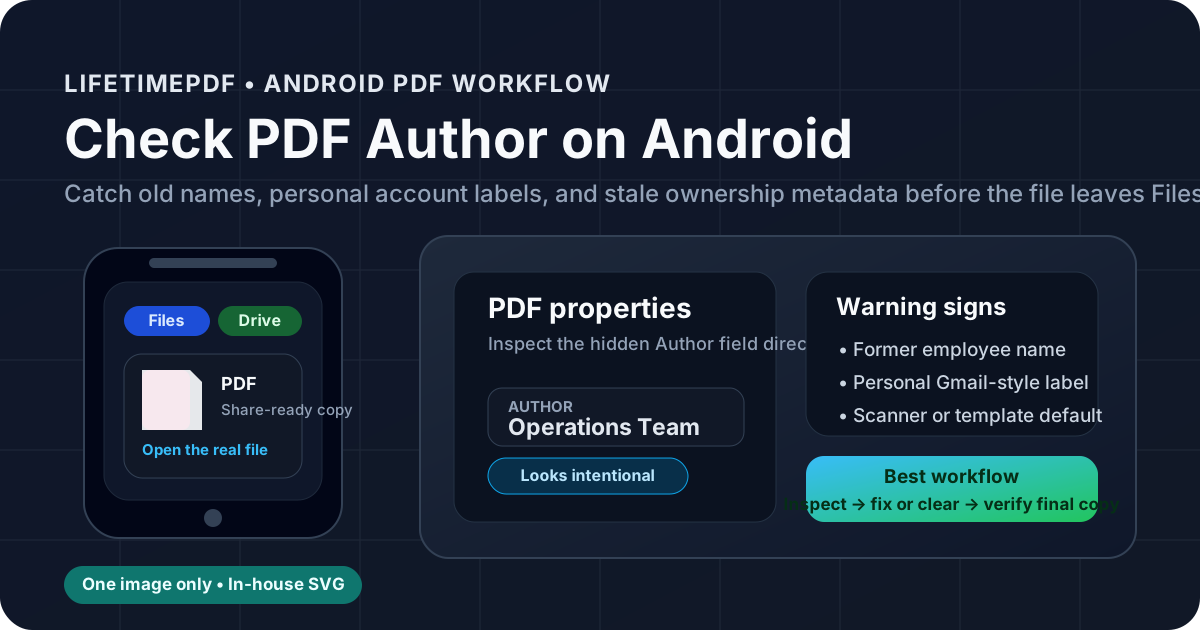
Table of contents
- Quick start: check PDF author on Android in about 5 minutes
- What you are really checking when you review PDF author on Android
- Where Android users get misled
- Step-by-step: how to check PDF author on Android
- Warning signs that the author field needs cleanup
- When the author should be a person, team, company, or blank
- Related LifetimePDF tools and guides
- FAQ
Quick start: check PDF author on Android in about 5 minutes
If your real question is is this Android PDF still carrying the right owner name before I send it?, use this order:
- Open the exact PDF you plan to email, upload, archive, publish, or forward from Files, Drive, Gmail, Chrome downloads, Messages, WhatsApp, or Acrobat.
- Inspect the stored Author value through a metadata-friendly workflow like PDF Metadata Editor or View PDF Properties.
- Ask whether the final copy should identify a specific person, a team, a company, or nobody at all.
- Replace stale staff names, personal account labels, scanner defaults, or inherited template accounts with the right final value.
- Save the cleaned file and reopen it once so you verify the corrected author really stuck to the Android copy you are about to share.
- If the file is sensitive, continue with Remove Metadata From PDF or protect the final copy with PDF Protect.
What you are really checking when you review PDF author on Android
The PDF author field is hidden metadata stored inside the file. It is not the filename in Files, not the visible byline printed on page one, and not the digital signature identity used in a certificate workflow. Think of it as a quiet ownership label that can survive exports, scans, conversions, and handoff steps even after the visible document has changed.
On Android, that matters because PDFs move through fast, casual workflows. A file might come from a browser download, a Gmail attachment, a Drive folder, a scanner app, a school portal, or another person's device. It may look perfectly normal the whole time. Meanwhile the hidden author field can still name a former employee, a private personal account, a shared tablet setup, or whatever identity happened to be attached upstream. That mismatch is exactly what a proper author check is supposed to catch.
| Field | What it does | Typical Android problem |
|---|---|---|
| Visible author on the page | Reader-facing content inside the PDF | The page looks correct, so people assume the hidden author must also be correct. |
| PDF author metadata | Hidden ownership label stored inside the file | Still shows an old employee name, a personal account label, or a recycled template identity. |
| Filename | Storage name shown in Files, Drive, Gmail, or Downloads | Looks clean enough to hide the fact that the metadata is still wrong. |
Where Android users get misled
Android gives you several fast ways to glance at a PDF. The trap is that speed feels like proof. A readable preview or tidy filename can make you think the author metadata must also be intentional. It often is not.
| Android path | What it is good for | What it cannot safely prove |
|---|---|---|
| Files preview | Confirming the file location, filename, and which copy you are about to share. | That the hidden author field is the best final ownership label for the PDF. |
| Drive or Gmail preview | Showing that the PDF opens and the visible pages still look right. | Whether the embedded author is stale, private, or inconsistent with the real owner of the file. |
| Chrome, a portal download, or a share sheet | Showing how the PDF moves through the real Android handoff path. | That the metadata attached to the saved, downloaded, or uploaded copy still tells the right ownership story. |
| Metadata editor or document properties workflow | Giving you the most dependable look at the hidden author field itself. | You still have to judge whether the value helps the reader or only leaks background workflow noise. |
That last point matters most. Tools can show you the stored author value. They cannot decide for you whether the final PDF should name a person, a team, a company, or nobody at all. That decision belongs to the file's real destination.
Step-by-step: how to check PDF author on Android
This workflow is quick enough for everyday use and strong enough to catch the mistakes that matter most.
Step 1: Start with the exact Android copy you plan to share
Review the real file that will leave your device. If the PDF came from Files, Drive, Gmail, Messages, Chrome downloads, or a portal export, open that final copy directly. Checking one version and sharing another is one of the easiest ways to miss stale author metadata.
Step 2: Inspect the Author field directly
Use PDF Metadata Editor, Acrobat Reader, or a practical properties workflow like View PDF Properties. Do not assume the filename or visible heading already reflects the same identity. On Android those details often drift apart because the file passed through a desktop export, scanner app, shared folder, or reused template before it ever reached your device.
Step 3: Decide what identity the final PDF should carry
This is where many people skip straight to editing and create a new mismatch. First decide the role of the file. Is it an internal draft, a team handoff, a client deliverable, a public download, or a neutral archive copy? The right author value depends on the job the PDF has to do after it leaves your phone or tablet.
Step 4: Fix stale or risky values first
Replace old employee names, personal account labels, shared-device leftovers, test exports, and scanner defaults before worrying about edge cases. Those are the values most likely to make the file look sloppy or reveal internal details you did not mean to share. If the author field belongs with the rest of a broader cleanup, continue with Change PDF Title and Author or Edit PDF Metadata.
Step 5: Compare author with title and visible context
A clean Android PDF should feel internally consistent. If the title, filename, first-page branding, and destination all point to the company, but the author field still points to a personal account or a former teammate, the metadata is telling the wrong story. Compare the hidden author with the visible document context and fix any mismatch that would feel awkward once the file leaves your workflow.
Step 6: Save and verify once
Reopen the saved PDF and confirm the corrected author really stuck to the final file. This catches the classic Android mistakes: editing the wrong copy, saving to the wrong folder, or checking one version while you actually upload or forward another.
Reliable sequence: inspect the author field, decide the right ownership label for the final file, fix or clear the value, then verify the saved copy once before sending it onward.
Warning signs that the author field needs cleanup
These patterns show up constantly in Android workflows, especially when PDFs bounce through email, downloads, shared folders, scans, and reused templates.
| What you notice | What it usually means | Best next move |
|---|---|---|
| The author still names a former employee or contractor | The PDF inherited metadata from an older template or source file. | Replace the value with the current owner label that fits the final copy. |
| The author looks like a personal account, device name, or private profile | An upstream export or account identity leaked into the metadata. | Rewrite or clear the field before the file leaves your workflow. |
| The title and branding point to the company, but author points somewhere else | The file tells two ownership stories at once. | Bring title, author, and visible context back into alignment. |
| The PDF looks polished in Files or Drive, but the metadata feels random | The visible document was cleaned, but the hidden ownership details were never reviewed. | Do one deliberate author check before sending the file out. |
| The author field exposes more than the recipient needs to know | The metadata may be revealing private names, staff history, or internal workflow noise. | Clear the field or run a broader metadata cleanup pass. |
Healthy default
If the hidden author value would make a recipient wonder why this file identifies itself that way, the PDF probably deserves one more metadata pass before you share it from Android.
When the author should be a person, team, company, or blank
Not every Android PDF needs the same answer. The useful question is whether the author field improves the finished document or only drags extra workflow noise along for the ride.
Use a person
Best for internal drafts, specialist reviews, or academic work where one individual genuinely owns the content.
Use a team
Helpful when a department or operational group maintains the PDF over time rather than one named employee.
Use a company
Usually the cleanest choice for client-facing and public PDFs where external branding matters more than staff history.
Leave it blank
Smart when the field adds no value, keeps drifting out of date, or exposes more identity detail than the recipient needs.
In practice, the best answer is the smallest amount of author information that still helps the file make sense in its real destination. Public downloads, sanitized evidence bundles, and privacy-sensitive handoffs often work better with a neutral or empty author field than with an overly specific one. If the PDF is part of a recurring process, standardize the choice once so future exports stay cleaner.
- Keep a person name when individual authorship really matters.
- Prefer a team or department when several people revise the same file.
- Use the organization name when the PDF represents the business to outsiders.
- Clear the field when it only creates confusion, churn, or privacy risk.
FAQ
How do I check PDF author on Android quickly?
Open the final PDF on your Android device, inspect the hidden Author field in a metadata-aware workflow, compare it with the intended owner of the file, and fix it if the value is stale, private, or misleading.
Can Files or Drive show the PDF author field on Android?
Files or Drive can help with a practical first look because they confirm the real copy you are about to share, but a fuller metadata workflow is more reliable when you need to confirm the embedded Author field and decide whether it should stay, change, or disappear.
Is PDF author the same as the visible author name on the page?
No. The visible author name is page content, while PDF author is hidden metadata stored inside the document. The two can match, but one does not guarantee the other is correct.
Should the author field name a person or a company in an Android PDF?
Use the value that best fits the destination of the file. Internal drafts may use a person or team, while public or client-facing PDFs often work better with an organization name or a neutral cleaned value.
Why does PDF author matter if the pages already look correct?
Because hidden metadata still travels with the file. A PDF can look polished in Files, Drive, Gmail, or Chrome while still exposing an old employee name, a personal account label, or another ownership detail you did not mean to share.
Check the hidden author before the PDF leaves your Android device.
A clean Android workflow is simple: inspect the Author field, compare it with the document's real owner, keep only the identity details that help the file make sense, and verify the final copy once before you send it.
Published by LifetimePDF — Pay once. Use forever.