How to Check PDF Art Box on Windows: Acrobat, Edge, and Meaningful-Artwork Checks Before You Crop, Place, or Print
To check PDF art box on Windows, save the real PDF in File Explorer, open a page-box-aware properties workflow, and compare the art box with the crop box, media box, trim box, and bleed box so you know what part of the page the file treats as meaningful artwork.
If the art box is missing, oversized, or disconnected from the visible page, decide that before you crop, place, export, print, or share the PDF so you fix the right layer instead of guessing from the preview.
On Windows, art-box confusion is easy to miss because the PDF often looks normal long before it is actually understood. The file opens cleanly in Edge, sits in Downloads looking done, and may even print acceptably once. Then another app frames the page oddly, a layout workflow centers on the wrong region, or a prepress check reveals that the file's internal "meaningful artwork" area tells a different story than the visible page. A quick art-box review is the fastest way to tell whether the PDF is smartly structured, harmlessly overdescribed, or quietly misleading.
Fastest practical path: save the real Windows copy, compare the art box with crop first, use media, trim, and bleed only to clarify the bigger page-box story, then decide whether the art box is useful, optional, or worth fixing.
In a hurry? Jump to quick start: check PDF art box on Windows in about 5 minutes.
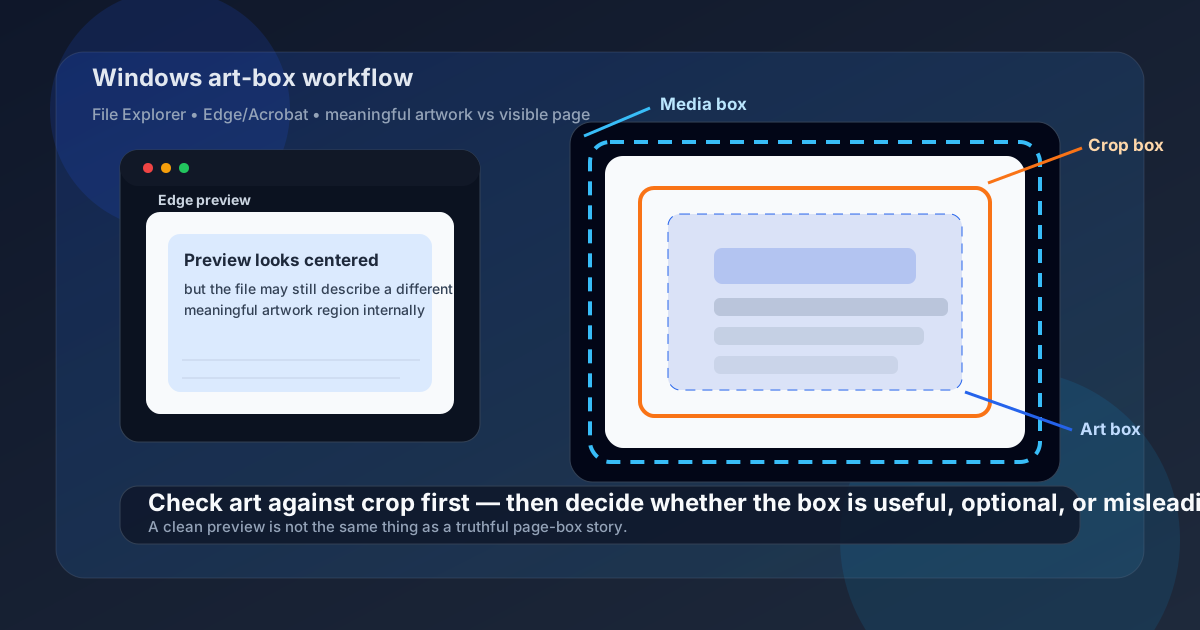
Table of contents
- Quick start: check PDF art box on Windows in about 5 minutes
- What an art box really means on Windows
- Why Windows previews can hide art-box confusion
- Step-by-step: how to review PDF art box on Windows
- When art box matters and when it does not
- What to do if the art box is missing, wrong, or confusing
- Related LifetimePDF tools and guides
- FAQ
Quick start: check PDF art box on Windows in about 5 minutes
If your real goal is simply figure out whether this Windows PDF defines the meaningful artwork area sensibly before it moves to layout, print, or another tool, use this order:
- Save the exact PDF you plan to place, crop, print, upload, or share into a normal local Windows folder.
- Do not assume the preview in Edge, Acrobat, Outlook, Teams, or a browser tab proves the file's internal page boxes make sense.
- Open a page-box-aware workflow such as View PDF Properties so you can read the art box, crop box, and media box clearly.
- Check whether the art box matches the content region you would naturally call the meaningful design area.
- Compare it with trim and bleed only if the PDF is going into production or edge-sensitive print workflows.
- If the art box is wrong but harmless, leave it alone. If it is driving bad framing or placement decisions, fix the source geometry or re-export the PDF instead of guessing with random crops.
What an art box really means on Windows
The art box is an optional PDF page box that describes the region the file treats as meaningful artwork. It is not automatically the visible page, the final trim size, or the full stored canvas. Sometimes it matches those things. Sometimes it exists mainly to help layout, placement, or production workflows understand which part of the page matters most.
On Windows, that matters because the same PDF can move through File Explorer, Edge, Acrobat, Teams, email attachments, print dialogs, and other tools that do not all interpret page-box data the same way. A PDF can look normal in the preview while still carrying an art box that is too tight, too loose, missing, or inherited from a previous export step. Checking it lets you separate harmless metadata from a real geometry mismatch.
| Page box | What it usually means | Why a Windows user should care |
|---|---|---|
| Art box | The meaningful artwork region the PDF wants another workflow to notice | This is the field you review when the question is what part of the page does the file consider the real design area? |
| Crop box | The visible page area many viewers respect | Compare art with crop first because Windows previews often make crop feel like the whole story. |
| Media box | The full stored page canvas | Useful when the file carries outer clutter, oversized canvas, or export leftovers that the art box may be trying to summarize. |
| Trim box | The intended finished page after cutting | Relevant when the PDF is meant for print or imposition and you need to know whether the art box aligns with the final size. |
| Bleed box | The extra edge area meant to survive trimming | Helpful when the artwork area reaches the edge and the print workflow needs safe extra content beyond trim. |
Why Windows previews can hide art-box confusion
Windows gives you several fast ways to open a PDF, but most of them answer only one question: does the file open and look roughly normal? They do not automatically answer whether the art box is useful, missing, or misleading for the workflow that comes next.
| Windows path | What it is good for | What it cannot safely prove |
|---|---|---|
| File Explorer and Downloads | Confirming you saved the real outgoing copy and are not still looking at a temporary preview. | Whether the PDF defines the meaningful artwork region sensibly. |
| Edge or Acrobat preview | Quickly opening the file and spotting obvious layout trouble. | Whether the art box agrees with crop, media, trim, and bleed or whether another app may interpret the page differently. |
| Print preview | Seeing whether scaling or paper-size behavior already looks suspicious. | Whether the deeper issue is an art-box mismatch, an oversized media box, or simply a harmless optional field. |
| Layout or placement app | Revealing when another workflow starts caring about the page geometry more than a casual preview did. | You should not use this as the first moment you discover the PDF's content region is defined oddly. |
| Properties-aware page-box review | Giving you the clearest answer before the PDF leaves Windows. | It does not automatically tell you to crop or re-export. It only shows which layer is actually wrong. |
The easy mistake
People often assume the file must be fine because the visible page looks centered and complete in Edge or Acrobat. In reality, the preview can look calm while the art box still points to the wrong region, carries stale export data, or disagrees with the crop and media boxes in ways that only matter later.
Step-by-step: how to review PDF art box on Windows
This workflow is short enough for everyday Windows use and strong enough for real design, placement, and print-prep decisions.
1) Save the exact Windows copy first
Do not judge only an Outlook preview, Teams attachment, or browser tab if another file is the one truly headed to layout, print, or upload. Start with the real outgoing PDF in File Explorer.
2) Open a page-box-aware properties view
Use View PDF Properties or a comparable workflow that exposes art, crop, media, trim, and bleed instead of leaving you to guess from the visible preview.
3) Compare the art box with the crop box first
This is the fastest high-value comparison on Windows because it tells you whether the PDF's meaningful artwork region matches what the viewer is presenting as the page.
4) Compare it with media, then trim and bleed if needed
If the page still feels odd, look at the full canvas and then the production edges so you can tell whether the art box is summarizing the design well or hiding a deeper geometry mismatch.
5) Decide whether the art box actually matters here
For casual reading it may be irrelevant. For placement, packaging, prepress, or design handoff, it may shape how another app frames the page or interprets the meaningful content area.
6) Fix the right layer once
Re-export when the page geometry is truly wrong, crop or clean the PDF only when the visible framing is the issue, and stop editing when the art box is harmless metadata that will not affect the real workflow.
Reliable sequence: save the real Windows copy → read art and crop first → use media, trim, and bleed to understand the bigger picture → decide whether the art box matters for the actual job → re-export, clean up, or leave the file alone.
When art box matters and when it does not
Art box is not a universal emergency field. It matters most when another workflow may actually read it to decide what counts as the important design area.
High-priority art-box jobs
Packaging, placed artwork, design handoff, prepress review, imposition, specialty layout workflows, or any PDF that moves between apps that may care about content framing.
Best move: compare art, crop, and media carefully before the file leaves Windows.
Lower-priority art-box jobs
Screen-only reading, simple office printing, contracts, or ordinary PDFs where no downstream tool will care about an optional artwork boundary.
Best move: do not fix art-box metadata just because it exists.
Important limitation
A sensible art box does not guarantee correct trim, bleed, crop, page size, or resolution.
Best move: use the other page boxes too when the workflow is production-sensitive.
| What you notice | What it usually means | Best next move |
|---|---|---|
| The art box closely matches the visible design area | The PDF is probably describing the meaningful artwork region honestly. | Leave it alone unless another production field still looks wrong. |
| The art box is smaller or larger than the visible page for no obvious reason | The file may carry stale export data or a framing rule another app could misread. | Compare art with crop and media, then decide whether the source file needs correction. |
| The PDF has no art box at all | This may be perfectly normal, especially for ordinary office or screen workflows. | Check whether crop, trim, bleed, media, and page size already tell a complete enough story. |
| The placement or print workflow is behaving strangely | The art box may be one part of a wider page-geometry disagreement. | Review all page boxes before editing blindly. |
| The visible page is messy because of extra outer space | The deeper problem may be crop or media rather than art itself. | Use Check PDF Media Box and crop cleanup tools before you blame the art box alone. |
What to do if the art box is missing, wrong, or confusing
Most Windows art-box decisions come down to a short diagnostic question: is the art box affecting a real workflow, or is it merely metadata you noticed while investigating something else?
Best decision rule
If the art box is confusing but harmless, leave it alone. If another app is clearly framing, placing, or interpreting the PDF badly because of it, fix the source geometry or re-export the file. If the visible page itself is wrong, solve crop or media first instead of obsessing over art-box labels.
No art box
Common and often harmless.
If the PDF behaves correctly in the real workflow, you may not need to add one at all.
Useful and accurate
The art box matches the meaningful design area.
Leave it alone and move on to the next check.
Wrong but visible page looks fine
The metadata may be stale, even if the preview feels normal.
Re-export or correct the source only if another workflow is actually reading that bad definition.
Page geometry is messy
Art, crop, media, trim, or bleed are disagreeing in a real way.
Fix the underlying page setup instead of making random downstream edits.
FAQ
How do I check PDF art box on Windows?
Save the PDF locally, open a page-box-aware properties workflow, and compare the art box with the crop box, media box, trim box, and bleed box so you can see whether the file's meaningful artwork region makes sense.
Can Edge or Acrobat show an art box clearly on Windows?
They are useful for opening the exact saved file and spotting obvious issues, but a properties-aware workflow is better when you need the clearest read on art, crop, trim, bleed, and media relationships.
Is art box the same as crop box on Windows?
No. The art box describes the meaningful artwork area, while the crop box is the area many viewers treat as the visible page. They may align, but they are not automatically the same.
Is a missing art box on Windows always a problem?
No. Many PDFs work perfectly without one. If the file already behaves correctly for the real workflow, a missing art box may not matter at all.
Should I crop the PDF if the art box looks wrong on Windows?
Only if the visible framing is the real problem. If the deeper page geometry is wrong, re-exporting or fixing the source file is usually a better move than making blind crop edits.
Check the meaningful artwork area before another app guesses for you.
On Windows, the cleanest art-box workflow is simple: inspect the real outgoing file, compare art with crop first, use media, trim, and bleed only to understand the bigger geometry story, and fix only the layer that is actually wrong.
Published by LifetimePDF — Pay once. Use forever.