How to Check if a PDF Has White Ink on Chromebook: Verify Specialty Plates, Underprints, and Label-Print Files Before You Share or Print
To check if a PDF has white ink on Chromebook, save the exact final PDF into Files, open a properties, spot-color, or layers-aware workflow, and look for a named white-ink plate, underprint, or printer-specific white spot color.
If the file only looks white in Chrome, Gmail, or Google Drive but no named specialty separation appears, the PDF may preview fine on Chromebook while still missing the printable white-ink data the job actually needs.
That matters on clear labels, dark packaging, metallic stock, window graphics, and any workflow where white ink creates opacity, readability, or a reliable underbase for other colors. Chromebook handoffs are usually fast and casual: a PDF opens in a browser tab, gets checked in Drive, downloads into Files, then gets approved or forwarded before anyone verifies the hidden plate structure. A calm preview is helpful, but it is not proof that the specialty separation survived export.
Fastest practical path: save the real Chromebook copy, confirm that a named white-ink plate or underprint actually exists, compare it with the print brief, then cross-check spot colors, overprint, layers, and output intent before approval.
In a hurry? Jump to quick start: check for white ink on Chromebook in about 5 minutes.
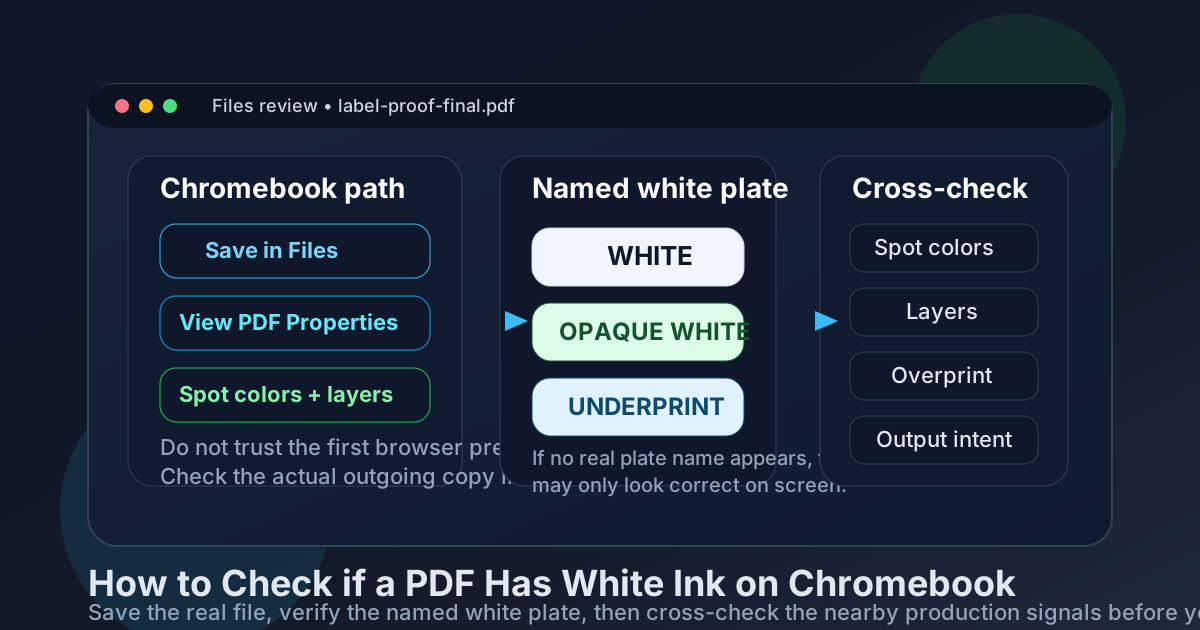
Table of contents
- Quick start: check for white ink on Chromebook in about 5 minutes
- Why Chromebook preview can mislead you
- What counts as real white ink in a PDF?
- Signals that the white plate is really there
- Step-by-step Chromebook workflow
- Common Chromebook handoff situations
- What to cross-check next
- What to do if the plate is missing or unclear
- Related LifetimePDF tools and helpful internal links
- FAQ
Quick start: check for white ink on Chromebook in about 5 minutes
If your real goal is simply make sure this Chromebook PDF still carries a printable white plate before I send it onward, this workflow is usually enough:
- Download the final PDF from Gmail, Drive, Slack, a print portal, or another browser tab into Files.
- Open a metadata-aware review path such as View PDF Properties.
- Look for a named white plate such as White, WHITE, Opaque White, or Underprint.
- Compare that plate with the actual production brief so the naming and placement make sense for the job.
- Cross-check spot colors, layers, overprint, and output intent.
- If the plate is missing, duplicated, or suspiciously renamed, rebuild the export before the file leaves your Chromebook.
Why Chromebook preview can mislead you
Chromebook workflows are built for speed. You open a PDF in Chrome, glance at the visible page, maybe zoom once, then move on. That is fine for ordinary reading, but white ink is not ordinary page content. It is usually a hidden production instruction carried as a named spot plate or specialty separation.
The problem is that a PDF can look totally normal in the Chrome PDF viewer, Gmail attachment preview, or Google Drive preview while the white-ink plate has already been flattened away, renamed badly, or omitted from export. On screen, the artwork may still appear clean. At print time, the job can fail because the opaque underbase or white label plate is gone.
That is why the practical Chromebook question is not does the page look right? It is does the saved final PDF still contain the named production plate the job depends on?
What counts as real white ink in a PDF?
Real white ink is usually not just a white-looking object on the page. In print workflows, it is normally a named spot color or specialty plate used for dark stock, transparent film, metallic packaging, decals, labels, and layered print effects.
- White-looking artwork: page objects that appear white in a normal viewer.
- Printable white ink: a named plate such as White, Opaque White, Underprint, or a printer-specific white separation.
- Underprint behavior: a white base intended to sit beneath color so the visible artwork stays bright on non-white material.
- Plate logic: a file structure decision that may not be visible in a casual browser preview.
So if your Chromebook preview only tells you that something looks white, you still have not proven that the PDF contains a printable white-ink separation.
Strong signals the white plate survived
- A clearly named spot plate such as White, Opaque White, or Underprint.
- Plate naming that matches the print brief or vendor instructions.
- Layer or separation structure that still makes sense after export.
- Overprint behavior that supports the intended underbase instead of knocking it out by mistake.
- Output intent and other production clues that fit the same print story.
Red flags to slow down for
- The PDF looks fine, but no white-named plate appears anywhere.
- The white plate name changed between artwork export and final PDF.
- You only reviewed the file inside a browser tab or Gmail preview.
- The file was resaved, printed to PDF, or flattened by another workflow.
- The printer brief expects white ink, but the Chromebook copy gives you no real plate evidence.
Step-by-step Chromebook workflow
- Save the exact outgoing copy. If the PDF came from Gmail, Drive, Teams, Slack, or a client portal, download it into Files first. Review the same copy that will actually be uploaded or forwarded.
- Open a properties or separations-aware path. A normal preview is not enough when the job depends on white ink. Start with View PDF Properties, then use the related white-ink checks below.
- Look for the named white plate. Search for obvious names such as White, WHITE, Opaque White, or Underprint. If the printer uses a house naming convention, verify that exact name too.
- Compare the plate with the brief. The plate should exist where the job expects it and should behave like a specialty separation, not like accidental visible page art.
- Cross-check surrounding production clues. Use spot colors, layers, overprint, and output intent to make sure the white-ink story holds together from more than one angle.
- Reopen the repaired final file once. If you rebuild the export, test the new Chromebook copy again before approval. Do not assume the fix survived until you verify it.
Common Chromebook handoff situations
Chromebook white-ink mistakes usually happen during quick review, not deep production setup. These are the moments where the hidden plate deserves an extra minute:
| Situation | What can go wrong | Best Chromebook move |
|---|---|---|
| Approving a Drive proof from a shared folder | The visible page looks correct, but the export may have lost or renamed the white plate. | Download the final proof into Files, then inspect plate naming and spot-color clues before replying “approved.” |
| Forwarding a Gmail attachment to a printer | You trust Gmail preview instead of the actual file structure. | Save the attachment locally and verify the real outgoing PDF rather than the mail preview. |
| Uploading a PDF to a print portal from Downloads | A rebuilt or flattened copy may have stripped specialty separations on the way. | Confirm the named white plate still exists before the upload becomes the production master. |
| Reviewing dark-stock labels or clear packaging from a Chromebook | The job depends heavily on a white underbase, so missing it causes severe print failure. | Check plate naming, overprint, and output intent together instead of relying on one signal alone. |
What to cross-check next
A white-ink check is stronger when it is not isolated. If the job matters, use a few nearby production checks so the whole PDF tells a consistent story:
- Check PDF Spot Colors to confirm that specialty inks and plates are still named and present.
- Check PDF Layers to see whether hidden structural pieces survived export.
- Check PDF Overprint to catch knockout or underbase behavior that can break white-ink intent.
- Check PDF Output Intent to confirm the file still fits the wider production target.
- Read the generic white-ink guide if you need the broader logic beyond the Chromebook-specific workflow.
What to do if the plate is missing or unclear
If the print brief calls for white ink and you cannot prove the plate exists, do not treat that as a minor detail. Treat it as a production warning.
- Recheck the final downloaded Chromebook copy, not just the browser preview.
- Compare the PDF against the source artwork or export settings.
- Ask whether the printer expects a specific plate name or underprint convention.
- Rebuild the PDF from source if the white plate is absent, renamed strangely, or tied to the wrong artwork.
- Verify the repaired file one more time before it leaves your Chromebook.
White ink is one of those details that is easy to skip until it becomes expensive. A sixty-second cross-check is usually cheaper than discovering the problem on press.
Related LifetimePDF tools and helpful internal links
Need the practical version? Save the outgoing Chromebook copy, verify the named white plate, then use LifetimePDF to check the nearby production clues before the file leaves your hands.
FAQ
How do I check if a PDF has white ink on Chromebook?
Save the PDF locally on your Chromebook, open a properties, spot-color, or layers-aware workflow, look for a named white-ink plate or underprint, and compare it with the real print brief before approval, upload, or press handoff.
Can the Chrome PDF viewer prove that a Chromebook PDF contains white ink?
No. It helps you open the exact saved PDF, but a normal browser preview does not prove that the hidden specialty separation is still present and named correctly.
Is white ink the same as white-looking artwork in the PDF?
No. White-looking objects are visible page elements. Real printable white ink is usually a named spot plate or specialty separation used for dark, metallic, transparent, or non-white materials.
Why can the file look correct on Chromebook while the white plate is missing?
Because Chrome, Drive, Gmail, and other simple preview paths usually show the visible page, not the full print-plate logic underneath. The art can look fine while the white separation was flattened away during export.
What should I do if the job needs white ink but I cannot prove the plate exists?
Pause the handoff, compare the PDF with the source artwork and print brief, rebuild the export if needed, then verify the repaired final copy once more before you send it onward.