Check PDF Layers: See Hidden Optional Content Before You Print, Share, or Flatten
To check PDF layers, open the file in a viewer that can show a Layers panel or optional content groups and confirm which parts of the document can be turned on or off.
If artwork, comments, technical marks, language versions, or draft elements live on separate layers, verify the visible state you actually want before you print, flatten, email, or archive the PDF.
This matters more than people expect. A PDF can look correct at first glance while still carrying hidden production marks, alternate language text, internal review notes, or design elements that only appear in certain viewers or outputs. A quick layer check keeps you from sending the right file with the wrong visible version.
Fastest practical path: open the exact PDF you plan to use, inspect its layers or optional content state, decide which version should stay visible, then flatten or save that final copy if consistency matters.
In a hurry? Jump to quick start: check PDF layers in about 4 minutes.
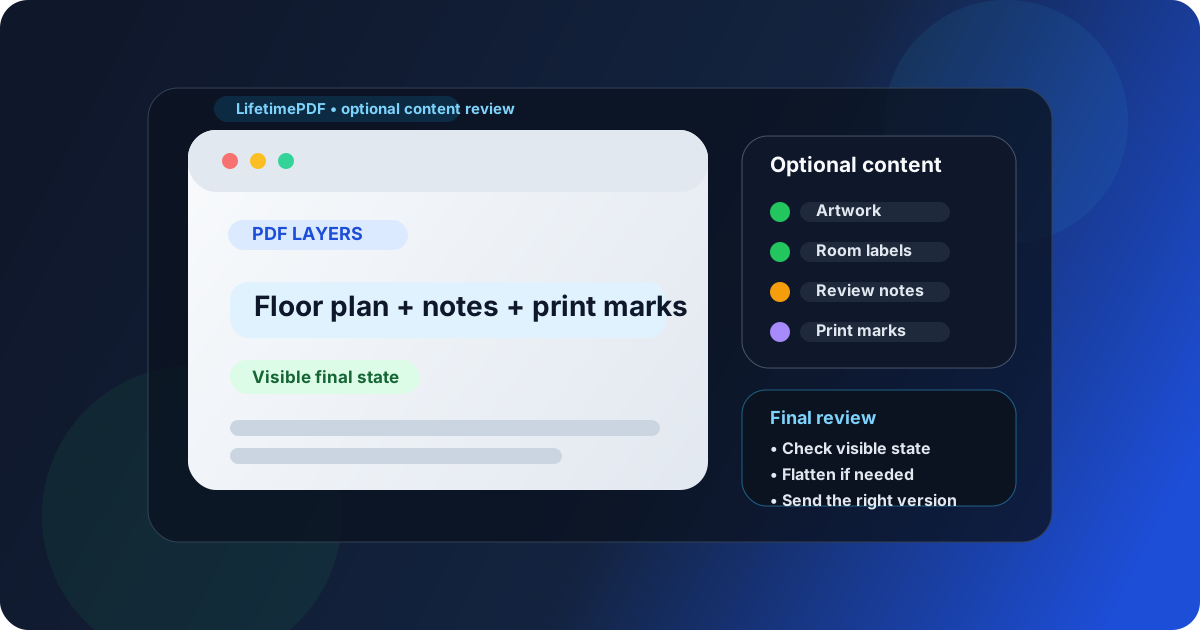
Table of contents
- Quick start: check PDF layers in about 4 minutes
- What PDF layers actually are
- Where PDF layers usually show up
- Step-by-step: practical PDF layer review workflow
- Why layers matter before printing, flattening, or sharing
- Warning signs the PDF may have hidden optional content
- What to do if the wrong layer state is showing
- Related LifetimePDF tools and guides
- FAQ
Quick start: check PDF layers in about 4 minutes
If your goal is simply make sure this PDF is showing the right content before it goes anywhere important, use this workflow:
- Open the exact PDF you plan to print, upload, or send.
- Look for a Layers panel, Optional Content panel, or viewer control that exposes hide/show states.
- Toggle each visible group carefully and note whether artwork, comments, technical marks, language versions, or print-only elements appear.
- Return the file to the visible state you actually want other people to receive.
- If consistency matters across viewers, create or save a final copy with that state locked in, often by flattening the PDF.
What PDF layers actually are
PDF layers are usually called optional content groups or OCGs. They let one PDF contain multiple sets of content that can be shown or hidden without changing the underlying file completely. This is useful when the same document needs design variations, technical markup, language versions, print marks, map overlays, or review notes.
In plain English, layers mean a PDF may not be as flat or final as it looks. One viewer might show only the polished presentation. Another might reveal dimensions, printer marks, commented artwork, hidden logos, or alternate instructions that were meant for a different audience.
| Feature | What it does | Why it matters |
|---|---|---|
| PDF layers / OCGs | Show or hide grouped content inside the same PDF | Different outputs may reveal different content |
| Bookmarks | Help navigation through the document | Useful for readers, but they do not control visibility |
| Comments / annotations | Add review markup or notes | Can clutter a file, but they are not the same as layers |
| Form fields | Accept input like text, checkboxes, or signatures | Interactive, but unrelated to optional content visibility |
Where PDF layers usually show up
Layers are more common in some workflows than others. If a PDF came from design, engineering, mapping, prepress, or multilingual production, there is a real chance optional content is involved.
Design and print files
Alternate artwork, dielines, crop marks, spot-color instructions, or production notes may sit on separate layers so teams can toggle them for proofing versus final output.
CAD and technical drawings
Dimensions, mechanical details, electrical routes, revision clouds, or discipline-specific elements are often separated so different stakeholders can focus on the parts they need.
Maps and floor plans
Base imagery, labels, route overlays, zoning, room categories, or legend elements may appear as distinct optional content groups.
Multilingual or versioned documents
A single PDF can carry alternate language text, region-specific disclaimers, or audience-specific instructions that should not all be visible in the same final copy.
The presence of layers is not automatically a problem. The risk starts when nobody checks which state the recipient will actually see.
Step-by-step: practical PDF layer review workflow
1) Start with the exact final file
Layer visibility can change between exports, revisions, and print-prep steps. Do not inspect an earlier draft if the PDF being emailed to a client or uploaded to a portal is a newer build.
2) Look for layer controls instead of guessing
Some PDFs make layers obvious because the viewer exposes a dedicated panel. Others require a deeper properties or content inspection. Use View PDF Properties as a general first step, especially when you are not sure whether the file contains optional content at all.
3) Toggle visibility carefully
Do not just notice that layers exist. Actually toggle them. A quick click can reveal crop marks, hidden notes, alternate logos, different languages, or internal-only technical details that were easy to miss in the default state.
4) Check the destination of the PDF
The right layer state depends on where the file is going. A printer may need marks that a client should never see. An engineer may want dimensions that a tenant-facing plan should hide. A multilingual team may keep several text layers in one working PDF while only one language belongs in the final public copy.
5) Save or flatten the version that should stay visible
If you need predictable output across viewers, create a clean final version once you know the correct visible state. Flatten PDF is often the right move when you want to stop optional content behavior from creating surprises later.
Reliable sequence: inspect the file, reveal any layers, decide which content should remain visible for the destination, then flatten or save the share-ready copy.
Why layers matter before printing, flattening, or sharing
The real problem with layered PDFs is not that they exist. It is that the wrong audience can end up seeing the wrong version.
| Destination | What can go wrong | Best check |
|---|---|---|
| Commercial printing | Print marks, alternate artwork, or proof layers may be missing or accidentally included | Review visible layers and output intent together |
| Client delivery | Internal notes, hidden logos, or draft labels may show up in the wrong viewer | Open the exact share-ready file and flatten if the state must stay fixed |
| Engineering or architecture | Dimensions, technical layers, or revision marks may be visible to people who only need a clean reference copy | Check which discipline-specific content stays on |
| Archive copy | Future viewers may interpret or reveal optional content differently | Save a stable final version for long-term reference |
The subtle failure mode
Everyone thinks the PDF is correct because the page looks fine in one viewer. Then a different viewer, print pipeline, or flatten step reveals extra material that nobody expected. Layer checks are less about theory and more about preventing that exact surprise.
Warning signs the PDF may have hidden optional content
Sometimes the PDF announces its layers clearly. Sometimes it only leaves clues.
- The file came from InDesign, Illustrator, CAD, GIS, or another layout-heavy workflow.
- Different users report seeing slightly different versions of the same PDF.
- The file contains print marks, alternate language text, or internal notes that seem to appear inconsistently.
- Flattening changes the visual result.
- The PDF viewer exposes a Layers panel or optional content control.
- The document behaves like several versions were packaged into one file.
One warning sign alone does not prove the PDF uses layers. But a couple of them together are enough reason to inspect before you rely on the file.
What to do if the wrong layer state is showing
Once you discover hidden optional content, the next step depends on the job the PDF needs to do.
If you only need a clean final copy
Set the visible state correctly, then create a stable share-ready version. For many workflows, that means using Flatten PDF so the recipient sees one consistent result.
If the PDF is for print production
Keep the working layered copy, but also generate a final proof or print version with the correct marks and content visible. Review output intent and fonts at the same time.
If the file is going to clients or the public
Treat hidden layer content like hidden metadata: only keep what belongs in the external copy. A clean presentation PDF is usually better than a clever multi-state working file.
If several teams still need the layered source
Maintain the layered master internally, but send a separate flattened or verified distribution copy outside the editing workflow.
Related LifetimePDF tools and guides
Layer checks are easiest when you treat them as part of a broader final-review workflow. These are the most useful next steps:
Useful tools
- Flatten PDF to lock in the visible final state
- PDF Metadata Editor for the hidden document details that travel with the file
- Compress PDF when the final presentation copy also needs to be easier to upload or email
Ready to ship the right version? Review the layer state, lock in the final visible copy, and send a PDF that looks the same way you intended it to look.
Best workflow for layered PDFs: inspect the file → reveal optional content → choose the right visible state → flatten or save the final copy → review related print and metadata details if needed.
FAQ
1) How do I check if a PDF has layers?
Open the PDF in a viewer that supports a Layers panel or optional content controls. If you can toggle groups of content on and off, the PDF contains layers.
2) What are PDF layers called technically?
They are usually called optional content groups or OCGs. That term means parts of the PDF can be shown or hidden without rebuilding the whole file.
3) Why should I check PDF layers before printing or flattening?
Because hidden print marks, alternate artwork, review notes, or technical details can end up in the wrong output if you do not confirm the visible state first.
4) Can PDF layers hide information from some viewers?
Yes. Different viewers and export steps can reveal or suppress optional content differently, which is why a PDF can seem correct in one place and wrong in another.
5) Are PDF layers the same as bookmarks, comments, or form fields?
No. Bookmarks help navigation, comments add markup, and form fields accept input. Layers control the visibility of grouped content inside the document.
Published by LifetimePDF — Pay once. Use forever.