How to Check if a PDF Has White Ink: Confirm Specialty Layers, Underprints, and Label-Print Readiness Before Press
To check if a PDF has white ink, open the exact final PDF in a spot-color, layers, or separations-aware workflow and look for a named white-ink plate, underprint layer, or printer-specific white spot color.
If you only see ordinary white objects on the page but no named specialty separation, the PDF may look correct on screen while still missing the printable white-ink data your press workflow actually needs.
That distinction matters on clear labels, dark packaging, metallic stock, window decals, and any job where white ink creates readability, opacity, or an underbase for other colors. A normal PDF preview rarely tells the whole truth. The file can appear perfectly fine while the white plate has been flattened away, renamed badly, or assigned to the wrong objects.
Fastest practical path: save the real PDF, confirm that a named white-ink plate or underprint actually exists, compare it with the print brief, then cross-check spot colors, overprint, and layers before approval.
In a hurry? Jump to quick start: check for white ink in about 5 minutes.
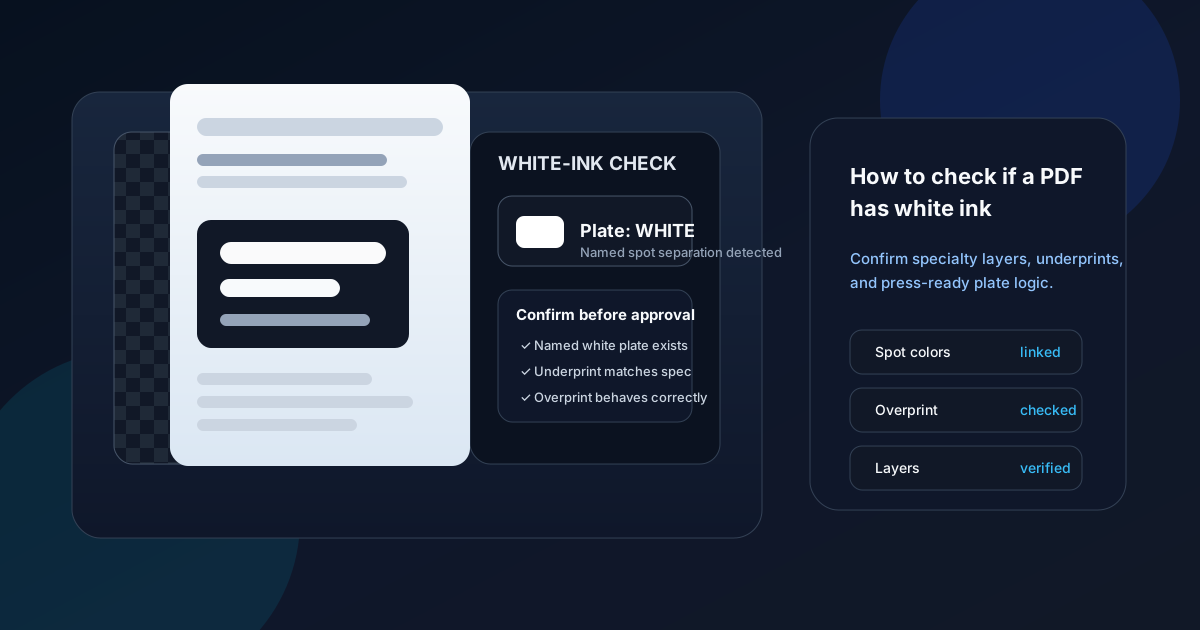
Table of contents
- Quick start: check for white ink in about 5 minutes
- White ink vs ordinary white objects
- Common plate names that usually signal white ink
- Step-by-step: how to verify a white-ink PDF safely
- Where white-ink workflows usually break
- Real-world jobs where the check matters most
- Related LifetimePDF tools and platform guides
- FAQ
Quick start: check for white ink in about 5 minutes
If your real goal is simply tell me whether this PDF still has printable white ink before I approve it, use this workflow:
- Save the exact final PDF out of email, chat, browser, or portal preview.
- Open a workflow that exposes spot colors, named separations, layers, or detailed document properties.
- Look for a named plate such as White, WHITE, Opaque White, Underprint, or the printer's own white-ink label.
- Confirm the plate is attached to the right objects, not just present somewhere in the file.
- Cross-check overprint and layers if the job depends on stacked effects, knockouts, or hidden production content.
- If the white plate is missing, duplicated, or renamed strangely, stop and fix the source or re-export the PDF before it goes any further.
White ink vs ordinary white objects
This is the mistake that trips people most often. A PDF can contain white text, white shapes, or empty-looking artboards without containing any true white-ink plate at all. On a normal white page preview, those two situations can look almost identical.
Ordinary white objects
- May simply knock out the background.
- Can disappear entirely on clear, metallic, or dark material if no white plate exists underneath.
- Often look harmless in a standard preview.
- Do not by themselves prove the PDF is print-ready for white-ink production.
True printable white ink
- Usually appears as a named spot color or specialty separation.
- May act as an underbase for CMYK or brand colors.
- Can be used for opacity, readability, or reverse-side support.
- Needs the final exported PDF to preserve the plate name and object assignment correctly.
If the job is going onto clear film, transparent labels, kraft stock, black packaging, metallic media, or window graphics, the white plate is often the difference between a usable result and a ruined one. That is why a white-ink check belongs in the same family of reviews as spot colors, overprint, and output intent.
Common plate names that usually signal white ink
There is no single universal name. Different printers, RIPs, packaging workflows, and label vendors use different naming conventions. Still, these are the kinds of names that should make you look closer:
| What you might see | What it often means | Why you should not assume too much |
|---|---|---|
| White or WHITE | A straightforward dedicated white-ink spot plate. | The name is promising, but you still need to confirm the right objects are on that plate. |
| Opaque White | Often used for jobs where solid coverage or stronger opacity matters. | Different vendors may expect specific naming, tint behavior, or opacity rules. |
| Underprint or White Underbase | A white plate sitting underneath color so the visible inks stay bright on dark or transparent material. | Underprint plates often depend on correct overprint behavior, not just correct naming. |
| Printer-specific labels such as HPI-White or custom vendor names | A workflow-specific white channel expected by a particular RIP or press vendor. | If the name changes during export, the file may technically contain white objects but still fail the production handoff. |
Important nuance
A correct-looking plate with the wrong name can still create production trouble. Duplicate names, renamed swatches, or vendor-specific white channels that got simplified during export are exactly the kind of problems you want to catch before the file leaves your hands.
Step-by-step: how to verify a white-ink PDF safely
White-ink checking is really a chain of smaller checks. You are not only asking is there a white plate? You are also asking whether the plate survived export, whether it is named correctly, and whether it behaves properly with the surrounding artwork.
1. Save the real outgoing PDF
Do not trust an email thumbnail, browser preview, or upload portal viewer. Save the exact file that will be approved, printed, or sent to the vendor.
2. Surface the plate story
Use spot-color review, document properties, or a separations-aware path to confirm whether a white plate is actually named in the file.
3. Compare against the real print brief
Check the expected plate name, whether it should be a flood underbase or isolated detail layer, and whether the count of specialty plates matches the job.
4. Inspect overprint and knockouts
A white plate can exist and still behave wrongly if objects overprint or knock out in the wrong way. Pair the check with overprint review.
5. Review hidden production content
Some workflows keep white ink on dedicated layers. Use layer checks so a hidden or non-printing layer does not surprise you later.
6. Approve only the final verified copy
If the white plate is missing, duplicated, or suspicious, fix the source or rebuild the final export. Then check the finished PDF again once.
Where white-ink workflows usually break
Most white-ink failures are boring, not mysterious. The design file may have been built correctly, but the final PDF can still break during export, flattening, RIP-specific renaming, or a cleanup step by someone who did not realize the white plate mattered.
- The white plate vanished during export: the source file had a white spot swatch, but the final PDF converted it away.
- The plate name changed: the vendor expected a specific white-channel name and the exported file now uses a generic or inconsistent label.
- The wrong objects are on the plate: some artwork should print over the white underbase, while other objects should stay clear or knock out.
- Duplicate white plates appeared: small naming differences can split the job into multiple unintended specialty separations.
- A layer or underprint was hidden: the PDF technically contains the white content, but the relevant layer is turned off or handled incorrectly.
- Overprint logic is wrong: the white plate exists, yet the way it stacks with color produces muddy, transparent, or incomplete results.
What not to do
Do not assume the file is safe just because someone says, the artwork already had white ink in Illustrator or it printed fine last time. The only file that matters is the exact final PDF headed to production.
Real-world jobs where the check matters most
White-ink review becomes much more important when the substrate itself changes the visibility of the design. These are the workflows where a missing or broken white plate hurts fast:
| Job type | Why white ink matters | What to verify in the PDF |
|---|---|---|
| Clear labels | White ink creates opacity behind colors or readable text on transparent material. | Check for a real white underbase, not just white-looking objects. |
| Dark packaging | White may be the only reason small text, logos, or pastel colors stay visible on black or kraft stock. | Confirm the plate exists and covers the intended areas cleanly. |
| Metallic or foil-backed media | White often controls where the metallic effect shows through and where color should stay solid. | Check plate naming, object placement, and related overprint behavior. |
| Window decals and reverse prints | White may support mirrored artwork, viewing direction, or backing opacity. | Make sure the white layer is present and logically placed within the stack. |
If you only have a phone, tablet, or basic laptop viewer nearby, use that device to confirm you are checking the right saved file, then push the same PDF through a more plate-aware review path. That is where the existing platform guides for Windows, Mac, iPhone, and iPad help.
FAQ
How do I check if a PDF has white ink?
Open the exact PDF in a properties, spot-color, or separations-aware workflow and look for a named white-ink spot plate or underprint layer. If you only see ordinary white objects on screen but no named plate, the PDF may not contain true printable white ink.
Is white ink the same as white objects in a PDF?
No. White objects are just visual page content. True white ink is usually a named specialty plate or spot separation used for printing on dark, transparent, metallic, or non-white materials.
What names might indicate white ink in a PDF?
Common names include White, WHITE, Opaque White, Underprint, HPI-White, or printer-specific white-ink labels. The exact naming depends on the vendor and workflow, so always compare it with the real production spec.
Why can a PDF look normal even when the white-ink plate is missing?
Many previews show only the visible page and hide the underlying separations. A file can look fine on screen while the white-ink plate has been flattened away, converted incorrectly, or never exported at all.
What should I do if the PDF should have white ink but I cannot find it?
Treat that as a production issue. Recheck the final export, compare the source artwork with the print brief, and rebuild the PDF if the white-ink plate is missing, renamed, or attached to the wrong objects.
Do not trust a white-looking preview when the job needs a real white plate.
Save the final PDF, confirm the named white-ink separation, compare it with the print brief, and only approve the file when the hidden production structure matches the visible artwork.
Published by LifetimePDF — Pay once. Use forever.