Check PDF Overprint: Confirm Knockouts, Rich Blacks, and Spot-Color Behavior Before Press Handoff
To check PDF overprint, open the exact production PDF in an overprint-aware preview and compare how black text, fills, and spot-color objects behave when overprint is honored instead of guessed at by a simple screen preview.
If objects darken unexpectedly, disappear, or fail to knock out the background the way you expect, fix the file before proofing, printing, or sending it to press.
That is the short answer. The more useful answer is understanding that overprint problems rarely announce themselves in a friendly way. The PDF often looks normal until it reaches a better proofing workflow, a RIP, or a press process that finally obeys the hidden print instructions inside the file. That is why a fast overprint check matters most right before the handoff, when you still have time to correct the final copy instead of explaining a costly surprise later.
Fastest practical path: preview overprint, inspect small black text and spot-color objects, then cross-check output intent and trapped status before approving the final PDF.
In a hurry? Jump to the 5-minute overprint review.
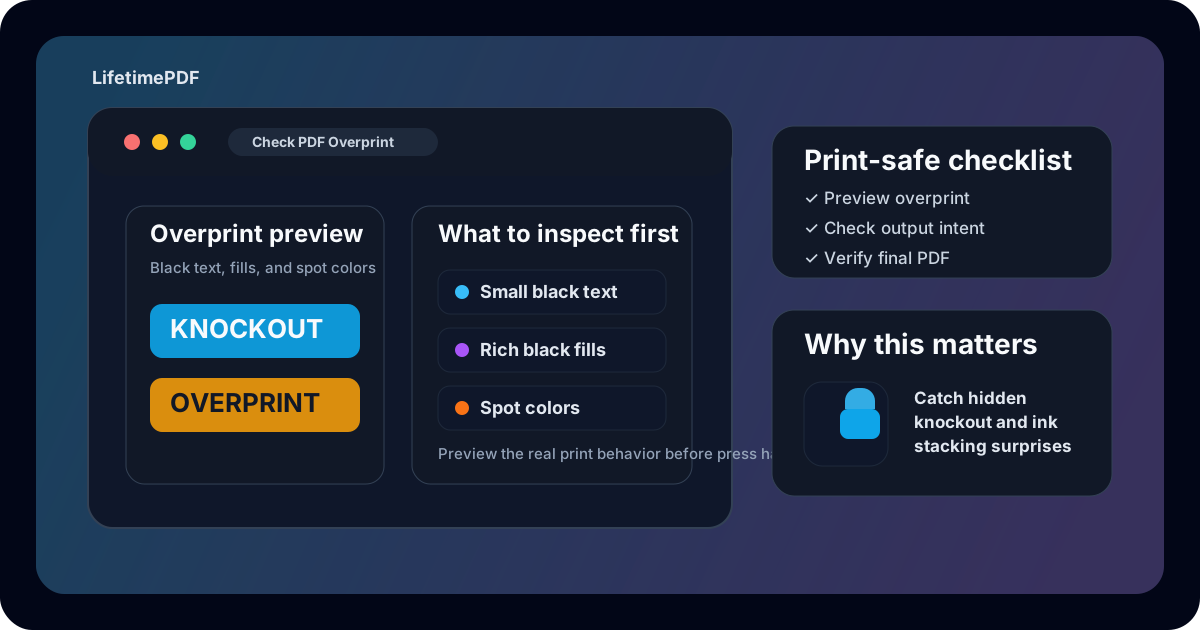
Table of contents
- Quick start: check PDF overprint in about 5 minutes
- What overprint actually means in a PDF
- Why overprint problems show up late and cost more
- Step-by-step: practical overprint review workflow
- What to look for in black text, rich fills, and spot colors
- Common overprint mistakes and what they usually mean
- When to fix the file and when to re-export it
- Related LifetimePDF tools and guides
- FAQ (People Also Ask)
Quick start: check PDF overprint in about 5 minutes
If your real goal is simple — make sure this PDF will not produce a hidden knockout or overprint surprise on press — use this order:
- Open the exact PDF that will actually be printed, uploaded, approved, or sent to a vendor.
- Use an overprint-aware preview or preflight view instead of relying only on a casual browser or office viewer.
- Inspect small black text, dark fills, spot-color objects, and anything that sits on top of other color.
- Compare what should overprint versus what should knock out underneath.
- Cross-check nearby print signals such as output intent, ICC profile, and trapped status.
- If the behavior looks wrong, correct the artwork or re-export the PDF and then verify the finished file one more time.
What overprint actually means in a PDF
In print terms, overprint tells one object to print on top of whatever is underneath it rather than punching a hole in the background first. The opposite behavior is called a knockout, where the top object removes the color below so it prints by itself.
That difference matters because it changes the final ink result. Sometimes overprinting is exactly what you want. Small black text often benefits from it because a tiny registration shift is less likely to leave a visible white halo around the letters. In other situations, accidental overprint can make colored objects darken, blend strangely, or disappear against the background in ways that are hard to spot until the PDF reaches a true print workflow.
| Behavior | What happens in print | Why it matters |
|---|---|---|
| Overprint | The top object prints on top of the underlying color | Can improve registration handling or create intended ink stacking |
| Knockout | The top object removes the underlying color first | Keeps colors separate and avoids unexpected darkening underneath |
| Wrong overprint | The top object prints on top when it should have knocked out | Can make text unreadable, logos muddy, or spot-color work inaccurate |
| Wrong knockout | The top object removes the background when it should have overprinted | Can create visible halos, gaps, or registration-sensitive edges |
Why overprint problems show up late and cost more
Overprint errors are annoying because they are often invisible during casual review. A browser preview may flatten, simplify, or merely display the current screen appearance without showing you how the PDF will behave in a print-aware workflow. Then the file reaches a proofing system, a RIP, or a press setup that honors overprint instructions properly, and suddenly the design behaves differently than you expected.
Late discovery
A PDF can look fine in quick review but fail once a print-aware system finally respects the hidden overprint instructions.
High-impact areas
Brand colors, small text, packaging marks, dielines, and spot-color artwork are the places where incorrect overprint causes the most pain.
Expensive fixes
The later you catch the issue, the more likely it turns into press delays, vendor questions, remake costs, or a new export cycle under deadline.
That is why checking overprint belongs near the end of the workflow, right when the outgoing PDF is supposed to be final. You are not trying to become a prepress detective for fun. You are trying to prevent one hidden instruction from undoing otherwise good artwork.
Step-by-step: practical overprint review workflow
Here is the most useful way to check overprint on a real production PDF without turning a quick review into an all-day prepress exercise.
1) Open the exact outgoing PDF
Do not inspect a screenshot, an earlier proof, or a differently named export. Overprint checks only matter on the file that will actually leave your hands.
2) Use an overprint-aware preview
The point is not a specific software brand. The point is using a preview or preflight mode that actually shows how overprint behaves instead of giving you a simplified visual guess. If your workflow cannot show overprint honestly, treat that as a risk signal rather than false reassurance.
3) Zoom in on the risky objects first
Start with small black text, dark rules, logos placed on colored backgrounds, spot-color elements, and complex objects that sit above images or rich fills. These are the places where hidden print behavior matters most.
4) Compare the expected result with the print result
Ask a simple question: should this object sit on top of the color below, or should it punch a clean hole and print separately? If the answer in the preview does not match the design intent, the PDF is not ready.
5) Check nearby print clues
Pair the overprint review with output intent, ICC profile, trapped status, and bleed. Overprint is easier to trust when the rest of the print-prep story makes sense too.
6) Save, reopen, and verify the final copy once
If you correct the artwork or re-export the PDF, reopen the finished file one more time. Never assume the new export fixed the overprint behavior unless the real outgoing PDF now proves it.
Reliable sequence: preview overprint, inspect black text and spot colors, confirm the wider print metadata, then verify the final saved PDF one last time before handoff.
What to look for in black text, rich fills, and spot colors
Most overprint checks become easier once you know where trouble usually hides.
Small black text
Often intentionally overprints, especially in press workflows where tiny knockout halos would be a bigger problem than the stacked black ink.
Rich black or dark fills
Can become heavier or dirtier than expected if the object overprints unexpectedly onto the colors below it.
Spot-color elements
Need extra care because intentional ink stacking can be correct in one brand or packaging workflow and completely wrong in another.
Overprint review is especially important when the PDF contains logos, packaging marks, technical production notes, or art built from spot colors. In those cases, what looks like a minor print instruction can change the actual brand result. That is also why it helps to review PDF layers or flatten a delivery copy when the file mixes optional content, spot-color elements, and prepress-specific settings.
| Object type | Why it is risky | What to verify |
|---|---|---|
| Small black text | Registration-sensitive and easy to misread in casual previews | Whether overprinting is intentional and still readable on the real background |
| Brand-color logos | Unexpected stacking can muddy or shift the intended appearance | Whether the logo should knock out or deliberately overprint |
| Spot-color objects | Ink interactions can be workflow-specific | Whether the stacking behavior matches the print plan |
| Dark fills over images | Wrong overprint can make the result too heavy or hard to read | Whether the fill should sit cleanly above the image or mix with it |
Common overprint mistakes and what they usually mean
The same patterns show up again and again when a PDF has hidden overprint trouble.
White objects disappear
White overprint usually does not behave the way casual users expect, so white text or marks can vanish in press-aware output.
Black text looks fine on screen but prints differently
A normal viewer may not show the true print interaction, especially when the text overprints a colored or image-heavy background.
Logos get darker or dirtier than expected
One or more elements may be overprinting when they should knock out, causing stacked inks and a heavier appearance.
Packaging or spot-color files behave differently between systems
Different proofing and output workflows may finally expose a hidden overprint assumption that lighter viewers never showed you.
The helpful habit is not memorizing obscure print trivia. It is noticing when the hidden print instruction and the visible design intent stop matching each other.
When to fix the file and when to re-export it
Not every overprint problem needs the same response.
Leave it alone when the print behavior is intentional
If the overprint result matches the real production plan — especially for small black text or deliberate spot-color stacking — there is no prize for changing it.
Correct the artwork when one object behaves wrongly
If one logo, text block, or graphical element is overprinting or knocking out by mistake, the cleanest fix is often in the source artwork or object settings rather than in a last-minute patch.
Re-export when the whole file feels inconsistent
If overprint problems show up alongside odd color handling, stale prepress metadata, broken transparency behavior, or other print-prep mismatches, the safer solution is usually a fresh export path rather than a series of tiny repairs.
| Situation | Best move | Why |
|---|---|---|
| The overprint behavior matches the production plan | Keep it | The PDF is already telling the right print story |
| One element is clearly wrong | Fix the object | A targeted artwork correction is cleaner than a full rebuild |
| Multiple print signals conflict | Re-export the file | The PDF likely has a wider prepress setup problem, not just one overprint mistake |
| You only need a stable delivery copy | Flatten a separate copy | Flattening can reduce viewer-to-viewer surprises while preserving the original working file |
A dependable default sequence is this: preview the overprint result → inspect the risky objects → compare the behavior with output intent and trapped status → correct the artwork when needed → re-export when the file's wider print story feels inconsistent → verify the final saved PDF once before handoff.
Related LifetimePDF tools and guides
View PDF Properties
Start here when you want the clearest overview of the file's stored print and document properties before you trust the outgoing copy.
Open the guideCheck PDF Output Intent
Use this when you want to confirm that the PDF's declared print destination matches the actual production workflow.
Read the output-intent guideCheck PDF ICC Profile
Helpful when the real concern is how color and print conditions are described around the same file.
Read the ICC-profile guideCheck PDF Trapped
Review the Trapped flag when you want the metadata story around the file to match the real press workflow.
Open the trapped guideCheck PDF Bleed Box
Pair this with overprint review when the file is headed to print and edge geometry matters as much as color interaction.
Read the bleed-box guideFlatten PDF
Create a simpler delivery copy when the file needs to behave more predictably across viewers, portals, and printers.
Open the flattening guideFAQ (People Also Ask)
How do I check PDF overprint?
Open the exact production PDF in an overprint-aware preview or preflight tool, then inspect how black text, spot colors, and stacked objects behave when the print instructions are actually honored.
What is overprint in a PDF?
Overprint is a print setting that allows one object to print on top of the color below it instead of knocking that color out first. It can be useful or destructive depending on where it is used.
Why does black text get checked first for overprint issues?
Because small black text often sits in the gray area between intentional overprint for cleaner registration and accidental behavior that makes text look heavier or less readable on colored backgrounds.
Is overprint the same as transparency or layers?
No. Overprint controls print interaction between stacked objects, transparency controls blending and opacity, and layers control optional content visibility. They can appear in the same PDF, but they solve different problems.
Should I fix overprint issues by editing metadata only?
Usually no. If the visible print behavior is wrong, the safer fix is normally to correct the artwork or re-export the PDF, then verify the final outgoing copy again.
Ready to sanity-check a press-bound PDF before it creates a hidden print surprise?
Best default workflow: preview the real overprint behavior → inspect black text and spot colors → confirm the rest of the print-prep metadata → correct the artwork or re-export when needed → verify the final PDF once before handoff
Published by LifetimePDF — Pay once. Use forever.