How to Check if a PDF Has White Ink on Android: Verify Specialty Plates, Underprints, and Label-Print Files Before You Share or Print
To check if a PDF has white ink on Android, save the exact final PDF into your device storage, open a properties, spot-color, or layers-aware workflow, and look for a named white-ink plate, underprint, or printer-specific white spot color.
If the file only looks white on screen but no named specialty separation appears, the PDF may preview correctly on Android while still missing the printable white-ink data the job actually depends on.
That matters on clear labels, dark packaging, metallic stock, window graphics, and any workflow where white ink creates opacity, readability, or a stable underbase for other colors. Android is where a lot of fast handoffs happen: a PDF lands in Gmail, opens in Drive, gets checked in Files, and gets forwarded from a phone before anyone verifies the hidden print structure. A quick mobile preview is useful, but it is not the same thing as confirming that the white plate survived export intact.
Fastest practical path: save the real Android copy, confirm that a named white-ink plate or underprint actually exists, compare it with the print brief, then cross-check spot colors, overprint, and layers before approval.
In a hurry? Jump to quick start: check for white ink on Android in about 5 minutes.
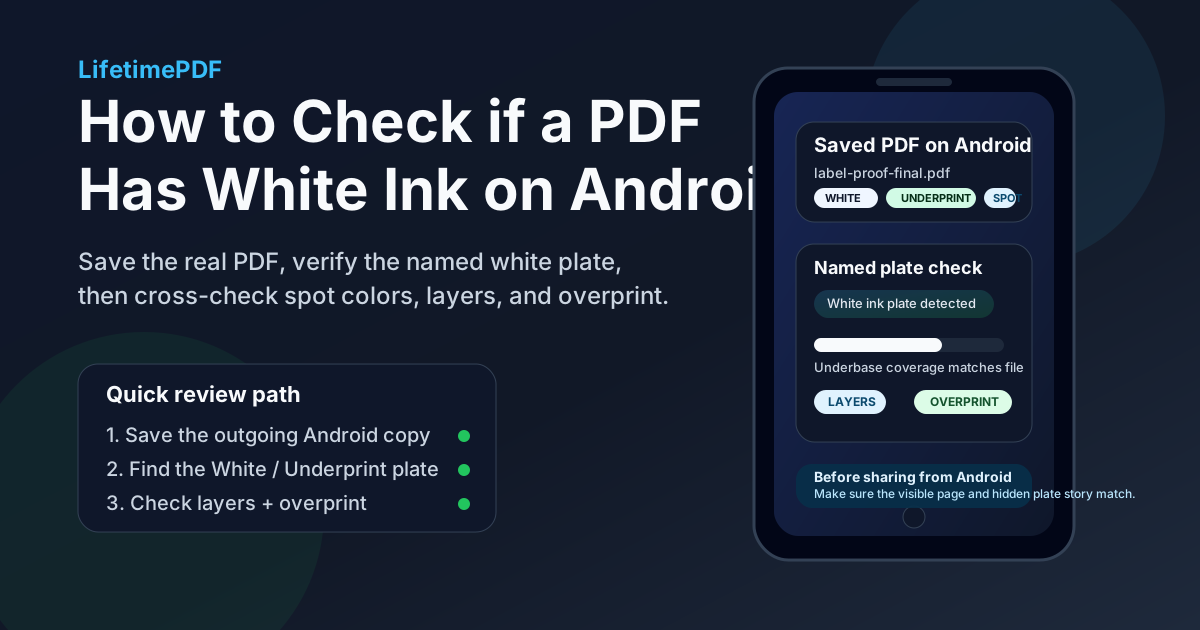
Table of contents
- Quick start: check for white ink on Android in about 5 minutes
- What white ink means on Android
- Where Android previews help and where they mislead you
- Step-by-step: how to verify white ink on Android
- What else to check besides the white plate
- Common white-ink problems on Android
- Related LifetimePDF tools and guides
- FAQ
Quick start: check for white ink on Android in about 5 minutes
If your real goal is simply tell me whether this Android PDF still contains printable white ink before I forward it, use this order:
- Save the exact PDF you plan to email, upload, archive, proof, or send to a printer into local storage or your Android file manager.
- Do not rely only on the first look in Gmail preview, Messages, Chrome, or a cloud-storage viewer.
- Open a metadata-aware path such as View PDF Properties, spot-color review, or layer review.
- Look for a named plate such as White, WHITE, Opaque White, Underprint, or the printer's own white-ink label.
- Confirm the plate is attached to the right objects and matches the real print brief, not just present somewhere in the file.
- Cross-check overprint, layers, and output intent if the job depends on precise print behavior.
- If the plate is missing, duplicated, or suspicious, stop and fix the source or re-export the PDF before it goes any further.
What white ink means on Android
On Android, white ink usually means a named specialty separation that prints as its own plate instead of behaving like ordinary white artwork on the page. That plate might act as a full underbase, a selective highlight, a reverse-print support layer, or a readability layer on dark, metallic, transparent, or otherwise non-white stock.
The practical problem is that normal Android viewing paths do not explain that distinction well. A PDF can show white text or white shapes and still contain no printable white-ink plate at all. That is why a useful Android review asks two separate questions: does the page look fine and does the final saved PDF still carry the named plate the printer expects.
Ordinary white objects
These may simply knock out the background. They can look perfectly normal in a phone or tablet preview while failing completely on clear, dark, or metallic material if no white plate exists underneath.
True white-ink plate
This is the named specialty separation that a production workflow can actually use for opacity, underprinting, readability, or special effects.
Why Android users still get burned
The preview feels convenient and immediate, so people often assume the visible page proves the file is production-ready even when the hidden plate structure says otherwise.
Common Android mistake
Someone opens the PDF in Files, Gmail, or Drive, sees white elements where they expect them, and assumes the white-ink setup survived export. That only proves the page renders. It does not prove the specialty separation still exists.
Where Android previews help and where they mislead you
Android gives you several easy ways to inspect a PDF, and that convenience genuinely helps. The trouble starts when a casual preview gets treated like a production check.
| Android path | What it is good for | What it cannot safely prove |
|---|---|---|
| Files by Google or your device file manager | Confirming that you saved the right file and that the PDF opens normally on your device. | That the hidden white-ink plate or underprint still exists and matches the print brief. |
| Gmail, Messages, or another attachment preview | Quickly checking whether the attachment appears to be the right document before download or forwarding. | That the locally saved outgoing copy, the cloud copy, and the real production copy are all identical with the correct specialty plate intact. |
| Chrome preview or a printer portal download | Checking whether the right proof or vendor file arrived on your phone. | That the preview is telling the truth about hidden plates rather than only about the visible page. |
| Dedicated properties, spot-color, or layer workflow | Reviewing named plates, hidden content, and nearby production signals before the file leaves your device. | It cannot fix a broken export for you. You still have to decide whether to approve the file or rebuild it. |
Step-by-step: how to verify white ink on Android
This workflow is quick enough for everyday approvals and strong enough to catch the white-ink failures that usually show up only after handoff.
1) Save the exact Android copy first
Inspect the file that will actually be printed, uploaded, archived, or delivered. Do not judge only a preview if another saved copy is the real outgoing document.
2) Surface the plate story
Use View PDF Properties, Check PDF Spot Colors, or another white-ink-aware path so you can see named separations instead of guessing from the visible page.
3) Look for the real white plate name
Common names include White, WHITE, Opaque White, Underprint, or a printer-specific channel name. Similar-looking names can still be wrong in real production.
4) Check where the plate is actually used
Confirm the white plate sits under the intended logos, text, or colored objects instead of stray backgrounds, hidden layers, or duplicated art that will confuse the printer.
5) Cross-check nearby print signals
Review overprint, layers, output intent, and ICC profile so the plate story agrees with the wider file setup.
6) Reopen the rebuilt final copy once
If you fix the artwork or re-export the file, reopen the saved PDF and verify the white-ink structure again. That catches the classic mobile mistake where the source changed but the outgoing PDF did not.
Best default sequence: save the real Android copy → confirm the named white plate → compare it with the print brief → check overprint, layers, and output intent → rebuild only if the plate story no longer holds together.
What else to check besides the white plate
White ink is easiest to trust when the surrounding production clues tell the same story. On Android, these checks usually matter most:
- Spot colors: useful when the white plate sits inside a larger named-ink or specialty-finish setup.
- Overprint: critical when the white plate acts as an underbase and object stacking changes the final printed result.
- Layers: especially important if white ink lives on a dedicated production layer or if hidden content may mask the real setup.
- Output intent: helps confirm the file's broader print destination still fits the same workflow the white plate implies.
- ICC profile: useful for understanding the wider color-management story around the file instead of looking only at one named separation.
- The real production brief: if the printer or converter gave a specific plate name or underprint rule, trust that instruction over casual assumptions.
In other words, a white plate is one production clue. It becomes useful when the plate name, object usage, overprint behavior, and print instructions all point in the same direction.
Healthy rule of thumb
If the white plate exists, the naming matches the brief, and the surrounding production signals agree, leave the file alone. If those pieces disagree, rebuild the PDF so the hidden production structure and visible artwork finally tell the same story again.
Common white-ink problems on Android
These are the issues that show up most often when an Android PDF looks fine on screen but still breaks the white-ink workflow downstream.
The white plate vanished during export
The source file may have been set up correctly, but the final PDF turned the white channel into ordinary artwork or removed it altogether. If the job depends on white ink, rebuild the final export instead of trusting the preview.
The wrong saved copy is being reviewed
Android workflows often bounce between chat attachments, browser previews, cloud tabs, and local downloads. If you check one file and send another, the review was technically correct but practically useless.
The plate name changed slightly
A printer-specific white channel can fail when the exported PDF renames it or splits it into near-duplicate labels. Similar-looking names are not always safe in production.
The visible page and the hidden structure disagree
The artwork may look perfect in Files or Chrome while the plate sits on the wrong objects, a required layer is hidden, or the surrounding overprint setup no longer matches the real print brief.
A good Android habit is to approve only the final verified copy. If the saved PDF is right, extra tinkering only creates fresh risk. If the white-ink story broke during export, the safest fix is usually a clean re-export rather than a cosmetic patch afterward.
FAQ
How do I check if a PDF has white ink on Android?
Save the exact final PDF to your Android device, open a properties, spot-color, or layers-aware workflow, and look for a named white-ink plate such as White, Opaque White, or Underprint. Then compare that plate with the print brief before you approve or send the file.
Can Gmail, Drive, or Files on Android prove that white ink is really there?
Not safely on their own. They are useful for opening the right document, but normal previews mostly show the visible page. A real white-ink check needs a more production-aware path that lets you verify the underlying named separation.
Is white ink the same as white text or white shapes on the page?
No. White-looking artwork can still be ordinary page content with no printable white-ink plate underneath. When the job depends on white ink, what matters is the named specialty separation, not just how the page looks on your screen.
Why does this matter more on labels, packaging, and dark materials?
Those workflows often rely on white ink for opacity, readability, or an underbase beneath other colors. If the white plate disappears, the printed result can become dull, unreadable, or structurally wrong even though the PDF looked fine during casual review.
What should I do if I cannot find the white plate?
Stop the handoff, compare the final PDF with the source artwork and production brief, and rebuild the export if needed. If the plate is missing, duplicated, renamed badly, or attached to the wrong objects, the safest fix is almost always a clean corrected final PDF.
Final takeaway: the Android preview should support your white-ink check, not replace it. Save the exact outgoing PDF, confirm the named plate, and cross-check the surrounding print signals before the file leaves your device.