How to Check if a PDF Has Spot Colors: Confirm Named Inks, Specialty Plates, and Brand Separations Before Press
To check if a PDF has spot colors, open the exact file in a properties, separations, or preflight-style workflow and look for named inks such as a brand color, white ink, varnish, foil, or another specialty plate.
If those names are missing, duplicated, or replaced by ordinary CMYK builds, the PDF either does not have the spot colors you expected or it no longer has them in a production-safe form.
That is the short answer. The useful answer is that people often ask the right question in the wrong place. They open the PDF in a browser tab, email preview, phone viewer, or portal preview, see a page that looks normal, and assume the spot-color question is settled. But named inks live below the casual preview layer. A file can look perfectly fine while the specialty plate is already gone, split into duplicate names, or quietly converted on export.
Fastest practical path: save the real PDF, inspect the named ink list, compare those names with the print brief, then cross-check overprint and output intent before you trust the file.
In a hurry? Jump to quick start: check whether a PDF has spot colors in about 5 minutes.
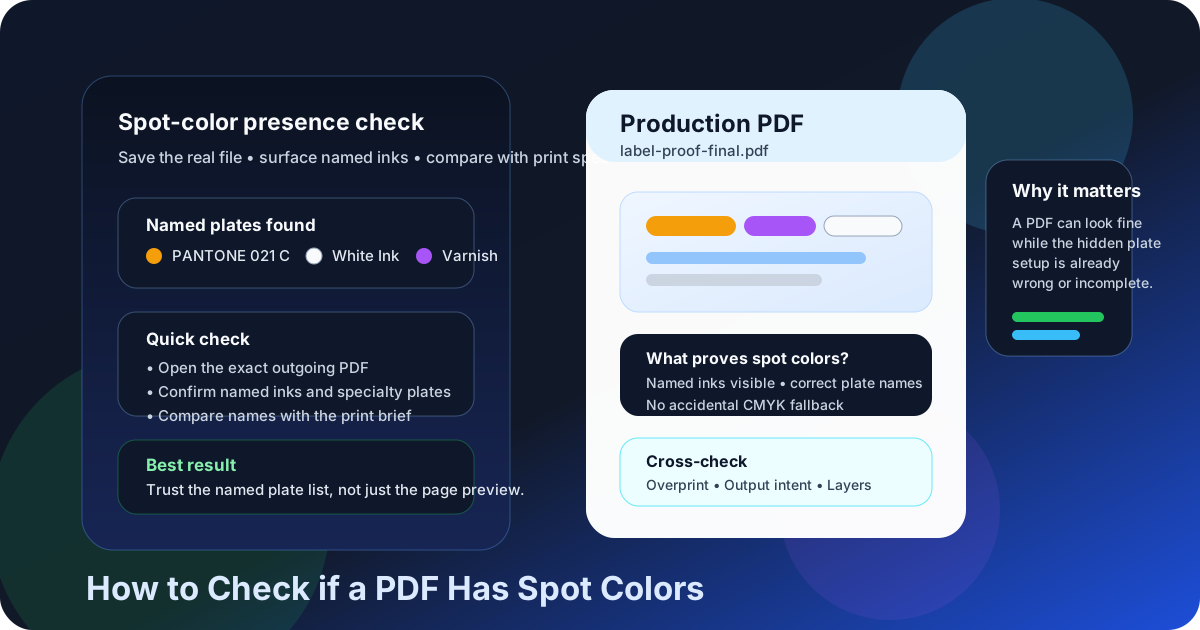
Table of contents
- Quick start: check whether a PDF has spot colors in about 5 minutes
- What counts as a PDF having spot colors
- Step-by-step: how to check if a PDF has spot colors
- Why previews and simplified viewers mislead people
- Signs the PDF has spot colors but the setup still needs cleanup
- What to do if the PDF has no spot colors or the wrong spot colors
- Platform-specific help
- Related LifetimePDF tools and guides
- FAQ
Quick start: check whether a PDF has spot colors in about 5 minutes
If your real goal is simply tell me whether this PDF still contains the named inks or specialty plates the job depends on, use this order:
- Save the exact PDF you plan to upload, proof, approve, archive, or send to a printer.
- Open that file in a properties, separations, or preflight-style workflow instead of relying only on a browser, email, or mobile preview.
- Look for the named ink list. If you see entries such as a brand color, white ink, varnish, foil, or another specialty separation, the PDF has spot colors.
- Compare those names with the real print spec, packaging brief, or vendor instructions.
- Check whether the spot colors are attached to the right objects and not duplicated as stray process-color builds.
- If the names are missing, messy, or wrong, fix the artwork or re-export the final PDF before handoff.
What counts as a PDF having spot colors
A PDF has spot colors when it contains one or more named inks or named separations that remain distinct from normal process color. Those might represent a brand ink, a packaging color, white ink, varnish, foil, a technical production plate, or another specialty output requirement.
What counts
A named plate or named ink is present in the PDF and survives into the final file as its own separation.
What does not count
A color that merely looks similar on screen after it has already been converted into ordinary CMYK values.
What confuses people
A normal preview can show the page accurately enough to read while hiding the fact that the named ink structure underneath has changed.
That distinction matters because print workflows care about more than appearance. If the production plan requires a separate plate, the PDF must carry that plate by name. A visually similar CMYK build may be fine for a quick mockup and completely wrong for packaging, label work, metallic ink, white underprint, or brand-critical press output.
| What you find | What it usually means | Why it matters |
|---|---|---|
| One or more named spot inks are listed | The PDF really does have spot colors or specialty plates. | Good start, but you still need to confirm the names and usage are correct. |
| No named inks appear | The file may be all process color, or the expected spot colors may have been converted or stripped out. | Critical if the job was supposed to include brand inks, varnish, foil, or white ink. |
| Several nearly identical ink names appear | The intended plate may be split into duplicates. | That can create extra plates, extra cost, or vendor confusion. |
| A spot ink appears alongside a similar CMYK build | The file may contain duplicate artwork or mixed export logic. | That can muddy output or make the production intent unclear. |
Step-by-step: how to check if a PDF has spot colors
This workflow works well across desktop and mobile because the logic stays the same even when the menus differ.
| Step | What to do | What you are really checking |
|---|---|---|
| 1. Save the real file | Move the PDF out of a chat, browser, portal, or email wrapper if needed. | That you are inspecting the same copy you plan to share or print. |
| 2. Open a spot-color-aware view | Use View PDF Properties or another properties or separations-aware path. | Whether the file exposes named inks at all. |
| 3. Confirm the named inks exist | If you can see a brand ink, white ink, varnish, foil, or another named plate, the PDF has spot colors. | Whether the production-specific color structure survived export. |
| 4. Compare the names with the real brief | Check the plate names against the actual print specification or packaging requirements. | Whether the file has the right spot colors, not merely some spot colors. |
| 5. Decide what to do next | Keep the file if the spot-color story is clean, or repair and re-export it if the names, usage, or plate count look wrong. | Whether the PDF is truly ready for handoff. |
Reliable sequence: save the exact PDF → surface the named ink list → confirm the expected plates exist → compare them with the real print spec → cross-check overprint and output intent → fix the file only if the plate story is wrong.
Why previews and simplified viewers mislead people
Many PDF opening paths are built for speed, not deep print QA. They tell you that the page renders. They do not always tell you whether the named-ink structure still exists or whether the specialty plate setup is trustworthy.
| Where you open the PDF | What it is good for | What it cannot safely prove |
|---|---|---|
| Email, chat, or browser preview | Quickly confirming that you have the expected file and that the page looks familiar. | That the file definitely has no spot colors just because you do not see a plate or named-ink panel. |
| Cloud-storage or vendor-portal preview | Spot-checking that the upload worked and the PDF opens. | Whether the brand ink, varnish, white ink, or other specialty separation is still intact. |
| Basic mobile viewer | Opening the exact saved file on the go. | Whether the hidden spot-color setup is present, named correctly, and ready for print. |
| Properties or separations-aware workflow | Seeing the real named-ink list and cross-checking the broader print story. | It still does not guarantee the file is safe unless you compare the names with the actual job requirements. |
Common false conclusion
“The PDF looks right, so it must still have the right spot colors.” That conclusion is often wrong. A better conclusion is “the page renders, but I still have not proved the named plate structure.”
This matters most when the file moves through fast handoffs: email attachments, AirDrop, cloud storage, vendor portals, or phone-based approvals. Those are exactly the moments when convenience is high and deep plate visibility is low.
Signs the PDF has spot colors but the setup still needs cleanup
Once you confirm that a PDF has spot colors, the next question becomes whether the setup is actually healthy. Presence alone is not the whole job.
| What you notice | What it usually means | Best next move |
|---|---|---|
| The named ink list exists, but the labels are inconsistent | The same intended plate may have been renamed slightly during design or export. | Compare the names with the real print brief and consolidate them carefully if needed. |
| The spot ink exists, but the wrong objects use it | Stray artwork, template leftovers, or duplicate elements are attached to the plate. | Fix the artwork before handoff instead of hoping the printer sorts it out. |
| The file shows both a named plate and a similar CMYK version | The export path may have left behind duplicate visual builds. | Inspect the objects and clean the file so one intentional color strategy remains. |
| The spot color seems right, but overprint looks suspicious | The plate exists, but stacked object behavior may still be wrong. | Check overprint before approving the file. |
| The spot-color names exist, but the wider print setup feels inconsistent | The PDF may have conflicting output intent, ICC profile, layers, or other production clues. | Review the wider print story instead of treating the named ink list as the only truth. |
Brand logo job
Confirm the exact named brand ink survives and is not quietly replaced by a process build.
Packaging file
Check white ink, varnish, foil, or technical plates with extra care because these jobs depend on the plate list itself.
Shared template
Assume stale plate names and hidden leftovers are possible, especially after many edits or vendor round-trips.
Late export
A final-minute export can preserve the look of the page while still changing the hidden production logic underneath.
What to do if the PDF has no spot colors or the wrong spot colors
The answer depends on what the job actually needs. The good news is that this presence check naturally tells you the next move.
- If the PDF does not need spot colors, no named inks may be perfectly fine. Not every PDF should contain specialty plates.
- If the PDF should have spot colors and none appear, assume the export path converted or removed them until proven otherwise.
- If the right spot colors appear under the wrong names, fix that before handoff because small naming differences can create real plate problems.
- If the named plates exist but usage is messy, correct the artwork instead of trusting a lucky preview.
- If multiple print clues conflict, re-export the file cleanly rather than stacking more tiny repairs on a shaky final PDF.
Best next step after the check: if the file should carry spot colors, use the named-ink list as a gate before you approve, upload, or send it to a printer.
Platform-specific help
If you want device-specific steps instead of a general cross-platform workflow, these guides cover the same spot-color question on common platforms.
Windows
Best if the PDF lives in File Explorer, Outlook, or a desktop handoff workflow and you want a practical Windows review path.
Open Windows GuideMac
Useful if your PDF moves through Finder, Preview, or a Mac-first design workflow and you want the cleanest Mac-specific steps.
Open Mac GuideiPhone
Helpful when the file is moving through Files, Mail, AirDrop, or a phone-based approval flow and you need a quick real-file check.
Open iPhone GuideAndroid
Best when you need a practical spot-color check from Android downloads, file storage, or message-attachment workflows.
Open Android GuideFAQ
How do I check if a PDF has spot colors?
Open the exact PDF in a properties, separations, or preflight-style workflow and look for named inks or specialty plates. If the file lists a brand ink, white ink, varnish, foil, or another named separation, the PDF has spot colors.
Can a PDF have spot colors even if I do not see them in my browser or email preview?
Yes. Many simple previews render the page normally while hiding the named-ink list, so a clean preview does not prove the file lacks spot colors or that the plate setup is correct.
Are spot colors the same as CMYK or overprint?
No. Spot colors describe named inks or specialty plates. CMYK describes process-color values, and overprint describes how stacked objects behave when they print on top of one another.
What if the PDF has spot colors but the names look wrong?
Treat that as a production issue. Small naming differences can create duplicate plates, vendor confusion, or brand-color mistakes, so compare the names with the real job spec before approval.
What if the file should have spot colors but none appear?
The export path may have converted the spot colors to process color or removed a specialty plate. Rebuild or re-export the final PDF from the source, then verify the finished copy again before handoff.
Make the plate list prove itself before you trust the file.
A normal preview is not enough when the job depends on named inks. Save the real PDF, surface the spot-color list, compare it with the print brief, and only approve the file when the hidden plate story matches the visible page.
Published by LifetimePDF — Pay once. Use forever.