Unlock PDF for Signing: Remove Restrictions and Sign the Right Copy
Yes — you can unlock a PDF for signing by removing the document's signing or editing restriction in an authorized PDF unlock tool, then opening the unlocked copy in Sign PDF or PDF Form Filler.
If the file is scanned, flattened, or already digitally signed, unlocking alone may not be enough — you may need to place a visual signature, use form tools, or return to the unsigned source instead of changing the signed copy.
That second sentence is the part people usually discover the hard way. A PDF can refuse your signature for several completely different reasons. Sometimes the sender blocked signing or editing with permissions. Sometimes the file is basically a picture of paper and has no real fields to click. Sometimes someone already signed it, and the safest thing is not to modify it at all. A clean workflow saves time because it tells you whether you need to unlock, fill, sign, or stop and get a new copy.
Fastest path: unlock the file first if you are allowed to, then choose the right next tool for the real job — add the signature, fill the form, or verify whether an existing signature should stay untouched.
Need the short version first? Jump to quick start: unlock a PDF for signing in about 5 minutes.
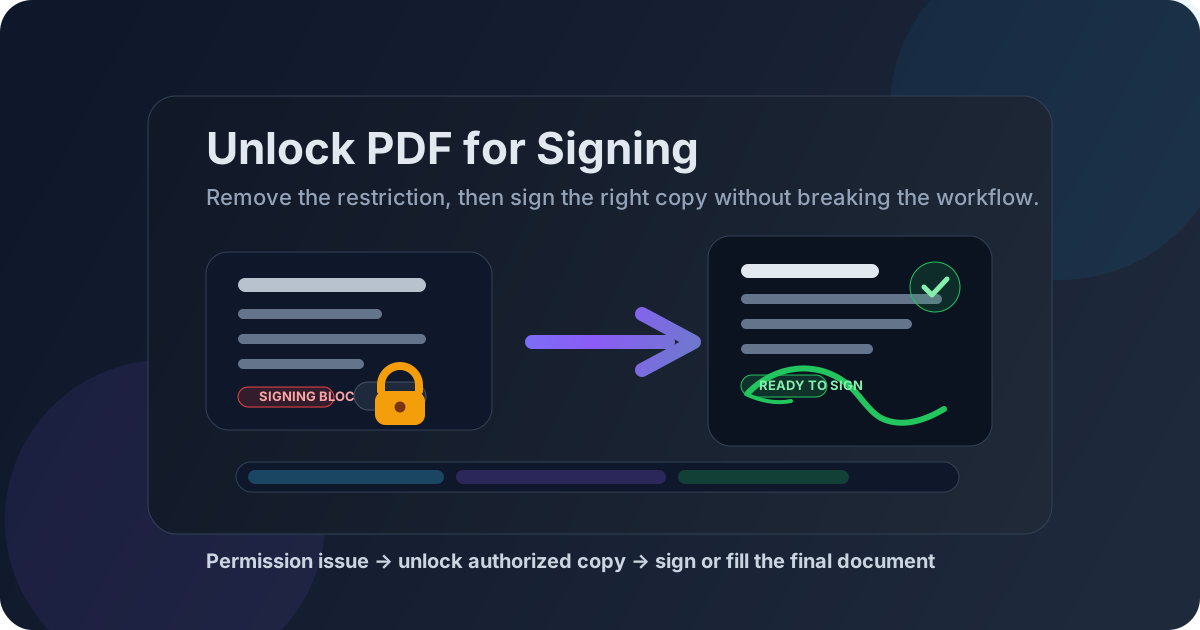
Table of contents
- Quick start: unlock a PDF for signing in about 5 minutes
- Why a PDF can open normally but still refuse a signature
- Restriction vs scan vs existing signature: how to tell the difference
- Step-by-step: how to unlock a PDF for signing
- Which tool or guide to use after unlocking
- How to avoid breaking approval history and trust
- Common real-world signing scenarios
- Related LifetimePDF tools and guides
- FAQ (People Also Ask)
Quick start: unlock a PDF for signing in about 5 minutes
If your real problem is simply I need to sign this file and it is fighting me, use this workflow:
- Open PDF Unlock.
- Upload the PDF you own or are authorized to sign and modify.
- Enter the current password if the document requires it.
- Download the unlocked copy.
- If you only need to place a signature, open Sign PDF. If you also need dates, typed text, or checkboxes, open PDF Form Filler first.
- If the file already carries a certificate signature or trust warning, pause and check it with Verify PDF Signature before you overwrite the approval trail.
Why a PDF can open normally but still refuse a signature
A lot of signing frustration comes from the fact that people use one sentence for several different problems: “the PDF will not let me sign it.” From the user side, those problems feel identical. From the document side, they are very different.
- Permission restriction — the file opens, but signing, annotating, or editing is blocked until the restriction is removed.
- No live fields — the PDF is signable only by placing a visual signature, not by clicking a built-in signature field.
- Scanned or flattened document — the PDF behaves more like an image than a form, so you need a fill-and-sign workflow rather than a normal field click.
- Already signed or certified PDF — the document may be intentionally frozen so later changes do not quietly alter what was approved.
This is why blindly trying one more editor rarely helps. The faster route is to identify which of those situations you have, then use the matching tool instead of treating every signing problem like a password problem.
Restriction vs scan vs existing signature: how to tell the difference
Use this quick comparison before you start changing the document:
| What you see | What it usually means | Best next step |
|---|---|---|
| The PDF opens, but signing or editing is blocked | Permission restriction | Use PDF Unlock if you are authorized. |
| The page looks like a scan with no clickable fields | Image-based or flattened PDF | Use PDF Form Filler and Sign PDF to place the needed content manually. |
| The file already shows a trust badge or certificate warning | Existing digital signature or certified document | Run Verify PDF Signature before making changes. |
| You can type some parts but not place the final signature cleanly | Wrong tool for the final step | Finish text entry first, then switch to Sign PDF for the actual signature placement. |
Step-by-step: how to unlock a PDF for signing
If the PDF is genuinely restricted and you have the right to work with it, this is the cleanest sequence:
1. Confirm you are signing the correct version
Before you remove anything, make sure this is the actual document you are supposed to sign. Signing the wrong draft creates more confusion than the restriction itself.
2. Unlock the PDF only if you are authorized
Open PDF Unlock, upload the file, and enter the current password if the document requires it. If you do not know the password or do not have permission to remove restrictions, the right move is to ask the sender for a signable copy.
3. Save the unlocked copy as your working version
Treat the unlocked file as a new working copy. That makes it much easier to keep the original restricted version intact in case you need to compare, verify, or prove what you received.
4. Fill the document before placing the signature
If the form still needs dates, names, initials, checkmarks, or typed text, do that first in PDF Form Filler. The best signing workflow is usually fill first, sign second so you do not end up repositioning the signature after other edits.
5. Add the signature on the final content
Use Sign PDF once the page content is final. That could mean drawing your signature, typing a signature, or placing an uploaded signature image depending on the document and your preference.
6. Review the finished PDF before you send it back
Check the page order, signature placement, date fields, initials, and any required attachments. If the signed file contains sensitive information and still needs controlled access, you can protect the final share copy again with PDF Protect.
Which tool or guide to use after unlocking
Unlocking is only the bridge step. The real work usually happens in the next tool.
- Sign PDF — best when the document is ready and you only need to place the signature cleanly.
- PDF Form Filler — best when the file still needs text fields, dates, initials, or checkboxes before the signature step.
- Verify PDF Signature — best when the file already contains a trust badge, signature warning, or certificate you do not want to invalidate by accident.
- OCR PDF — best when the document is a scan and you need a more searchable, workable text layer before filling other parts.
- PDF Protect — best after the content is final and the signed copy still needs controlled sharing.
How to avoid breaking approval history and trust
This is the part that matters most for contracts, HR packets, vendor paperwork, and anything with real approval weight. If the PDF already contains a digital signature or certification, changing the file afterward may invalidate that signature.
In plain language: you may be technically able to unlock or edit the file, but that does not mean you should treat the altered version as if it carries the same approval value as the original signed copy.
- If nobody has signed yet — unlock if needed, fill the document, then sign the final version.
- If someone else already signed it — verify the signature first and avoid changing the document unless a new version is expected.
- If the file must preserve trust — finalize page order, form data, and wording before the signature step, not after it.
- If the workflow requires a countersignature — confirm whether the sender expects a new signable version, a dedicated signature field, or a document platform workflow rather than a manually altered PDF.
A lot of PDF trouble is really workflow trouble. The goal is not just to place ink-like marks on a page. The goal is to create a final document that the other side can rely on without asking what changed in between.
Common real-world signing scenarios
HR or onboarding packet
The document opens, but the signature field will not accept input or the file is marked restricted. Unlock the PDF if you are allowed to, fill the required personal details first, sign the final version, then return the completed copy.
Lease, consent form, or school form that is really a scan
In this case, unlocking may not even be the main issue. The smarter path is usually to place text and the signature manually with a fill-and-sign workflow rather than hunting for fields that do not exist.
Procurement or vendor PDF with an existing signature already visible
Slow down here. If that existing signature is certificate-based, changing the file could invalidate it. Verify the status first and get a fresh signable version if the workflow expects another party to sign after approval.
Client form that needs a signature plus one small correction
Make the correction before you sign if possible. Small edits after the signature step are exactly what create messy version confusion later.
Related LifetimePDF tools and guides
Signing works best when the whole PDF workflow is clean. These are the most useful companion tools and guides for this job:
- PDF Unlock — remove authorized restrictions before you try to sign
- Sign PDF — place the final signature on the finished file
- PDF Form Filler — add text, dates, and checkboxes before signing
- Verify PDF Signature — confirm whether a prior signature should stay untouched
- PDF Protect — re-lock the final share copy when needed
- OCR PDF — make scanned documents more workable before the signature step
Related guides worth reading
- Unlock PDF
- Fill and Sign PDF
- How to Add Signature to PDF Online Step by Step
- PDF Signature Invalid After Editing
- Unlock PDF for Editing
- Unlock PDF for Printing
Need the shortest safe workflow? Unlock the authorized copy, fill anything that is still missing, sign only after the content is final, and verify first if somebody already signed before you.
FAQ (People Also Ask)
How do I unlock a PDF for signing?
Use a PDF unlock tool to remove the authorized restriction, download the unlocked copy, and then sign it with a PDF signing or form-filling tool. If the file already has a certificate signature, verify it first before you change anything.
Why can I open a PDF but still not sign it?
Because the problem may be a signing restriction, a scanned or flattened page with no live fields, or an already signed file that should not be altered. Those cases need different fixes.
Can I sign a scanned PDF after unlocking it?
Yes. In that situation, signing usually means placing a visual signature and any required text manually on the page rather than clicking a built-in signature field.
Will unlocking a PDF break an existing signature?
It can if the document already carries a digital signature or certification and you change the file afterward. When trust matters, verify first and work from the unsigned source or a fresh approved version.
Should I protect the PDF again after signing it?
Often yes, if the finished file still contains sensitive information and needs controlled sharing. Just make sure the document content is final before you add new protection.
Published by LifetimePDF — Pay once. Use forever.