PDF Signature Invalid After Editing: Why It Happens and What to Do Next
If a PDF signature becomes invalid after editing, the document changed after the signature was applied, so the signature no longer matches that exact file.
The safest fix is to go back to the unsigned source, make the edits there, export a fresh PDF, and sign the final version again.
This catches people all the time because the edit often feels small. Maybe you corrected a typo, added page numbers, moved one page, flattened a filled form, or saved the PDF through a different editor. But a digital signature is not judging whether the change was important. It is checking whether the file stayed the same after signing, and once that answer becomes no, trust in that original signature drops with it.
Fastest path: verify the broken signed file first, compare it with the earlier copy if needed, then rebuild from the pre-sign version and sign the finished PDF again.
In a hurry? Jump to Quick start: handle an invalid signature in a few minutes.
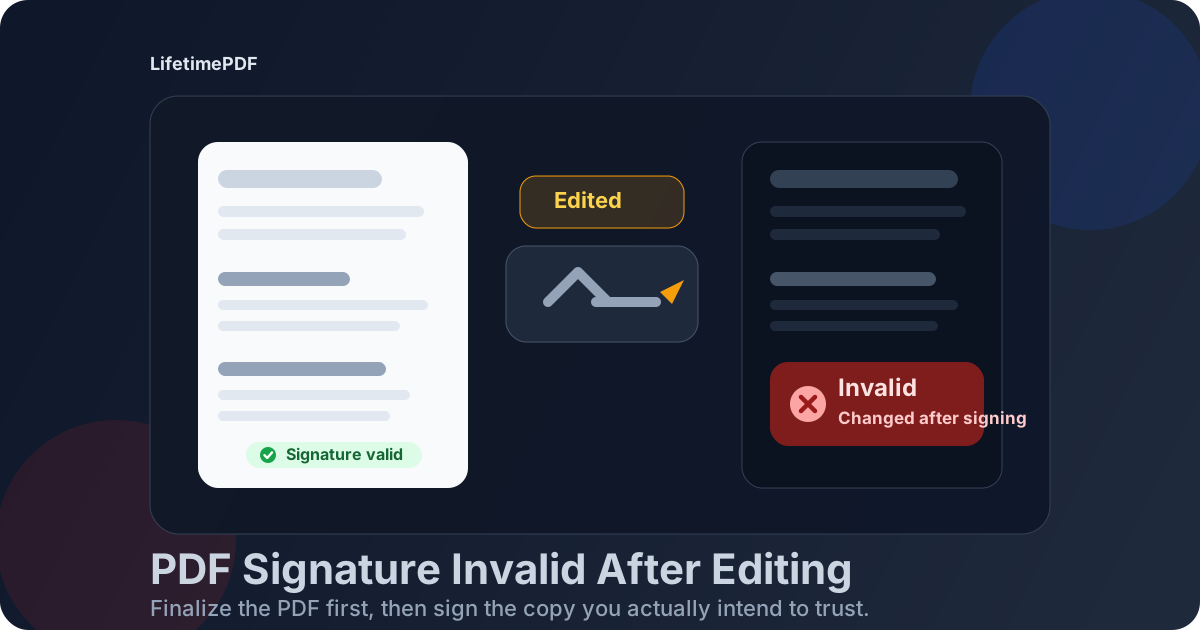
Table of contents
- Quick start: handle an invalid signature in a few minutes
- Why a PDF signature breaks after editing
- What usually counts as an edit after signing
- Step-by-step: what to do when the signature is already invalid
- The safest signing workflow so this does not keep happening
- Warning vs invalid: not every message means the same thing
- Common real-world scenarios and the right next move
- Related LifetimePDF tools and guides
- FAQ (People Also Ask)
Quick start: handle an invalid signature in a few minutes
If you only need the short version, use this order:
- Open Verify PDF Signature and confirm the current status.
- If the file is invalid, stop treating it as the approved final copy.
- If you have the earlier version, run Compare PDFs to see what changed.
- Return to the unsigned source or pre-sign PDF, make the required edits there, and export a fresh final file.
- Apply the new signature to that finished version and archive the old broken copy so nobody mistakes it for the trusted final one.
Why a PDF signature breaks after editing
A digital signature is tied to the state of the PDF at the moment the signature was applied. The software stores proof that the signed version looked a certain way internally, not just visually on the page. When the file changes afterward, the viewer can no longer say, “this is the exact document that was signed.”
That is why post-signing edits cause trouble even when they seem harmless. Changing a date, rotating a page, adding page numbers, flattening a form, or saving through another editor may all alter the document structure enough to break trust in the original signature.
There are advanced signature workflows that allow specific approved actions, but that is the exception, not the safe assumption. For normal contract, HR, procurement, finance, and form workflows, treat a signed PDF as locked unless you are deliberately creating a new version and collecting a new signature.
What usually counts as an edit after signing
The useful question is not whether the change looked minor. It is whether the PDF changed after signing. In most everyday workflows, these actions are enough to invalidate or downgrade the signature result:
| Change after signing | Typical effect on the signature | Safer workflow |
|---|---|---|
| Edit text or fix a typo | Usually invalidates the signature | Fix the unsigned source, export again, then re-sign |
| Add comments, highlights, or annotations | Often triggers warning or invalid status | Review first, then sign the final reviewed copy |
| Reorder, delete, crop, or rotate pages | Commonly invalidates the signature | Finish page cleanup before signing |
| Fill remaining form fields | May break trust unless the signing workflow explicitly allowed it | Finish form entry, then flatten if needed, then sign |
| Flatten, compress, protect, or resave in another tool | Frequently changes the file enough to break the original signature | Do those finishing steps before signing the final PDF |
| Print to PDF or scan the signed copy | Destroys the original signature layer entirely | Keep the real signed PDF and avoid conversion after signing |
Simple rule: if you touched the file after signing, assume the signature needs to be rechecked and very possibly replaced.
Step-by-step: what to do when the signature is already invalid
Once the status is broken, the goal is clarity. You want to figure out what changed, stop version confusion, and get back to one trustworthy final file.
1. Verify the current file instead of guessing
Open Verify PDF Signature and check whether the result is truly invalid or just a warning. Do not rely on a screenshot, a visible signature box, or somebody saying “it should still be fine.” Start with the actual verification result.
2. Stop sending the broken copy around as if it were approved
If the signature matters for approval, compliance, or audit trail, an edited invalid copy should not keep circulating as the final signed document. Rename it internally if needed, move it out of the approval folder, and make sure nobody mistakes it for the trusted version.
3. Compare against the earlier copy if you still have it
If you are not sure what changed, use Compare PDFs. This is especially useful when several people touched the file or when the edit happened inside a different PDF editor that silently changed the document on save.
4. Decide whether the file needs explanation or replacement
If the document changed after signing, the practical answer is replacement. If the content did not change and the issue is certificate trust on one machine, you may only need verification context. The next section covers that distinction.
5. Go back to the pre-sign version
Make edits in the original source document or in the PDF version that existed before the signature was applied. That keeps your workflow clean and avoids trying to “repair” a signature on a file that is no longer the same document.
6. Export a fresh final PDF and sign that version
Once the content, layout, page order, fields, and security settings are final, sign the new finished PDF with Sign PDF. If you need to share both versions internally, label them clearly so nobody confuses the broken signature copy with the re-signed approved version.
The safest signing workflow so this does not keep happening
Most signature problems are really sequencing problems. People sign too early, then keep editing because the document still feels “almost done.” A safer order removes that temptation.
- Finalize the content: text, dates, figures, attachments, and page order.
- Finish PDF cleanup: crop, rotate, merge, compare, or organize pages if needed.
- Complete form handling: fill fields, review calculations, and flatten only if that belongs in the final delivery version.
- Apply any protection settings: passwords or restrictions that should exist on the final file.
- Sign last: once the document is truly final, apply the signature and stop editing that copy.
If multiple signatures are required, plan the workflow before the first signer touches the file. Random post-sign edits between signers are exactly how teams create invalid signatures, duplicate versions, and approval confusion.
Warning vs invalid: not every message means the same thing
A PDF viewer warning does not always mean the document was edited after signing. Sometimes the problem is trust setup, not tampering. That distinction matters.
When the status is a warning
Warnings often show up because a certificate is unknown on that device, revocation checks are incomplete, or the signing environment is not fully trusted by the viewer. The file may still be unchanged since signing. In that case, verify the signer details and the document history before you panic.
When the status is invalid because the document changed
This is the more direct workflow problem. If the viewer says the document was changed after signing, assume the old signature is no longer the approval proof you wanted. That usually means rebuild, re-export, and re-sign.
When you are not sure which it is
Use a verification step first, then compare copies if available. If you see actual content or structure changes, treat the file as a new version. If the content is unchanged but trust warnings remain, confirm the signer and certificate context with the sender before you rely on the file.
Common real-world scenarios and the right next move
You fixed a typo after the PDF was signed
Treat the edited file as a new version. The original signature belongs to the old wording, not the corrected one. Export the corrected document and collect a new signature.
You added page numbers, a watermark, or a stamp afterward
Even if the main content did not change, those additions still modify the document. Apply numbering and stamping before signing next time. For the current file, rebuild and sign the true final version.
You filled in a few remaining form fields after somebody already signed
This is common with approval packets and internal forms. Unless the workflow explicitly allowed those changes, assume the signature is no longer clean. Finish field entry first, then flatten if needed, then collect the signature on the completed form.
You opened the file in another editor and saved it without meaning to change anything
Some PDF tools rewrite parts of the file on save even when the visible result looks the same. If the signature status changed after that save, do not argue with the technical reality. Go back to the last trusted pre-sign version and rebuild from there.
You printed the signed PDF and rescanned it
That new scan is not the original signed document. It is just a scanned picture of one. Keep the real signed PDF for records and only use scanned copies when you understand that the original digital signature layer is gone.
Related LifetimePDF tools and guides
These tools pair well with a signature-repair workflow:
- Verify PDF Signature — check whether the signed file is still valid.
- Compare PDFs — spot what changed between the earlier copy and the edited one.
- Sign PDF — apply a fresh signature to the true final version.
- Flatten PDF — lock form appearance before signing if that belongs in your workflow.
- Protect PDF — apply password security before the signature stage when appropriate.
For deeper background, see Verify PDF Signature Online and Verify Digital Signature in PDF: Certificate Validation Guide.
Want the cleanest fix? verify the broken file, compare versions if needed, then sign a freshly finalized PDF instead of trying to salvage trust on an edited copy.
FAQ (People Also Ask)
Why does a PDF signature become invalid after editing?
Because the document changed after the signature was applied. A digital signature is tied to the state of the file at signing time, so later edits can break the match between the signature and the document.
Can I edit a signed PDF without breaking the signature?
In most everyday workflows, you should assume no. Some advanced signing setups allow limited changes, but the safest and most repeatable approach is to finish all edits before signing.
Does adding text, page numbers, or a watermark invalidate a PDF signature?
Very often, yes. Those actions change the document after signing, which can invalidate the original signature or at least trigger warning states that make the file harder to trust.
What should I do if I need changes after the PDF is already signed?
Go back to the unsigned source or pre-sign version, make the edits there, export a fresh PDF, and sign the final version again. That keeps the approval tied to the exact document being shared.
Can I just sign the edited PDF again?
Yes, if the edited content is now final. Just do not rely on the old broken signature. Treat the edited copy as a new version and collect a fresh signature on the final document.