Fill and Sign PDF: Complete the Form, Add the Signature, and Return a Clean Final Copy
Yes — the fastest way to fill and sign a PDF is to complete the fields first, add the signature second, and review the finished file once before sending it back.
If the document is scanned or flattened, place text and signature elements manually instead of expecting the PDF to behave like a clickable form.
That order sounds simple, but it solves most of the problems people run into. A messy PDF workflow usually happens when someone signs too early, realizes they still need to add dates or checkboxes, shifts the layout, then ends up redoing the signature or sending back a file that looks rushed. A cleaner workflow is to treat this as two separate jobs: finish the form, then finalize it with the signature.
Fastest practical path: open PDF Form Filler, complete the document, then use Sign PDF for the final signature step.
In a hurry? Jump to Quick start: fill and sign a PDF in a few minutes.
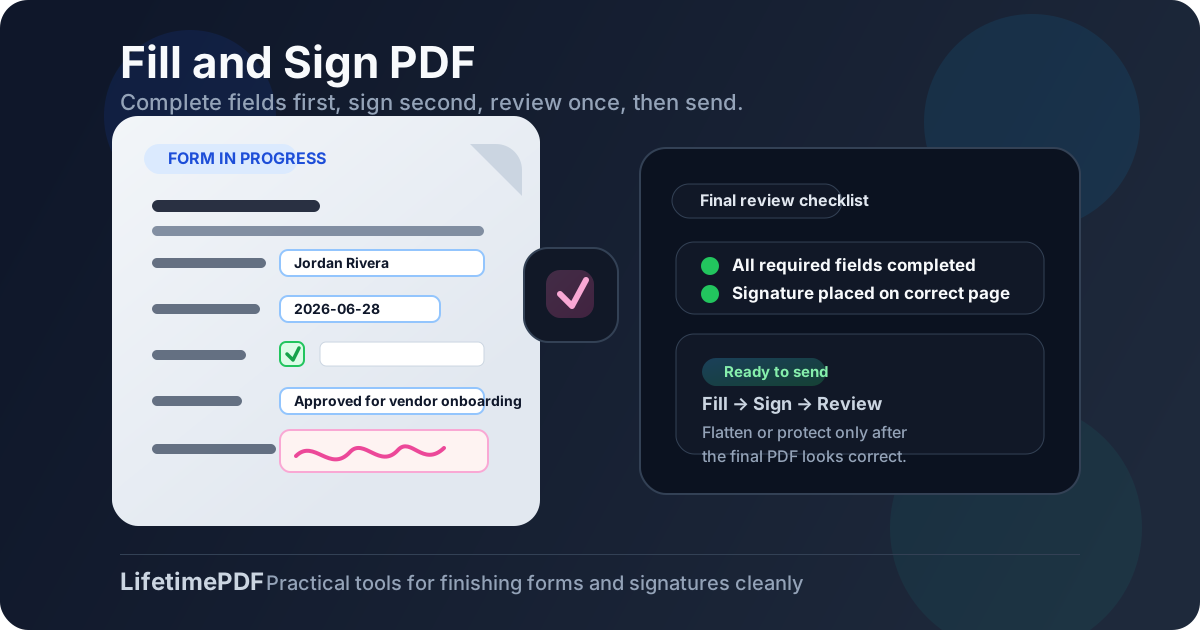
Table of contents
- Quick start: fill and sign a PDF in a few minutes
- What fill and sign PDF actually includes
- Fillable vs scanned PDFs
- Step-by-step: fill and sign a PDF with LifetimePDF
- Draw, type, or upload: which signature method makes sense?
- Common mistakes that make the final file look sloppy
- When to flatten, protect, or compress the finished file
- Related LifetimePDF tools and guides
- FAQ (People Also Ask)
Quick start: fill and sign a PDF in a few minutes
If you want the shortest route from unfinished document to sendable file, this is the workflow that usually works best:
- Open PDF Form Filler.
- Upload the PDF and complete every field, checkbox, note, or date first.
- If the PDF is scanned, place the text manually where the paper form expects it.
- Open Sign PDF and add the signature after the rest of the form is done.
- Review the final file once at normal zoom before sending it anywhere.
What fill and sign PDF actually includes
People often use fill and sign PDF like it is a single action, but it is really a small workflow made of separate steps:
- Fill: type names, dates, addresses, amounts, initials, notes, or checkmarks into the document.
- Sign: place the signature in the correct spot once the document content is final.
- Review: confirm the finished file is complete, readable, and ready to send back.
That matters because some files only need a signature, while others need real form completion first. If you skip the fill step and sign immediately, you often end up reopening the file to add dates, correct entries, or fix something the sender expected you to complete. A cleaner sequence makes the finished PDF look deliberate instead of patched together.
This workflow is especially useful for employment packets, contracts, onboarding forms, school paperwork, internal approvals, vendor forms, medical intake documents, and any client file where the other person expects a neat final PDF rather than a photo of a printed page.
Fillable vs scanned PDFs
Not every PDF behaves the same way. Two forms can look identical but require completely different handling once you try to complete them.
Fillable PDFs
These contain real interactive fields. You click into a box, a cursor appears, and you can usually tab through the form naturally. These are the easiest files to fill and sign because most of the structure already exists.
Scanned or flattened PDFs
These look like forms, but they are often just page images or static content. You may not be able to click into the boxes at all. In that case, you need to place text and marks manually on top of the PDF so the form still looks complete when you download it.
How to tell which type you have
- Click test: if a cursor appears in the field, the PDF is probably fillable.
- Selection test: if you cannot select text anywhere, the file may be image-based.
- Search test: if
Ctrl+ForCmd+Ffinds nothing obvious, the PDF may be a scan.
Step-by-step: fill and sign a PDF with LifetimePDF
1) Start with the correct file
Before you type anything, confirm you have the final version of the document. This sounds basic, but people often fill and sign an earlier draft, especially when they receive multiple attachments with similar names. A quick filename and page-count check saves rework.
2) Complete the form before you touch the signature
Open PDF Form Filler and finish the document first. Add typed responses, dates, initials, checkboxes, or notes. If the file is scanned or flattened, place the content carefully so it lines up with the printed form.
This is the step where most of the accuracy work happens. A signature looks wrong very quickly if the surrounding text is incomplete, misaligned, or still changing.
3) Add the signature only after the content is final
Once the form is complete, open Sign PDF. Choose the signature method that fits the document, place it on the right page, and keep it clear of labels, dates, and checkboxes.
4) Review the finished PDF once
Reopen the completed file before sending it anywhere. Check the obvious things: the correct page is signed, no field is cut off, dates are present, and the placement still looks clean at normal zoom. This final review catches a lot more than people expect.
Need the short version? Fill first, sign second, review once, then secure the final copy if needed.
Draw, type, or upload: which signature method makes sense?
There is no single “best” signature style for every situation. The right choice depends on the file, the person receiving it, and how polished you want the result to look.
Draw a signature when:
- you want a handwritten look,
- the form is informal or familiar,
- you are signing on a touch device and speed matters more than perfect consistency.
Type a signature when:
- you want a cleaner, more readable appearance,
- the document is internal or administrative,
- you need something quick and consistent across many files.
Upload a signature when:
- you already have a good signature image,
- you want the same appearance on every document,
- the PDF is client-facing and you care about presentation.
The important part is not the style itself. It is whether the signature is placed correctly, sized sensibly, and added after the form content is complete.
Common mistakes that make the final file look sloppy
Most fill-and-sign problems are not technical. They come from doing the steps in the wrong order or rushing the last minute of the job.
- Signing before filling the form and then having to reposition everything later
- Assuming a scanned PDF is broken instead of treating it like a manual placement job
- Skipping the final review and missing a cut-off field, wrong page, or misplaced signature
- Over-sizing the signature so it covers labels or other required content
- Protecting or flattening too early before the edits are actually finished
When to flatten, protect, or compress the finished file
Once the form is complete and signed, you may still need one more step before you send it.
Flatten the PDF when you want the layout preserved
Flattening helps preserve how the completed form looks after it leaves your hands. It is useful when you do not want form entries or overlays to shift in another viewer. You can do that with Flatten PDF Form Data once the document is final.
Protect the PDF when it contains sensitive information
If the file includes personal data, financial information, medical details, or private contract terms, use Protect PDF after signing. Do that only at the end, not in the middle of the workflow.
Compress the PDF when email or portal limits get in the way
Some completed forms become larger than expected, especially after scanning or when they include many pages. If the upload or email attachment limit becomes a problem, run the final file through Compress PDF before you send it.
Related LifetimePDF tools and guides
Fill and sign is often part of a wider document workflow. These tools and guides are the most relevant next steps:
- PDF Form Filler to complete fillable or scanned forms
- Sign PDF to draw, type, or upload a signature
- Flatten PDF Form Data to preserve the final appearance
- Protect PDF for sensitive completed documents
- PDF Form Filler for a deeper guide focused on form completion
- Sign PDF for a deeper guide focused on signatures
- Fill and Sign PDF Online Free if you want the modifier-specific version of this topic
Want the cleanest workflow? Finish the form in one pass, sign it in the next pass, then flatten or protect the file only after everything looks right.
FAQ (People Also Ask)
How do I fill and sign a PDF?
Open the PDF in a form-filling tool, complete the fields first, add the signature second, review the finished file once, and then send or protect the final PDF.
Can I fill and sign a scanned PDF?
Yes. If the PDF is scanned or flattened, you can place text, checkmarks, initials, and a signature manually on top of the page even when there are no interactive form fields.
Should I sign the PDF before or after filling the form?
Usually after. Filling the form first keeps the signature as the last visible change and reduces the chance that you need to adjust it because another edit changed the layout.
What if I cannot type into the PDF?
The file is probably scanned, flattened, or restricted. In that case, place the text manually with a PDF form filler, or unlock the PDF first if you have permission to edit it.
Should I flatten or protect a filled and signed PDF before sending it?
Often yes, but only after the content is final. Flattening helps preserve the appearance of the completed form, and protecting the file can help when the PDF contains sensitive information.