PDF Form Filler: Complete Fillable and Scanned Forms Without Reprinting Everything
Yes — the fastest way to use a PDF form filler is to upload the form, type into the live fields if they exist, or place text manually when the PDF is scanned or flattened.
Then add checkmarks or signatures, review the layout once, and save a clean final copy instead of printing the form, writing by hand, and rescanning it.
That is the real value here. Most people are not looking for a massive document platform. They just need one stubborn form to stop wasting their time. It might be an onboarding packet, school paperwork, an insurance claim, a government document, a client intake form, or a PDF somebody exported badly years ago and still expects you to complete today. A good form filler turns that mess into a short, boring task again.
Fastest path: open LifetimePDF's PDF Form Filler, upload the form, complete the fields or place text where needed, then sign, flatten, or protect the final file only if the workflow actually calls for it.
Need the short version? Jump to Quick start: fill a PDF form in a few minutes.
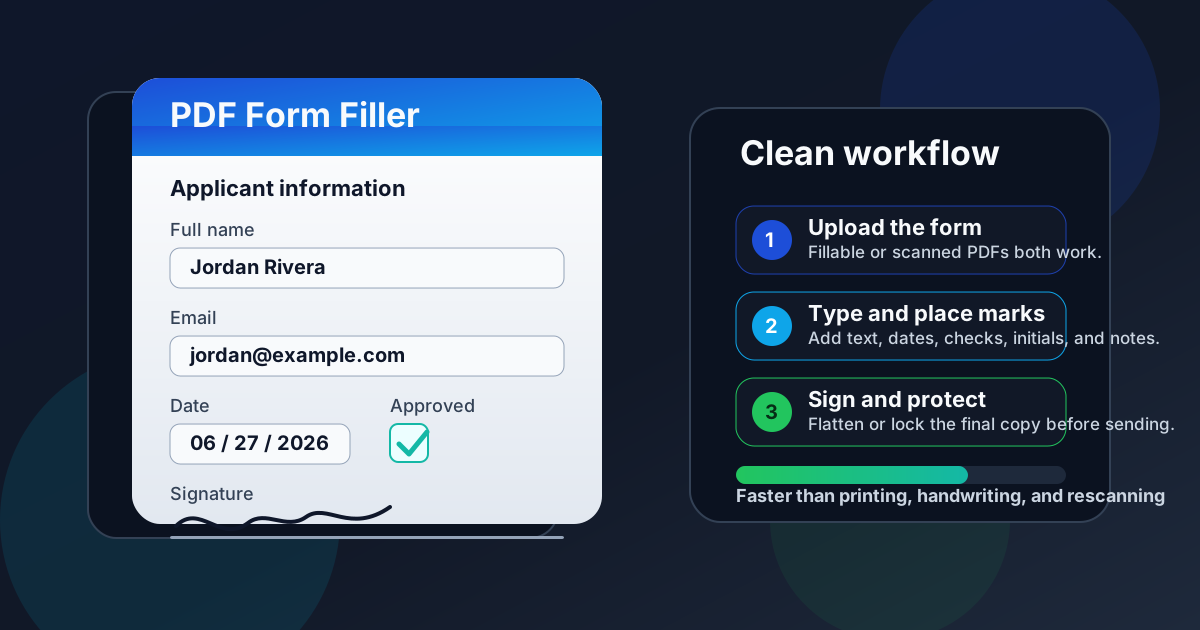
Table of contents
- Quick start: fill a PDF form in a few minutes
- What a PDF form filler actually does
- Fillable vs scanned vs flattened forms
- Step-by-step: the cleanest workflow
- How to keep the finished form neat and readable
- When to sign, flatten, protect, or OCR
- Common mistakes that cause resubmissions
- Related LifetimePDF tools and guides
- FAQ (People Also Ask)
Quick start: fill a PDF form in a few minutes
If you only need the dependable workflow, use this order:
- Open PDF Form Filler.
- Upload the PDF you need to complete.
- Type directly into live fields, or place text manually if the form is scanned or flattened.
- Add dates, checkmarks, initials, or notes where required.
- Use Sign PDF if the form needs a signature.
- Review the finished document once at normal zoom, then download it.
What a PDF form filler actually does
A PDF form filler helps you complete an existing PDF. That sounds obvious, but it matters because people often mix up four different jobs:
| Task | What it means | Best next step |
|---|---|---|
| Fill a form | Enter names, dates, checkboxes, initials, notes, or signatures on an existing PDF. | Use PDF Form Filler. |
| Edit the fields | Change where fields sit, rename them, or rebuild the form structure itself. | Use PDF Field Editor. |
| Sign the document | Add a signature or initials that need tighter placement control. | Use Sign PDF. |
| Protect the final copy | Lock down a completed form before emailing or uploading it. | Use PDF Protect or Flatten PDF Form Data. |
Most people searching for PDF form filler want the first row. They do not need a heavy editor. They need a form to accept typed input without turning into a mini restoration project.
Fillable vs scanned vs flattened forms
Two PDFs can look identical and behave completely differently. That is why one form lets you tab from field to field while another ignores every click.
Fillable PDF
This is the easy case. The form contains real fields, so you click, type, tab forward, and save. When people imagine a perfect PDF form, this is usually what they mean.
Scanned PDF
A scanned form is basically a picture of a document inside a PDF. It may look official, but the boxes are not true input fields. You usually need to place your answers on top of the page manually.
Flattened PDF
A flattened form started life with editable layers, but those layers were merged into the page. That is useful after a form is complete, but annoying when you are the next person who needs to update it.
Restricted PDF
Sometimes the form is protected or permission-limited. If you are allowed to edit it, Unlock PDF may help. If the document is scanned or flattened, though, unlocking alone will not magically create live fields.
Step-by-step: the cleanest workflow
A calm PDF form workflow is not about using the most tools. It is about using the smallest number of tools in the right order.
1) Start with the exact file you will send
Avoid filling a draft and later discovering someone gave you a newer version. If the form came by email or portal, download the final copy first and work from that one.
2) Fill the plain text before anything fancy
Put in names, addresses, account numbers, dates, and simple answers first. It is easier to fix spacing while the page is still uncluttered.
3) Add checkmarks, initials, and short notes
These details are where many submissions start to look messy. Place them deliberately. Tiny, half-visible ticks or initials hanging off the edge of a line are a common reason a form feels unfinished even when the information is technically there.
4) Add signatures last
Signatures are usually the least flexible element on the page. If you change the layout after placing them, you often have to resize or reposition them too. Finish the content first, then sign.
5) Review once at normal zoom
Many forms look fine at 175% zoom and slightly crooked at 100%. The receiving person is probably not reviewing it zoomed in. Use the view they are most likely to see.
6) Secure the final copy only when needed
If the form contains personal, financial, legal, or medical information, flatten or protect it before sending. If it is just a harmless worksheet for internal use, you may not need the extra step.
Ready to do it now? Open the form filler first, then add only the follow-up step your document actually needs.
How to keep the finished form neat and readable
A form can be fully complete and still look sloppy. That matters because tidy forms get reviewed faster and questioned less.
Keep alignment boring
The best finished form is rarely the most creative-looking one. Keep your text centered or left-aligned in the way the document clearly expects. If the form uses boxes, do not let letters touch the borders.
Match the rhythm of the page
If every field on the form uses short all-caps labels and tight spacing, giant oversized typed text will look out of place. Consistency does more for readability than fancy styling ever will.
Use checkmarks that remain visible at 100%
Tiny gray ticks disappear quickly in email previews, cheap portal viewers, and phone screens. Make them clear enough that someone does not have to zoom in to confirm your answer.
Do one final page-by-page scroll
This catches the classic mistakes: a missed signature line, a date field one row too high, a note covering small print, or an extra mark on the wrong page.
When to sign, flatten, protect, or OCR
PDF form filling is often one step in a larger handoff process. These are the follow-up moves that actually matter.
Sign after the rest of the content is done
Use Sign PDF when the receiving party expects a visible signature or initials. Adding signatures last keeps them from drifting out of place while you are still adjusting other fields.
Flatten when you want the finished form to stay put
Flatten PDF Form Data is useful when the appearance matters more than keeping fields editable. It helps preserve how the completed form looks after you send it.
Protect when the form contains sensitive information
Password protection makes sense for tax forms, HR documents, client intake paperwork, account details, and anything else you would not want casually forwarded around. Use PDF Protect when the handoff channel is less controlled.
OCR only if you need searchable text
OCR is helpful when the completed file will live in an archive, get searched later, or feed into another document workflow. If you just need to submit the form once, OCR may be unnecessary extra work. If you do need it, run OCR PDF once the pages are correctly oriented and framed.
| If your goal is... | Best next step |
|---|---|
| Make the form look final and harder to edit accidentally | Flatten PDF Form Data |
| Secure private information before sending | PDF Protect |
| Add a visible signature or initials | Sign PDF |
| Make a scanned final copy searchable later | OCR PDF |
Common mistakes that cause resubmissions
Filling the wrong file version
This wastes more time than most people expect. If a portal or sender gave you a revised form, stop and use the latest copy before you complete anything.
Assuming a scan is broken when it is merely not fillable
A scan can still be usable. You may just need to place text on top instead of typing into built-in fields.
Signing too early
People often sign first, then realize a field above it needs an edit. That usually turns one small correction into a cascade of repositioning work.
Sending editable fields when the form should look final
If the recipient is not supposed to change the completed file, flatten or protect it before sending. That is especially helpful for legal, HR, finance, and approval workflows.
Ignoring the mobile view
Many people review forms on their phone first. Crooked text, faint checkmarks, or signatures that barely fit the line are much easier to notice on a small screen.
Related LifetimePDF tools and guides
A form filler solves the core job, but these related tools are useful when the workflow gets slightly more complicated.
- PDF Form Filler – complete fillable or scanned forms
- Sign PDF – add signatures and initials cleanly
- Flatten PDF Form Data – preserve the finished appearance
- PDF Protect – secure sensitive forms before sending
- Unlock PDF – remove restrictions when you are authorized to edit
- OCR PDF – make scanned forms searchable
- Compress PDF – shrink heavy scanned forms for email or upload portals
Related guides
- How to Fill Out an Uneditable PDF Form
- Fill Out a PDF Form Online and Save It
- Edit PDF Form Fields Online
- How to Flatten PDF Form Data
- Sign PDF Online Without Monthly Fees
- Browse more LifetimePDF guides
Want the clean workflow? Fill the form, sign only if necessary, then flatten or protect the final copy before it leaves your hands.
Best order for sensitive paperwork: Fill → Review → Sign → Flatten or Protect → Send.
FAQ (People Also Ask)
1) How do I fill out a PDF form?
Upload the file to a PDF form filler, type into live fields or place text manually, add dates or signatures if needed, then download the completed PDF and review it once before sending.
2) Can I use a PDF form filler for scanned forms?
Yes. A good PDF form filler can place text, checkmarks, and signatures on scanned or flattened forms even when there are no interactive fields to click.
3) Why can I not type into my PDF form?
The file is usually scanned, flattened, or restricted. In those cases you may need to place content manually, unlock the file if you are authorized, or OCR it if searchable text matters later.
4) Should I flatten a filled PDF form before sending it?
Often yes. Flattening helps preserve the final appearance and reduces accidental edits after the file leaves your device.
5) Can I add signatures and checkmarks in a PDF form filler?
Yes. Real form workflows usually need more than typed text, so a useful form filler should also help you place checkmarks, initials, dates, and signatures neatly.
Published by LifetimePDF — Pay once. Use forever.