Verify PDF Signature: Check Whether a Signed PDF Is Valid Before You Trust It
To verify a PDF signature, open the original signed PDF in a signature-checking tool, read whether the signature is valid, and confirm the signer details before you trust the file.
If the PDF shows a warning or invalid status, pause the workflow and investigate the reason before you approve, file, or forward the document.
That short answer is enough for many everyday cases, but signed PDFs usually matter because the surrounding decision matters too. It might be a contract, procurement form, approval packet, tax document, onboarding file, compliance report, or a customer agreement someone expects you to accept quickly. The real question is not just whether there is a signature on the page. It is whether this exact file deserves trust right now. A good verification habit answers that in a few minutes without turning the process into a PKI lecture.
Fastest path: upload the real signed PDF, check the status first, then review signer details and warnings only as deeply as the situation requires.
In a hurry? Jump to Quick start: verify a signed PDF in under 5 minutes.
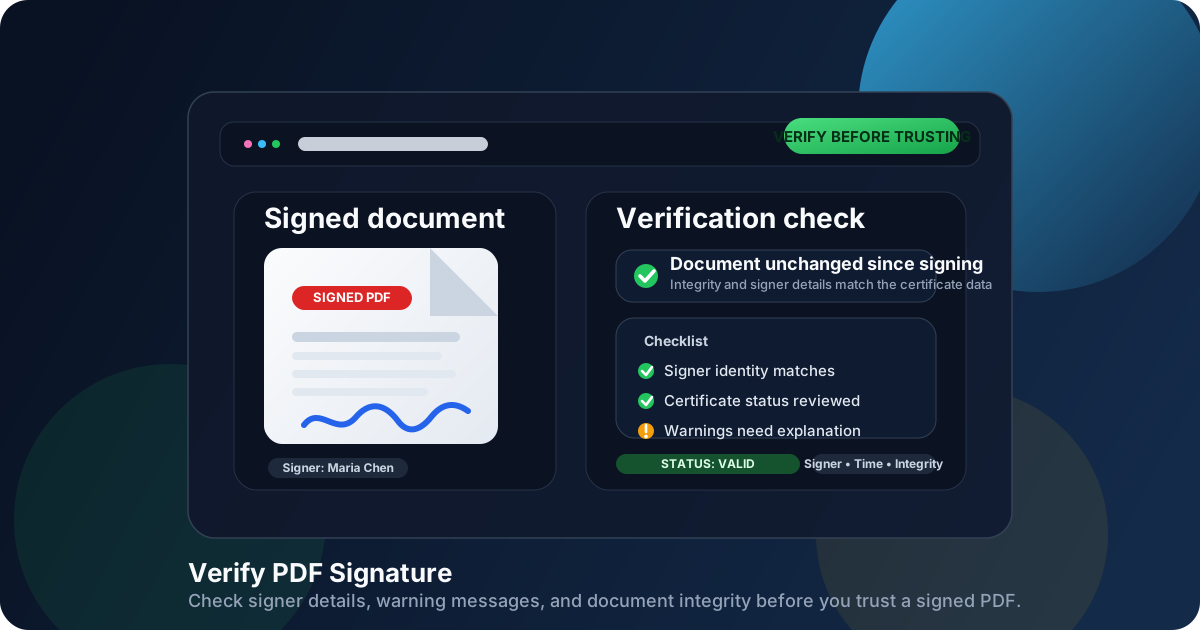
Table of contents
- Quick start: verify a signed PDF in under 5 minutes
- What it means to verify a PDF signature
- Step-by-step: how to verify a PDF signature
- What valid, warning, and invalid status messages usually mean
- What to check before you trust the document
- Visible signature vs digital signature: not the same thing
- Common PDF signature problems and what to do next
- When to compare two copies of the same PDF
- Related LifetimePDF tools and guides
- FAQ (People Also Ask)
Quick start: verify a signed PDF in under 5 minutes
If you only need the dependable workflow, use this order:
- Start with the original signed PDF, not a screenshot, printout, or rescanned copy.
- Open Verify PDF Signature.
- Upload the file and read the status first: valid, warning, or invalid.
- Confirm the signer name, signing time, and certificate details make sense for the document.
- If the result is unclear, compare versions or ask the sender for a fresh signed copy before you move the file forward.
What it means to verify a PDF signature
Verifying a PDF signature is really two checks happening together.
- Integrity: has the document stayed unchanged since the signature was applied?
- Identity: do the signer and certificate details line up with what the verification tool can confirm?
That is why verification is more useful than simply seeing a name, initials, or scribble on the page. A visible mark can be copied, flattened into the file, or added as an image. A real digital-signature workflow should also leave technical proof behind.
In practical terms, verification helps you answer four questions:
- Was this file actually signed in a way the viewer can validate?
- Did anything change after the signature was applied?
- Do the signer details fit the real-world transaction?
- Is the warning, if there is one, harmless context or a reason to stop?
Step-by-step: how to verify a PDF signature
Here is the workflow that works well for most business, legal, administrative, and client-facing documents.
1) Use the actual signed file
Verification only works properly on the original PDF that contains the signature data. If someone sent a screenshot, printed copy, or rescanned version, you are no longer looking at the same digital object. Ask for the original signed PDF before you try to validate anything meaningful.
2) Upload it to a signature-checking view
Open Verify PDF Signature and let the tool inspect the signature layer. The key is to start with the status result the tool gives you rather than the visible signature artwork on the page.
3) Read the status before you chase technical details
A lot of people do the reverse. They open certificate properties first and get buried in details they do not yet need. Start simpler. Ask whether the tool considers the signature valid, questionable, or broken. That determines how cautious you need to be.
4) Check the signer details against the document context
A signature can be technically present and still feel wrong in context. Confirm the signer name, organization if shown, and signing time. A vendor approval should not be signed by the wrong person. A date should not be wildly out of sync with the rest of the transaction unless there is an explanation.
5) Slow down on warnings
Warnings are where judgment matters. Some warnings are explainable trust-store issues or incomplete certificate lookups. Others mean the document changed after signing or the certificate cannot be relied on. A warning is not an automatic rejection, but it is definitely not a green light.
Need the shortest possible review path? Check the status first, confirm the signer second, then look deeper only if the tool shows warnings or the document context feels wrong.
What valid, warning, and invalid status messages usually mean
Different tools use slightly different wording, but the logic is usually the same.
| Status | What it usually means | What to do next |
|---|---|---|
| Valid | The signature data checks out and the file does not appear to have changed after signing. | Continue, but still confirm the signer and situation make sense. |
| Warning | The signature exists, but something needs review such as certificate trust, incomplete checks, or an unusual signing environment. | Inspect the details and do not treat the file as clean until the warning is understood. |
| Invalid | The signature failed validation, the document may have changed after signing, or the certificate cannot support trust. | Stop the workflow and request clarification or a fresh signed copy. |
The biggest mistake is treating a warning like a valid result because the file is urgent. If the PDF matters enough to sign, it matters enough to verify properly.
What to check before you trust the document
A solid verification habit is not complicated. It is just deliberate.
Check the signer identity
Does the signer match the person, vendor, client, department, or counterparty who should have signed it? If the expected signer and the displayed details do not line up, slow down immediately.
Check the signing time
The timing should fit the story of the document. If a contract supposedly signed today shows a much earlier or later signature time, that does not automatically prove fraud, but it does deserve explanation.
Check whether the document changed after signing
This is the central integrity question. If the tool indicates post-signing changes, treat that seriously until you know exactly what changed and why.
Check whether the warning is local or document-specific
A trust warning on your device can be different from a message that says the file was altered. One may come from local certificate recognition. The other may change the business decision entirely.
Visible signature vs digital signature: not the same thing
This is where confusion starts for a lot of people. A visible signature on the page and a digitally verifiable signature are related ideas, but they are not identical.
- Visible signature: what you can see on the page, such as a name, handwriting-style mark, or signature box.
- Digital signature: signature data that can be checked for integrity and signer information.
A PDF can look signed without offering much proof. It can also carry verifiable signature data that matters far more than the visual appearance. If you need a deeper explanation of that difference, the guide on digital vs electronic signatures is worth reading.
The short version is simple: trust the verification result more than the decoration.
Common PDF signature problems and what to do next
The PDF only has a handwritten-looking mark
That may be enough for some workflows, but it is not the same as a verifiable digital signature. If stronger proof matters, ask for the actual signed PDF or a signing method that supports validation.
The file was printed and rescanned after signing
Once the document is printed and rescanned, the original signature integrity signal is usually gone. You can still read the content, but you cannot validate the signature the same way because you are no longer looking at the original digital file.
The signature shows a warning
Read the warning closely. Some warnings point to trust-chain or certificate-lookup issues. Others indicate the document changed after signing. Those are not equally serious, so do not lump them together.
The sender insists the document is fine, but the tool says invalid
Trust the evidence more than the reassurance. Ask for a clean resend or an explanation of what changed. Keep the questionable file out of approval or filing systems until the issue is resolved.
The document went through revisions after it was signed
This is one of the most common failure points. A revised PDF may be legitimate, but a signature tied to an older version does not automatically bless the new one. If revisions were involved, compare copies and identify which version was actually signed.
If this specific problem sounds familiar, the related guide on PDF Signature Invalid After Editing goes deeper into what usually breaks and how to respond.
When to compare two copies of the same PDF
Verification tells you whether the signature data holds together. Comparison helps when you suspect the content changed between versions.
Open Compare PDFs when:
- the status is invalid and you have another copy of the document
- the signer says they signed one version, but you received another
- a clause, number, date, or page order looks different from what you expected
- the file passed through multiple inboxes, assistants, or portals before it reached you
In other words, signature verification tells you whether a signed file remains intact. Document comparison helps you see what changed when two files are competing for trust.
Need to check a signed PDF before you approve or file it?
Upload the file, read the status first, then verify the signer details before the document moves any further.
Related LifetimePDF tools and guides
Signature verification usually lives inside a larger document workflow. These pages are the most useful companions:
- Verify PDF Signature - check signature status, signer details, and document integrity.
- Compare PDFs - inspect whether two versions of a document differ.
- Sign PDF - create a clean signed file when you are on the sending side.
- PDF Protect - secure the final file when the document contains sensitive information.
- Verify PDF Signature Online - browser-focused workflow for quick checks.
- Verify Digital Signature in PDF - deeper explanation of certificate validation concepts.
- How to Add Signature to PDF Online - useful when you need to sign rather than validate.
- Extract Signature Page from PDF - handy when only the signed pages need review or sharing.
FAQ (People Also Ask)
How do I verify a PDF signature?
Open a PDF signature verification tool, upload the signed PDF, read the status result, and then confirm the signer details and whether the file changed after signing.
What does a valid PDF signature mean?
A valid result usually means the signature data matches the document and the file does not appear to have changed after signing. You should still confirm the signer identity and the document context.
Can a PDF show a signature and still be unsafe?
Yes. A visible signature box or signature image does not automatically prove authenticity. You still need to verify the status, signer details, and document integrity.
Why would a PDF signature show a warning instead of valid?
Warnings can appear when the certificate is not trusted on that device, revocation checks are incomplete, the signing format is unusual, or the file changed after signing. Review the details before you trust the document.
What should I do if a signed PDF looks suspicious?
Pause the workflow, confirm the source with the sender, compare it against another copy if available, and request a fresh signed version if the warning or mismatch cannot be explained clearly.
Ready to check whether the signed PDF in front of you is actually trustworthy?
Best practical sequence: verify the status → confirm the signer → compare versions if needed → only then approve, file, or forward the document.
Published by LifetimePDF - Pay once. Use forever.