Extract Signature Page from PDF: Keep Only the Signed Page Without Sending the Whole File
Yes — you can extract a signature page from a PDF by selecting only the signed page or page range and saving it as a new PDF.
If the document uses a true digital signature, verify it first and remember that the extracted page may be useful for sharing, but the original full PDF is still the proof copy that shows the whole file stayed unchanged.
This comes up all the time in real work. Someone needs the signed approval page, the signature block from a contract, the last page of an application packet, or a clean page for email without exposing the rest of the document. The right move is usually simple: extract only the page you need, then decide whether you also need the original full file for verification, compliance, or context.
Fastest path: extract the signed page, then protect or compress the smaller PDF only if the handoff still needs it.
Need proof instead of just convenience? Read Verify PDF Signature Online before you send only the extracted page.
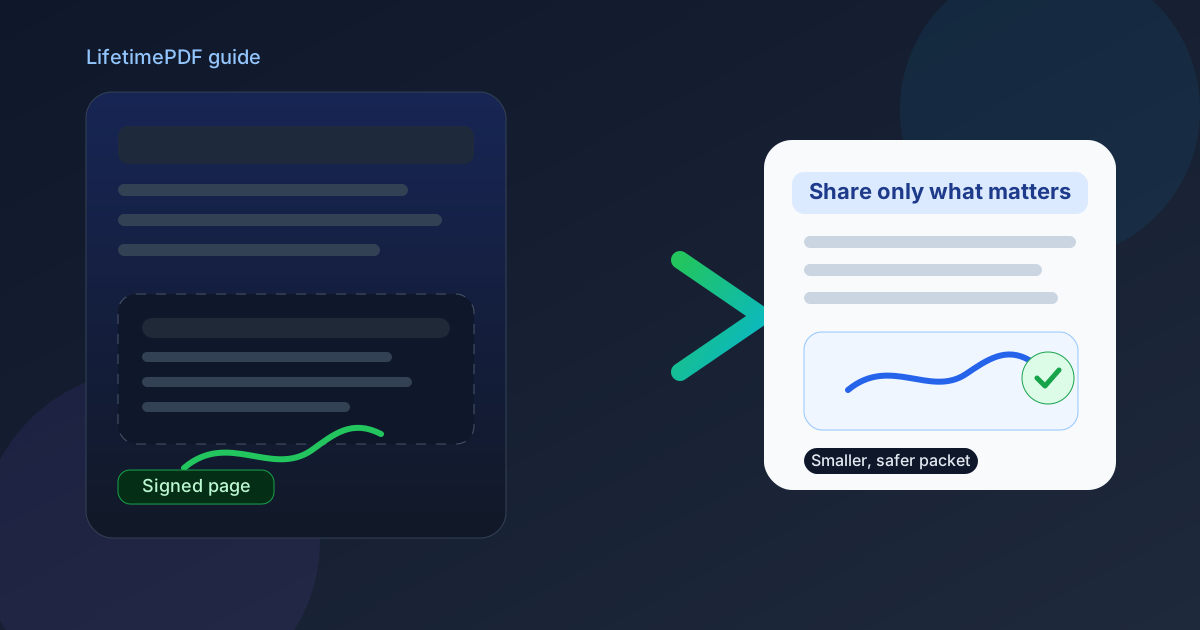
Table of contents
- Quick start: extract the signed page in a few minutes
- Before you extract: what kind of signature is this?
- Step-by-step: extract a signature page cleanly
- When you should send the full signed PDF instead
- How to share the extracted page safely
- Common mistakes that create confusion later
- Related LifetimePDF tools and guides
- FAQ (People Also Ask)
Quick start: extract the signed page in a few minutes
If you only need the shortest working version, use this order:
- Confirm which page actually contains the signature, initials, or notary section you need.
- If the file appears digitally signed, verify the original first so you do not lose the proof context by mistake.
- Open LifetimePDF Extract Pages.
- Enter the page number or range, such as 7 or 7-8.
- Download the new PDF that contains only the selected page or pages.
- If the new file still contains private details, run PDF Protect before sharing it.
Before you extract: what kind of signature is this?
The most important decision happens before you click anything. Not every signed PDF behaves the same way. Some files simply show a handwritten signature image on the page. Others carry a true digital signature that validates the integrity of the entire document.
| What you see | What it usually means | Best next move |
|---|---|---|
| Scanned signature or visible handwritten mark | The page visually shows the signature, but there may be no cryptographic proof attached to the PDF. | Extracting the page is usually straightforward if the recipient only needs the visible signed page. |
| Typed e-signature block or drawn signature | The signature may be part of a workflow platform, but the visible page still acts mostly like normal page content. | Extract the page if needed, but keep the original file if the workflow depends on full-document history. |
| Digital signature with validity status | The PDF may prove the whole file was signed and not modified after signing. | Verify the original first. Send the full signed PDF whenever proof or compliance matters. |
This is why people get tripped up. They think "I only need the signature page," but the real question is whether they need the visible page or evidence that the whole document was signed and preserved intact.
When in doubt: treat the extracted page as the shareable convenience copy and the full original PDF as the record copy.
Step-by-step: extract a signature page cleanly
Once you know the file type, the actual extraction is easy. The goal is to keep the signed page readable, complete, and clearly labeled so the next person does not need to guess what they are looking at.
1) Identify the full signed section
Do not assume the signature is only one page. Many packets have a final signature page plus initials on earlier pages, witness lines on the next page, or a notary acknowledgment immediately after the signature block. If the signed section spans pages 12 and 13, extract both.
2) Extract by page number or range
In LifetimePDF Extract Pages, enter the page number exactly as it appears in the PDF. Use a single page like 12 when the signature is isolated. Use a range like 12-13 when context or a second signed block matters.
3) Review the smaller PDF before you send it
Open the new file and make sure the full signature, date, page footer, and any witness or notary elements are still present. A signature page that starts halfway through a clause or cuts off the identifying footer may create more questions than it solves.
4) Rename the file clearly
A filename like vendor-agreement-signed-page.pdf or application-signature-page.pdf prevents confusion. That is much better than sending something called document-final-v7-new-2.pdf and forcing the recipient to open it just to understand what it is.
5) Add a finishing step only if the workflow needs it
If the page still includes personal information, lock it with PDF Protect. If the recipient is getting the file by email and size is a problem, use Compress PDF after extraction. Most of the time, you do not need anything more complicated than that.
When you should send the full signed PDF instead
There are times when extracting the signed page is helpful and times when it quietly causes problems. Send the full original file when any of the following are true:
- The recipient needs proof that the entire PDF was signed, not just a visible signature on one page.
- The file contains a digital signature that verifies document integrity.
- The signature page refers to clauses, schedules, or exhibits that matter to the approval itself.
- The document is part of a legal, HR, procurement, lending, or compliance workflow that expects the full packet.
- The signature page alone could be misread without surrounding dates, party names, or version information.
In those cases, the cleanest compromise is often to send both files: the extracted signature page for quick reference and the full original signed PDF for recordkeeping and verification.
How to share the extracted page safely
Extracting a signature page is often about limiting exposure. If the rest of the contract, application, or packet does not need to travel, cutting the file down is already a smart privacy move. A few extra habits make it better:
- Check for personal data such as addresses, account numbers, or IDs that still appear on the signature page.
- Protect the new file with a password when it contains sensitive details or is going through email.
- Compress after extraction instead of before, because the smaller page set often reduces the file size naturally.
- Explain what the file is in your message so the recipient knows whether this is a convenience copy or the official record copy.
Common mistakes that create confusion later
Most problems are not technical failures. They come from removing too much context.
- Extracting only the visible signature block when the next page contains the witness, initials, or notary section.
- Assuming an extracted page proves the whole document was signed when the actual proof lived in the original digital signature.
- Sending the smaller file without a filename or explanation, which leaves the recipient unsure whether they received the full agreement.
- Screenshooting instead of extracting, which can reduce clarity and make the page look less official than a proper PDF page extraction.
- Forgetting privacy review, especially when the signature page includes dates of birth, account details, or internal approval notes.
The easiest way to avoid all of that is to review the extracted page once, then decide whether the recipient needs the full signed file too.
Best practical sequence: verify if needed → extract the signed page → review once → protect or compress only if the handoff still calls for it.
Related LifetimePDF tools and guides
Extracting a signature page often sits inside a slightly bigger workflow. These tools and guides are the ones most likely to help next:
- Extract Pages — create a new PDF containing only the signed page or page range you want to share.
- Split PDF — useful when visual page selection is easier than typing page numbers.
- PDF Protect — add a password before emailing the extracted page onward.
- Compress PDF — shrink the extracted file for portals and attachments.
- Verify PDF Signature Online — understand whether the original file carries true digital-signature proof.
Related blog guides
- Extract Pages from PDF Online Free
- How to Add Signature to PDF Online Step by Step
- Flatten Filled PDF Form Before Emailing It
- PDF Signature Invalid After Editing
- How to Password Protect a PDF File
FAQ (People Also Ask)
1) How do I extract only the signature page from a PDF?
Open an extract-pages tool, select the page number or page range that contains the signature, generate a new PDF from that selection, and download the smaller file.
2) Can I send only the signed page instead of the whole contract?
Yes, when the recipient only needs the visible signed page for reference. If they need the approval context, legal record, or digital-signature proof, send the full signed PDF as well.
3) Will extracting a signature page break a digital signature?
It can remove the context that proves the original full file stayed unchanged after signing. That is why digitally signed documents should be verified first, and why the original full PDF should usually remain the record copy.
4) What if the signed section spans more than one page?
Extract the whole range instead of forcing the job into a single page. Many documents place the signature on one page and the witness, initials, or notary section on the next page.
5) What is the safest way to share an extracted signature page?
Review the page once, remove anything unnecessary if possible, protect the file with a password when sensitive details remain, and tell the recipient whether the attachment is a convenience copy or the official signed record.
Ready to pull only the signed page out of a larger PDF?
Best real-world rule: share the extracted page for convenience, keep the original full PDF for proof whenever the signature is meant to validate the whole document.
Published by LifetimePDF — Pay once. Use forever.