Split PDF: Separate Pages, Create Smaller Files, and Share Only What Matters
To split PDF files, upload the document to a PDF splitter, choose the pages or ranges that should become separate files, run the split, and download the smaller PDFs.
If you only need one section, extracting pages is often cleaner than breaking the whole document into a lot of parts you do not actually need.
That sounds simple because the button-clicking part is simple. The real value is knowing how to split the file so the result is easier to send, safer to share, and less annoying to manage later. A good split workflow does more than cut a document apart. It helps you send only the signature page instead of the full contract, carve a huge report into reviewable chunks, keep a portal upload under size limits, and avoid exposing unrelated pages that never needed to leave your machine in the first place.
Fastest practical path: split large PDFs into the fewest useful sections, extract single ranges when that is enough, and compress only after splitting if the output is still too heavy.
In a hurry? Jump to Quick start: split a PDF in a few minutes.
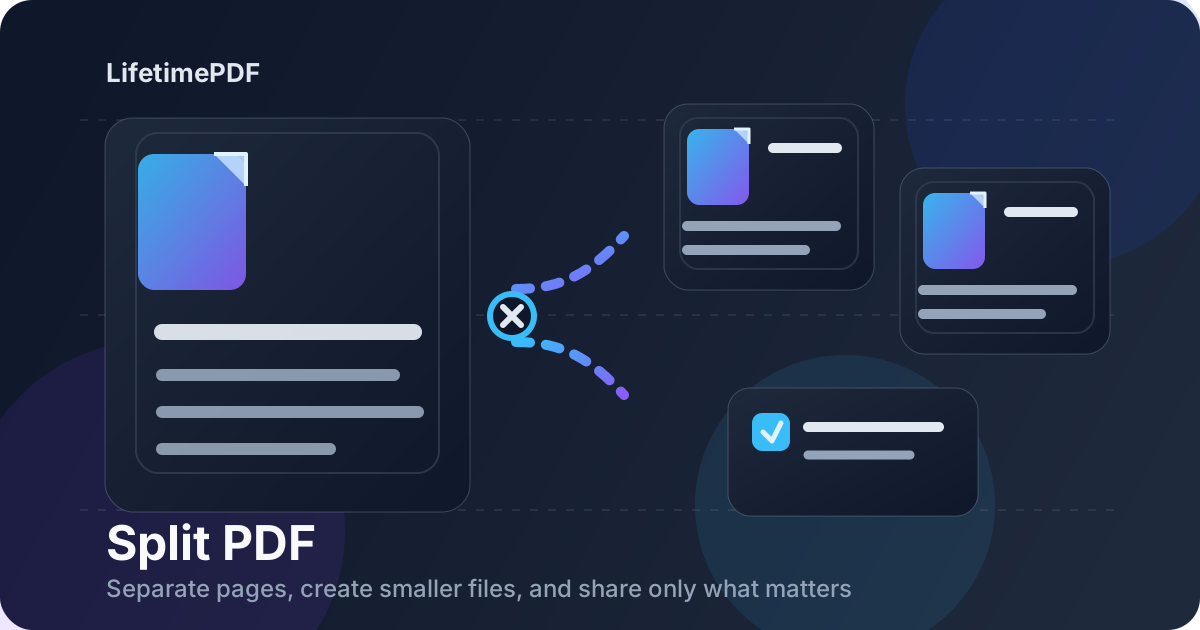
Table of contents
- Quick start: split a PDF in a few minutes
- What “split PDF” really means
- Split PDF vs extract pages vs delete pages
- When splitting is the right move
- Step-by-step: how to split a PDF cleanly
- Best split patterns for real documents
- Does splitting affect quality?
- When to compress after splitting
- Privacy and safer document sharing
- Related LifetimePDF tools and useful next steps
- FAQ (People Also Ask)
Quick start: split a PDF in a few minutes
If you already know which pages belong together, the fastest reliable workflow looks like this:
- Open Split PDF.
- Upload the document you want to divide.
- Select the page ranges or sections that should become their own files.
- Run the split and download the outputs.
- Rename the new PDFs right away so you know what each section contains.
What “split PDF” really means
People use the phrase split PDF for a few slightly different jobs. Sometimes they mean "turn this giant file into smaller files." Sometimes they mean "pull out pages 8 through 12." Sometimes they mean "make this packet easier to email without sending everything." The common idea is the same: one document contains more pages than the next step actually needs.
That is why splitting is so practical. It helps you reduce scope without changing the content itself. You are not rewriting the file, flattening it, or degrading it. You are just reorganizing pages so the document fits the task instead of forcing the task to fit the whole document.
| What you need | Best first move | Why |
|---|---|---|
| Several smaller PDFs from one big file | Split PDF | You want multiple separate outputs |
| Only one chapter, section, or signature page | Extract Pages | You only need one subset, not many parts |
| Keep most of the file but remove a few pages | Delete Pages | You are trimming, not dividing |
| Change page order before sharing | Organize PDF | Order matters more than separation |
Split PDF vs extract pages vs delete pages
A lot of friction disappears once you choose the right action before you start. People often search for one phrase but actually need a neighboring tool.
Split PDF
Use this when one document should become several separate PDFs. Think board packet into sections, handbook into chapters, or report into summary plus appendix.
Extract Pages
Use this when you want one clean subset. If all you need is pages 4 to 6 from a 30-page contract, extraction is usually the cleaner move.
Delete Pages
Use this when the original file is mostly right and you just want to remove clutter. It is ideal for blank scans, cover pages, duplicates, or irrelevant appendices.
- different people need different sections
- the file is too long to review comfortably
- you want multiple outputs from one source
- you are turning a packet into smaller deliverables
- you only need one section
- you want one new PDF with selected pages
- the rest of the document is irrelevant
- you want fewer files, not more files
When splitting is the right move
Splitting is usually the smartest choice when the document is technically fine but operationally awkward. The content is okay. The packaging is the problem.
Email and portal uploads
Many files are not too big because each page is huge. They are too big because too many pages are traveling together. Splitting out only the necessary section often solves the sharing problem before compression is even necessary.
Contracts, forms, and signature workflows
People rarely need the whole packet every time. Sometimes they need only the signature page, the scope section, or the final appendix. Sending only that section reduces confusion and lowers the chance of exposing unrelated material.
Reports, decks, and long reference files
Huge PDFs are harder to review on phones, harder to navigate in meetings, and harder to keep organized later. Splitting them into logical sections makes the file more human-sized.
| Document type | Good split strategy | Why it helps |
|---|---|---|
| Contract packet | Signature pages, exhibits, and main terms as separate files | Faster review and safer sharing |
| Large report | Executive summary, body, charts, appendix | Easier reading and smaller attachments |
| Scanned paperwork batch | One document per form or person | Cleaner filing and later retrieval |
| Course or training PDF | One module or chapter per file | Better navigation and reuse |
Step-by-step: how to split a PDF cleanly
The mechanics are easy. The cleaner workflow comes from deciding the outputs before you click anything.
1. Decide what the recipient or next step actually needs
Do not start with the whole document and hope the right sections become obvious later. Ask what the output is for. One recipient? One section. Several stakeholders? Several clearly named parts.
2. Choose the fewest useful outputs
More files are not automatically better. If two ranges naturally belong together, keep them together. The goal is not maximum fragmentation. The goal is cleaner delivery.
3. Split by meaningful ranges
Use sections that make human sense: chapter boundaries, appendices, signatures, invoice groups, client packets, or date-based blocks. Arbitrary cuts create confusion later.
4. Review the outputs immediately
Open the result and make sure the first and last pages of each file are correct. Most mistakes happen at the boundaries.
5. Rename the files before you move on
A file named part-3.pdf is barely a file name.
A file named board-report-appendix.pdf is useful.
Clear naming saves time every time the file reappears.
Recommended workflow: decide the exact outputs first, split only into meaningful sections, verify the boundaries, and then compress or protect the results only if the next step requires it.
Best split patterns for real documents
The best split is usually the one that matches how the document will be used, not how it was originally bundled.
Single-page output
This is common for signature pages, certificates, receipts, title pages, and one-page forms. If that is the only output you need, extracting that page may be simpler than creating a multi-part split.
One continuous range
Good for chapters, one contract section, one employee packet, or one client's invoice run. This is the cleanest workflow when the relevant pages already sit together.
Several logical sections
Good for large reports, exhibits, handbooks, or bundles assembled from different source files. In those cases, splitting makes one bloated PDF behave like a tidy folder.
| Pattern | Best for | Typical follow-up |
|---|---|---|
| One page | Signatures, receipts, certificates | Share immediately or protect the file |
| One page range | Chapters, clauses, appendices | Rename clearly and send only that section |
| Several sections | Reports, manuals, bundles | Compress the heavy sections if needed |
| Per-document separation | Scanned batches and office archives | OCR or organize each output later |
Does splitting affect quality?
In normal workflows, no. Splitting a PDF usually keeps the original text, layout, page dimensions, and readability intact because you are reorganizing pages rather than converting them into images.
That is one reason splitting is often better than screenshot-based workarounds. Screenshots feel quick, but they usually create worse files. A proper split keeps the document as a real PDF that prints well, scales well, and stays easier to search or archive later.
When to compress after splitting
Splitting and compression solve different problems. Splitting reduces scope. Compression reduces file weight. Many people need both, but usually in that order.
If the new output file is still too large for email, a vendor portal, or phone sharing, then send the smaller section into Compress PDF. That often works better than trying to crush the entire original packet before you have even decided which pages matter.
- Split first when the problem is too many pages traveling together.
- Compress after when the final section is still too heavy.
- Delete or crop first when blank pages or wasted margins are inflating the file unnecessarily.
If the split file is still too large: compress the finished section instead of squeezing the full original document harder than necessary.
Privacy and safer document sharing
Splitting a PDF is often a privacy improvement, not just a file-management trick. The full packet may include names, addresses, signatures, pricing, internal notes, or appendices the recipient never needed to see. Sending only the relevant section lowers the exposure surface immediately.
That does not remove the need for review. Always open the split output once before sending it. Check the first page, the last page, and any transition between sections. Most accidental oversharing happens because one boundary page was included or excluded incorrectly.
- Use Split PDF to separate the right section.
- Use Redact PDF if sensitive details should not remain visible even inside the smaller file.
- Use PDF Protect when the final output still needs controlled sharing.
Related LifetimePDF tools and useful next steps
Splitting is rarely the whole job. These related tools usually fit around it:
- Split PDF — divide one document into several smaller PDFs.
- Extract Pages — pull one useful section into its own file.
- Delete Pages — remove blank, duplicate, or irrelevant pages.
- Organize PDF — reorder pages before or after splitting.
- Compress PDF — reduce the size of the final split files.
- Merge PDF — recombine sections later if needed.
- Redact PDF — remove confidential content before wider sharing.
- PDF Protect — add password protection to sensitive outputs.
Related blog guides
- Split PDF Online Free
- Split PDF Online Without Monthly Fees
- Extract Pages from PDF
- Delete Pages from PDF
- Compress PDF
- Organize PDF Pages Online
- Browse all LifetimePDF articles
Ready to break a large PDF into the right sections?
Best practical sequence: decide the useful outputs → split or extract → verify boundaries → compress or protect only if needed → send the smallest correct file.
FAQ (People Also Ask)
How do I split a PDF?
Upload the PDF to a splitter, choose the pages or ranges that should become their own files, run the split, and download the smaller PDFs. If you only need one section, extracting those pages is often the cleaner move.
Will splitting a PDF reduce quality?
Usually no. Splitting normally preserves text clarity, layout, and page quality because it reorganizes pages instead of converting the document into images.
What is the difference between split PDF and extract pages?
Split PDF usually means dividing one document into several smaller PDF files. Extract pages usually means pulling selected pages into one new PDF. The tools are related, but the intended output is different.
When should I compress after splitting?
Compress after splitting when the new section is still too large for email, a portal, or mobile sharing. Splitting solves the scope problem first, then compression solves the size problem.
Is splitting a PDF useful for privacy?
Yes. Splitting or extracting only the relevant pages helps you avoid sharing unrelated content such as signatures, addresses, pricing details, or internal notes that were never meant for the recipient.
Published by LifetimePDF — Pay once. Use forever.