Remove Duplicate Pages from PDF: Clean Repeats, Scanner Doubles, and Merge Clutter Fast
Yes — the cleanest way to remove duplicate pages from PDF files is to identify the repeated sheets first, delete only the extra copies, and review the final order once before you share, store, print, or merge the file into anything else.
If the repeats came from a bad merge, duplex scanning mistakes, or a packet that was assembled twice, use Delete Pages for targeted cleanup and switch to Extract Pages or a broader reorganization workflow when the whole packet is suspect.
Duplicate pages show up for boring reasons more often than dramatic ones. Someone scans the same sheet twice. A merge includes the appendix two times. Blank backs from one-sided originals creep into a duplex scan. Or a long packet gets stitched together by email attachment order instead of by human judgment. The real skill is not pressing delete. It is knowing which repeated pages are junk, which are actually needed, and which signal that the document needs cleanup beyond simple page removal.
Fastest practical path: find the first repeated sequence, decide which copy survives, remove the extras in one pass, then review the pages immediately before and after every deletion.
Need the short version? Jump to quick start: remove duplicate pages in a few minutes.
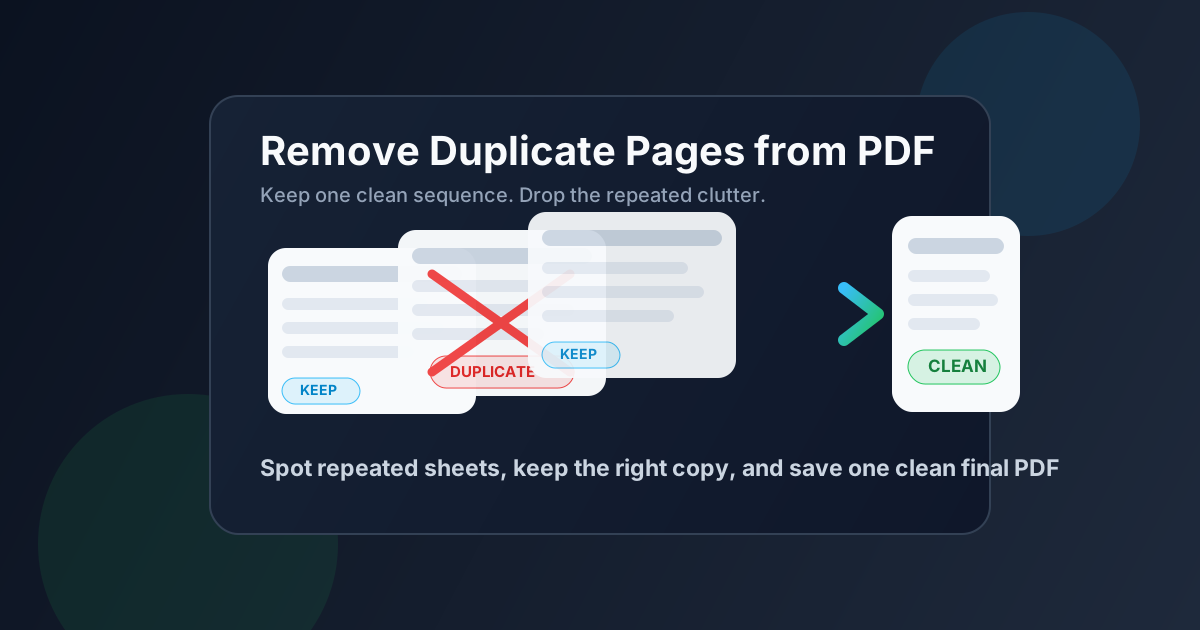
Table of contents
- Quick start: remove duplicate pages in a few minutes
- What counts as a duplicate page
- The safest workflow before you delete anything
- Step-by-step: how to remove duplicate pages from PDF cleanly
- When duplicates point to a merge problem instead
- Scanned PDFs: blank backs, scanner doubles, and faux duplicates
- Common mistakes to avoid
- Related LifetimePDF tools and guides
- FAQ (People Also Ask)
Quick start: remove duplicate pages in a few minutes
If you already know the file contains repeated pages, this is the shortest clean workflow:
- Open Delete Pages.
- Confirm which pages are true repeats, not needed backsides or alternate versions.
- Choose the copy that should stay.
- Delete the extra page numbers or ranges in one pass.
- Review the pages immediately before and after each deletion.
- If the cleaned PDF is scanned and still hard to search, run OCR PDF afterward.
What counts as a duplicate page
Not every similar-looking page is junk. A real duplicate usually means the same page content appears twice when only one copy belongs in the final document. That often happens in a few predictable ways.
- Back-to-back repeats: the same page appears twice in a row after scanning or re-uploading.
- Repeated sections: a whole appendix, report, or exhibit was merged into the packet twice.
- Scanner doubles: the feeder grabbed the same sheet again or a phone scan retried one page.
- Mixed packet clutter: one source document was already inside another file before everything got merged.
The tricky cases are the almost-duplicates. A front and back side may share similar formatting but contain different content. A signature page may exist in signed and unsigned versions. A revised invoice may look almost identical except for one date or total. Those are not safe blind deletions.
| What you are seeing | Best move | Why |
|---|---|---|
| The same page appears twice in a row | Delete the extra copy | Usually a true duplicate from scanning or merging |
| A whole section repeats later | Check whether the packet was merged twice | Large repeated blocks often point to an assembly problem, not a one-page problem |
| The pages look similar but not identical | Compare details before deleting | You may be looking at a revised version, a backside, or an alternate form |
| Blank or nearly blank repeats | Check whether they are scanner backs | Some blanks are safe to remove, others preserve a filing or print sequence |
The safest workflow before you delete anything
The fastest cleanup jobs still start with one small pause: decide what the finished PDF is supposed to be. If the goal is a clean archive copy, you may keep more context than you would in a client-ready packet. If the goal is a court filing or a contract bundle, page order matters as much as page count.
Check these four things first
- Where does the repeat start and end? One page, three pages, or a whole section?
- Which copy is better? Keep the sharper scan, the correctly oriented page, or the version that sits in the right sequence.
- Does the repeat hide a larger structure problem? If yes, extract or reorganize before you delete half the packet manually.
- Will the file still need OCR, compression, or protection afterward? Those are finishing steps, not first steps.
Step-by-step: how to remove duplicate pages from PDF cleanly
The actual mechanics are simple. The quality of the result comes from being deliberate about what stays.
1) Find the duplicate pattern
Start with the first obvious repeat and look at the pages around it. If page 8 is duplicated, also inspect pages 7 and 9. If pages 18 through 24 repeat later, inspect both start and end points. That tells you whether you are dealing with one extra sheet or a repeated section.
2) Choose the copy that deserves to stay
The survivor is not always the first copy. Keep the version with the cleaner scan, the better cropping, the correct orientation, or the more logical place in the packet. If one copy has handwritten marks or signatures and the other does not, that difference matters.
3) Remove the extra pages in one pass
Open Delete Pages and remove the repeated page numbers or ranges together instead of doing several scattered edits if you can avoid it. One deliberate pass reduces the odds of losing track halfway through the cleanup.
4) Review the transition points
The most useful review is not reading the entire PDF again. It is checking the pages immediately before and after each deletion. Those joins tell you whether the file still reads naturally or whether you accidentally removed a needed backside, appendix divider, or context page.
5) Finish the cleaned file only after the content is right
Once the repeats are gone, then decide whether the file also needs Compress PDF, OCR PDF, or PDF Protect. Finishing steps work better on the correct final document than on a messy draft copy.
When duplicates point to a merge problem instead
If the duplicate content covers several pages or whole sections, simple page deletion may still work, but it may not be the smartest first move. A repeated exhibit bundle, invoice pack, or appendix often means the merge order was wrong or one source file was already included upstream.
In those cases, you may save time by extracting the section that truly belongs, splitting the packet into logical parts, or rebuilding the final version cleanly from the right sources. That is often safer than deleting 27 repeated pages and hoping you did not miss one in the middle.
| Situation | Best tool | Why |
|---|---|---|
| One or two repeated pages | Delete Pages | Fastest cleanup when the rest of the document is fine |
| A useful section needs to stand alone | Extract Pages | Cleaner than deleting everything around the part you want |
| The packet order is messy | Rotate PDF / page reordering workflow | Fixes sequence and orientation before final cleanup |
| Separate files were combined badly | Merge PDF after cleanup | Lets you rebuild a cleaner final packet from the right parts |
Scanned PDFs: blank backs, scanner doubles, and faux duplicates
Scanned PDFs deserve extra caution because they create lookalikes. A blank reverse side may look useless but still preserve a filing sequence. A skewed re-scan may hide tiny differences. A phone camera may capture the same page twice with different crops.
- Blank backs from one-sided originals: often removable, but confirm the final reader does not need them for printing order.
- Scanner doubles: compare sharpness and cropping, then keep the cleaner version.
- Crooked or sideways duplicates: fix orientation with Rotate PDF before making a final judgment.
- Image-only scans: remove junk first, then run OCR PDF so the cleaned file becomes searchable.
Doing OCR after cleanup is usually the better order because it saves processing on pages that were never supposed to survive. It also gives you a smaller, more useful final file.
Common mistakes to avoid
- Deleting the first copy automatically: the later copy may be cleaner or more correctly placed.
- Trusting footer numbering more than the PDF index: printed page numbers can restart inside sections.
- Treating similar pages as identical: revisions, signed versions, and backsides can look deceptively close.
- Cleaning after a bad merge without checking the sources: sometimes the smarter fix is rebuilding the packet once.
- Compressing or protecting too early: finish content cleanup first so you do not optimize the wrong version.
Related LifetimePDF tools and guides
Duplicate-page cleanup usually sits inside a broader PDF workflow. These tools and articles help when the problem turns out to be bigger than one repeated sheet.
Useful tools
- Delete Pages — remove repeated or irrelevant pages cleanly
- Extract Pages — keep only the section that truly belongs
- Rotate PDF — fix orientation and page sequence before final cleanup
- Merge PDF — rebuild a clean packet from the right source files
- OCR PDF — make the cleaned scan searchable afterward
Related blog guides
- Delete Pages from PDF
- Delete Blank Pages from PDF
- Organize PDF
- Combine PDFs
- OCR PDF
- Browse all LifetimePDF articles
Ready to clean repeated pages without rebuilding the whole document?
Best practical workflow: confirm the repeat → keep the better copy → remove extras → review the join points → finish with OCR or compression only if needed.
FAQ (People Also Ask)
How do I remove duplicate pages from a PDF?
Find the repeated pages first, choose which copy should stay, delete only the extras, then review the cleaned PDF once before you send or archive it.
Can I remove duplicate PDF pages without changing quality?
Usually yes. Removing duplicate pages normally shortens the file without changing the quality of the pages you keep.
How can I tell whether a page is a true duplicate or part of a two-sided scan?
Check the surrounding pages, visible content, and sequence. A true duplicate repeats the same content in the same logical place, while a legitimate back side may be sparse but still belongs to the document.
What if the duplicates came from merging files twice?
If a whole section repeats, it is often faster and safer to extract the correct part or rebuild the packet cleanly rather than deleting a long run of pages one by one.
Should I use OCR before or after removing duplicate pages?
Usually after. Clean the file first so OCR runs only on the pages that truly belong in the final PDF.
Published by LifetimePDF — Pay once. Use forever.