Delete Blank Pages From PDF: Clean Duplex Scans, Remove Empty Separator Sheets, and Keep the Rest Intact
Yes — to delete blank pages from a PDF, find the real PDF page numbers of the empty sheets, remove only those pages, and double-check anything that looks almost blank before exporting.
If the file came from duplex scanning, batch separators, or print-to-PDF spacing, a quick cleanup pass usually fixes the problem without changing the rest of the document.
This sounds like a tiny task until you are staring at a 70-page scan with wrong footer numbers, faint backside bleed-through, and a portal that rejects oversized uploads. Blank pages make documents look careless, waste page count, and create extra friction for reviewers. The good news is that you usually do not need to rebuild the file from scratch. You just need a reliable way to identify the empty pages and remove them without touching the pages that matter.
Fastest practical path: remove the blank pages first, switch to visual page selection if the numbering is messy, then compress or protect the cleaned file only after the junk pages are gone.
In a hurry? Jump to Quick start: delete blank pages from a PDF in under two minutes.
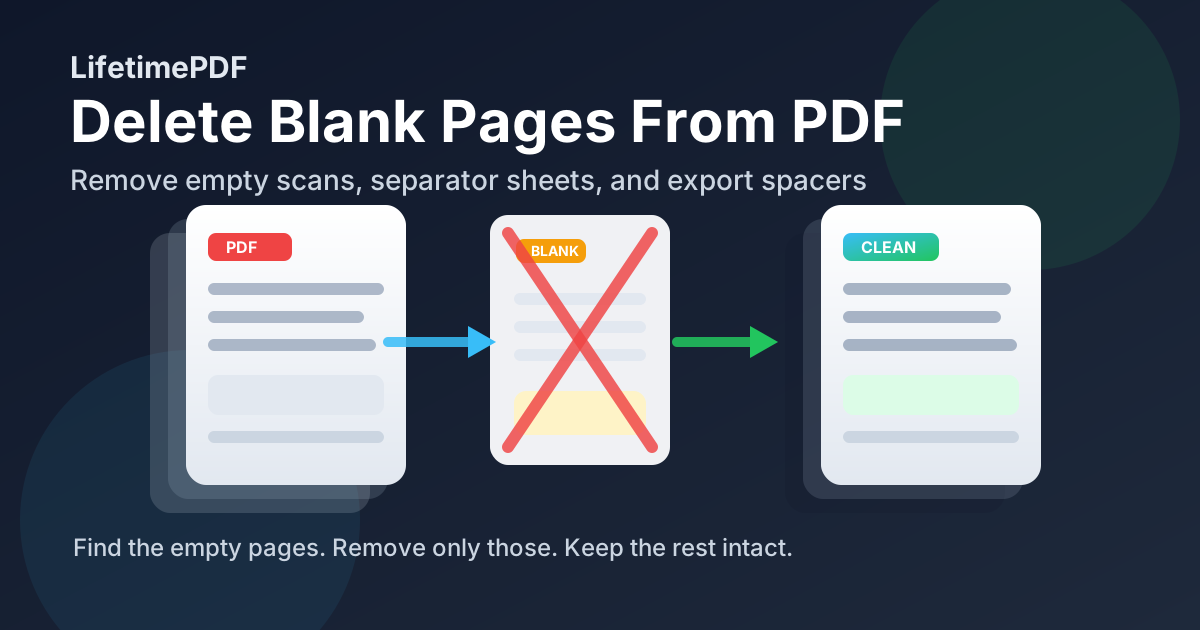
Table of contents
- Quick start: delete blank pages from a PDF in under two minutes
- Why blank pages show up in the first place
- Step-by-step: how to delete blank pages from a PDF cleanly
- How to tell a truly blank page from a risky one
- Best cleanup workflows for common PDF jobs
- What to do if page numbers do not match what you see
- Best order for the rest of the cleanup
- Related LifetimePDF tools and guides
- FAQ (People Also Ask)
Quick start: delete blank pages from a PDF in under two minutes
If you already know which pages are empty, this is the quickest safe workflow:
- Open Delete Pages.
- Upload the PDF.
- Enter the empty page numbers such as
2,7,11, or18-20. - Process the file and download the cleaned result.
- Open the result once to confirm no faint-content page was removed by mistake.
Why blank pages show up in the first place
Blank pages do not always mean the PDF is broken. Most of the time they are leftovers from how the file was created.
Duplex scanning adds empty backsides
If you scan single-sided paper with duplex enabled, the scanner may capture the reverse side of every sheet as its own page. The PDF is technically complete, but many of those pages add no value at all.
Separator sheets sneak into batch jobs
Offices often use blank or nearly blank sheets to divide one packet from another. During batch scanning, those divider pages turn into extra PDF pages that are useful for sorting during capture but messy in the final file.
Print-to-PDF workflows insert spacing pages
Some systems add blank pages so sections start on the right-hand side for printing. That makes sense in a booklet workflow, but it is dead weight when the file is meant for email, portals, or cloud review.
Low-contrast scans only look blank
Some pages contain faint bleed-through, stamps, hole-punch shadows, or barely visible handwritten notes. At thumbnail size they look empty, but they still deserve a closer look before you delete them.
Step-by-step: how to delete blank pages from a PDF cleanly
The safest workflow is less about speed and more about avoiding an avoidable mistake.
1. Use the actual PDF page index
Do not trust the printed footer alone. If a report has a cover page, the page labeled “1” in the footer may actually be PDF page 2. Use the page count or thumbnail panel in your PDF viewer so you remove the correct page numbers.
2. Remove the known empty pages
Open Delete Pages, upload the file, and remove the pages that are genuinely blank. This is the fastest route when the unwanted pages are already identified.
3. Switch to visual keep-pages mode if the file is chaotic
If the page numbering is confusing or the packet was merged from several sources, use Split PDF as a visual keep-pages workflow. Keeping the pages you want is often easier than guessing which blank ones to remove.
4. Verify before you move on
Review the cleaned PDF once before you compress it, upload it, or send it to someone else. That quick check catches wrong page numbers, skipped content, and any page that looked blank but was not.
| Situation | Best move | Why |
|---|---|---|
| You know the exact blank page numbers | Use Delete Pages | Fastest way to remove only the empty pages |
| You only know the blank pages visually | Use Split PDF and keep the good pages | Safer than guessing page numbers in messy files |
| The PDF is still too large afterward | Run Compress PDF | Smaller file after junk pages are gone |
| The cleaned file is sensitive | Use PDF Protect before sharing | Helps secure the final version before it leaves your hands |
How to tell a truly blank page from a risky one
The phrase delete blank pages from PDF sounds simple, but the real decision is whether a page is blank enough to remove safely.
Usually safe to remove
- Completely white or fully empty backsides from duplex scans
- Separator sheets with no meaningful content
- Spacer pages inserted by print or report exports
- Appendix placeholders that never received content
Worth inspecting more closely
- Pages with faint signatures, initials, or stamps
- Backside bleed-through that may reveal notes
- Low-contrast forms where pale text almost disappears
- Pages with a single critical detail such as an approval mark or timestamp
Best cleanup workflows for common PDF jobs
Blank-page removal shows up everywhere because so many PDF workflows start with paper, print dialogs, or mixed-source merges.
Scanned HR, legal, and compliance packets
These files often contain empty backsides from duplex scanning. Cleaning those pages first makes the packet easier to review and usually reduces file size before you archive or upload it.
Receipts, invoices, and bookkeeping bundles
Batch scan jobs often include separator sheets between vendors or expense groups. Removing them gives you a tighter archive and cleaner supporting documentation.
Reports exported for email or portals
Print-oriented exports sometimes add blank section breaks. Those pages are harmless on paper but annoying in digital review workflows where readers just want the content.
Before compression or merging
Delete the blank pages before you run Compress PDF or merge the file with something else. There is no reason to preserve or recompress pages that should not be there in the first place.
What to do if page numbers do not match what you see
This is the mistake that trips people up most often. The printed page number on the page is not always the same as the PDF page index used by editing tools.
- Check the viewer thumbnail or page counter.
- Count covers, inserts, and appendix dividers.
- Write down the actual PDF page numbers before deleting anything.
- If the structure still feels unreliable, switch to a visual keep-pages workflow instead of guessing.
When the file is messy, the most reliable mental model is not “Which pages do I hate?” It is “Which pages am I absolutely sure I want to keep?”
Best order for the rest of the cleanup
Deleting blank pages is usually just the first cleanup step. A smarter full workflow looks like this:
- Delete blank pages with Delete Pages.
- Compress the cleaned file with Compress PDF if size still matters.
- Redact sensitive information using Redact PDF if the remaining pages contain data that should not travel openly.
- Protect the final version with PDF Protect before sending it outside your team.
That order matters because it reduces waste. You are cleaning the file first, then optimizing and securing only the pages worth keeping.
Ready to clean the file now?
Related LifetimePDF tools and guides
If you clean PDFs regularly, these related tools and articles make the workflow smoother:
- Delete Pages - remove known blank or unwanted pages directly
- Split PDF - visually keep the pages you want when numbering is confusing
- Compress PDF - shrink the cleaned file for email or portal upload
- Redact PDF - remove sensitive content from the pages that remain
- PDF Protect - secure the final version before sharing
Suggested internal blog links
- Delete Blank Pages From PDF Online
- Delete Blank Pages From PDF Online Free
- Delete Blank Pages From PDF Without Monthly Fees
- Delete Pages From PDF Online Free
- Split PDF Online Free
- Compress PDF Online
- Browse all LifetimePDF articles
FAQ (People Also Ask)
How do I delete blank pages from a PDF?
Find the actual PDF page numbers for the empty pages, remove only those pages with a delete-pages tool, and review the cleaned file once before sharing it. If the numbering is confusing, use a visual keep-pages workflow instead.
Why do scanned PDFs often have blank pages?
Duplex scanning often captures the empty back side of single-sided paper, and batch jobs may include separator sheets. Those pages are common cleanup leftovers rather than meaningful content.
Will deleting blank pages change the rest of my PDF?
Normally no. Removing blank pages should leave the remaining pages, layout, and visual quality intact because you are trimming pages rather than rebuilding the full document.
What if a page looks blank but might contain faint text or a stamp?
Zoom in before deleting it. Some pages that look empty at thumbnail size still contain faint signatures, bleed-through, timestamps, or approval marks that matter.
What should I do after deleting blank pages from a PDF?
The usual next steps are to compress the cleaned file for upload, redact anything sensitive that remains, and protect the final version before sending it to someone else.