Organize PDF: Reorder Pages, Remove Clutter, and Save a Cleaner Final File
Yes — the fastest way to organize PDF files is to decide what belongs in the final document, then fix the page order, orientation, and extra clutter before you save the finished copy.
For most real documents, that means reordering pages, rotating bad scans, deleting blanks or duplicates, extracting sections that should stand alone, and merging only the files that genuinely belong together.
That sounds simple, but it saves a surprising amount of frustration. Many PDFs become messy for boring reasons: a scanner flips pages, someone merges attachments in the wrong order, a report inherits blank separator sheets, or a client packet gets padded with pages nobody needs. “Organize PDF” is really shorthand for making the document usable again. You are not just cleaning a file. You are making the next reader's job easier.
Fastest path: reorder and rotate the pages first, delete what should not survive, extract sections that belong on their own, then merge related material only if one finished packet really makes sense.
Need the short version? Jump to quick start: organize a PDF in a few minutes.
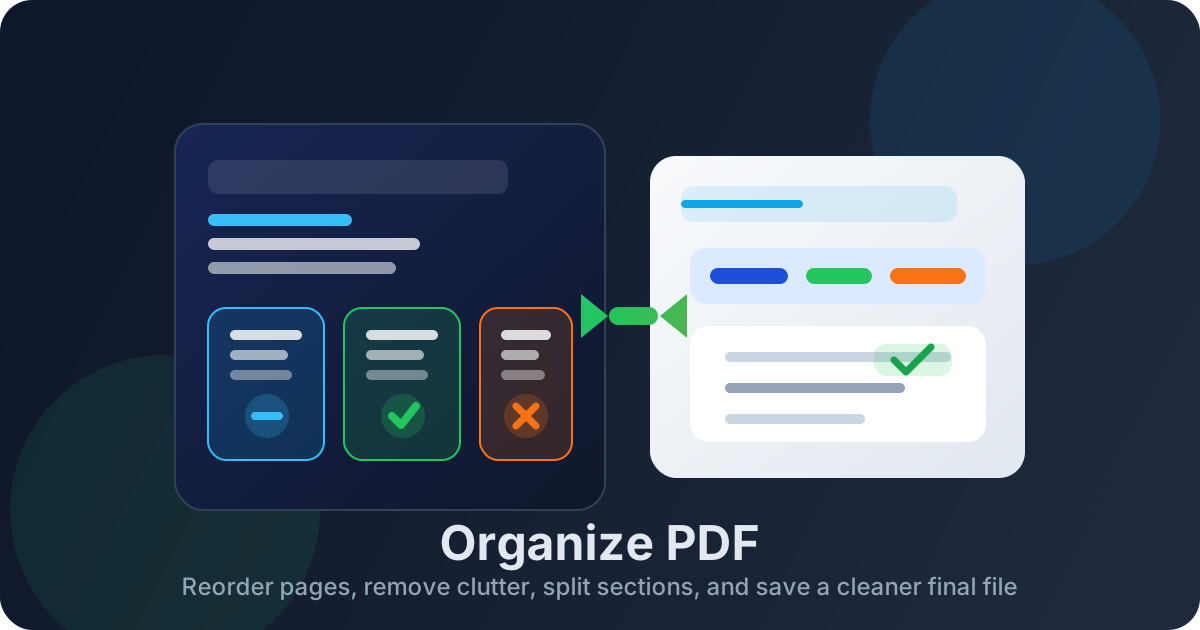
Table of contents
- Quick start: organize a PDF in a few minutes
- What people usually mean by organize PDF
- Start with the finished document, not the messy source
- Step-by-step: the cleanest organize-PDF workflow
- When to split a PDF and when to merge one
- How to organize scanned PDFs without making them worse
- Common organize-PDF mistakes to avoid
- Related LifetimePDF tools and guides
- FAQ (People Also Ask)
Quick start: organize a PDF in a few minutes
If you only need the practical workflow, use this order:
- Open Rotate PDF and fix the page order and page orientation first.
- Remove blank, duplicate, or irrelevant pages with Delete Pages.
- If one section should travel on its own, pull it out with Extract Pages.
- If separate files truly belong together, combine them with Merge PDF.
- If the finished file is scanned and not searchable, run OCR PDF before you archive or share it.
- Open the final copy once and check the order, count, readability, and naming before you send it anywhere.
What people usually mean by organize PDF
People search for organize PDF when the document feels wrong but they do not yet know which exact fix to ask for. Sometimes the page order is broken. Sometimes the packet is too long. Sometimes the scan is sideways. Sometimes a bundle should really be three smaller files. Sometimes the whole thing is technically one PDF but practically a mess.
That is why organizing a PDF is broader than simple page reordering. In real work, the job usually combines several small decisions:
- Sequence: which page should come first, second, and last?
- Orientation: are any pages sideways, upside down, or inconsistent?
- Noise removal: which pages are blank, duplicated, or pointless?
- Separation: should one section become its own file?
- Combination: should related files become one clean packet?
- Readability: does the final PDF still need OCR so it is searchable later?
The best organize-PDF workflow is not the one with the most buttons. It is the one that gives the next reader the least friction.
Start with the finished document, not the messy source
The easiest way to waste time is to start dragging pages around before you know what the final PDF is supposed to be. A document for court filing needs a different structure from a client review packet. A training handout needs a different structure from an archive copy. An internal packet might tolerate extra background pages that a customer-facing document should absolutely lose.
Ask these questions first
- Who will read this final PDF?
- Do they need the whole packet or only one section?
- Should they read it straight through, or jump to one exhibit, chapter, or attachment?
- Would blank pages, cover duplicates, or scanner separator sheets make the file feel sloppy?
- Does the final copy need to be searchable later?
| Goal | What usually matters most | Best first move |
|---|---|---|
| Client-ready packet | Readable order, no junk pages, professional flow | Reorder, delete clutter, then final review |
| Legal or filing packet | Strict sequence, correct exhibits, consistent orientation | Fix order first, then extract or merge carefully |
| Archive copy | Searchability and long-term findability | Clean up pages, then OCR the final version |
| Internal review draft | Fast cleanup, not perfection | Delete noise and make the sequence obvious |
This sounds almost too basic, but it is the difference between a document that feels intentional and one that still feels like a scanner accident.
Step-by-step: the cleanest organize-PDF workflow
1) Reorder the pages into the sequence a human expects
The first organizing move is usually the most important one. Put the title page, summary, main content, exhibits, appendices, and supporting material where they make sense for the reader. If the PDF came from a scanner, pages may be reversed, interleaved, or grouped by whatever happened physically in the feeder.
Use Rotate PDF when the workflow also lets you move or correct the pages as you review them. Even if the tool name says rotate, the point is to fix the packet shape before you do anything more advanced.
2) Rotate pages that break the reading flow
Sideways pages interrupt attention faster than most people realize. A reader who has to tilt a laptop, zoom awkwardly, or print a page separately is already paying a tax for your messy document. Fix orientation now, while the packet is still open and you are already looking at page thumbnails.
This matters especially for mixed scan jobs where portrait and landscape pages are stacked together. A clean packet can absolutely include both, but only if each page is intentionally oriented.
3) Delete blank pages, duplicate covers, and dead weight
Many PDFs are longer than they need to be because they inherited scanner blanks, duplicate first pages, routing slips, separator sheets, or old appendices that nobody meant to keep. Use Delete Pages to strip those out before the final copy goes anywhere important.
A shorter PDF is not automatically better. But a shorter PDF with the same useful content usually is.
4) Extract sections that deserve their own file
Some packets are not one document. They are three or four documents wearing one trench coat. Maybe the first pages are the contract, the middle section is reference material, and the final pages are signatures or exhibits that should be shared separately.
When that happens, use Extract Pages instead of forcing every audience to receive the same oversized bundle. Extraction is especially useful when only part of the file needs review, approval, redaction, or email delivery.
5) Merge supporting files only when one packet really improves the job
Merging is useful, but people overuse it. Just because several PDFs are related does not mean they should become one document forever. Merge files with Merge PDF when the reader benefits from a single reading sequence: proposal plus appendix, report plus charts, filing plus exhibits, or application plus required attachments.
Do not merge merely because separate files feel untidy. Sometimes keeping them separate is the more organized move.
6) OCR the finished scan if future search matters
OCR is not always the first organizing step. If the packet is a visual mess, organize the pages first and then run OCR PDF on the final version you actually plan to keep. That way the searchable copy reflects the clean order, not the ugly raw scan dump.
This is especially useful for archive copies, compliance folders, client records, and any PDF you may need to search again six months from now.
7) Review the final packet once like a real reader
Before you send the file, open it from page one and move through it once like the next person would. Does the order make sense? Do the page transitions feel natural? Did you accidentally leave a blank scanner sheet in the middle? Is any landscape page still upside down? A single review pass catches the mistakes that make a finished PDF feel half-finished.
Best default workflow: reorder first, rotate second, delete clutter third, then decide whether any section should be extracted or any support file should be merged.
When to split a PDF and when to merge one
This is where many organizing workflows either become elegant or become chaos with better branding.
Split the PDF when:
- different people need different sections,
- one part is confidential but the rest is shareable,
- only one section needs a signature or approval step,
- the packet contains unrelated documents that arrived together by accident,
- the final file feels long because it is actually several jobs mixed into one.
Merge PDFs when:
- one reader should experience the material as a single packet,
- supporting documents need to stay attached to the main file,
- the sequence matters more than file boundaries,
- you are building a filing, handoff, or evidence bundle that should travel together.
The rule is not technical. It is editorial. Ask whether one PDF makes the next human's job easier. If yes, merge. If no, split.
How to organize scanned PDFs without making them worse
Scanned PDFs create a special kind of mess because the pages often start life in the wrong order, the wrong orientation, or with useless blank sheets between them. The temptation is to OCR immediately, but that can lock you into working with a searchable copy of a bad packet.
A better sequence is usually:
- review the page order,
- fix rotation,
- delete obvious junk pages,
- extract any section that should stand alone,
- then OCR the finished version you actually plan to keep.
That gives you a cleaner searchable copy and reduces the chance that later search results point you to pages you never wanted in the final file anyway.
Common organize-PDF mistakes to avoid
- Organizing the raw dump instead of defining the final document: you end up preserving scanner chaos with slightly nicer page order.
- Merging everything just to reduce file count: fewer files is not the same as better organization.
- Ignoring page orientation until the end: sideways pages are easier to fix while you are already reviewing thumbnails.
- Keeping blank or duplicate pages “just in case”: clutter lowers trust and makes later review slower.
- OCRing too early: searchable chaos is still chaos.
- Skipping the last review pass: one overlooked page can undo the whole impression of a polished document.
The strongest PDFs do not feel heavily processed. They feel obvious, readable, and calm. That is the real goal.
Related LifetimePDF tools and guides
Organize-PDF work is usually a small workflow, not one magic button. These tools fit together naturally:
- Rotate PDF - fix order and page orientation while reviewing the packet
- Delete Pages - remove blank, duplicate, or irrelevant sheets
- Extract Pages - split useful sections into separate PDFs
- Merge PDF - combine the files that should stay together
- OCR PDF - make the finished scanned copy searchable
Helpful related reading
- Organize PDF Pages Online - Reorder PDF Pages Easily
- How to Organize PDF Exhibits for Court Filing
- How to Organize PDFs by Type Automatically
- Delete Pages From PDF
- Extract Pages From PDF
- Merge PDF
Ready to clean up a messy packet? Start with the page sequence, strip out the junk, separate what should stand alone, and only then merge or OCR if the finished document actually needs it.
Best overall workflow: define the finished packet → reorder pages → rotate where needed → delete clutter → extract or merge deliberately → OCR only if the final version needs searchability.
FAQ (People Also Ask)
How do I organize a PDF?
The fastest workflow is to decide what the final PDF should contain, reorder the pages, rotate bad scans, delete blanks or duplicates, extract sections that should stand alone, merge only the files that truly belong together, and review the finished packet once before sharing it.
Can I organize a PDF without Acrobat?
Yes. Most organizing jobs can be handled in the browser with tools for page order, rotation, page deletion, extraction, merging, and OCR for scanned files.
Should I split a PDF or keep it as one file?
Keep it together when one reader needs the whole packet in one pass. Split it when sections have different audiences, privacy rules, signature needs, or filing destinations.
How do I organize a scanned PDF?
Fix the order and orientation first, remove blank scanner pages, extract any section that should stand alone, and then run OCR on the final version if you need searchability later.
What tools help organize a PDF fastest?
Usually just a small stack: page reordering and rotation, page deletion, page extraction, PDF merging, and OCR when the final document is scanned and image-only.
Published by LifetimePDF - Pay once. Use forever.