How to Organize PDF Exhibits for Court Filing: Clean, Numbered, Court-Ready Packets
To organize PDF exhibits for court filing, put the packet in final citation order first, merge only the files that belong together, add page or Bates numbers after the order is stable, and compress only after you confirm everything is still readable. A court-ready exhibit PDF should open cleanly, stay legible at full zoom, and make it easy for a clerk, judge, or opposing counsel to find the exact page you cite.
Most exhibit-packet problems are not dramatic technical failures. They are smaller workflow mistakes that compound fast: a mislabeled attachment, a scanned page turned sideways, numbers added too early, private information left visible, or a last-minute merge that breaks all the references. The clean fix is a boring one: order first, label clearly, number late, review carefully, and only then worry about upload size.
Fastest path: organize the files, merge only what belongs together, add numbering after the order is final, then redact or compress only if the filing actually needs those steps.
In a hurry? Jump to Quick start: organize exhibits before filing in about 10 minutes.
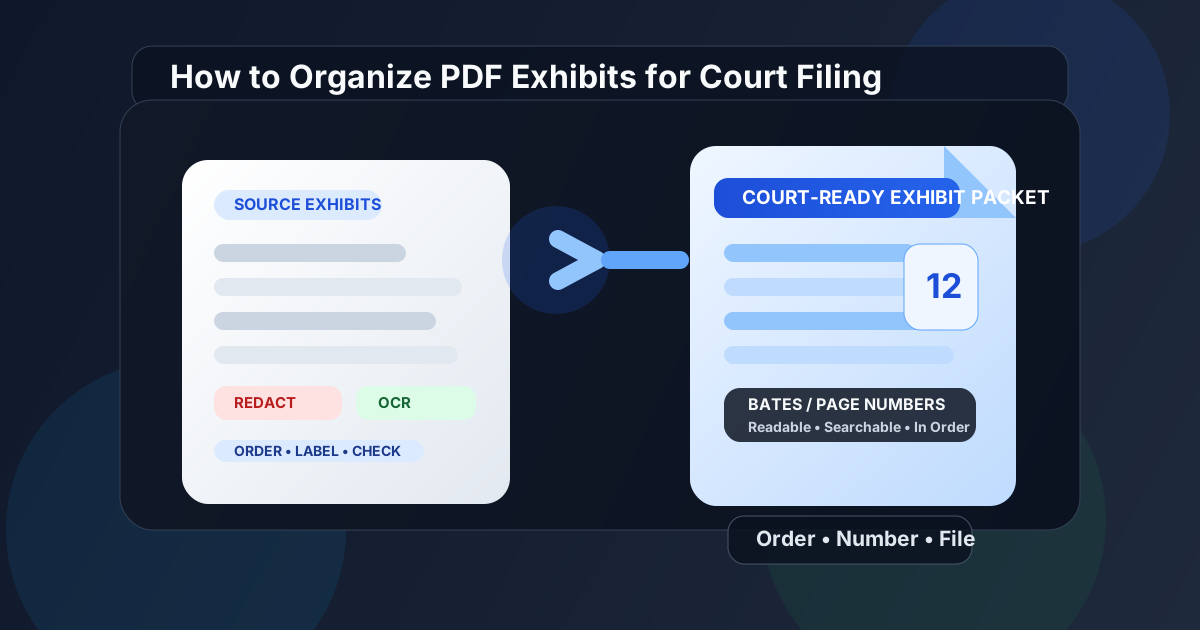
Table of contents
- Quick start: organize exhibits before filing in about 10 minutes
- What a court-ready exhibit packet actually looks like
- Step-by-step: organize PDF exhibits for court filing
- When to merge exhibits and when to keep them separate
- Page numbers, Bates numbers, bookmarks, and naming
- OCR and redaction before the final upload
- Mistakes that create filing trouble
- Best LifetimePDF tools for exhibit prep
- Related guides
- FAQ (People Also Ask)
Quick start: organize exhibits before filing in about 10 minutes
If the exhibits already exist and you mainly need to turn them into a filing-safe packet, use this order:
- Collect the exact PDFs, scans, declarations, screenshots, and appendices you plan to file.
- Arrange them in the same order they will be cited in the motion, response, declaration, or appendix.
- Use Organize PDF or Merge PDF to build the packet once the order is settled.
- Add page numbers or Bates-style references with PDF Page Numbers only after the packet structure stops moving.
- If any exhibit is scanned or image-only, run OCR PDF so it is easier to search and review.
- Permanently hide sensitive data with Redact PDF, then review the saved result.
- Compress the final packet with Compress PDF only if you need to meet an upload limit.
What a court-ready exhibit packet actually looks like
A strong exhibit packet is not just “one big PDF.” It is a packet that lets another person find the right page quickly without guessing what your file structure means.
In practice, that usually means five things:
- Correct order: exhibits appear in the same sequence they are referenced.
- Stable numbering: every cited page is easy to identify again later.
- Readable pages: scans, photos, signatures, and fine print still hold up at normal zoom.
- Safe content: private details are actually redacted, not just visually covered.
- Upload-ready size: the file fits the portal without destroying clarity.
| Packet quality | What good looks like | What usually goes wrong |
|---|---|---|
| Order | Exhibits follow the same sequence as the brief or declaration | Pages get merged in a different order than the filing cites them |
| Numbering | Every page can be cited and found quickly | Numbers were added too early and no longer match the final packet |
| Legibility | Small text and scanned evidence remain readable | Compression or poor scans make key pages hard to review |
| Privacy | Sensitive details are permanently removed | Text is visually blocked but still recoverable underneath |
| Portal readiness | The file opens cleanly and meets upload limits | The packet is final, but still too large or inconsistent |
Step-by-step: organize PDF exhibits for court filing
The safest workflow is deliberately plain. You want the packet to become more stable at each step, not more fragile.
1) Start with the final exhibit set, not your messy working folder
Pull the actual documents that belong in the filing: contracts, emails, screenshots, declarations, photos, records, appendices, or scanned exhibits. Remove obvious drafts, duplicates, and outdated versions before you start merging anything. When two similar files exist, decide which one is the filing copy now instead of hoping you will remember later.
2) Put the exhibits in citation order first
Most numbering problems are really order problems. If the brief cites Exhibit A before Exhibit B, and Exhibit B before Exhibit C, build the packet that way from the beginning. That keeps internal references, page labels, and review conversations much cleaner.
If your filing uses separate uploads instead of one master packet, the same rule still applies inside each file. Each individual exhibit should be internally consistent before you worry about naming and upload size.
3) Fix page orientation and obvious page-level issues before merging
Sideways scans, upside-down attachments, wasted borders, and stray blank pages become more annoying after the packet is built. Rotate, delete, or crop those pages before you treat the packet as final. That is what tools like Organize PDF, Rotate PDF, and Crop PDF are good at.
4) Merge only what belongs together
Some filings work best as one combined exhibit appendix. Others are cleaner as separate exhibit PDFs with their own titles and upload slots. Do not merge by habit. Merge because the rules or your workflow make one packet easier to file, review, and cite.
If you are building one exhibit packet, use Merge PDF after the order is final. If you need to rearrange the finished packet, do that before numbering, not after.
5) Add numbering late, when the packet stops moving
This is the step people rush. Page numbers and Bates numbers are reference systems, so they only help when the packet is stable. Add them too early and the moment you insert one page, extract a page, or reorder two exhibits, all the references start drifting.
A practical rule is simple: no numbering until the order, page count, and included documents feel done enough that you would be comfortable emailing the packet for review. Then add page references with PDF Page Numbers or a Bates-style workflow.
6) Review the finished file as if you were not the person who built it
Open the final PDF and scroll straight through it once. Check exhibit boundaries, numbering position, signature pages, tiny footnotes, stamps, photographs, and any page likely to be cited closely. This is also the moment to confirm that the saved redactions are truly permanent and that the file still opens fast enough to be practical.
When to merge exhibits and when to keep them separate
There is no universal answer here, because filing systems vary. What matters is whether the packet becomes easier or harder to use after you combine it.
Merge exhibits when:
- the court or internal workflow expects one appendix or one exhibit packet
- the filing cites page numbers across a continuous document
- the supporting records belong together and are easier to review as one unit
- you want a single numbering sequence across all included materials
Keep exhibits separate when:
- the portal requires distinct uploads
- different exhibits may need separate replacement or correction later
- some files are much larger than others and create upload risk when combined
- the filing instructions or judge's preferences lean toward clearly labeled individual attachments
Page numbers, Bates numbers, bookmarks, and naming
Good exhibit prep is mostly about navigation. The packet should give people more than one way to orient themselves.
Use page numbers when simple references are enough
For many filings, ordinary page numbers are sufficient. They make it easy to cite “page 14 of Exhibit C” or direct a reviewer to a specific page inside a longer attachment.
Use Bates-style numbering when the document set needs tighter control
Bates-style references help when the packet may circulate through review, production, or multiple rounds of citation. If that is your situation, read Add Bates Numbers to PDF Online for the cleanest sequencing workflow.
Bookmarks help in longer packets
If the packet is long enough that people will otherwise scroll forever, bookmarks are worth considering. They are especially useful for exhibit appendices, administrative records, and multi-part attachments. A bookmark list will not replace page numbers, but it can make the packet friendlier for navigation.
File names still matter outside the PDF
Even if the packet itself is well organized, filenames should still explain what the upload is.
A simple pattern like Exhibit-A-Contract.pdf or Appendix-1-Bank-Records.pdf makes portal screens, email threads, and internal review folders easier to read.
OCR and redaction before the final upload
Scanned exhibits often look fine until someone tries to search them. If a key attachment is image-only, running OCR PDF can make names, dates, and keywords easier to find in review. That matters more as the packet gets longer.
Redaction is even more important. Bank details, birth dates, addresses, account numbers, signatures, medical identifiers, or other protected information should be permanently removed before filing. Use Redact PDF and then review the saved result rather than trusting the on-screen preview alone.
A good order here is:
- organize and merge first
- run OCR if needed
- apply redactions
- review the saved file
- compress only if file size still needs attention
That sequence reduces the odds that you will have to redo sensitive work after the packet changes again.
Need a filing-safe cleanup pass? Fix searchability and privacy before you chase megabytes.
Mistakes that create filing trouble
Adding numbers before the packet is final
This is the fastest way to create citation confusion. Any later insertions or reordering can break the references.
Merging files just because it feels tidy
One giant packet is not automatically better. If the court wants separate uploads, respect that structure and focus on better naming and internal order.
Compressing too aggressively
File size matters, but not more than readability. If a packet contains small print, screenshots, seals, or scans, heavy compression can create real review problems.
Trusting visual redaction without checking the saved file
A black box on the screen is not enough. Review the exported PDF and make sure the underlying text is truly gone.
Skipping the final straight-through review
Even well-built packets can hide simple mistakes: duplicate pages, rotated scans, missing exhibit pages, misplaced numbering, or wrong upload copies. One deliberate final review catches a surprising amount.
Best LifetimePDF tools for exhibit prep
Organizing exhibits usually takes more than one move, but it does not need to become a giant production. These tools cover most filing workflows:
- Organize PDF for reordering, rotating, and cleaning packet structure.
- Merge PDF for building one appendix or one exhibit packet from separate source files.
- PDF Page Numbers for stable page references after the order is final.
- Redact PDF for permanently removing protected information before filing.
- OCR PDF for scanned exhibits that need searchable text.
- Compress PDF for meeting upload limits after everything else is correct.
That stack covers most of what actually goes wrong in real exhibit prep: order, readability, navigation, privacy, and upload friction.
Related guides
- Compress PDF for Court Filing Online: Keep Exhibits Clear and Within Upload Limits
- Add Bates Numbers to PDF Online: Prefixes, Start Numbers & Legal-Ready Pagination
- Organize PDF Pages Online: Reorder Easily
- Redact PDF Online Free: Remove Sensitive Details Before Sharing
- How to Add Bookmarks to PDF Online
FAQ (People Also Ask)
How do I organize PDF exhibits for court filing?
Start with the final files, arrange them in citation order, merge only the documents that belong together, add page or Bates numbers after the order is stable, and review the finished packet before you upload it.
Should I make one big PDF for all exhibits?
Only if the filing rules or your workflow make one combined packet easier to review and cite. If the portal wants separate uploads, keep them separate and focus on strong filenames and internal order instead.
When is the right time to add page numbers?
Add page numbers after the packet stops moving. If you number early and then insert, delete, or rearrange pages, the references can become misleading.
Do scanned exhibits need OCR?
Often yes, especially in longer packets. OCR makes image-only exhibits searchable and easier to review when you need to find names, dates, or quoted language quickly.
What should I check before uploading the final packet?
Confirm page order, numbering, redactions, legibility, orientation, exhibit boundaries, and file size. The best upload is the one that another reviewer can navigate without needing your explanation.
Ready to clean up the packet? LifetimePDF helps turn scattered exhibits into a filing-safe PDF that is easier to review, cite, and upload.