Combine PDFs: Turn Separate Files Into One Clean, Upload-Ready Document
To combine PDFs, upload the files that belong together, arrange them in the right order, and merge them into one finished document.
For the best result, remove blank or irrelevant pages first, then compress the final PDF only if it ends up too large for email, messaging, or upload limits.
Most people searching this are not trying to do anything fancy. They just need one clean file instead of five separate attachments. Maybe it is a proposal packet, a job application, a group of receipts, a signed agreement with exhibits, or a stack of scans that should feel like one readable document instead of a loose pile. The useful part is not the button itself. The useful part is knowing what should be combined, what order makes sense, and what to fix before the final PDF leaves your hands.
Fastest practical path: clean the source files, combine only what belongs together, review the finished packet once, and compress afterward only if the size is actually a problem.
Need the short version? Jump to Quick start: combine PDFs in a few minutes.
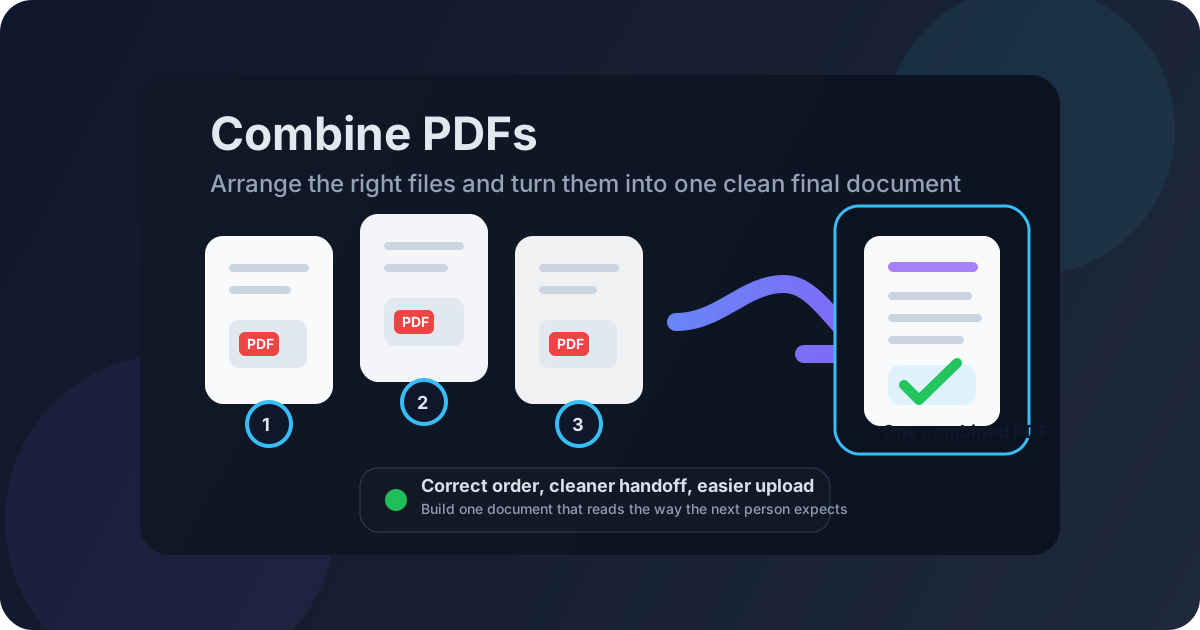
Table of contents
- Quick start: combine PDFs in a few minutes
- What combining PDFs should actually accomplish
- Step-by-step: how to combine PDFs cleanly
- Why file order matters more than people expect
- What to fix before you combine anything
- Scans, screenshots, and mixed-source document sets
- What combining PDFs does to quality and file size
- When not to combine PDFs
- Related LifetimePDF tools and guides
- FAQ (People Also Ask)
Quick start: combine PDFs in a few minutes
If your source files are already ready to go, this short workflow is usually enough:
- Open Merge PDF.
- Upload only the PDF files that truly belong in the same final document.
- Arrange them in the exact order the reader should see.
- Run the merge and download the new combined file.
- Review the beginning, middle, and end once before sending or uploading it.
- If the final file is too large, use Compress PDF afterward.
What combining PDFs should actually accomplish
A good combined PDF is not just smaller clutter. It is a document that lowers friction for the next step. That usually means one of three things:
- One upload-ready file instead of several attachments.
- One readable sequence instead of a reader guessing what comes first.
- One cleaner archive packet that keeps related material together.
That is why combining PDFs shows up in so many everyday workflows: application packets, proposals, expense reports, contract bundles, intake paperwork, visa support files, or a simple set of scanned pages from a phone. The final document should feel intentional, not accidental.
| Situation | Why a combined PDF helps | Typical next step |
|---|---|---|
| Application packet | Keeps resume, cover letter, and supporting pages together | Upload one finished file |
| Proposal or client handoff | Presents the material in one logical reading order | Share one polished document |
| Receipt or finance support packet | Pairs a summary sheet with the evidence behind it | Submit for review or reimbursement |
| Scanned paperwork | Turns loose scans into one normal document flow | Archive or send as a single file |
Step-by-step: how to combine PDFs cleanly
Combining PDFs is fast. Making the result feel professional depends on the small decisions around it.
1) Decide what really belongs together
Before you upload anything, think about the finished packet. Should the reader see every source file in one continuous flow, or are you mixing unrelated documents just because one upload field is forcing the issue? If two files belong to different recipients, different approval steps, or different privacy rules, do not combine them out of habit.
2) Remove obvious junk before the merge
Blank backs, duplicate exports, old covers, routing sheets, and pages the reader never needed should be removed first. Use Delete Pages or Extract Pages before combining the packet. Cleaner inputs nearly always produce a better result.
3) Set the order like a human would read it
The main document or summary usually goes first. Supporting pages come after. Reference material, exhibits, screenshots, or appendices belong at the end unless the reader genuinely needs them earlier. A combined PDF should tell the reader what matters first.
4) Combine once, then inspect the final PDF
Run the merge only after the order feels right. Then open the finished document and check the first few pages, one middle section, and the end. That is where you catch missing pages, duplicate attachments, strange rotation, or a section that landed in the wrong place.
5) Compress or protect only after the content is right
If the file is too large, use Compress PDF after the combine step. If the document is sensitive, add protection after you know the packet itself is final. It is always easier to optimize the right file than to protect the wrong one.
Clean sequence: choose the right files → remove what does not belong → set the order → combine once → review → compress or protect if needed.
Why file order matters more than people expect
Order is the difference between a document that feels polished and one that feels improvised. The reader should never need to guess why a receipt shows up before the expense summary or why the signature page appears before the agreement.
A practical order formula
- Main document first — the page the reader came for.
- Supporting material second — pages that explain or complete the main file.
- Reference material last — appendices, exhibits, evidence, or extras.
| Workflow | Best order | Why it works |
|---|---|---|
| Job application | Resume → cover letter → certifications → selected samples | The decision-making pages appear first |
| Contract packet | Agreement → exhibits → appendix → signature pages | The core legal document stays upfront |
| Expense packet | Summary page → receipts in date order | The reviewer gets context before evidence |
| Proposal packet | Cover → main proposal → pricing → supporting material | The story reads naturally from start to finish |
If you are unsure what comes first, imagine the other person opening the file for the first time. What should they see on page one? That answer usually gives you the right order.
What to fix before you combine anything
The fastest way to create a bad combined PDF is to preserve every earlier mistake. Small cleanup steps upstream usually improve the final result more than any later repair.
Delete pages that do not belong
Remove blank pages, duplicate scans, routing sheets, and irrelevant appendices with Delete Pages. Carrying them forward only makes the final packet longer and heavier.
Extract only the useful section
If a source file contains 30 pages but you need only 4 of them, use Extract Pages first. Building from relevant material is almost always faster than trying to repair a bloated combined document later.
Fix sideways scans before they join the packet
Use Rotate PDF before the merge if one page is turned the wrong way. A single crooked page makes the whole packet feel less trustworthy.
Turn images and screenshots into PDF first
If part of the packet still lives as phone photos, PNG screenshots, or JPG receipts, convert them first with Images to PDF. Combining stable PDFs is usually much smoother than mixing formats at the last second.
Scans, screenshots, and mixed-source document sets
Many real-world combine jobs are messy by default. They are not neat folders full of perfectly exported PDFs. They are one attachment from email, two phone scans, a screenshot, a portal download, and a signed page from somewhere else. That is normal. It just means the preparation step matters more.
Scans
Scans are often what makes a final packet feel bulky or uneven. They may be tilted, dark, oversized, or full of blank backs. Clean them up before combining so they do not dominate the finished file.
Screenshots and image receipts
These can work well in a combined PDF, but they should usually be normalized first. Converting them to PDF helps the final packet behave like one document instead of a camera roll stitched into the middle.
Signed pages and form outputs
Signed pages often belong near the end of a packet, while form outputs usually need to keep a very specific order. Combine them only after you are confident the surrounding pages are final.
Working from mixed sources?
What combining PDFs does to quality and file size
Combining PDFs usually does not damage quality by itself. In most workflows, the merge step keeps the original pages and simply places them into one new document. If the source files are clear, the combined PDF is usually clear too.
File size is the more common issue. A final packet gets heavy when the source material contains image-heavy scans, giant screenshots, duplicate attachments, or too many unnecessary pages. That does not mean the combine step went wrong. It usually means the inputs needed cleanup or the final packet needs compression.
| Situation | What usually happens | Best fix |
|---|---|---|
| Mostly text-based PDFs | Quality stays the same and file size grows modestly | Usually no extra step needed |
| Image-heavy scans | The combined file can become bulky | Compress after combining |
| Duplicate or irrelevant pages | Size grows for no useful reason | Delete or extract before the merge |
| Mixed screenshots and PDFs | The packet works, but can feel inconsistent | Convert images first, then combine once |
When not to combine PDFs
One combined PDF is not always the best answer. The goal is to reduce friction, not create one giant file just because you can.
Keep files separate when:
- different recipients need different files,
- the documents have different privacy or access rules,
- one section changes often but the others stay stable,
- the final packet becomes harder to navigate than the original files.
Split before combining when:
- a long source PDF contains only a few pages you need,
- you want one excerpt rather than the whole original document,
- the source file includes blank backs, covers, or internal notes.
The smartest workflow is not "always combine." It is "combine only when the combined file is easier for the next person to use."
Related LifetimePDF tools and guides
Combining PDFs is often one step in a bigger document workflow. These tools usually matter most before or after the merge:
- Merge PDF — combine multiple PDF files into one final packet
- Delete Pages — remove blanks, duplicates, and pages that should not travel
- Extract Pages — keep only the section you actually need
- Rotate PDF — fix sideways pages before they reach the final document
- Images to PDF — normalize scans, screenshots, and photo-based pages
- Compress PDF — shrink the finished file for easier sharing and portal uploads
- PDF Protect — add a password when the packet contains sensitive information
- Sign PDF — sign the final combined packet after review
Related blog guides
- Combine PDFs Online
- Combine PDFs Online Free
- Combine PDFs Without Monthly Fees
- Merge PDF
- How to Merge PDFs Online for Free Without Losing Quality
- Browse all LifetimePDF articles
Ready to turn scattered files into one clean document?
Best practical workflow: clean the inputs → combine once → review the packet → compress or protect only if needed.
FAQ (People Also Ask)
How do I combine PDFs?
Upload the files you want to join, arrange them in the right order, run the merge, and review the final PDF once before sharing it. Removing extra pages first usually leads to a cleaner result.
Will combining PDFs reduce quality?
Usually no. Combining PDFs normally preserves the original pages. If the sources are blurry scans or oversized screenshots, the final PDF will keep those limits until you clean them up.
What is the difference between combine PDFs and merge PDF?
For most people, they mean the same thing: taking multiple PDF files and turning them into one final document. The real skill is not the wording. It is choosing the right files, setting the right order, and trimming what does not belong.
Why is my combined PDF so large?
The usual causes are image-heavy scans, duplicate pages, unnecessary appendices, and oversized screenshots. Clean the source files first, then compress the finished PDF if the size is still a problem.
When should I keep PDF files separate instead of combining them?
Keep them separate when different people need different files, when privacy rules differ, or when one section changes often while the others stay stable. One file is only better when it actually makes the next step easier.
Published by LifetimePDF — Pay once. Use forever.