Rearrange PDF Pages: The Clean Way to Put a PDF in the Right Order
To rearrange PDF pages, open a page organizer, move the pages into the order readers should see them, remove any blanks or duplicates, and save the cleaned file.
If the PDF came from a scanner or a messy merge, the smartest workflow is to fix page order first, then rotate pages, split sections, or add page numbers only where the finished packet actually needs them.
Rearranging pages sounds like a tiny edit until a real document lands in the wrong sequence. A proposal opens with the appendix instead of the summary. A contract packet puts the signature page in the middle. A scanned record runs backward because the feeder grabbed pages in reverse. The content may be fine, but the reading flow feels sloppy. Putting the pages in the right order is often the fastest way to make the whole PDF feel professional again.
Fastest path: use the page organizer to move pages into the right sequence, clean out obvious clutter, and then add page numbers only if the finished file will be reviewed or referenced page by page.
Short on time? Jump to Quick start: rearrange PDF pages in a few minutes.
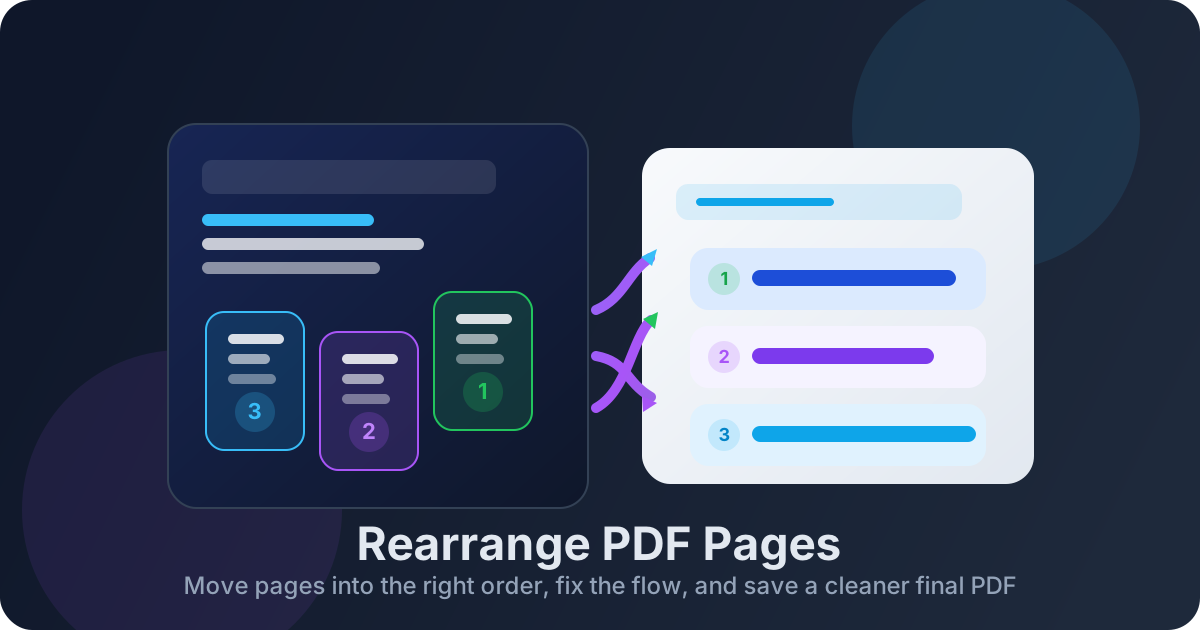
Table of contents
- Quick start: rearrange PDF pages in a few minutes
- Why page order matters more than people expect
- Step-by-step: the cleanest workflow for rearranging PDF pages
- When to move pages and when to split a section out
- Common PDF rearranging scenarios
- Page numbers, references, and review-friendly final files
- Scanned PDFs, sideways pages, and OCR follow-up
- Related LifetimePDF tools and articles
- FAQ (People Also Ask)
Quick start: rearrange PDF pages in a few minutes
If your goal is simply put this PDF in the right order and move on, this sequence works well:
- Open Organize PDF.
- Upload the PDF and review the current page sequence before you touch anything.
- Move the cover, summary, body, exhibits, appendix, or signature pages into the order a real reader would expect.
- Remove blank, duplicate, or accidental pages with Delete Pages if they are cluttering the packet.
- Fix any sideways pages with Rotate PDF.
- Save the reordered file and open it once to confirm the sequence feels right from beginning to end.
- If the final version will be discussed or filed by reference, add clean numbering with PDF Page Numbers.
Why page order matters more than people expect
People usually search for rearrange PDF pages when the document is technically complete but practically annoying. Nothing is missing, yet the file still feels wrong. That is because page order affects how easy the PDF is to understand, review, approve, print, and share.
A strong sequence quietly does a lot of work. It tells the reader where to start. It puts the main point before the supporting material. It keeps signatures, exhibits, appendices, and evidence where they belong. It reduces the little moments of friction that make a document feel thrown together. The same PDF can feel careful or careless based almost entirely on the order of its pages.
| Type of PDF | What bad page order causes | What good page order fixes |
|---|---|---|
| Proposal or report | Key recommendations get buried behind raw detail | The summary appears first and the evidence supports it later |
| Scanned paper file | Pages run backward, sideways, or with blank scanner sheets in the middle | The packet reads like the original document instead of a feeder accident |
| Contract or legal packet | Exhibits, signatures, or attachments land in confusing spots | The sequence feels deliberate and easier to review |
| Client-facing deliverable | The strongest pages appear too late | The file starts with the pages that matter most |
Step-by-step: the cleanest workflow for rearranging PDF pages
The best rearranging workflow is not just drag this page here and hope for the best. It is a short sequence that helps you avoid doing the same cleanup twice.
1. Decide what the finished reading flow should be
Before moving pages, ask what the final document is supposed to feel like. Should it open with a cover, an executive summary, a statement, or a title page? Should supporting material sit at the end or appear immediately after the related section? If you decide the destination first, the rearranging goes faster because each move has a reason.
2. Move the big sections before fussing over the small pages
In long PDFs, start with the obvious chunks: cover, summary, main body, appendix, exhibits, references, signatures. Once those are in the right order, smaller page-level adjustments become easier to see. This is especially helpful in mixed files where the problem is not one stray page but an entire section sitting in the wrong place.
3. Delete clutter before you save the final sequence
Rearranging alone does not help much if the packet still contains blank separator sheets, duplicate first pages, broken printouts, or accidental export pages. Clean those out with Delete Pages while you are already reviewing thumbnails. A shorter, cleaner document is easier to trust.
4. Fix rotation while the page order is still fresh in your head
Sideways pages are one of the easiest ways to ruin a polished sequence. If a landscape chart is upside down or one scan rotated incorrectly, correct that with Rotate PDF before finalizing the file. It is much easier to catch this while you are already thinking about page flow.
5. Save the reordered file and review it like a real reader
Open the saved PDF and move through it once from page one onward. Does the story now make sense? Do the supporting pages show up where they should? Is the signature block still easy to find? Does the appendix feel like an appendix instead of an interruption? One review pass catches the mistakes that still make a PDF feel accidental.
Recommended sequence: decide the final flow, move major sections first, delete clutter, fix rotation, save the file, then add page numbers only if the new order needs cleaner references.
When to move pages and when to split a section out
Not every page-order problem should be solved by rearranging alone. Sometimes the best move is to pull a section out instead of keeping everything in one giant file.
Rearrange pages when:
- the file should remain one document after cleanup,
- the content belongs together but the sequence is wrong,
- a summary, cover, exhibit, or appendix just needs to move,
- the reader should still receive one finished packet.
Split a section out when:
- different people need different parts of the file,
- one section is confidential and the rest is shareable,
- the appendix is useful separately from the main document,
- the PDF feels long because it is really several jobs bundled together.
If that second list sounds more accurate, use Extract Pages or Split PDF before you rebuild the final order. A focused PDF is usually more useful than an oversized packet with a technically correct sequence.
Common PDF rearranging scenarios
Rearranging pages shows up in the same few workflows over and over. The pages differ, but the logic is familiar.
Reports and proposals
The strongest pages often belong earlier than people think. A client or manager usually wants the summary, recommendation, or next step before the appendix and backup detail. Rearranging the packet so the decision-ready pages appear first can make the document much easier to approve.
Scanned records and admin paperwork
Feeder scans love to create little problems: a backward sequence, a blank page every few sheets, or one upside-down form in the middle. Reordering the packet first gives you a usable document before you worry about searchability or compression.
Exhibits, evidence, and supporting attachments
These files need a sequence that matches how the packet will be reviewed. Cover page, exhibit list, main document, supporting exhibits, appendices, and signatures should not feel random. When the order is correct, page references and review comments become much easier to follow.
Portfolios and client-facing deliverables
Your best work should show up early. If the first pages are filler and the strongest examples sit deep in the file, the packet makes a weaker impression than it should. Rearranging pages lets you lead with the material that deserves attention first.
Page numbers, references, and review-friendly final files
Rearranging pages often creates one follow-up need: the references inside or around the file may no longer match the new order. Even if the content is now in the right sequence, reviewers can get confused if the visible numbering still reflects the old one.
That is why page numbering is such a useful finishing step. After the order is correct, use PDF Page Numbers when the file will be:
- reviewed by several people,
- discussed in comments or meetings,
- filed with exhibits or attachments,
- printed or signed in a formal sequence.
If the PDF contains an internal table of contents, exhibit references, or cross-references to page numbers inside the text, give the final file one quick review after rearranging. The order may be fixed while the written references still point to the old sequence.
Useful finish: once the pages are in the right order, add fresh numbering so the people reviewing the file can all reference the same final sequence clearly.
Scanned PDFs, sideways pages, and OCR follow-up
Rearranging scanned PDFs is slightly different from rearranging digital exports, but the goal is the same: make the file read naturally. The main difference is that scans often combine order problems with orientation and searchability problems.
- Fix the page order first: get the packet into the right sequence before doing anything else.
- Rotate obvious problem pages: sideways forms and inverted charts are easier to fix while you are already checking page flow.
- Delete blank scanner sheets: they add noise and make the packet feel unfinished.
- Run OCR after the sequence is correct: use OCR PDF on the final version you actually plan to keep.
That last step matters because searchable chaos is still chaos. OCR is most useful when it is applied to the cleaned final packet, not the raw scan dump.
Related LifetimePDF tools and articles
Rearranging pages is usually one part of a small cleanup workflow. These tools fit around it naturally:
- Organize PDF — move pages into the right order in one place.
- Delete Pages — remove blank, duplicate, or irrelevant sheets.
- Extract Pages — pull out one section that should stand alone.
- Split PDF — break large mixed packets into smaller files.
- Rotate PDF — fix sideways pages after or during reordering.
- PDF Page Numbers — renumber the final file clearly.
- OCR PDF — make cleaned scanned packets searchable.
Related blog guides
- How to Rearrange PDF Pages Online
- Rearrange PDF Pages Without Monthly Fees
- Organize PDF
- Delete Pages From PDF
- Extract Pages From PDF
- Merge PDF
- PDF Page Numbers Online
- Browse all LifetimePDF articles
Ready to fix a messy page sequence?
Best workflow: set the final flow → rearrange major sections → delete clutter → rotate problem pages → save → renumber if needed.
FAQ (People Also Ask)
How do I rearrange PDF pages?
Open a PDF organizer, move the pages into the order readers should see them, remove blank or duplicate pages, fix rotation problems, and save the cleaned file. If the final packet needs clearer references, add page numbers afterward.
Can I rearrange pages in a scanned PDF?
Yes. Page order cleanup works for scanned PDFs too. If the final version should be searchable, run OCR after the pages are in the right sequence.
Will rearranging PDF pages reduce quality?
Not by itself. Rearranging changes the sequence of pages, not the content on them. Quality problems usually come from screenshot-based workarounds or unnecessary print-to-PDF loops.
Should I renumber pages after rearranging a PDF?
Usually yes when the file will be reviewed, filed, printed, or discussed by page reference. Fresh numbering makes the final sequence easier for everyone to follow.
Can I rearrange PDF pages without Adobe?
Yes. A browser-based organizer can handle page reordering, cleanup, rotation, and page numbering without requiring a recurring desktop subscription.
Published by LifetimePDF — Pay once. Use forever.