PDF Page Numbers Online: The Cleanest Way to Number Reports, Packets, and Forms
To add PDF page numbers online, upload the file to a page-numbering tool, choose the placement, set the physical start page and the visible first number, then export the finished PDF.
If the cover should stay blank, the numbering should start on page 2 or 3, or the document needs to continue from an earlier packet, adjust the start settings first or split the PDF before numbering it.
Most people are not actually struggling with the idea of putting numbers on pages. They are struggling with the exceptions that show up in real work: a proposal with an unnumbered cover, a training manual that should begin on visible page 1 after a title sheet, an appendix that continues from page 27, or a merged packet where the footer area is already crowded. Once you treat page numbering as part of finishing the document instead of a one-click afterthought, the workflow gets a lot cleaner.
Fastest path: use LifetimePDF's PDF Page Numbers tool for the numbering itself, then use Split PDF or Merge PDF only if the document has sections that need different numbering logic.
Need the short version? Jump to Quick start: add PDF page numbers online in a few minutes.
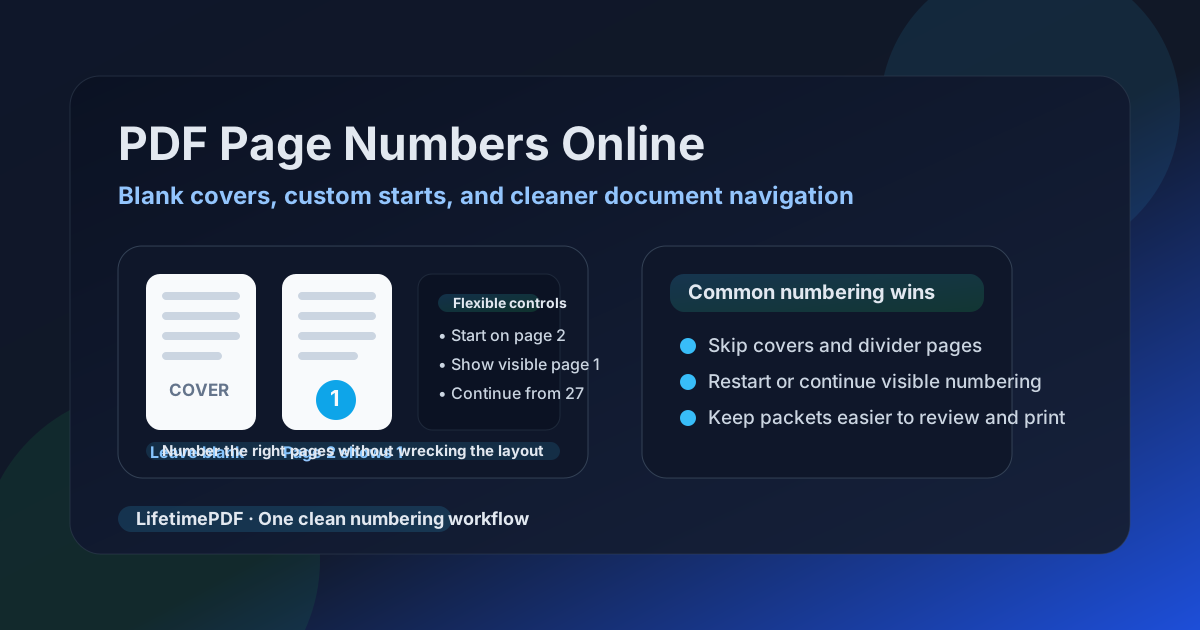
Table of contents
- Quick start: add PDF page numbers online in a few minutes
- What "PDF page numbers online" usually means in real work
- When one numbering pass is enough and when to split first
- Step-by-step: the clean workflow
- Common setups: blank covers, page 2 starts, and continued numbering
- Placement and formatting tips
- Mistakes that make a PDF feel messy
- Related LifetimePDF tools for finishing the file
- FAQ
Quick start: add PDF page numbers online in a few minutes
If your document is already in the right order, this is the practical workflow:
- Open PDF Page Numbers.
- Upload the PDF you want to finish.
- Choose a placement that does not collide with existing footer text, signatures, or document content.
- Set the physical start page where numbering begins.
- Set the visible starting number the reader should actually see.
- If some pages should stay clean, keep them outside the numbering run or split the file first.
- Export the updated PDF and review the first, middle, and last numbered pages.
What "PDF page numbers online" usually means in real work
Searchers rarely want numbers for their own sake. They want a document that is easier to read, easier to review, and easier to circulate without follow-up confusion. That makes page numbering a usability task as much as a formatting task.
Why numbering matters
- Review comments become faster: "see page 14" beats vague layout descriptions every time.
- Printed packets stay organized: page numbers help people reassemble, reference, and verify large PDF bundles.
- Document handoffs feel more professional: proposals, forms, board packets, and manuals look finished instead of improvised.
- Merged files stay navigable: once you combine cover pages, appendices, forms, and exhibits, numbering becomes the glue.
| Document type | Typical numbering need | Best approach |
|---|---|---|
| Proposal or report | Leave the cover blank, start the body at 1 | Set the physical start page later or split the cover out first |
| Training manual | Start on page 2 or 3 after title pages | Use a visible start number with a later physical page |
| Appended packet | Continue from page 27 or 54 | Set a custom visible starting number |
| Mixed front matter and body | Different numbering logic by section | Split, number each section, then merge |
That is why the best online workflow is the one that gives you enough control to match the document, not just enough control to number the easiest possible PDF.
When one numbering pass is enough and when to split first
Some PDFs only need a single clean numbering run. Others become easier to manage the moment you stop forcing every page through the same rule.
Use one numbering pass when:
- every page uses the same style
- the numbering starts once and continues normally
- you only need to leave one or two pages blank at the beginning
- the footer space is consistent across the document
Split first when:
- the front matter should stay separate from the main body
- the body should restart at visible page 1 after title or intro pages
- you need different numbering styles in different sections
- one section needs a different footer placement because the layout changes
LifetimePDF's Split PDF and Merge PDF tools make that workflow practical without turning a small formatting job into a desktop publishing project.
Step-by-step: the clean workflow
If you want the least frustrating outcome, follow the steps below in order.
1) Finalize the page order before numbering anything
Add inserts, appendices, signature pages, or exhibits before you apply page numbers. If you renumber first and then insert more pages, the visible numbering stops matching the final reading order and you end up doing the job twice.
2) Decide whether the reader cares about physical pages or visible pages
This is the big conceptual shift. The file may physically begin on page 1, but the reader may need to see page 1 on physical page 2 or 3. Once you separate those ideas, blank-cover and delayed-start workflows become straightforward instead of mysterious.
3) Choose a placement that respects the page layout
Bottom center is a dependable default, but not every PDF wants it. Contracts may already have dense footer text. Scanned forms may have stamps or handwritten marks near the edges. Reports with wide charts may need more breathing room than text-heavy documents.
4) Set the visible first number intentionally
Use the visible start value to restart at 1, continue from an earlier packet, or align a section with a printed reference sequence. This is especially useful when a PDF is only one part of a larger document package.
5) Export once, then review like a real recipient would
Do not stop at page 1. Check the first numbered page, one page near the middle, and the last page. If the PDF will be printed, imagine how the footer looks on paper. If the file will be reviewed digitally, confirm the number is easy to spot without covering meaningful content.
Common setups: blank covers, page 2 starts, and continued numbering
Leave the cover blank and start on page 2
This is the classic business use case. The cover should look clean, but the second physical page should display visible page 1. In practice, that means delaying the start of numbering until the next page while keeping the visible sequence anchored at 1.
If you want a dedicated walkthrough, see Add Page Numbers to PDF Starting on Page 2.
Continue numbering from an earlier document
Many appended PDFs should not restart at 1. If a signed exhibit belongs after page 26, visible page 27 is usually the right move. That makes legal packets, handbooks, appendices, onboarding binders, and investor materials much easier to reference later.
The important point is that the visible start number should reflect the finished packet, not the isolated file you happen to be editing in the moment.
Use different numbering logic for front matter and body pages
If the front matter needs its own treatment, do not be afraid to separate it. Split the intro pages, number them the way you want, number the body separately, then merge the finished sections back together. That approach is often cleaner than wrestling one long file into behaving like multiple document types at once.
For documents that need a more formal intro sequence, this guide may help: Add Roman Numerals to PDF Pages.
Fix packets that already feel crowded at the bottom of the page
If the footer area already contains dates, references, disclaimers, or signature lines, move the page number before you export again. A technically correct number that makes the page harder to read is still a bad result. Clean placement matters.
Placement and formatting tips
Good numbering should feel obvious without feeling loud. Readers should find it instantly when they need it and forget about it when they do not.
Favor consistency over cleverness
A plain, repeatable placement usually looks more professional than a custom layout that changes across sections. If you do need different placements for different sections, that is another sign to split and rebuild the document deliberately.
Watch for collisions with stamps, seals, and existing footers
Scanned PDFs and exported business documents often have more happening in the margins than people expect. Review at full size, not just as a tiny page thumbnail, so you catch overlaps before someone else does.
Keep the numbers readable on both screens and paper
Light gray numbers can disappear on printers. Oversized numbers can dominate a slim footer. The goal is stable readability, not decoration.
| Placement choice | Works best when | Watch out for |
|---|---|---|
| Bottom center | General reports, manuals, and review copies | Dense footer text or signatures |
| Bottom right | Documents that already center-align footer content | Right-edge stamps or scanner shadows |
| Top right | Pages with busy footers but open header space | Letterheads, chapter titles, or running headers |
Mistakes that make a PDF feel messy
- Numbering before the page order is final and having to redo the whole job after inserts or appendices are added
- Confusing the physical page with the visible page and accidentally numbering the cover
- Restarting at the wrong visible number when a section should continue from an earlier packet
- Ignoring the footer area and covering important text, seals, or signatures
- Skipping the final review because the first page looked correct even though later pages did not
Almost all of these mistakes come from rushing the setup rather than from the numbering tool itself. A thirty-second review of the numbering plan usually saves far more time than it costs.
Related LifetimePDF tools for finishing the file
Page numbering often sits in the middle of a bigger cleanup process. These tools are the ones people most often need right before or right after numbering:
- PDF Page Numbers for the numbering itself
- Split PDF when sections need different numbering logic
- Merge PDF to rebuild the finished packet
- Rotate PDF if scanned pages are crooked before you add numbers
- Crop PDF if wide margins or scanner edges make footer placement awkward
Simple rule: organize the pages first, number them second, and merge the final sections last.
FAQ
How do I add PDF page numbers online?
Upload the PDF to an online page-numbering tool, choose where the numbers should appear, set the physical start page and visible first number, then export the finished file. If sections need different rules, split them first and merge the finished pieces afterward.
Can I leave the cover blank and start numbering on page 2?
Yes. Start numbering on the second physical page while setting the visible first number to 1. That keeps the cover clean and makes the next page read as page 1 to the recipient.
Can I continue numbering from another PDF?
Yes. If the next section should begin at visible page 27, 54, or any other number, set that value as the visible starting number before exporting the numbered PDF.
What if the PDF already has old page numbers in the footer?
Choose a different placement or rebuild the page area before adding new numbers. If the old numbering is already part of the page artwork, review carefully so the new numbers do not create duplicate references or visual clutter.
Do I need to split the PDF before numbering it?
Not always. If every page follows the same rule, one numbering pass is enough. Split first when the cover should stay blank, the body should restart at 1, or different sections need clearly different numbering logic.