PDF to CSV: Extract Tables Into Spreadsheet-Ready Rows Without Rebuilding Data by Hand
Yes — the fastest way to handle PDF to CSV is to start with a clean text-based PDF, keep only the pages that contain useful tables, and run OCR first if the file is scanned or image-only.
That usually gets you spreadsheet-ready rows far faster than copying values cell by cell or retyping an entire report.
Most people searching for PDF to CSV are not trying to create a prettier file. They are trying to free data that is trapped inside invoices, statements, reports, logs, inventories, or operational tables. The real job is not just changing one extension into another. The real job is getting clean rows and columns you can import, analyze, reconcile, or automate without losing an afternoon to manual cleanup.
Fastest path: use LifetimePDF's PDF to CSV tool for digital PDFs, and add OCR first when the file behaves like a scan instead of selectable text.
In a hurry? Jump to quick start: PDF to CSV in a few minutes.
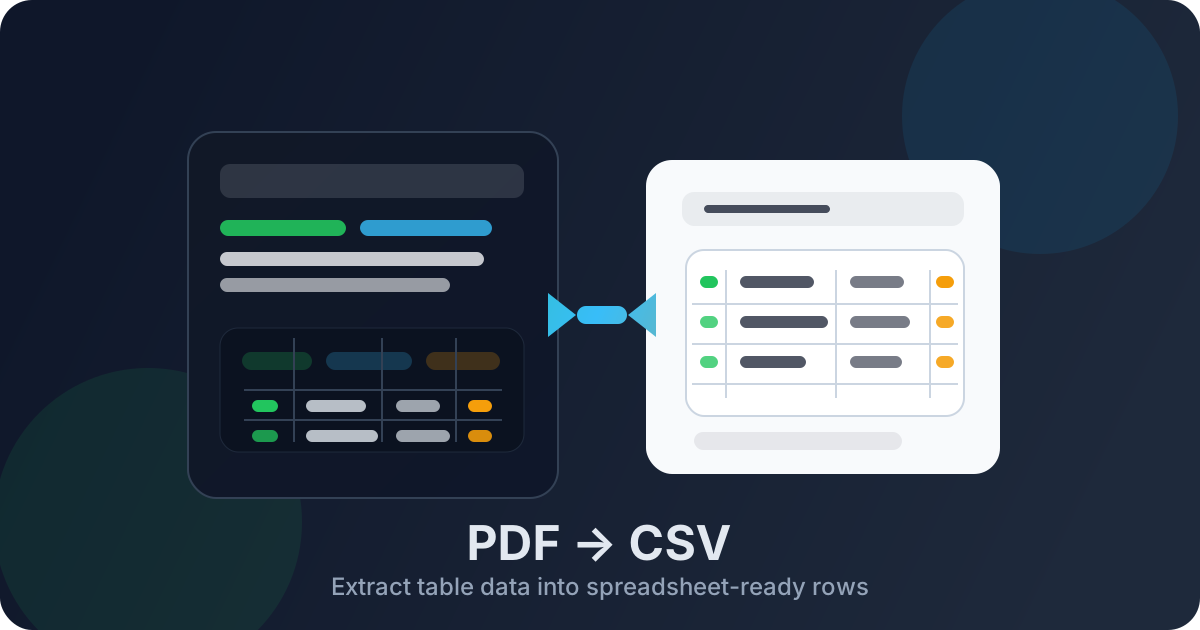
Table of contents
- Quick start: PDF to CSV in a few minutes
- What people usually mean by PDF to CSV
- When CSV is the better output than Excel
- What to do before you convert
- Step-by-step: convert PDF to CSV with less cleanup
- Scanned PDFs, OCR, and why columns break
- A fast cleanup playbook after conversion
- Common PDF to CSV problems and what to do next
- Related LifetimePDF tools and useful reading
- FAQ (People Also Ask)
Quick start: PDF to CSV in a few minutes
If your PDF already contains selectable text and the data sits in a reasonably normal table, the workflow is straightforward:
- Open PDF to CSV.
- Upload the cleanest version of the PDF you have.
- If the file is long, isolate only the useful pages with Extract Pages.
- If the PDF is scanned or the text is not searchable, run OCR PDF first.
- Convert and download the CSV.
- Open the output once to confirm headers, delimiters, dates, decimals, and line breaks look sensible.
What people usually mean by PDF to CSV
When people search for PDF to CSV, they normally mean one of three things: they need rows from a table, values from a report, or fields from a repetitive document that should never have been trapped in a PDF in the first place.
CSV matters because it is simple. It opens in spreadsheet apps, imports into databases, works in scripts, and travels well between systems. That makes it especially useful when the real destination is not a polished spreadsheet for humans, but a structured dataset for operations, finance, reporting, or analysis.
| What you have | What you want | Best workflow |
|---|---|---|
| Digital PDF with clear tables | Importable rows and columns | Convert directly to CSV |
| Scanned or photographed PDF | Readable text before extraction | OCR first, then convert to CSV |
| Financial or reporting data you will keep editing | Formulas, sheets, and richer spreadsheet work | Consider PDF to Excel instead |
When CSV is the better output than Excel
CSV and Excel are not enemies. They just solve slightly different problems. CSV is usually the better choice when you care more about clean data movement than presentation.
Good use cases for PDF to CSV
- Importing data into another system: ERPs, CRMs, accounting tools, inventory systems, or custom databases usually prefer simple delimited data.
- Cleaning data in a script: CSV is easier to push through Python, SQL loaders, ETL jobs, or spreadsheet automation.
- Combining multiple extracted files: standard rows and columns are easier to merge when the output stays lightweight.
- Working with reports that mostly contain tables: monthly statements, purchase logs, shipping lists, or reconciliations fit the format well.
- Reducing formatting baggage: CSV strips a lot of visual clutter, which is often exactly what data teams want.
When Excel may be smarter
- You need formulas, multiple sheets, filters, or charts right away.
- You expect to hand the output to people who care about presentation as much as raw data.
- The file contains richer spreadsheet logic that would be annoying to recreate from CSV.
Practical rule: choose CSV for portability and imports, choose Excel when you need a working spreadsheet rather than a plain dataset.
What to do before you convert
The easiest quality gains happen before the converter ever starts. PDF to CSV works best when the tables are clear, the page range is intentional, and the text is actually readable by software.
Three prep moves help the most
- Use the original digital PDF if you can. An exported report or statement almost always converts better than a print-to-PDF copy or a phone photo of a page.
- Trim away the junk. Covers, appendices, disclaimers, or summary pages can confuse extraction when they share the same file as the real tables.
- Check whether the text is searchable. If you cannot highlight it or search inside it, OCR is probably the real first step.
Step-by-step: convert PDF to CSV with less cleanup
1) Start with the cleanest source PDF available
If you have the original report export, use it. Real text, cleaner spacing, and more predictable table structure give the converter more to work with than a flattened, reprinted, or scanned version.
2) Keep only the pages that matter
Use Extract Pages if the file contains title pages, legal boilerplate, routing sheets, or sections that are not part of the table you actually need. Smaller inputs are usually easier to convert and easier to verify.
3) Convert the PDF to CSV
Open LifetimePDF's PDF to CSV tool, upload the prepared file, run the conversion, and download the result. For typical digital tables, this is often enough to produce a usable export in one pass.
4) Check the output where the data will actually live
Open the CSV in Excel, Google Sheets, Numbers, or the import workflow you plan to use next. Look first at the things that break downstream work fastest: column shifts, missing headers, broken date formats, merged values, decimal separators, and line breaks inside cells.
5) Fix the structure, not the cosmetics
Once the rows and columns are correct, you are basically done. CSV is supposed to be plain. Do not waste time trying to make it look pretty when the real win is getting reliable data into the next tool.
Scanned PDFs, OCR, and why columns break
When PDF to CSV goes badly, the source is often a scan. A scanned PDF may look readable to you, but to the converter it is just an image of text and lines. Without OCR, many extraction tools are forced to guess where words, columns, and row boundaries should be.
That is why OCR PDF matters. OCR turns page images into searchable text so the converter can work from actual content instead of visual approximations.
Signs you should OCR first
- You cannot highlight the text in the PDF.
- Search inside the file returns nothing useful.
- The PDF came from a scanner, copier, or phone camera.
- Each page behaves like one large image.
- The first conversion output turns into scrambled columns or gibberish rows.
Best workflow for scans: OCR first, confirm the file is searchable, then convert the cleaned PDF into CSV.
A fast cleanup playbook after conversion
Once you have the CSV, resist the urge to tinker with every tiny inconsistency. The fastest cleanup strategy is usually the best one.
Check this first
- Headers that shifted into the wrong column
- Dates that imported as plain text
- Amounts that lost decimal or thousands separators
- Rows that split because a PDF cell contained a line break
- Blank columns caused by visual spacing in the source table
Do not over-fix what does not matter
- Perfect visual spacing inside a spreadsheet preview
- Minor formatting differences that do not affect imports
- Header capitalization if the downstream system ignores it
- Decorative elements that disappeared because CSV has no styling anyway
If one table still behaves badly after a sensible cleanup pass, it may be faster to isolate that page range and reconvert it separately than to keep repairing a messy combined export. That is not a failure. That is efficient document handling.
Common PDF to CSV problems and what to do next
The output has broken columns
This usually points to inconsistent spacing, merged cells, narrow columns, or a scan that never went through OCR. Try OCR first for scans, or extract only the relevant page range before reconverting.
The numbers look wrong
Check decimal symbols, thousands separators, and whether negative values were shown in a visually unusual way in the PDF. Some reports format numbers for humans, not for data import.
The PDF contains multiple unrelated tables
Split the job. Converting one clean section at a time often produces better results than trying to force an entire mixed document into a single CSV in one go.
The file should probably be Excel, not CSV
If your next step is formulas, multiple sheets, or a spreadsheet someone will keep editing manually, move to PDF to Excel instead. CSV is great for portability, but it is intentionally plain.
Related LifetimePDF tools and useful reading
PDF to CSV works best as part of a wider extraction and cleanup workflow. These tools fit naturally around it:
- PDF to CSV - extract table data into a portable delimited format
- OCR PDF - add a text layer before extraction when the source is scanned
- Extract Pages - isolate only the pages that contain the useful tables
- PDF to Excel - keep the data in a richer spreadsheet format when needed
- PDF to Text - inspect the raw extracted text when you need to diagnose a messy source file
- Split PDF - break large mixed documents into smaller jobs
- Compress PDF - shrink oversized source files before upload when size becomes the real blocker
Suggested internal reading
- Convert PDF to CSV Online: Extract Data for Excel & Spreadsheets
- Convert PDF to CSV Without Monthly Fees
- PDF to CSV Converter Without Monthly Fees
- Extract Tables from PDF to CSV Online
- Convert PDF to Excel
- Convert Scanned PDF to Excel
- Browse all LifetimePDF articles
Ready to turn a table-heavy PDF into workable data?
Best workflow: clean PDF → trim unnecessary pages → OCR only if needed → convert → verify the columns once.
FAQ (People Also Ask)
How do I convert PDF to CSV?
Start with the cleanest digital PDF you have, keep only the pages with useful tables, OCR the file first if it is scanned, then convert it to CSV and review the columns once before importing the data elsewhere.
Is CSV better than Excel for PDF data extraction?
CSV is usually better when you need simple, portable table data for imports, scripts, or databases. Excel is better when you want formulas, multiple sheets, richer formatting, or a workbook people will keep editing manually.
Can I convert a scanned PDF to CSV?
Yes, but OCR is usually the important first step. Without OCR, the converter sees page images instead of real text, which makes table extraction much less reliable.
Why do columns break after PDF to CSV conversion?
Columns usually break because the source PDF has inconsistent spacing, merged cells, multi-line rows, or scan noise. A cleaner source file, OCR for scans, and trimming to the right pages usually improves the result.
When should I use PDF to Excel instead of PDF to CSV?
Use PDF to Excel when you want a spreadsheet you will keep formatting, calculating, or sharing with multiple sheets. Use PDF to CSV when you need lightweight tabular data that moves cleanly into imports, scripts, or databases.
Published by LifetimePDF - Pay once. Use forever.