Extract Tables from PDF to CSV Online: Clean Spreadsheet Data Faster
Yes — the cleanest way to extract tables from PDF to CSV online is usually to isolate the table pages, convert the table into an editable sheet, review the columns once, and then export the cleaned result as CSV.
If the PDF is scanned, run OCR first; if it is text-based, go straight to PDF to Excel or PDF to Text so you do not import broken rows into your final CSV.
Most people searching for this are not trying to make a pretty PDF. They need usable data for Excel, Google Sheets, Airtable, a database import, an accounting workflow, or a reporting pipeline. The real job is not "convert a file". It is getting a table out of a PDF without spending the next hour fixing split columns, repeated headers, and totals that landed in the wrong place.
Fastest practical path: extract only the table pages, convert them into an editable sheet, then export the cleaned result as CSV.
In a hurry? Jump to Quick start: get a clean CSV in a few minutes.
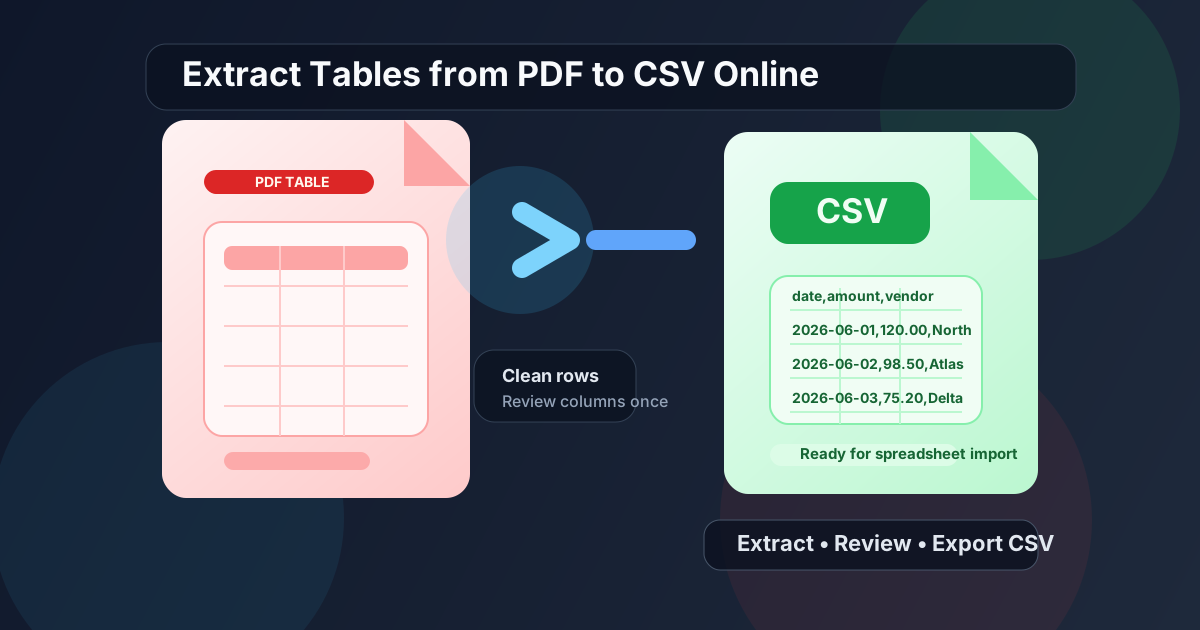
Table of contents
- Quick start: get a clean CSV in a few minutes
- What people usually mean by PDF table to CSV
- Choose the right route: Excel-first or text-first
- Step-by-step: extract tables from PDF to CSV online
- Scanned PDFs: when OCR comes first
- CSV cleanup checklist before import
- Common PDF table problems and how to fix them
- Privacy and safe handling for sensitive tables
- Related LifetimePDF tools and guides
- FAQ (People Also Ask)
Quick start: get a clean CSV in a few minutes
If your goal is a CSV you can actually import, use this order:
- Open Extract Pages if the table lives inside a long mixed-layout PDF.
- Keep only the pages that contain the table you care about.
- Send the reduced file to PDF to Excel if the table is text-based.
- If the pages are scans or photos, run OCR PDF first.
- Open the output, fix obvious header or column issues, then save the result as CSV in your spreadsheet app.
What people usually mean by PDF table to CSV
When someone searches for extract tables from PDF to CSV online, they usually need one of four outcomes:
- Spreadsheet import: move rows and columns into Excel or Google Sheets.
- System import: feed clean CSV into an ERP, CRM, accounting tool, or custom database.
- Bulk analysis: sort, filter, chart, or compare line items across many PDF files.
- Cleanup once, reuse many times: turn a static report into data you can work with again later.
CSV is valuable because it is simple, portable, and accepted almost everywhere. But that simplicity is exactly why column quality matters. A CSV file cannot hide broken structure behind visual formatting. If one PDF row turns into three spreadsheet rows, or two numeric fields merge into one, the problem becomes obvious fast.
| Need | Best route | Why it works |
|---|---|---|
| Clean table import | PDF to Excel, then save as CSV | You can inspect columns before locking the file into plain CSV. |
| Scanned table | OCR first, then convert | No converter can preserve columns if the text is still just an image. |
| Simple text rows | PDF to Text, then parse | Useful for line-based data when a visual table is not truly structured. |
| Long report with one useful appendix | Extract pages first | Smaller source files usually produce cleaner detection. |
Choose the right route: Excel-first or text-first
There is no single best route for every PDF table. The cleanest workflow depends on what the source document actually contains.
Use the Excel-first route when the PDF has real tables
- Invoices with line items
- Statements with dates, descriptions, debits, and credits
- Inventory lists, schedules, pricing tables, and exported reports
- Digitally created PDFs where you can highlight the text
In these cases, converting into an editable worksheet first usually gives you the fastest path to a clean CSV because you can see where the structure is wrong before you export.
Use the text-first route when the table is barely a table
- Loose columns made from spacing instead of actual cell boundaries
- Logs, rosters, or line-by-line records that only need delimiter cleanup
- Files where a text extraction is easier to split and normalize than a broken spreadsheet grid
In those cases, PDF to Text can be the more honest intermediate step. You extract the raw content, normalize separators, then shape it into CSV on your own terms.
Step-by-step: extract tables from PDF to CSV online
1) Isolate only the useful table pages
Mixed PDFs often contain cover pages, charts, footnotes, signatures, and appendix pages that confuse conversion. If your table only appears on pages 8 to 10, isolate those pages first with Extract Pages.
This one step improves results more often than people expect because it removes unrelated layouts from the file before the table conversion begins.
2) Check whether the PDF is text-based or scanned
- Selection test: try highlighting text in the table.
- Search test: try searching for a word or number from the page.
- Visual clue: camera photos and photocopies often have shadows, skew, or soft edges.
If you cannot select or search the text, do not skip OCR. You will just carry the same problem into the next step.
3) Convert the table into an editable review format
For most table-heavy files, the best intermediate format is a spreadsheet. Open PDF to Excel, upload the reduced PDF, and download the generated sheet.
If the file is not truly tabular and you only need rows of text, use PDF to Text instead and build the CSV from the extracted text.
4) Review the output before you save CSV
This is the step that prevents bad imports. Look for:
- Repeated header rows on every page
- Wrapped descriptions that spilled into extra rows
- Dates and amounts stuck together
- Totals, subtotals, and section labels mixed into transactional rows
- Blank spacer rows that should not be imported
5) Export the cleaned result as CSV
Once the table is stable, save or export the sheet as CSV from your spreadsheet software. At that point the CSV is doing what it should do: preserving the row-and-column structure you already verified, rather than forcing you to debug the PDF after the fact.
Scanned PDFs: when OCR comes first
Scanned PDFs are where most PDF-to-CSV frustration comes from. A scanned page may look like a table to you, but to a converter it is just an image until OCR turns it into machine-readable text.
Use OCR first when you see any of these signs
- You cannot highlight text on the page.
- The PDF came from a scanner, phone camera, or photocopier.
- Numbers look slightly fuzzy or uneven.
- Search does not find words that are clearly visible on the page.
Run the file through OCR PDF before conversion. Then send the OCR output into your spreadsheet workflow.
CSV cleanup checklist before import
A fast cleanup pass is usually what separates a useful CSV from a painful one.
- Delete repeated headers: multi-page reports often repeat the same header row on every page.
- Remove footers: page numbers, disclaimers, and signature lines do not belong in the CSV.
- Check numeric columns: make sure dates, amounts, percentages, and IDs are still in separate cells.
- Normalize wrapped text: combine descriptions that were split across lines.
- Watch totals carefully: subtotals are useful for the human report but harmful in transactional imports.
- Spot-check the first and last rows: errors often appear at page boundaries.
If your destination system is strict about formatting, verify delimiters, decimal symbols, date formats, and empty column behavior before uploading the CSV.
Common PDF table problems and how to fix them
Problem: one PDF row became multiple CSV rows
This usually happens when a description wraps to a second line or the source table uses visual spacing instead of real table boundaries. The fix is to review the intermediate sheet and merge or normalize those rows before export.
Problem: columns shifted after every page break
Repeated headers, footers, or margin notes often cause this. Extract only the table pages and remove non-table rows before you save CSV.
Problem: scanned numbers are wrong
OCR can confuse similar characters such as 0 and O, or 1 and I. Check totals, dates, account numbers, and invoice IDs carefully if the CSV will feed another system.
Problem: the table looks right in PDF but wrong in CSV
That is normal. PDF is a visual format. CSV is a structural format. A neat page does not automatically mean clean data. The intermediate review step is what bridges that gap.
Privacy and safe handling for sensitive tables
Many PDF tables contain financial, legal, medical, HR, or customer data. The safest workflow is to reduce the document before conversion.
- Extract only the needed pages instead of uploading the full document.
- Redact or remove fields that are not needed for the CSV outcome.
- Keep a copy of the original PDF untouched for audit or reference.
- Validate the exported CSV before sending it into another system.
Cleaner source files are not just safer. They also convert better.
Related LifetimePDF tools and guides
Most successful PDF-table workflows use more than one step. These LifetimePDF pages fit naturally around the CSV goal:
- Extract Pages — isolate just the table pages before conversion.
- PDF to Excel — best review format before exporting final CSV.
- OCR PDF — essential for scanned or image-only tables.
- PDF to Text — useful when the content is better treated as structured text than as a visual table.
- Convert PDF to CSV Online — broader guide for general CSV extraction workflows.
Ready to do it now? Start with the smallest clean source file you can create, then review once before exporting CSV.
FAQ (People Also Ask)
How do I extract tables from PDF to CSV online?
The cleanest workflow is to isolate the table pages, convert the table into an editable spreadsheet or text output, review the columns, and then export the cleaned result as CSV. If the PDF is scanned, run OCR first.
Is PDF to CSV better than PDF to Excel for tables?
CSV is better as the final delivery format when you need plain structured data for import. Excel is usually better as the review step because it makes broken columns and repeated headers easier to catch before the final export.
Can I extract tables from a scanned PDF to CSV?
Yes. The practical route is OCR first, then table conversion, then a quick review before exporting CSV. Skipping OCR usually produces unusable results because the page is still just an image.
Why does a PDF table break into messy CSV columns?
Common causes include merged cells, multi-line descriptions, repeated headers, narrow spacing, and low-quality scans. Reducing the PDF to only the table pages and reviewing an intermediate sheet usually fixes most of the mess.
What is the best way to keep a CSV import clean?
Remove repeated headers and footers, verify numeric columns, normalize wrapped rows, and check totals or page-break areas before import. A two-minute review can prevent a much longer cleanup later.