Convert Scanned PDF to Excel: OCR First, Then Clean the Rows That Matter
To convert scanned PDF to Excel, run OCR first so the scan becomes searchable text, then export the OCRed file as XLSX and review the headers, dates, totals, and column breaks before you trust the sheet.
If you skip OCR, most scanned tables collapse into merged columns, broken rows, or blank cells because Excel is trying to read pictures instead of data.
That is the whole job in one sentence, but the part that saves time is knowing where people usually lose it. The goal is not to create a perfect spreadsheet with zero cleanup. The goal is to recover structured data fast enough that you are fixing a few rows instead of retyping an entire statement, invoice batch, field log, or archived report from scratch.
Fastest practical path: clean the scan just enough to help OCR, convert the searchable PDF to Excel, then verify only the columns that would hurt if they were wrong.
In a hurry? Jump to Quick start: convert scanned PDF to Excel in about 5 minutes.
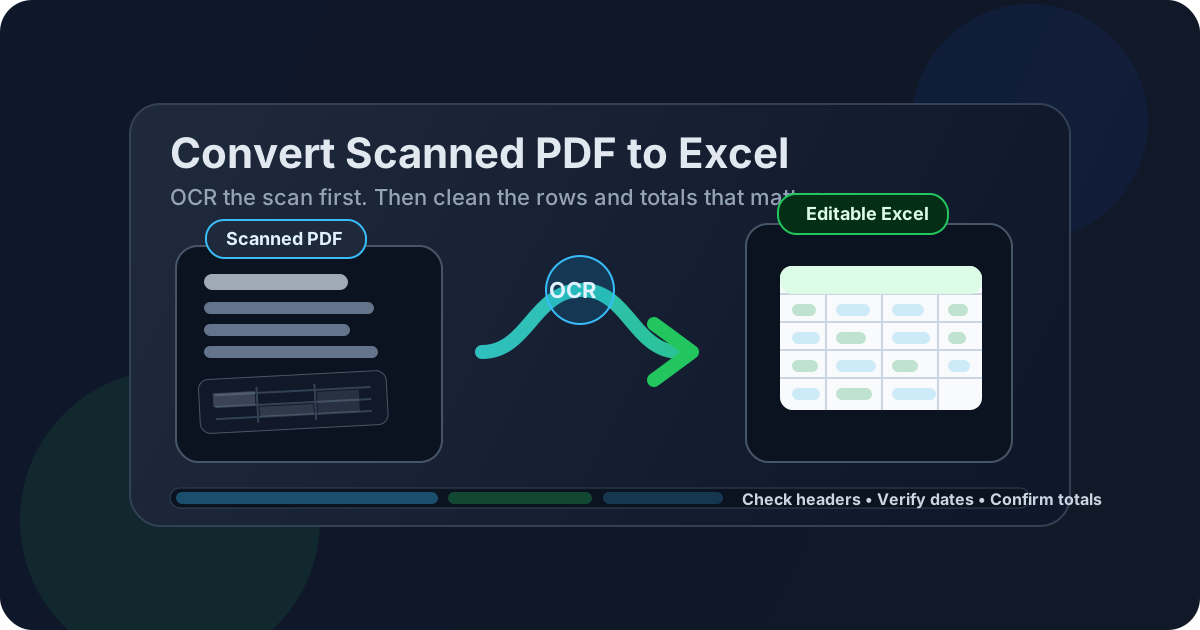
Table of contents
- Quick start: convert scanned PDF to Excel in about 5 minutes
- Why scanned tables break when you push them straight into Excel
- What to check before you convert anything
- Step-by-step: the cleanest scanned PDF to Excel workflow
- How to get cleaner rows, columns, and totals
- XLSX vs CSV and when smaller page ranges win
- What usually needs cleanup after export
- Privacy and safer document handling
- Related LifetimePDF tools and guides
- FAQ
Quick start: convert scanned PDF to Excel in about 5 minutes
If the file is obviously a scan and you mainly need workable data, this is the shortest dependable path:
- Open OCR PDF.
- Upload the scanned statement, report, invoice, receipt batch, or table-heavy PDF.
- Rotate or crop first if the page is sideways or buried in black borders.
- Run OCR so the text becomes searchable and selectable.
- Open PDF to Excel.
- Upload the OCRed file and export it as XLSX.
- Check the columns you care about most: dates, amounts, IDs, and totals.
Why scanned tables break when you push them straight into Excel
Excel is good at working with structured data. A raw scan is the opposite of structured data. It is usually a page image that happens to look like a table to you, but to software it is just lines, shapes, and letters sitting on a flat surface.
That is why direct conversion often produces one giant column, random line breaks, missing decimals, repeated headers, or totals that land beside the wrong labels.
The converter is not just extracting values.
It is guessing where rows begin, where columns end, and whether one blurry mark is a 1, a lowercase l, or a vertical border line.
| Workflow | What the software sees | Typical result |
|---|---|---|
| Scan -> Excel directly | Mostly page images and spacing guesses | Broken columns, merged rows, messy data |
| Scan -> OCR -> Excel | Readable text plus better structural hints | Cleaner sheets with less manual repair |
| Scan -> OCR -> smaller page range -> Excel | Consistent table layout and less noise | Usually the easiest output to trust |
OCR does not magically turn every scan into perfect bookkeeping. What it does is give the spreadsheet converter real characters to work with. That one change is often the difference between a usable workbook and a frustrating cleanup project.
What to check before you convert anything
Before you export a single sheet, spend 30 seconds figuring out what kind of PDF you are holding. That little pause saves far more time than people expect.
1) Test whether the file already has real text
- Try highlighting a date or amount.
- Search for a visible word or invoice number.
- Copy one row into a notes app and see whether it stays readable.
If all three fail, treat the file as image-only and start with OCR.
2) Check whether all pages follow the same layout
A six-page statement with one consistent table is much easier than a 40-page report that switches layouts halfway through. When structure changes from page to page, convert in smaller chunks instead of forcing one giant export.
3) Identify the fields that really matter
Most people do not need every pixel preserved. They need specific columns they can trust. That might be dates and amounts, product codes and quantities, or invoice numbers and tax totals. Knowing that up front helps you review the right cells instead of obsessing over harmless cosmetic drift.
Step-by-step: the cleanest scanned PDF to Excel workflow
Step 1: Remove the easy problems first
Crooked pages, dark scanner borders, giant margins, and irrelevant pages all make OCR work harder. Fix the obvious issues before you do anything else.
- Rotate PDF for sideways pages or landscape tables.
- Crop PDF to remove shadows, black edges, and wasted paper space.
- Extract Pages if only part of the document actually needs spreadsheet conversion.
Step 2: Run OCR on the cleaned scan
Open OCR PDF and process the file. When it finishes, test the result the same way you tested the source: highlight a value, search for a number, and copy one line. If the OCR output still looks chaotic, the spreadsheet export will inherit that chaos.
Step 3: Convert the searchable file to Excel
Once the text layer exists, send the OCRed PDF to PDF to Excel and export as XLSX. XLSX is usually the right default because it keeps structure, sheets, and formatting options intact for later cleanup.
Step 4: Review the high-risk columns first
Do not start by polishing font sizes or cell colors. Start with the values that could actually mislead a decision:
- Dates and date order
- Amounts, currencies, and decimal points
- Negative values and parentheses
- Item codes, reference numbers, and invoice IDs
- Repeated headers that interrupt the data range
Step 5: Clean only what you need to use
If the sheet is headed into analysis, normalize the columns and move on. If it is heading into client delivery, finance reconciliation, or an import workflow, spend more time validating structure. The best cleanup depth depends on what happens next, not on whether the workbook looks aesthetically perfect.
Best real-world sequence: prepare the scan, OCR it, export to XLSX, verify the critical columns, then normalize only the rows you will actually use.
How to get cleaner rows, columns, and totals
Better source material beats heroic cleanup later. These habits usually improve the spreadsheet more than any post-export trick.
Keep the reading order obvious
Tables that run sideways, wrap across columns, or sit beside notes are harder to reconstruct. Straight pages and isolated table ranges usually produce cleaner Excel output.
Remove visual noise around the table
Borders, stamps, shadows, punch holes, and copier artifacts create false structure. Cropping those distractions can improve both OCR recognition and column detection.
Split mixed-format jobs into smaller conversions
One-page receipts, bank statements, inventory reports, and field logs each behave differently. If the layout changes, convert each section separately instead of asking one export to handle everything at once.
Expect merged cells and subtotals to need attention
Excel likes rigid structure. Many PDFs do not have it. Nested headings, grouped subtotals, and footnotes often need a short manual pass after export even when OCR was strong.
| Problem | Best fix | Why it helps |
|---|---|---|
| Sideways pages | Rotate before OCR | Improves reading order and column recovery |
| Black borders or shadows | Crop before OCR | Reduces false characters and false column edges |
| Mixed layouts across pages | Extract smaller page ranges | Keeps one consistent structure per export |
| Critical dates and totals | Verify after OCR and after XLSX export | Catches expensive mistakes early |
XLSX vs CSV and when smaller page ranges win
People often ask whether they should convert straight to CSV. Usually, no. XLSX is the safer first stop because it preserves more structure and gives you a better place to inspect the output.
Choose XLSX when
- You want to preserve columns, sheet structure, or formatting hints.
- You need to review merged cells, repeated headers, or table boundaries visually.
- You plan to continue in Excel, Google Sheets, or LibreOffice.
Choose CSV when
- You only need flat tabular data.
- You are importing into another app or database.
- You already know the structure is simple and you mainly care about values.
Smaller page ranges also deserve more love than they usually get. When a 20-page PDF contains only five pages with the table you need, extracting those pages first is often the highest-leverage move in the entire workflow. Less noise means less cleanup.
What usually needs cleanup after export
Repeated header rows
Multi-page reports often repeat headings on every page. Delete those rows early so the dataset becomes one continuous table.
Numbers stored as text
This is common after OCR, especially with currency symbols, thousands separators, or spaces. Normalize the number format before you sort, filter, or total anything important.
Split descriptions or wrapped row labels
Sometimes one line item becomes two rows because the original scan wrapped text visually. That does not always mean the export failed. It usually means the source layout was ambiguous and the sheet needs a quick human pass.
Subtotals mixed into detail rows
Grouped reports, statements, and inventory summaries often contain subtotal lines that need to stay visible but should not be treated as ordinary transactions. Tag or separate those rows before analysis.
Wrong characters in critical fields
Watch for common OCR confusions such as 0 vs O, 1 vs l, stray commas, and decimal shifts.
Most of the time you do not need to audit every cell.
You need to audit the cells that carry risk.
Privacy and safer document handling
Scanned PDFs often contain the most sensitive kinds of business data: statements, AP records, payroll reports, HR files, medical admin paperwork, and customer details. So this is not just an extraction task. It is also a file-handling decision.
- Upload only what you need: isolate the right pages first with Extract Pages.
- Redact before sharing: use Redact PDF when private details should not travel further.
- Protect the final deliverable: if you export a cleaned result back to PDF, secure it with PDF Protect.
- Verify the values that matter: never assume OCR got account numbers, invoice totals, or reference IDs perfectly right just because the sheet looks tidy.
Related LifetimePDF tools and guides
Scanned PDF to Excel conversion works best as part of a wider cleanup flow rather than a one-click hope. These tools and companion articles usually make the result stronger:
- OCR PDF - turn scanned pages into searchable text.
- PDF to Excel - export the OCRed file into editable XLSX.
- Rotate PDF - fix sideways tables before OCR.
- Crop PDF - remove borders and scanner noise.
- Extract Pages - isolate the pages that actually contain data.
- Excel to PDF - export a cleaned workbook back into a shareable PDF.
- Redact PDF - remove private information before further sharing.
Related blog guides
- Convert Scanned PDF to Excel Online
- Convert Scanned PDF to Excel Without Monthly Fees
- Convert Scanned PDF to Excel Online Without Monthly Fees
- OCR PDF
- Extract Tables from PDF to Excel Online
- Browse all LifetimePDF articles
Need workable spreadsheet data now? Start with OCR, then export to Excel and review the columns that would hurt if they were wrong.
Best practical sequence: prepare the scan -> OCR -> export to XLSX -> verify the risky columns -> clean only the rows you need.
FAQ
How do I convert scanned PDF to Excel?
Run OCR on the scanned PDF first so the text becomes searchable, then send the OCRed file to a PDF-to-Excel converter and export it as XLSX. That gives the converter real text and numbers to rebuild instead of a flat image of a table.
Do I always need OCR before converting a scanned PDF to Excel?
In most cases, yes. If the PDF is image-only, direct conversion usually produces messy structure, blank cells, or merged columns because the source does not contain real selectable text yet.
Why are my columns wrong after conversion?
The usual causes are skewed pages, poor scan quality, repeated headers, unclear table borders, or mixed layouts across pages. Rotate, crop, OCR, and smaller page ranges usually improve column recovery.
Should I export as XLSX or CSV?
XLSX is the better default for most people because it preserves structure more clearly and makes review easier. CSV is useful when the table is simple and you mainly need flat raw data for another system.
What should I double-check before I trust the spreadsheet?
Start with dates, totals, decimal points, negative values, item codes, repeated headers, and any field that would cause a bad decision if one OCR mistake slipped through.
Published by LifetimePDF — Pay once. Use forever.