HEIC to PDF: Best Way to Turn iPhone Photos Into One Clean PDF
To convert HEIC to PDF, upload one or more HEIC files, arrange them in the right order, choose settings that keep document photos and screenshots readable, and generate one clean PDF.
If the HEIC files came from an iPhone, the smartest workflow is usually convert first, then compress or OCR the finished PDF only if the next step actually needs it.
HEIC is great for saving space on Apple devices, but it becomes awkward the moment a portal, coworker, school form, HR team, or client expects one document instead of a stack of image files. The conversion itself is easy. The part that decides whether the result feels polished or sloppy is everything around it: page order, portrait versus landscape, whether photographed text is still readable, whether the final file is small enough to upload, and whether the PDF opens cleanly everywhere.
Fastest reliable path: gather the right HEIC files, put them in human order, create one PDF, and then compress or OCR the result only if you actually need a smaller or more searchable file.
In a hurry? Jump to Quick start: HEIC to PDF in a few minutes.
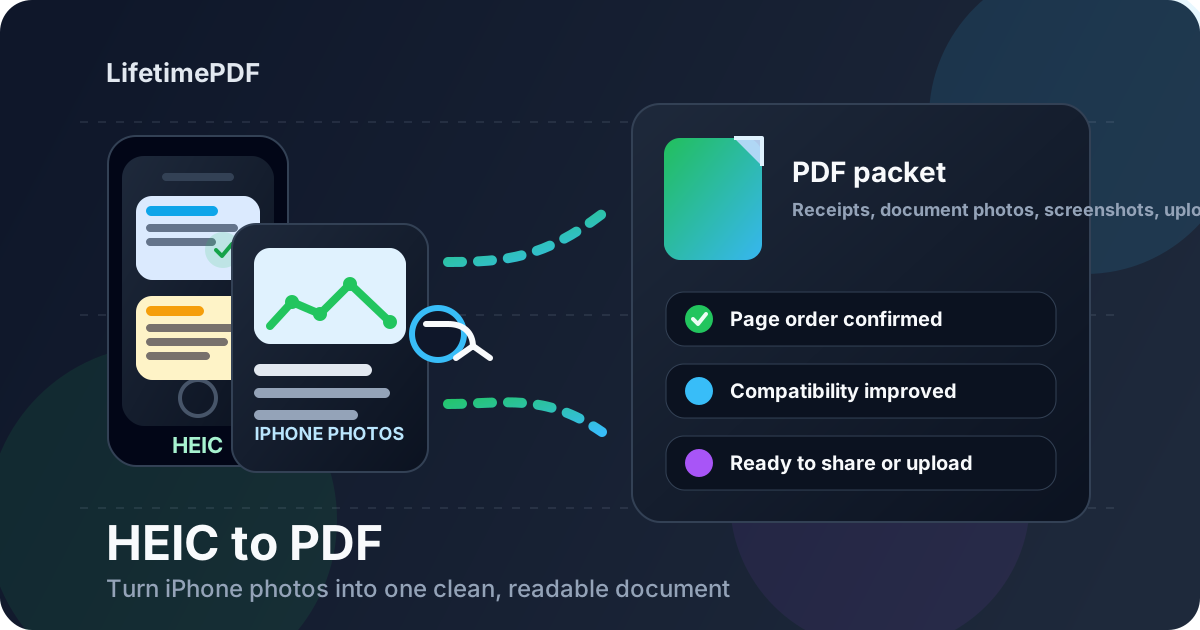
Table of contents
- Quick start: HEIC to PDF in a few minutes
- Why people convert HEIC to PDF in the first place
- What to decide before you convert
- Step-by-step: how to convert HEIC to PDF cleanly
- How to combine multiple HEIC files into one PDF
- How to keep receipts, forms, and screenshots readable
- How to keep the PDF usable without making it huge
- HEIC to PDF on iPhone, Mac, Windows, and iPad
- Related LifetimePDF tools and useful next steps
- FAQ (People Also Ask)
Quick start: HEIC to PDF in a few minutes
If your files are ready, the clean workflow looks like this:
- Open Images to PDF.
- Upload the HEIC files you want in the finished document.
- Arrange them in the correct reading order.
- Choose orientation and page sizing that fit the images naturally.
- Create the PDF and review readability before you upload or send it anywhere.
Why people convert HEIC to PDF in the first place
HEIC is Apple's efficient image format. It is excellent for storage, but storage is not the same thing as delivery. The moment your images need to behave like a real document, PDF usually makes more sense.
That shows up in everyday tasks: receipt packets, expense claims, photographed forms, ID or paperwork uploads, school assignments, support evidence, property documentation, and image sets that need to travel as one file instead of ten separate attachments. A stack of HEIC files can feel normal on your phone and annoying everywhere else. One PDF fixes that.
| What you have | Best first move | Why it helps |
|---|---|---|
| Receipt or expense photos | HEIC to PDF | Turns a messy camera-roll batch into one uploadable document |
| Photographed paper forms | HEIC to PDF, then OCR if needed | Cleaner submission now, searchable text later |
| iPhone screenshots or evidence images | HEIC to PDF with careful ordering | Makes review easier for support, HR, legal, or clients |
| Mixed-device sharing | HEIC to PDF before sending | Reduces compatibility friction outside the Apple ecosystem |
What to decide before you convert
Most weak HEIC-to-PDF results are not caused by the converter. They happen because the input set was sloppy or nobody thought about how the final document should read.
1. Which HEIC files actually belong in the document
Do not convert the whole batch just because it came from the same moment on your phone. Remove duplicates, blurry captures, accidental extra photos, and screenshots that only mattered while you were preparing the packet. Fewer better pages usually beat more random ones.
2. The order readers should see them
The final PDF should read like a document, not like a camera roll. Put the overview page first, then the main supporting pages, then any secondary evidence. Expense claims, legal support packets, and school submissions all benefit from deliberate sequencing.
3. Whether the pages should stay portrait or landscape
Portrait usually fits receipts, forms, and photographed paper best. Landscape works better when the source image is wide, such as a dashboard screenshot, side-by-side comparison, or broad visual reference. Choosing the right orientation early prevents unnecessary shrinking later.
4. Whether the document needs searchability after conversion
HEIC to PDF creates one clean document, but it does not automatically turn photographed text into selectable text. If you need to search, copy, or extract text later, plan to run OCR PDF after the PDF is built.
Best setup habit: clean the HEIC set first, put the pages in the right order, then create the PDF once instead of rebuilding it after avoidable mistakes.
Step-by-step: how to convert HEIC to PDF cleanly
Once the files are ready, the actual conversion should be straightforward. The dependable workflow is mostly about not rushing past the review points.
1. Upload the HEIC files you actually need
Start with the smallest complete set that serves the job. If you are preparing a reimbursement packet, do not mix in unrelated camera-roll clutter. If you are sending photographed paperwork, make sure every page appears once and only once.
2. Arrange the pages in human order
Reordering matters more than people expect. The PDF should make sense even if the recipient never saw the original images. This is especially important when the files came from different moments, different devices, or multiple people.
3. Choose sensible page settings
Avoid layouts that over-shrink text-heavy document photos or force wide screenshots into narrow portrait pages. The goal is not to make every page identical at any cost. The goal is to make the final PDF easy to review.
4. Generate the PDF and review the first, middle, and last pages
That quick check catches most real-world mistakes: sideways pages, unreadable small text, extra blank margins, pages in the wrong order, or one accidental duplicate that slipped through.
5. Only add follow-up steps when they solve a real problem
Compress when the file is too heavy. OCR when the pages need selectable text. Protect the file when the content is sensitive. The best workflow does not pile on extra steps just because the tools exist.
Recommended sequence: upload the right HEIC files, order them carefully, choose simple layout settings, generate the PDF, then add compression or OCR only if the finished file still needs something.
How to combine multiple HEIC files into one PDF
Combining several HEIC files into one PDF is one of the main reasons this keyword exists. The trick is to treat the image set like one document before you convert it.
Receipt and reimbursement batches
Put the files in date order or claim order so the final PDF matches the workflow of the person reviewing it. A finance team should not have to guess why lunch appears before the trip where it happened.
Photographed forms and paper records
Group pages by document first. If the batch really contains three separate items, build three PDFs rather than one confusing mega-file. Smaller, purposeful documents are usually easier to upload and easier to understand.
Screenshots, evidence, or support packets
Start with the overview, then move to the detailed evidence. That makes the PDF feel intentional and gives the reviewer context before they hit the fine print.
| Input set | Best ordering method | Good follow-up |
|---|---|---|
| Receipts | Date order or claim-form order | Compress if the portal has file-size limits |
| Photographed forms | Page 1 through final signature page | Run OCR if reviewers need searchable text |
| Screenshots or evidence images | Chronological or explanatory order | Protect if the packet includes personal data |
| Wide visual references | Overview first, detail after | Use landscape when labels feel cramped |
How to keep receipts, forms, and screenshots readable
When people say their HEIC-to-PDF output looks bad, the problem is often not the PDF step itself. It usually starts with poor framing, weak lighting, the wrong orientation, or trying to force a wide image into a layout that shrinks the useful details too much.
Keep small text readable
Receipts, invoices, IDs, labels, and photographed forms can become useless fast if the text is too small. If the image contains dense information, prioritize readability over filling the whole page perfectly. Slightly larger margins are less dangerous than illegible text.
Use the orientation that matches the source image
Portrait is usually right for paper-like captures. Landscape is better when the source is wide. A wrong orientation can quietly ruin readability even when the PDF technically looks fine at first glance.
Review the final PDF like a stranger would
Open the file, zoom to a normal viewing level, and check the smallest useful text instead of just the large headings or obvious shapes. That is how you catch real problems before a portal rejection or a client complaint catches them for you.
How to keep the PDF usable without making it huge
HEIC is efficient, but one combined PDF can still get bulky when you include many pages, high-resolution photos, or wide screenshots. The answer is usually not to destroy the source quality first. It is to build the document properly and then optimize the finished file if the destination demands it.
What usually makes the PDF too large
- too many images traveling together in one packet
- duplicate or near-duplicate captures
- high-resolution pages that do not all need to live in one file
- wide screenshots bundled with photographed paperwork in the same document
What usually makes the PDF hard to use
- text shrunk too much on the page
- the wrong orientation for the source image
- messy ordering that turns one file into a guessing game
- aggressive quality sacrifice before the PDF is even created
In practice, the cleanest route is simple: keep the useful HEIC detail, create the PDF, then use Compress PDF only if the final file is still too heavy for email or an upload limit.
If the final PDF is still too large: compress the finished document instead of sacrificing readability in the source HEIC files.
HEIC to PDF on iPhone, Mac, Windows, and iPad
A good HEIC-to-PDF workflow should work wherever the files already are. Sometimes that is an iPhone full of photographed receipts. Sometimes it is a Mac folder of exported HEIC images. Sometimes it is a Windows machine that received Apple-origin files and just needs a universal final document.
On iPhone and iPad
This is the natural starting point because HEIC usually comes from Apple devices in the first place. If the images are already on your phone or tablet, a browser-based HEIC-to-PDF workflow saves you from an unnecessary transfer step.
On Mac
Mac workflows are usually smooth because HEIC support is native. You can review the images, clean the set, upload them together, and generate one PDF quickly.
On Windows
This is where HEIC often becomes annoying. A PDF solves that fast. Instead of worrying about whether every receiving app understands HEIC properly, you convert the set into a document format that travels better across portals, printers, email, and mixed-device teams.
Related LifetimePDF tools and useful next steps
HEIC to PDF is often the first step, not the last one. These tools commonly fit around it:
- Images to PDF — combine HEIC, JPG, PNG, and other image files into one PDF.
- Compress PDF — reduce file size after conversion.
- OCR PDF — make photographed pages searchable.
- Rotate PDF — fix sideways output after conversion.
- Split PDF — break large packets into smaller files.
- PDF Protect — add a password to sensitive documents.
Related blog guides
- HEIC to PDF Converter Online Free
- HEIC to PDF Without Monthly Fees
- PNG to PDF
- JPG to PDF
- Scan to PDF on iPhone
- Compress PDF
- OCR PDF
- Browse all LifetimePDF articles
Ready to turn HEIC files into one document that is actually easy to use?
Best practical sequence: choose the right HEIC files → order them clearly → create the PDF → review once → compress or OCR only when the final document actually needs it.
FAQ (People Also Ask)
How do I convert HEIC to PDF?
Upload one or more HEIC files to a converter, arrange the page order, choose sensible layout settings, create the PDF, and download the result. If the final file is too large, compress it afterward.
Can I combine multiple HEIC files into one PDF?
Yes. That is one of the most useful HEIC-to-PDF workflows for receipt sets, photographed forms, screenshots, school uploads, and support packets.
Why convert HEIC to PDF instead of leaving the images as HEIC?
Because PDF is easier to upload, print, archive, and share across mixed devices and websites, while HEIC is mainly optimized for storage inside Apple workflows.
Will HEIC to PDF reduce image quality?
A solid workflow usually preserves visual quality well, especially when the source files are clear and the page settings match the content. Review the finished PDF once if readability matters.
Can I convert HEIC to PDF on iPhone or Windows?
Yes. You can upload HEIC files from iPhone, iPad, Mac, or Windows in the browser and download one finished PDF without needing a complicated desktop-only workflow.
Published by LifetimePDF — Pay once. Use forever.