GIF to PDF: Best Way to Turn Animated and Static GIFs Into One Shareable Document
To convert GIF to PDF, upload one or more GIF files, choose whether the result should read like a clean static document or a frame-by-frame storyboard, then generate the PDF and review it once before sharing.
If the GIF is animated, the most useful PDF is usually a readable sequence of pages, not an attempt to preserve looping behavior inside a document format.
That sounds obvious, but it is where most weak GIF-to-PDF results go sideways. The conversion itself is easy. The part that matters is deciding what the PDF is actually for: a client review packet, a design handoff, a printable explainer, a support attachment, a storyboard, or a long-term archive. Once you decide that, the right workflow becomes simple: keep the sequence understandable, keep the pages readable, and only optimize file size after the document already makes sense.
Fastest reliable path: load the GIFs, arrange them in human order, create one PDF, and only compress or split the result if the final document needs it.
In a hurry? Jump to Quick start: GIF to PDF in a few minutes.
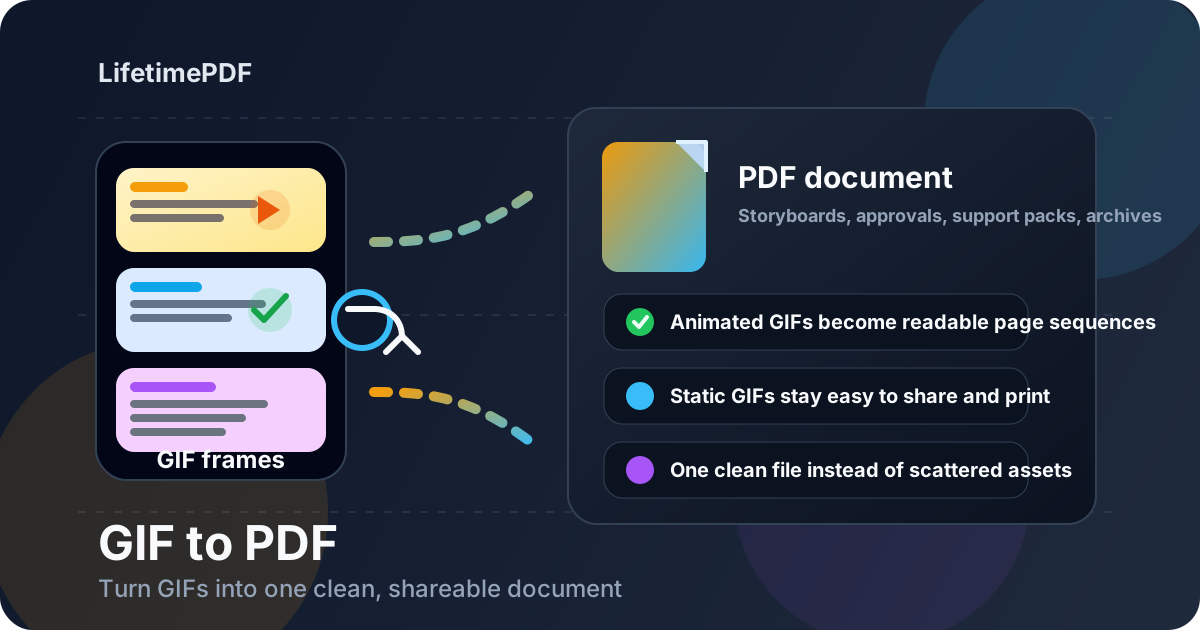
Table of contents
- Quick start: GIF to PDF in a few minutes
- Why people convert GIF to PDF in the first place
- What to decide before you convert
- Step-by-step: how to convert GIF to PDF cleanly
- Animated GIFs vs static GIFs in PDF workflows
- How to combine multiple GIF files into one PDF without chaos
- How to keep the PDF readable without making it huge
- When GIF to PDF is the better format choice
- Related LifetimePDF tools and useful next steps
- FAQ (People Also Ask)
Quick start: GIF to PDF in a few minutes
If your files are ready, the clean workflow looks like this:
- Open Images to PDF.
- Upload the GIF file or batch you want in the final document.
- Arrange the visual order so the PDF reads clearly from first page to last page.
- Create the PDF and review a few pages before you send or upload it anywhere important.
- If the file is too heavy, use Compress PDF or Split PDF afterward.
Why people convert GIF to PDF in the first place
GIF is great for quick visual motion on the web. PDF is great when the same content needs to behave like a document. The moment somebody has to review, approve, print, upload, annotate, archive, or bundle the material with other files, a PDF often becomes the more practical format.
That is why this keyword keeps showing up across design work, product teams, support documentation, classroom material, training aids, and client communication. A looping GIF is useful in chat. A PDF is useful when the content needs structure.
| What you have | Better PDF approach | Why it helps |
|---|---|---|
| Animated explainer GIF | Convert it into a storyboard-style PDF | Reviewers can step through the sequence instead of watching a loop repeatedly |
| Static or meme-style GIF | Use one clean PDF page | It becomes easier to print, archive, or attach to a larger document set |
| Several GIF assets for approval | Combine them into one ordered PDF packet | Clients or teammates review one file instead of chasing scattered attachments |
| Support or evidence visuals | Bundle them into a PDF with logical sequence | Portals, email, and ticket systems usually handle one document better than random image assets |
What to decide before you convert
Most disappointing GIF-to-PDF output is not caused by the converter. It happens because nobody decided what the final document should feel like.
1. Do you need one representative page or a visual sequence?
A static reaction image, badge, banner, or simple web graphic usually works fine as a single page in a PDF. An animated product demo, process illustration, or explainer is more useful when the PDF reads like a storyboard. The right answer depends on the job, not the file extension.
2. Who is going to read the PDF?
A designer may want every meaningful step. A client may want only the key states. A compliance reviewer may need the visuals bundled with notes or signatures. Knowing the audience helps you avoid a file that is technically complete and practically annoying.
3. Does the final file need to be printable, uploadable, or archival?
If the PDF is heading to print, avoid tiny unreadable frames. If it is heading to an upload portal, watch file size. If it is an archive file, consistency and ordering matter more than clever effects.
4. Is this one document or several smaller ones?
Teams often dump unrelated GIFs into one export just because they can. That usually creates a cluttered PDF. If the materials belong to separate tasks, reviews, or stories, separate PDFs are often cleaner than one oversized mega-file.
Best setup habit: decide the reader's path first, then convert once instead of rebuilding the PDF after avoidable ordering mistakes.
Step-by-step: how to convert GIF to PDF cleanly
Once the purpose is clear, the actual conversion should be straightforward. The dependable workflow is mainly about not rushing past the review points.
1. Upload only the GIFs that belong in the document
Remove duplicates, rough drafts, or joke files that only made sense inside a chat thread. The best PDF packets feel deliberate.
2. Put the sequence in human order
The PDF should make sense even if someone never saw the original animation or never opened the source folder. Start with the overview, then the important states, then the supporting detail.
3. Create the PDF with readability in mind
Avoid shrinking everything just to force more content onto fewer pages. When a visual sequence gets too cramped, the PDF stops being useful and turns into proof that conversion happened.
4. Review the first, middle, and last pages
That catches most real-world mistakes immediately: wrong order, unreadable text, too many pages from one animation, or a file that feels much larger than it needs to be.
5. Only optimize after the document already works
Compress when the file is too heavy. Split it when one packet contains too many different stories. Protect it when the visuals are sensitive. Extra steps are helpful when they solve a real problem, not when they create one.
Recommended sequence: choose the right GIFs, order them clearly, create the PDF, review it once, then compress or split only if the finished file still needs help.
Animated GIFs vs static GIFs in PDF workflows
This is the expectation issue that trips people up most often, so it is worth stating plainly: a PDF is usually better at being a readable record than a looping animation surface.
Animated GIFs
Animated GIFs make the most sense in PDF when you treat them like a visual sequence. That can be useful for product walkthroughs, short how-to demos, UI motion reviews, client approvals, lesson material, and storyboards. Instead of endlessly looping, the content becomes something a reader can step through, annotate, print, or discuss.
Static GIFs
Static GIFs are simpler. Once in a PDF, they behave like any other image asset. This is useful when you need one clean file for handoff, evidence, archiving, or bundling several related graphics together.
When the original GIF is still the better format
If the whole point is the motion itself in a chat, website, or casual preview, keep the GIF. Convert to PDF when the next step is about review, structure, printing, uploading, or record-keeping.
How to combine multiple GIF files into one PDF without chaos
Combining several GIFs into one PDF is one of the best use cases for this keyword. The trick is to build a packet that feels intentional instead of dumping assets into a single export.
Approval or design-review packets
Put the overview asset first, then the alternatives, then detailed states or supporting notes. A reviewer should understand what changed and why without needing a separate explanation thread.
Training or classroom material
Group visuals by lesson or task. If the packet covers three different processes, use three PDFs or at least clear section breaks rather than one confusing pile.
Support, ticketing, or evidence bundles
Start with the clearest summary image or sequence, then move to supporting visuals. This saves the reviewer from guessing which GIF mattered most.
| Input set | Best ordering method | Good follow-up |
|---|---|---|
| Approval GIFs | Main option first, alternates after | Protect the PDF if it includes unreleased work |
| Explainer sequences | Chronological step order | Compress if the packet needs email delivery |
| Support visuals | Problem summary first, evidence after | Split unrelated cases into separate PDFs |
| Teaching or training assets | Lesson order with obvious section flow | Add notes externally if reviewers need extra context |
How to keep the PDF readable without making it huge
GIF-to-PDF files can grow fast, especially when the source material includes long animations, repeated states, or too many assets traveling together in one packet. The cleanest solution is usually not to destroy the source first. It is to build a good document and optimize afterward only if the destination demands it.
What usually makes the PDF too large
- too many GIFs bundled into one document
- longer animated sequences than the reader actually needs
- duplicate assets or near-duplicate states
- using one packet for several unrelated reviews
What usually makes the PDF hard to use
- pages scaled down so much that labels or captions become hard to read
- no logical ordering for the visuals
- trying to keep every single frame when only the key states mattered
- turning a simple asset packet into an overbuilt monster file
In practice, the most sensible route is simple: build the readable PDF first, then use Compress PDF if it is still too large, or Split PDF if the packet is trying to do too many jobs at once.
If the final PDF is still too large: compress the finished document instead of sacrificing clarity before you even know whether the original packet reads well.
When GIF to PDF is the better format choice
GIF to PDF is not better because PDF is somehow more modern or more impressive. It is better when the next task wants a document rather than a loop.
- Client approvals: one reviewable packet beats a pile of attachments.
- Design and product reviews: storyboards are easier to discuss than looping motion.
- Support evidence: ticket systems and email usually behave better with one PDF.
- Training and teaching: printed or annotated PDFs are easier to distribute than raw GIF files.
- Archiving: a structured PDF is easier to label, file, and reopen later.
If the content still needs to live as motion on the web, keep the original GIF too. The point of the PDF is not to replace every use of GIF. The point is to make the same visual information more useful in document workflows.
Related LifetimePDF tools and useful next steps
GIF to PDF is often a midpoint in a broader workflow. These tools commonly fit around it:
- Images to PDF — combine GIFs and other image files into one PDF.
- Compress PDF — reduce file size after conversion.
- Split PDF — break oversized review packets into smaller files.
- PDF Protect — add a password to sensitive design or client material.
- PDF to Image — turn document pages back into simple shareable images when needed.
Related blog guides
- Convert GIF to PDF Online Free
- GIF to PDF Without Monthly Fees
- PNG to PDF
- HEIC to PDF
- Compress PDF
- Split PDF
- PDF to Image
- Browse all LifetimePDF articles
Ready to turn GIF files into one document that people can actually review?
Best practical sequence: pick the right GIFs → order them for a human reader → create the PDF → review once → compress or split only if the finished document still needs it.
FAQ (People Also Ask)
How do I convert GIF to PDF?
Upload one or more GIF files to a converter, arrange the order, create the PDF, and review it once before sharing. If the GIF is animated, the most useful result is usually a readable sequence of pages rather than a looping file.
Will an animated GIF stay animated in a PDF?
Usually no. PDF works best as a static document format, so animated content is more useful when turned into a sequence of pages or still states for review, print, or approval.
Can I combine multiple GIF files into one PDF?
Yes. That is one of the best reasons to use GIF to PDF in the first place, especially for approvals, support evidence, training packets, and design handoffs.
Why is my GIF-to-PDF file so large?
Large output usually comes from long animations, too many assets in one packet, or including more frames and files than the reader really needs. Build the PDF first, then compress or split it if needed.
When is GIF to PDF better than sending the original GIF?
GIF to PDF is better when the content needs to behave like a document: easy to review, print, upload, archive, annotate, or bundle with other pages and notes.
Published by LifetimePDF — Pay once. Use forever.