PDF to Image: Fastest Way to Turn PDF Pages Into Clean JPG or PNG Files
Yes — PDF to image conversion is the fastest way to turn a full document page into something easy to share, publish, or drop into slides, tickets, and websites.
The clean workflow is simple: upload the PDF, choose PNG for sharper text or JPG for smaller files, convert only the pages you need, and use OCR first if the source is a scan.
That matters because most people are not converting PDFs for fun. They are trying to send one invoice page, reuse a chart in a presentation, create a page preview for a website, hand off a brochure visual to a designer, or save a contract exhibit as an image for faster review. The job is usually small, practical, and time-sensitive. A good PDF-to-image workflow should finish that job quickly without forcing you into three extra apps or a messy cleanup afterward.
Fastest practical path: export only the pages you need, choose the image format that fits the job, and clean up scans before sharing them.
In a hurry? Jump to Quick start: convert PDF to image in a few minutes.
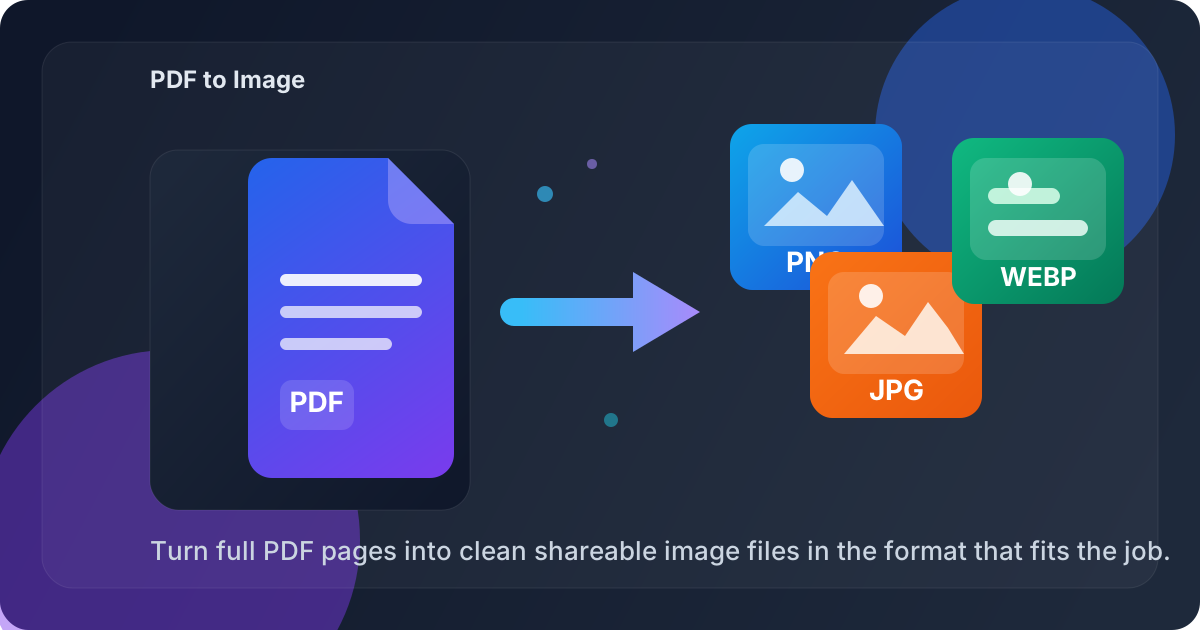
Table of contents
- Quick start: convert PDF to image in a few minutes
- When PDF to image is the right move
- PNG vs JPG vs WEBP: which format should you choose?
- Step-by-step: how to convert PDF to image
- How to convert only one page or a short page range
- How to keep the output sharp instead of blurry
- Scanned PDFs, OCR, and cleanup before export
- Best use cases for PDF to image conversion
- Related LifetimePDF tools and guides
- FAQ (People Also Ask)
Quick start: convert PDF to image in a few minutes
If your goal is simply to get a usable page image fast, this workflow is usually enough:
- Open PDF to Image.
- Upload your PDF.
- Choose PNG for text, diagrams, and forms, or JPG for smaller files and lighter sharing.
- Convert the file and download the exported page images.
- If the source file is scanned or crooked, run OCR PDF or Rotate PDF first.
When PDF to image is the right move
A PDF is great when you need a document to keep its layout. An image is better when you need that layout to become a flexible visual asset. That is the real reason people search for PDF to image.
The conversion makes sense when the next step is visual rather than document-heavy. You might need a page inside a slide deck, a preview inside a help article, a screenshot-like attachment in a support ticket, or a shareable single page in chat. In those cases, sending the whole PDF creates extra friction. A clean image does not.
- Presentations: turn a chart, slide, proposal page, or report excerpt into a reusable graphic.
- Support and operations: attach one invoice page, claim form, receipt, or signed exhibit instead of a full document.
- Web publishing: create visual page previews for a blog post, landing page, portfolio, or knowledge base.
- Design handoff: give a designer a visual reference without asking them to pull pages out of a full PDF manually.
- Quick sharing: send one page in email, Slack, WhatsApp, or a task comment without the usual “see page 14” back-and-forth.
PNG vs JPG vs WEBP: which format should you choose?
Most PDF-to-image mistakes come from choosing the wrong output format for the job. The conversion itself may work perfectly, but the result feels wrong because the format does not match the content.
| Format | Best for | Strength | Tradeoff |
|---|---|---|---|
| PNG | Text-heavy pages, forms, diagrams, screenshots, UI mockups | Sharper edges and cleaner small text | Larger file sizes |
| JPG | Photo-heavy pages, fast sharing, smaller attachments | Lighter files and faster sending | Compression can soften text and lines |
| WEBP | Web publishing, mixed content, balanced output | Good quality-to-size balance | Not every workflow prefers it by default |
If you are unsure, start with PNG for anything people need to read carefully. It is usually the safer choice for contracts, receipts, invoices, charts, forms, and interface screenshots. Use JPG when the visual is mainly photographic or when smaller file size matters more than tiny text sharpness.
Step-by-step: how to convert PDF to image
1) Start with the cleanest PDF you have
If you have both a proper exported PDF and a fuzzy phone scan of the same page, use the exported PDF. Better source quality almost always produces better image output.
2) Decide whether you need the whole file or only part of it
People often convert a 60-page PDF when they only need page 2. That creates unnecessary files and makes review slower. If you only need a small range, trim it first.
3) Open LifetimePDF PDF to Image
Go to LifetimePDF PDF to Image and upload the file you want to convert.
4) Pick the right output format
Choose PNG when readability matters, JPG when file size matters, or WEBP when you want a balanced image for web use.
5) Convert and review at real size
Do not judge the result only from a tiny preview. Open the exported image at full size and check the places where problems usually show up first: small text, signatures, table borders, chart labels, and light gray notes.
Need the direct workflow right now? Convert the PDF first, then crop, rotate, OCR, or compress only if the result actually needs cleanup.
How to convert only one page or a short page range
One of the smartest PDF-to-image habits is not converting more than you need. If the final destination only needs one page, treat that page as the whole job.
- Use Extract Pages to isolate the single page or short range.
- Convert that smaller PDF with PDF to Image.
- Review the exported image and send or publish it immediately.
This smaller workflow is usually faster, easier to manage, and less error-prone. It also reduces the chance of accidentally sharing pages that were never meant to leave the original document.
How to keep the output sharp instead of blurry
Blurry PDF-to-image output usually has a boring cause, not a mysterious one. Most problems come from the source file, the format choice, or unnecessary white space.
Use PNG for detail-heavy pages
If a page contains small labels, thin lines, form fields, or tables, PNG usually preserves those edges better than JPG.
Crop oversized margins
Huge white margins make the actual content smaller inside the exported image. If the page looks tiny, use Crop PDF first so more of the image area goes to the content that matters.
Fix rotation before export
Sideways pages, upside-down scans, and mixed orientations make image output harder to use. A quick pass through Rotate PDF can save rework.
Trust the source less when it started as a bad scan
If the original PDF already looks fuzzy, the exported image cannot invent detail that is not there. Cleanup steps help, but they do not create magic. Start with the best source you can get.
Scanned PDFs, OCR, and cleanup before export
Scanned PDFs can still be converted to images, but they often benefit from one cleanup pass first. That is especially true when the final image needs to be readable on a phone screen or inside a ticketing system.
Use OCR PDF when you want a cleaner, more readable result from a scan. OCR does not just help with searchability. It can also make it easier to catch skewed pages, weak contrast, and other scan problems before you export.
- OCR first when the scan is faint, crooked, or difficult to read.
- Rotate first when the page orientation is wrong.
- Crop first when giant borders shrink the actual content area.
- Then convert once the page looks clean enough to share.
Best use cases for PDF to image conversion
PDF to image is one of those tasks that sounds generic until you look at the real-world use cases. Then it becomes obvious why people need it so often.
- Client communication: send one marked-up page instead of a full attachment with instructions.
- Internal review: drop a page preview into a task card, wiki page, or approval flow.
- Marketing and content: reuse a PDF page as a visual for a blog post, landing page, or social asset.
- Finance and support: share a receipt page, invoice page, or evidence page in the format a platform accepts fastest.
- Education and training: turn manual pages, worksheet sections, or policy excerpts into images for teaching material.
- Design collaboration: pass clean reference images into Figma, Canva, slides, or annotation workflows.
In all of these cases, the value is not the conversion by itself. The value is removing friction from the next step.
Related LifetimePDF tools and guides
PDF-to-image work often goes better when you pair it with one or two supporting tools instead of forcing the converter to solve every problem alone.
- Extract Pages — isolate one page or a short range before converting.
- OCR PDF — improve scanned files before export.
- Crop PDF — remove giant margins that waste image space.
- Rotate PDF — fix sideways pages before you export them.
- PDF to Image Converter Online Free — related guide focused on free-intent searches.
- Save PDF Pages as Images Online — related workflow guide for page-level exports.
Want the cleanest workflow? Trim the file, fix the scan, convert the page, then share only the exact image you need.
FAQ (People Also Ask)
How do I convert PDF to image?
Open a PDF-to-image converter, upload the file, choose PNG or JPG output, and export the pages you need. If the PDF is scanned, OCR and basic cleanup usually improve the result before conversion.
Should I use PNG or JPG for PDF pages?
Use PNG for text, diagrams, forms, and screenshots where sharp edges matter. Use JPG when you want lighter files and the page is more visual than text-heavy. If you are unsure, PNG is usually the safer starting point.
Can I convert only one page from a PDF into an image?
Yes. The easiest way is to extract the page first, then convert that smaller PDF into an image. This gives you fewer files, faster processing, and less chance of sharing extra pages by mistake.
Why does my PDF-to-image output look blurry?
Blurry output usually comes from a poor scan, low-quality source file, oversized margins, or using JPG when PNG would preserve detail better. Fix the source first whenever possible instead of trying to rescue the output later.
Is PDF to image useful for scanned documents?
Yes, but scanned PDFs often look better after OCR, rotation, or cropping. Those cleanup steps make the final image easier to read, especially on smaller screens and inside support or review tools.