Check PDF XMP Metadata: Catch Hidden Creator, Date, Rights, and Schema Data Before You Share or Archive
To check PDF XMP metadata, inspect the PDF's hidden XMP packet or metadata view for fields like title, creator, language, rights, and create/modify dates rather than relying only on the filename or visible first page.
If those values are blank, stale, mismatched, or exposing internal workflow details, clean them up before the PDF is shared, archived, indexed, or used in a PDF/A-style workflow.
This matters more often than people expect. A polished document can still carry an old creator tool, outdated rights text, the wrong language, or a leftover metadata packet from a template, scanner, or design export. When that hidden layer disagrees with the actual file, search systems, archive tools, viewers, and reviewers may all get a slightly different story about what the PDF really is.
Fastest practical path: open the metadata view, compare XMP values against the real document, remove stale template leftovers, then verify the final saved copy once before it leaves your workflow.
In a hurry? Jump to quick start: check PDF XMP metadata in about 6 minutes.
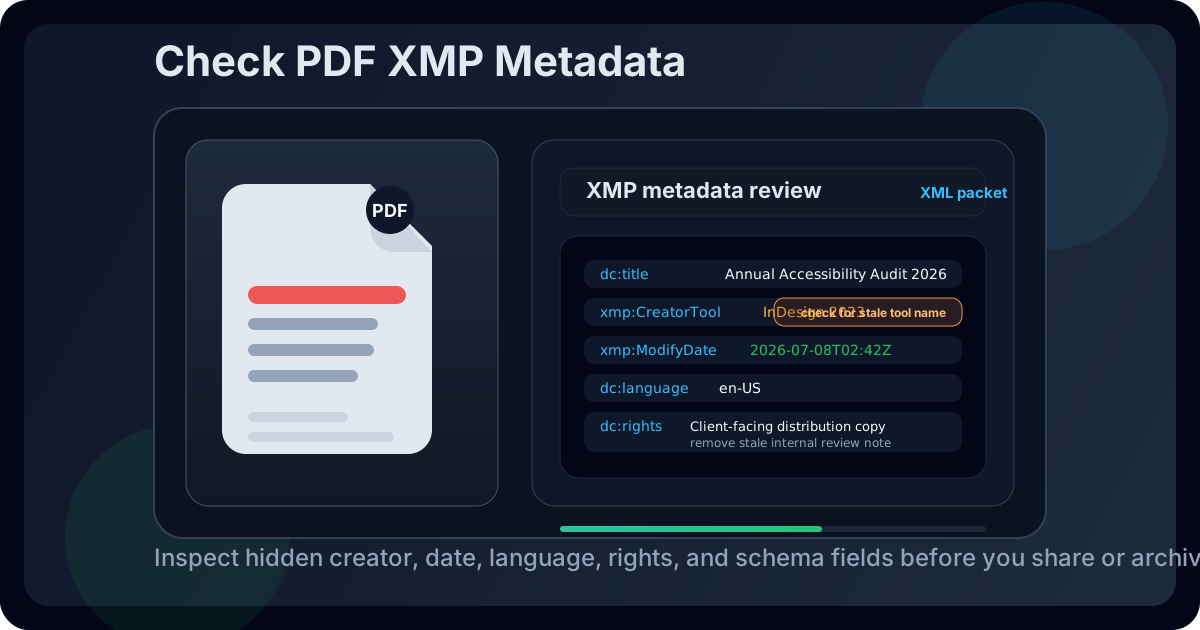
Table of contents
- Quick start: check PDF XMP metadata in about 6 minutes
- What PDF XMP metadata actually is
- Which XMP fields matter most
- Common XMP metadata problems
- Step-by-step: practical XMP review workflow
- XMP vs document properties vs PDF/A checks
- When to keep, edit, or remove XMP metadata
- Final checklist before you share or archive the file
- Related LifetimePDF tools and guides
- FAQ
Quick start: check PDF XMP metadata in about 6 minutes
If your real goal is simply make sure the hidden metadata packet is not lying, leaking, or lagging behind this PDF, use this short workflow:
- Open the exact file you plan to send, upload, archive, or publish.
- Inspect metadata through PDF Metadata Editor, View PDF Properties, or another metadata-aware viewer.
- Read the stored title, creator, language, create date, modify date, rights text, and any custom fields you can see.
- Compare those values with the actual document, its visible title, current version, and intended destination.
- Rewrite or remove stale, contradictory, overly revealing, or obviously inherited metadata.
- Save the cleaned copy and reopen it once to confirm the final PDF now carries the XMP values you intended.
What PDF XMP metadata actually is
XMP metadata is a structured metadata packet embedded inside many PDFs. It is usually stored as XML and can hold familiar fields like title and author, plus more specialized values such as creator tool, language, rights statements, custom schema data, and document-management details.
In practice, XMP sits behind the scenes and helps software describe the file consistently. That can be useful for search, archiving, publishing, accessibility, and compliance-oriented workflows. It also means the PDF may carry more metadata than a casual viewer shows at first glance.
| Metadata layer | What it usually does | What can go wrong |
|---|---|---|
| Visible page content | Shows the reader-facing title, headings, and body text | Looks correct even when hidden metadata is stale |
| Basic document properties | Exposes common fields like title, author, and dates in many viewers | May show only part of the metadata story |
| XMP packet | Stores structured XML-based metadata for apps, archives, and publishing systems | Can keep old template values, conflicting fields, or extra workflow baggage |
| Filename | Helps people organize files in folders or cloud storage | Can look clean while the embedded metadata is still wrong |
Which XMP fields matter most
You do not need to memorize every XMP namespace to do a useful review. Start with the fields most likely to affect trust, archiving, search, or privacy.
| Common XMP field | Why it matters | Red flag to catch |
|---|---|---|
| dc:title | Helps identify the document clearly across viewers and workflows | Blank, generic, or still named after an old template |
| dc:creator / author | Signals who created or owns the document | Old employee name, wrong department, or inherited test account |
| xmp:CreateDate and xmp:ModifyDate | Helps archives and downstream apps understand document history | Dates that contradict the real version or final approval timeline |
| xmp:CreatorTool / producer data | Shows what app or workflow generated the file | Old scanner, staging tool, or draft export pipeline still showing up |
| dc:language | Supports accessibility and document classification | Wrong or missing language on multilingual or formal files |
| dc:rights and custom schema values | Can carry usage or ownership notes and workflow-specific data | Internal rights text, client names, draft labels, or stale project IDs |
Not every PDF exposes all of these fields, and not every field matters equally for every workflow. But if the PDF is headed to a client, an archive, a public download page, a records system, or a compliance process, these are the first places where hidden mismatch tends to show up.
Common XMP metadata problems
Most XMP problems come from inheritance, not intent. They usually show up because the file was copied from a template, exported through multiple tools, OCR-processed, or revised by several people without anyone checking the hidden metadata at the end.
Template leftovers
Old titles, rights text, or creator names survive from the file that your current document started from.
Tool-chain drift
The visible PDF changed after export, but the XMP packet still describes an earlier version or generator.
Conflicting values
Document properties, XMP data, and the visible title no longer agree, so different apps surface different answers.
Overexposed context
Client names, internal project labels, rights notes, or workflow IDs travel farther than they should.
None of these problems guarantee the PDF is unusable. They do make the file harder to trust, harder to archive cleanly, or harder to explain later when someone asks why the metadata and the visible document tell different stories.
Quick smell test
If an archive tool, compliance reviewer, or client-side document system read the XMP packet instead of the visible first page, would it describe the right file, the wrong file, or a more revealing file than you meant to share? That answer usually tells you whether the metadata needs cleanup.
Step-by-step: practical XMP review workflow
1) Start with the exact PDF you plan to share or archive
XMP values can change during export, OCR, flattening, signing, or final packaging. Review the real outgoing file, not an earlier working copy, or you may clean the wrong version and leave the live one untouched.
2) Read the metadata directly instead of guessing from the filename
Open PDF Metadata Editor or follow View PDF Properties so you can inspect what the file actually carries. The filename might be clean while the embedded XMP packet still says something old or unhelpful.
3) Compare the XMP values with the visible document and the document-info layer
Check whether the title, creator, dates, language, and rights fields still match the PDF's visible content, current version, and intended use. If the visible document says one thing and the hidden metadata says another, some apps may favor the hidden version.
4) Look for hidden workflow leakage
This is where old template names, internal project codes, reviewer initials, stale rights text, or custom schema values often show up. They may not matter for a quick personal file, but they matter a lot more when the PDF is being distributed, archived, or exposed to third-party systems.
5) Keep useful structure, remove stale baggage
Do not remove metadata just because it exists. Keep the parts that help search, accessibility, archiving, and clarity. Remove or rewrite anything that is wrong, confusing, repetitive, or more revealing than it is useful.
6) Verify the cleaned copy once after saving
Reopen the saved PDF and confirm the updated values stuck to the final share-ready or archive-ready file. This one extra check prevents the common mistake of editing one copy while a different copy goes out the door.
Reliable sequence: inspect the hidden packet, compare it with the real document, fix only the values that help, then verify the final copy once before sharing or archiving.
XMP vs document properties vs PDF/A checks
These ideas overlap, but they are not identical. Treating them as separate layers helps you troubleshoot cleaner and avoid false assumptions.
- Document properties are the familiar fields many people see first in a PDF viewer.
- XMP metadata is the structured packet that can hold matching or richer values underneath those properties.
- PDF/A checks look at long-term archival readiness, and consistent metadata is part of that story.
A file can look readable and still have messy metadata. A file can also have decent metadata and still fail a true archival or accessibility review for unrelated reasons. The goal here is not to pretend XMP solves everything. The goal is to make sure the hidden metadata layer is no longer one of the problems.
| Question | Best place to look | Why it matters |
|---|---|---|
| What does the PDF call itself? | Title in properties plus visible document heading | Readers, previews, and accessibility tools often surface this first |
| What hidden metadata packet is the file carrying? | XMP-aware metadata view or editor | Archives, publishing tools, and downstream systems may read it directly |
| Is the file suitable for long-term archival handling? | PDF/A compliance review | Archival workflows care about more than appearance alone |
When to keep, edit, or remove XMP metadata
The right move depends on what the PDF is for and who will receive it next.
Keep the XMP metadata when it improves clarity or archival value
Reports, formal records, public resources, multilingual documents, and long-lived archives often benefit from clean structured metadata. In those cases, XMP helps the file stay understandable across tools and over time.
Edit the XMP metadata when the structure is useful but the values are sloppy
Maybe the document genuinely needs a title, creator, language, and date trail, but the current values came from a template or an old export step. Keep the structure, fix the content, and avoid forcing future systems to inherit avoidable confusion.
Remove or simplify the XMP metadata when it creates more risk than value
If the packet exposes private workflow details, client names, review notes, test data, or unnecessary custom fields, a slimmer metadata set is often the safer choice. This is especially true for sanitized public downloads, external submissions, and share copies that do not need the full internal history attached.
If the whole hidden layer needs a broad cleanup, continue with Remove Metadata From PDF. If the metadata is important but inconsistent, use Edit PDF Metadata so the file keeps useful structure without carrying stale details.
Final checklist before you share or archive the file
Before the PDF leaves your workflow, run this short checklist:
- Did you inspect the hidden metadata instead of trusting the filename or first page alone?
- Do the title, creator, dates, language, and rights values still match the real document?
- Did you remove template leftovers, stale export traces, or custom fields that no longer belong?
- If the file is sensitive, did you check whether XMP fields expose extra context you did not mean to share?
- If the file is for archiving, did you also review broader PDF/A or preservation requirements?
- Did you reopen the final saved copy once to confirm the cleaned metadata actually stuck?
You do not need to turn every PDF into a metadata science project. You just need the hidden XMP packet to stop undermining the visible document, the archive plan, or the trustworthiness of the file you are about to send.
Ready to clean it up? Check the hidden packet now, keep only the values that help, and send a PDF whose invisible metadata finally matches the visible file.
Best workflow for share-ready or archive-ready files: inspect hidden metadata → compare it with the real document → keep or rewrite what helps → remove stale baggage → verify the saved copy once → run deeper archival checks if the workflow requires them.
Related LifetimePDF tools and guides
XMP cleanup works best as part of a broader metadata and archival review. These are the most useful next steps:
Inspect and fix metadata
- PDF Metadata Editor to inspect and update hidden fields directly
- View PDF Properties to review the broader file-details story
- Edit PDF Metadata when several fields need cleanup at once
Keep the file aligned
- Check PDF Title so the main document label stays accurate
- Check PDF Modification Date so timestamps do not tell the wrong version story
- How to Check if a PDF Is PDF/A Compliant for archival-focused review
FAQ
1) How do I check PDF XMP metadata?
Open the file in a metadata-aware viewer or editor and inspect hidden XML-based fields such as title, creator, dates, language, rights, and any custom schema values. Then compare them with the actual document before you share, archive, or publish the PDF.
2) What is XMP metadata in a PDF?
It is a structured metadata packet embedded in many PDFs. It can hold familiar information like title and author plus more technical fields used by creative, archival, accessibility, or document-management workflows.
3) Is XMP the same as PDF document properties?
Not exactly. Document properties often show a simpler view of the file, while the XMP packet can carry a richer or more structured hidden metadata set underneath. When those layers disagree, different software may show different answers.
4) Why should I care about XMP metadata before archiving a PDF?
Because archival and compliance-oriented systems often care about consistent hidden metadata. Wrong dates, stale creator details, missing language, or contradictory title values can make a clean-looking file harder to classify and trust later.
5) Should I remove all XMP metadata from every PDF?
No. Keep the metadata that helps search, accessibility, archiving, and clarity. Remove or simplify the parts that are outdated, contradictory, repetitive, or more revealing than useful.
Published by LifetimePDF — Pay once. Use forever.