Check PDF Page Size Online: Confirm A4, Letter, Legal, or Mixed Pages Before You Print or Upload
To check PDF page size online, open the exact file in a properties or page-box workflow and read the real stored dimensions instead of trusting the preview.
If the PDF mixes A4, Letter, Legal, or custom pages, catch that before you print, upload, merge, or share it.
That is the direct answer. The practical answer is that browser previews are excellent at making almost any PDF look harmless. A file can appear perfectly normal online while still carrying the wrong paper size, one rogue oversized page, or extra border space that turns into clipping, odd white margins, or a portal rejection once the document leaves your screen.
Fastest practical path: inspect the stored page dimensions, confirm whether all pages match, then decide whether the PDF needs cropping, a cleaner export, or no change at all.
In a hurry? Jump to quick start: check PDF page size online in about 5 minutes.
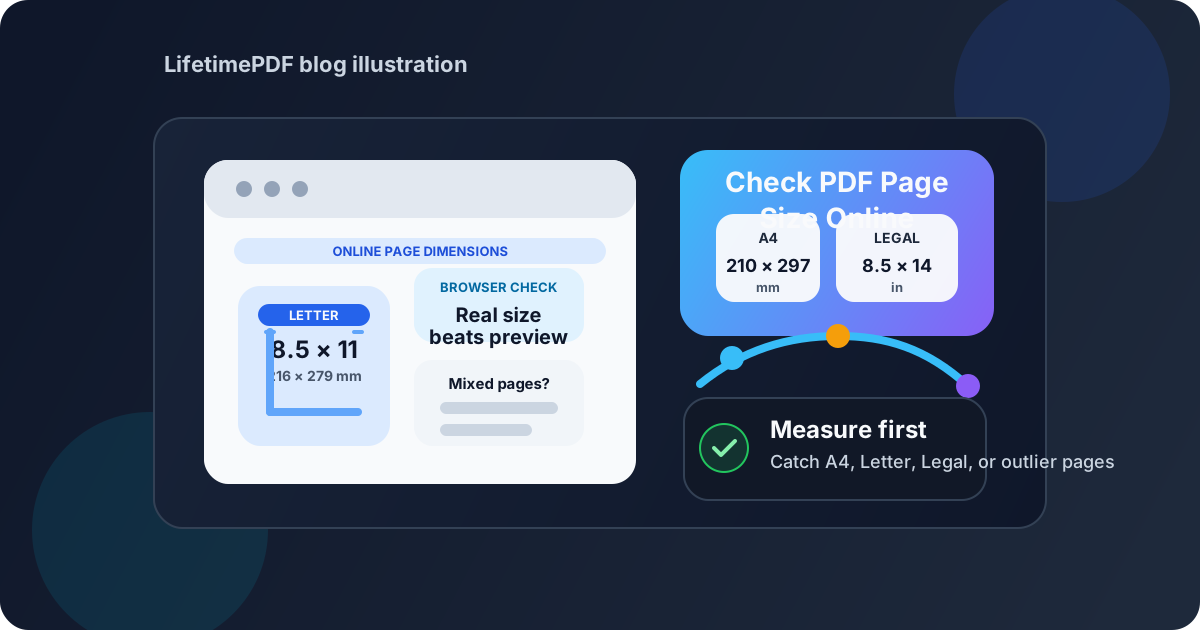
Table of contents
- Quick start: check PDF page size online in about 5 minutes
- What an online page-size check can and cannot prove
- Why online previews hide page-size problems
- Step-by-step: practical online workflow
- How to catch mixed-size PDFs before they cause trouble
- When to crop, re-export, or leave the PDF alone
- Related LifetimePDF tools and guides
- FAQ
Quick start: check PDF page size online in about 5 minutes
If your real question is does this PDF actually match the paper size or portal requirement before I send it?, use this order:
- Open the exact PDF copy you plan to print, upload, email, merge, or archive.
- Read the stored dimensions in View PDF Properties or another page-box view instead of judging the file by browser zoom.
- Confirm whether the pages are truly Letter, A4, Legal, tabloid, or custom size.
- Check whether every page matches or whether one outlier is causing the real problem.
- If the content is already correct but the framing is messy, use Crop PDF. If the actual paper format is wrong, re-export or rebuild the file instead.
- Preview one final result so you know the outgoing copy behaves the way the printer, portal, or recipient expects.
What an online page-size check can and cannot prove
An online page-size check is not about eyeballing the page and making a guess. It is about reading the stored page dimensions directly from the PDF and comparing those measurements with the real destination of the file.
That distinction matters because the same document can look calm in a browser tab and still be the wrong size for a print queue, school portal, government upload form, office copier, or mixed-document packet. The useful online workflow is therefore less about "does it look fine here?" and more about "what size will this file actually behave like once another system takes it seriously?"
| Online view | What it helps you confirm | What it cannot safely prove by itself |
|---|---|---|
| Browser preview | The file opens, the pages render, and the document broadly looks intact. | That the real stored page dimensions match Letter, A4, Legal, or another required format. |
| PDF properties or page-box view | The exact page dimensions carried by the PDF. | Whether the destination itself actually wants those dimensions unless you compare them with the real job. |
| Upload portal preview | How one website currently presents the file. | Whether the PDF will print correctly later or whether hidden outlier pages remain inside the document. |
| Crop or cleanup tool | Whether borders, marks, or extra padding can be removed cleanly. | Whether the underlying paper format itself is correct if the real problem is A4 versus Letter or another size mismatch. |
Why online previews hide page-size problems
Online previews are designed to be comfortable, not forensic. They scale, center, and smooth out the document so you can read it quickly. That convenience is helpful for review, but it also hides the difference between a PDF that only looks fine and a PDF that is actually the right physical size.
A4 vs Letter gets hidden easily
Those sizes look close enough on screen that many people never notice the mismatch until margins shift, text shrinks, or a printer scales the page in an unexpected way.
One rogue page can hide inside a large file
Merged packets often contain one Legal appendix, one oversized scan, or one custom export that quietly breaks the otherwise normal-looking document.
Borders can fake a size problem
Scanner padding, crop marks, or oversized white margins can make a perfectly correct page size feel wrong when the real issue is framing rather than format.
Portals often show only the symptom
A portal may reject the file or preview it awkwardly without explaining whether the cause is mixed pages, the wrong paper standard, or extra border space.
The main lesson is simple: visual comfort is not the same thing as dimensional truth. A clean-looking online preview is nice. A correct stored page size is what actually saves the workflow.
Step-by-step: practical online workflow
The goal is not to overcomplicate a simple check. It is to get from uncertainty to a dependable answer before the file reaches a printer, portal, teammate, or client who notices the problem for you.
1) Start with the exact outgoing PDF
If you inspect one copy but upload another, the whole check becomes decorative. Use the final version that will actually leave your hands.
2) Read the real page dimensions instead of trusting zoom
Use View PDF Properties or a similar workflow that reveals the document's stored dimensions. Inches, millimeters, or points are all fine. The important part is reading the actual measurement, not inferring it from how large the page looks in the browser.
3) Compare the result with the real destination
Ask one plain question: does this size match the job? A custom page is not automatically wrong. It is only wrong when the destination expects something else, such as Letter for a US office workflow or A4 for an international upload requirement.
4) Check whether every page matches
Mixed-size PDFs are where a lot of time gets lost. A file can feel stable because page one is fine while page seven is slightly taller, wider, or padded with scan borders. If the workflow matters, inspect beyond the first page.
5) Look at the page boxes when the file seems "almost right"
If the paper size appears correct but the page still looks off, review Check PDF Page Boxes, Check PDF Crop Box, and Check PDF Bleed Box. Sometimes the true issue is framing, bleed, or crop boundaries rather than the underlying paper format.
6) Test one final preview after the fix
Whether you cropped borders or rebuilt the file, open the corrected PDF once more. That quick confirmation step catches the common mistake where the change was made to the wrong copy or did not stick in the exported result.
Reliable sequence: inspect dimensions, compare them with the real destination, check for mixed pages, then crop borders or re-export only when the measurement gives you a reason.
How to catch mixed-size PDFs before they cause trouble
Mixed-size files are the quiet troublemakers of page-size work. The document may be mostly correct, yet still fail because one inserted page came from a scanner, slide deck, contract appendix, or another regional paper standard.
| Signal | What it usually means | Best next move |
|---|---|---|
| One page prints with wider white borders | A single page may use a different size or carry extra padding from a scan. | Check the dimensions page by page, then crop only if the underlying paper size is already right. |
| The file previews fine online but the portal rejects it | The destination may require one exact format and the PDF may contain one outlier page. | Review the full document for Letter, A4, Legal, or custom-size mismatches. |
| The PDF looks slightly smaller after printing | A4-versus-Letter scaling is one of the likeliest causes. | Compare the measured page size with the paper or print setting the workflow actually expects. |
| The content is right but the page feels oversized | The issue may be crop marks, scanner borders, or a generous crop box rather than a true size mismatch. | Inspect page boxes and crop the framing instead of rebuilding the whole file blindly. |
This is why a good page-size check is page-aware, not just document-aware. The file is only as predictable as its most inconsistent page.
Common shortcut that backfires
Do not assume page one represents the whole PDF. Large packets, merged reports, and scan bundles often hide the real problem deeper in the file.
When to crop, re-export, or leave the PDF alone
Once you know the real size, the decision usually becomes simpler. The right fix depends on whether the issue is framing, paper format, or nothing at all.
Crop it
The page size already matches the destination, but the file includes extra margins, scanner padding, or crop marks that make it feel wrong.
Best move: use Crop PDF or follow Remove Crop Marks From PDF.
Re-export or rebuild it
The actual paper format is wrong for the destination, such as A4 when the workflow truly needs Letter, or a custom layout when the portal wants a standard page.
Best move: fix the source document or export settings instead of treating a format problem like a border problem.
Leave it alone
The page dimensions are already correct for the job, even if they are unusual or custom.
Best move: stop editing. A nonstandard size is not a mistake when the workflow actually requires it.
- Crop when the content is right but the page is padded or marked.
- Re-export when the true paper size is wrong for the destination.
- Leave it alone when the dimensions already match the real task, even if they are not a standard office size.
FAQ
How do I check PDF page size online?
Open the exact PDF in a browser-based properties or page-box workflow and read the real stored dimensions in inches, millimeters, or points. That tells you the actual page size the file carries into print and upload workflows.
Can I check PDF page size online without installing software?
Yes. A browser-based PDF properties workflow is often the quickest way to inspect page dimensions before the file leaves your hands.
Why does a PDF look normal online but print at the wrong size?
Because online previews usually scale pages to fit the screen. The stored dimensions may still be A4, Letter, Legal, mixed-size, or padded with borders that only become obvious during print or upload.
How can I tell whether a PDF mixes page sizes?
Check more than the first page. Large packets and merged files often hide one outlier page that behaves differently even though the preview looks consistent at first glance.
Should I crop a PDF or resize it when the page size seems wrong?
Crop when the content is already correct but the page includes extra margins, scanner padding, or marks. Resize or rebuild only when the underlying paper format itself is wrong for the destination.
Check the real dimensions before the PDF surprises you later.
The cleanest online workflow is simple: inspect the stored page size, compare it with the real destination, fix only the actual problem, and send the PDF forward with fewer unpleasant surprises.
Published by LifetimePDF — Pay once. Use forever.