Check PDF Artifacts: Keep Decorative Noise Out of the Reading Order
To check PDF artifacts, confirm decorative items such as divider lines, background shapes, repeated ornaments, and other visual-only elements are not being exposed as meaningful reading content.
If decorative noise is being read aloud, extracted like body text, or allowed to interrupt navigation, repair the structure or source file before you share, publish, archive, or submit the PDF.
That is the short answer. The useful part is knowing how to tell the difference between decoration that should stay quiet and content that looks small or repetitive but still matters. Artifact work is not about hiding inconvenient material. It is about keeping screen readers, text extraction, and keyboard navigation focused on what a human actually needs to understand.
Fastest practical path: check whether decorative clutter shows up in extracted text or reading order, make sure meaningful labels were not hidden, then run an accessibility review before you call the PDF done.
In a hurry? Jump to quick start: check PDF artifacts in about 8 minutes.
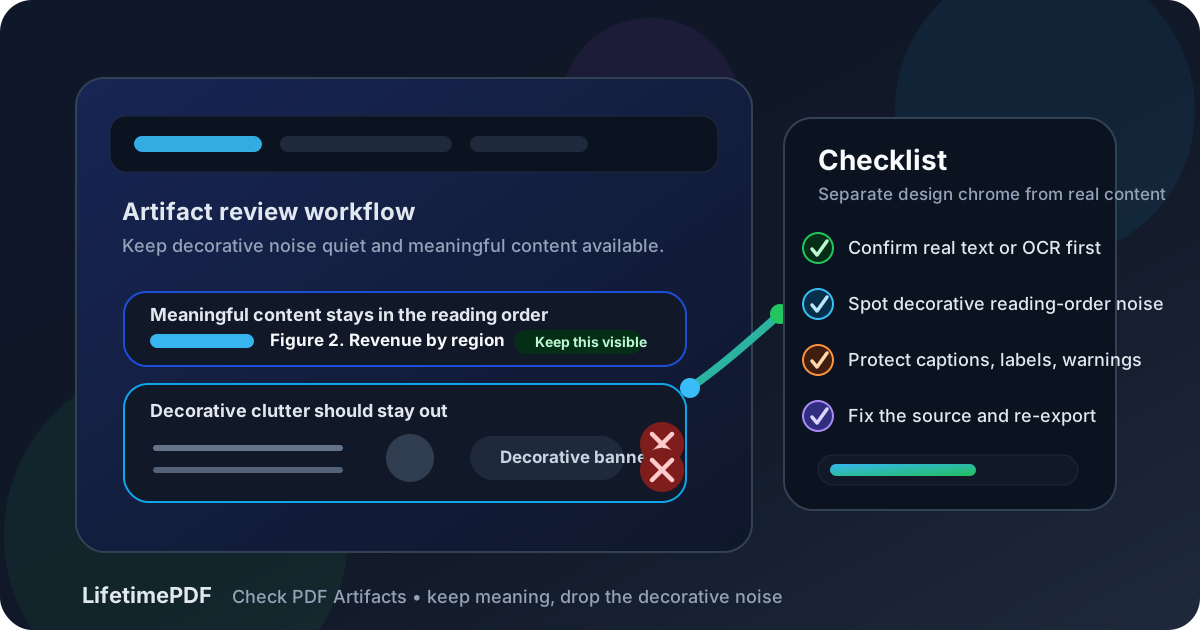
Table of contents
- Quick start: check PDF artifacts in about 8 minutes
- What PDF artifacts actually are
- What should usually be an artifact and what should not
- Step-by-step: practical PDF artifact review workflow
- Common PDF artifact failures
- Scans, slide decks, dashboards, and other tricky files
- When to fix the source instead of patching the PDF
- Final checklist before you publish or share the PDF
- Related LifetimePDF tools and guides
- FAQ
Quick start: check PDF artifacts in about 8 minutes
If your goal is simply tell me whether this PDF is cluttering the reading order with decorative junk, this fast review catches the most common failures:
- Confirm the PDF has real selectable text. If it behaves like an image, run OCR first.
- Use PDF to Text and skim for repeated lines, separators, stray symbols, or ornamental labels that do not belong in the content flow.
- Check whether decorative backgrounds, borders, divider graphics, or repeated footer clutter are getting exposed as real content.
- Verify that meaningful items such as captions, warning icons, chart legends, step numbers, or labels were not hidden as if they were decoration.
- Run PDF Accessibility Checker and spot-check the pages where layouts are densest: title pages, dashboards, charts, forms, and repeated templates.
- If the export is noisy, fix the source and regenerate the PDF instead of repeatedly cleaning up the final file by hand.
What PDF artifacts actually are
In practical terms, a PDF artifact is something visible on the page that does not need to behave like meaningful reading content. Think decorative rules, ornamental shapes, background flourishes, crop marks, repeated separators, or other visual scaffolding that helps the design but does not carry the document's message.
That matters because assistive technology and extraction tools can become noisy fast when decoration leaks into the reading order. A sighted reader may ignore a faint divider line or repeated motif automatically. A screen reader or raw text extraction cannot rely on taste or visual context. If the file exposes too much decoration, the PDF feels cluttered, confusing, and harder to trust.
Artifacting is not the same as deleting content
This is the part teams often get wrong. Artifacting is meant to suppress visual-only noise, not to hide anything that contributes meaning. If an item helps identify a chart, explain a warning, label a field, or distinguish a step in a process, it may still matter even if it looks small, repetitive, or decorative at first glance.
What should usually be an artifact and what should not
The fastest way to review artifact behavior is to separate the page into two mental buckets: visual support and meaningful content. The catch is that some elements can fall into either category depending on context.
| Element | Usually artifacted when… | Keep as meaningful content when… |
|---|---|---|
| Divider lines and ornamental shapes | They only separate sections visually. | They almost never need to be exposed unless they carry a meaningful label or state. |
| Repeated headers and footers | They add branding or template polish without helping understanding. | They contain useful context a reader truly needs, such as section identity in a long manual. |
| Page numbers | They are redundant clutter in a layout that already provides better navigation. | They help orientation, citation, review, or printed reference. |
| Icons | They are purely decorative flourishes. | They signal meaning such as warning, success, status, or category. |
| Captions, legends, labels, step numbers | Rarely. These are often hidden by mistake. | They explain images, charts, workflows, or controls and usually must remain available. |
The point is not to memorize a rigid list. The point is to ask whether the element is helping readers understand the document or merely decorating the page.
Step-by-step: practical PDF artifact review workflow
1. Confirm the file is not just a flattened image
If the entire page behaves like a picture, you cannot reliably judge artifact behavior yet. Run OCR PDF first so the file has a text layer you can inspect. OCR will not solve every structure problem, but it gives you something real to review instead of a single flat snapshot.
2. Inspect extracted text for obvious noise
Use PDF to Text as a diagnostic shortcut. If the extracted output is stuffed with repeated separators, isolated symbols, decorative labels, or template leftovers, there is a good chance the PDF is exposing visual noise that should have stayed quiet.
3. Check the dense pages, not only the clean ones
Artifact mistakes often hide on title pages, dashboards, charts, forms, and pages with layered branding. A plain text-heavy page can look fine while the busiest pages still leak decorative clutter into the reading order. Review one simple page, one medium-complexity page, and one visually dense page before you decide the file is clean.
4. Make sure meaningful items were not hidden as decoration
Over-cleaning causes its own damage. Check whether figure labels, chart legends, warning icons, caption text, footnote markers, step labels, or form hints are still present and understandable. If something explains content or changes how a reader interprets the page, it should not disappear just because it looks small or repetitive.
5. Run an accessibility check as triage, not as blind authority
PDF Accessibility Checker helps you surface structural trouble quickly. Then compare that with what you saw in extracted text and in the visible document. The best artifact review combines automation with judgment, because a machine cannot fully understand intent, redundancy, and reader context on its own.
6. Repair the source and re-export if the PDF is fundamentally noisy
If the clutter comes from a template, slide deck, report generator, or design file, the cleanest fix is usually upstream. Move the file into editable form with PDF to Word when helpful, repair the source, and export a cleaner version with Word to PDF or the original authoring workflow.
Reliable sequence: OCR if needed, inspect extracted text, review the busiest pages, confirm meaningful content still survives, then repair the source and retest the final PDF.
Common PDF artifact failures
Most artifact problems fall into a few repeat patterns. Once you know the patterns, you can spot them much faster.
| Failure | What goes wrong | Better approach |
|---|---|---|
| Decorative lines exposed as content | Readers hear or extract noise that adds nothing to meaning. | Keep visual separators quiet so the reading flow stays focused. |
| Repeated branding clutter in the reading order | Headers, footers, and template ornaments interrupt comprehension on every page. | Preserve only the repeated elements that genuinely help orientation. |
| Meaningful icons hidden as decoration | Warning, status, or process cues disappear for non-visual readers. | Keep icons or their text equivalents available when they carry meaning. |
| Captions or labels treated like visual extras | Charts, images, and figures lose context even though the PDF still looks polished. | Keep labels, legends, and captions attached to the content they explain. |
| Cleanup done only in the final PDF | The next export recreates the same clutter and wastes time. | Fix the source template or authoring workflow so the export improves permanently. |
A useful gut check is this: if the extracted text feels like it is narrating the page decoration instead of the document's message, the artifact behavior needs work.
Scans, slide decks, dashboards, and other tricky files
Some PDFs are much more likely to have artifact trouble than others. Knowing the usual danger zones helps you review faster.
Scanned PDFs
Scans often begin as one giant image, so the first task is restoring a usable text layer with OCR. After OCR, inspect whether the file still contains meaningless debris from stamps, borders, or page furniture.
Slide-deck exports
Slide PDFs love decorative shapes, repeated layouts, background graphics, and oversized branding. They often look crisp while still leaking decorative clutter into the reading order or hiding small-but-meaningful labels.
Dashboard and report exports
Generated reports can repeat legends, page chrome, section banners, and widget labels in awkward ways. They deserve extra attention because dense visual systems are exactly where decorative noise and meaningful signals get mixed together.
Forms and procedural documents
In forms, what looks decorative may actually be instructional. A tiny symbol, field hint, or numbered step can matter more than a large heading. Do not over-artifact simply because a page feels visually repetitive.
When to fix the source instead of patching the PDF
Source-first repair usually wins when the clutter comes from the template, brand system, or export workflow rather than one isolated mistake. If the same ornament, footer block, or decorative icon appears across the whole file, you will save time by fixing the source rather than fighting every page in the final PDF.
Repair the source when:
- the same decorative clutter repeats on many pages
- captions, legends, or labels are being hidden inconsistently
- the PDF came from PowerPoint, Canva, Word, HTML, or a report generator you still control
- the file will be revised again later
- artifact problems show up alongside reading-order, alt-text, heading, or table issues
Artifact review works best as part of a wider structure check. Pair it with reading order, alt text, headings, tables, and a broader tagged-PDF check. Decorative noise rarely travels alone.
Final checklist before you publish or share the PDF
- The PDF has real searchable text, or OCR was completed first.
- Decorative lines, shapes, and repeated visual flourishes are not polluting the reading order.
- Meaningful labels, captions, legends, icons, and instructions are still available to readers.
- Dense pages such as title pages, forms, charts, and dashboard exports were checked deliberately.
- Repeated template clutter was reviewed across the whole document, not just page one.
- The source file was repaired when the noise came from the export workflow.
- The final PDF was retested after export instead of being assumed correct.
Related LifetimePDF tools and guides
Useful tools
Need a cleaner accessibility workflow without bouncing between scattered fixes? LifetimePDF brings accessibility checks, OCR, source-recovery tools, and export utilities into one pay-once toolkit.
FAQ
How do I check PDF artifacts quickly?
Confirm the file has real text, inspect extracted output for decorative noise, review the visually dense pages, and make sure meaningful labels or warnings were not hidden as if they were only decoration.
What is a PDF artifact in plain English?
It is something visible on the page that supports the design but does not need to behave like real reading content, such as a decorative divider, background flourish, or repeated ornamental element.
Are page numbers always supposed to be artifacts?
No. Some page numbers help orientation or citation, while others are just repeated template clutter. They need context and judgment rather than a blanket rule.
Can artifact cleanup accidentally hide important information?
Yes. Captions, legends, warning symbols, labels, and step markers can disappear if they are treated like decoration when they actually carry meaning.
Should I fix artifact problems in the final PDF or in the source file?
If you still control the source, fix it there first. A cleaner template or export workflow usually prevents the same noise from coming back in the next PDF.
Published by LifetimePDF — Pay once. Use forever.