Table of contents
- Quick start: edit a PDF in Opera in a few minutes
- What Opera can and cannot do with PDFs
- Opera's built-in PDF viewer vs a real editing workflow
- Step-by-step: edit a PDF from Downloads, Gmail, Google Drive, or Dropbox
- Text edits, forms, signatures, and Opera settings
- How to handle scanned PDFs in Opera
- How to save, share, and secure the final copy
- Common Opera PDF editing problems and quick fixes
- Related LifetimePDF tools and guides
- FAQ
Quick start: edit a PDF in Opera in a few minutes
If the PDF is already on your device and you want the cleanest practical workflow, this is what usually works best:
- Open the exact file in Opera from Downloads, Gmail, Google Drive, Dropbox, or another cloud source.
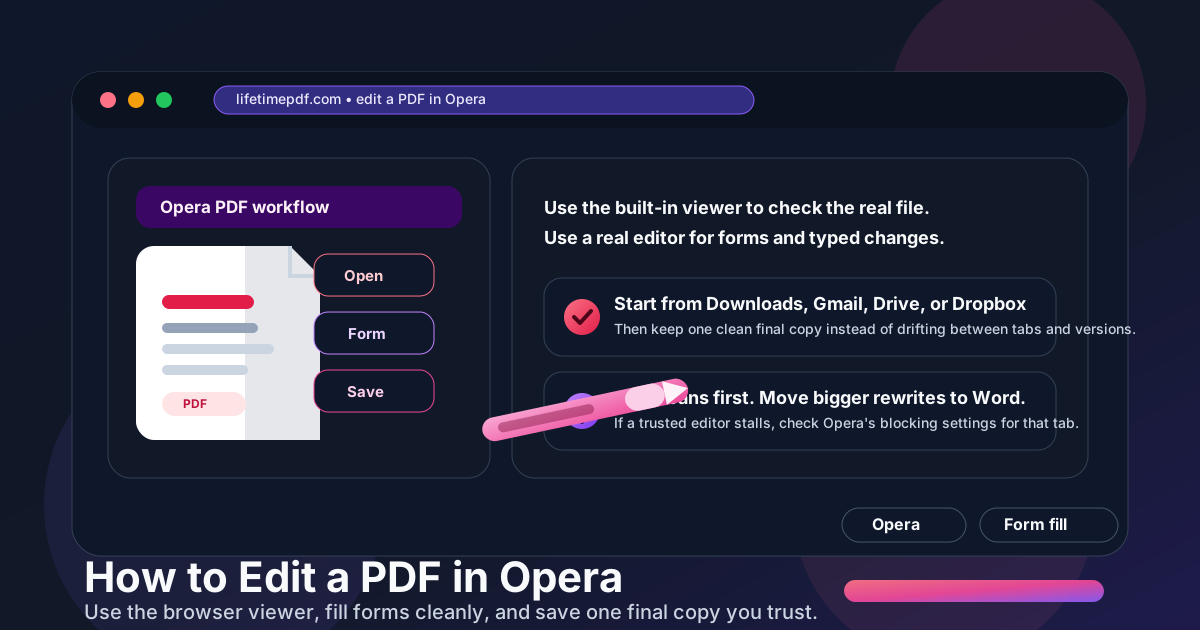
- Use Opera's built-in viewer to confirm you have the right file and decide whether the job is a light form task or a real edit.
- Use Edit PDF or PDF Form Filler in Opera when you want clean placed text, form completion, or a predictable browser save flow.
- If the change is really a rewrite, switch to PDF to Word instead of forcing the job inside a fixed PDF layout.
- If the text cannot be selected, run OCR PDF first.
- If a trusted PDF tool stalls during upload, signing, or download, check whether Opera's privacy or ad-blocking settings are interrupting the workflow for that tab.
- Download the finished copy and reopen it once in Opera before you upload, email, or submit it anywhere.
What Opera can and cannot do with PDFs
Opera is a strong PDF front door because it is fast, familiar, and already sits close to the places many files come from. You open a Gmail attachment, preview a shared link, revisit something from Downloads, or grab a file from Drive, and Opera is already part of the path.
That convenience is real. Opera is good for opening PDFs quickly, reviewing them, zooming in, checking page order, printing, downloading, and making sure the file you are about to work on is actually the right one.
But there is a difference between opening a PDF comfortably and editing it cleanly. Opera makes the first part easy. The second part is still better when you pick the right tool for the kind of change you actually need.
In practice, Opera works best when you split the job into four buckets:
- Viewing and quick checking: excellent inside Opera.
- Form filling and placed text: cleaner through a dedicated browser-based PDF editor used in Opera.
- Bigger rewrites: better in PDF to Word.
- Scanned files: start with OCR PDF before trying to edit anything.
Once you stop expecting the built-in viewer to behave like a full drafting tool, editing a PDF in Opera gets much less frustrating.
Opera's built-in PDF viewer vs a real editing workflow
A lot of PDF confusion comes from treating the browser viewer like it should handle every kind of edit. Opera's viewer is useful, but it is still not the same thing as a purpose-built editing workflow.
| What you need to do | Best Opera-friendly option | Why it usually works better |
|---|---|---|
| Read, review, or double-check a PDF | Opera built-in viewer | Fast, familiar, and ideal for verifying the saved result without leaving the browser. |
| Fill fields, place short text, or complete a document cleanly | Browser-based PDF editor in Opera | You get cleaner text placement and a more predictable save workflow than trying to force the viewer to behave like a layout editor. |
| Rewrite sentences or paragraphs | PDF to Word | Real content rewrites are usually safer outside the fixed PDF layout. |
| Edit a scanned PDF | OCR first | A scanned PDF behaves like an image until text recognition makes it usable. |
| A trusted tool will not upload or download | Check Opera's blocking settings for that tab | Privacy or ad-blocking settings can sometimes interrupt the script, session, or download flow the editor needs to finish the job. |
In plain English: Opera is a great PDF launchpad. It just is not the whole editing stack.
Step-by-step: edit a PDF from Downloads, Gmail, Google Drive, or Dropbox
1) Open the real source file first
This matters more in Opera than people expect. It is easy to click an attachment, preview a cloud file, download another copy, and then edit the wrong version. If the document matters, decide which file is the real source before you change anything.
2) Decide whether the job is review, form filling, or real editing
If you only need to review the PDF, Opera alone may be enough. If you need to fill fields, place text, or make a polished correction, open Edit PDF or PDF Form Filler in Opera.
3) Keep small changes small
Names, dates, initials, checkboxes, totals, or short notes are one kind of edit. Rewriting a contract paragraph, changing a policy section, or rebuilding proposal language is another. Opera feels fastest when you do not ask it to turn a layout-preserving format into a drafting tool.
4) If the editor misbehaves, check settings before you blame the PDF
On a trusted site, Opera's blocking or privacy settings can be the reason an upload spinner never finishes, a login loop repeats, or a generated download does not start. Relax the setting for that tab only when you trust the site and the problem clearly matches a blocked workflow. Then retry the step instead of restarting everything from scratch.
5) Switch to PDF to Word when the edit stops being small
If the text change is growing into a real rewrite, use PDF to Word, make the content changes there, then export back with Word to PDF. That is usually cleaner and faster than wrestling with line breaks inside a finished PDF.
6) Reopen the saved copy once in Opera
Do not skip the final check. Open the finished PDF again in Opera and look at it the way the next person will. This is where you catch clipped text, moved fields, stale filenames, page-order mistakes, or the classic problem where the wrong cloud copy got edited.
Clean sequence: open the source file in Opera → use a PDF editor for typed changes and forms → check blocking settings only if a trusted tool is clearly blocked → move larger rewrites into Word → OCR scans first → reopen the final copy once before sharing.
Text edits, forms, signatures, and Opera settings
Forms and clean placed text
Opera is a comfortable place to handle form-driven PDF work because the document often arrives there first. When the goal is to complete a form, place typed text, or polish a document without a clumsy handoff, PDF Form Filler is usually the better route.
Short text corrections
Small edits can work well through Edit PDF in Opera, especially when you are changing a short line, adding a label, correcting a date, or placing text in a fixed spot. Keep the change modest and check the saved result at normal zoom.
Signatures
If the real job is signing rather than editing, use Sign PDF or Fill and Sign PDF. That keeps the signature workflow separate from deeper text changes and usually gives you a cleaner final file.
Opera settings and trusted PDF tools
Opera is often chosen because people like a faster, tidier browser experience, so there is no reason to weaken those defaults broadly. But if a trusted PDF editor needs cookies to keep a session alive, a popup to start a download, or a script to finish an upload, a blocking setting can interrupt the flow. Adjust it only for that trusted site and only long enough to finish the task.
Bigger text rewrites
Once the change becomes a paragraph rewrite, the smartest Opera workflow is to leave the fixed PDF layer and move into PDF to Word. A PDF is designed to preserve layout. When you try to make it behave like a drafting document, the layout usually starts fighting back.
If you want browser-side comparisons, how to edit a PDF in Chrome, how to edit a PDF in Edge, how to edit a PDF in Firefox, and how to edit a PDF in Brave show where the browser matters and where the editing method matters more.
How to handle scanned PDFs in Opera
Scanned PDFs are where many people blame the browser when the real issue is the file itself. If the page looks fine but the text will not highlight, copy, or behave like text, you are usually working with an image-based PDF.
- Run OCR first if text is not selectable.
- Check names, dates, totals, and signatures carefully after recognition if the scan quality is weak.
- Expect more cleanup when the scan is crooked, shadowed, handwritten, or low-resolution.
- Convert after recognition if the final goal is a bigger content rewrite.
For many people, the biggest win is simply making the file searchable and usable. Once OCR is done, Opera becomes much more useful because the PDF finally behaves like a document instead of a picture.
How to save, share, and secure the final copy
Save the edited PDF with a clear new name
Avoid vague filenames like final-v4-use-this-one.pdf. Use names that tell the truth about the document, such as agreement-edited.pdf, application-completed.pdf, or proposal-revised.pdf. Opera workflows stay much cleaner when the final copy is obvious.
Protect the file if access actually matters
If the PDF should not be casually opened or changed, add a password with PDF Protect after the content is final.
Redact information that should not remain
If private details are visible in the file, use Redact PDF. A visual cover-up is not the same thing as actual removal.
Compress the file before sending if needed
If the PDF got large because of scans or images, shrink it with Compress PDF before attaching it to email, uploading it to a portal, or putting it back into a shared folder.
Common Opera PDF editing problems and quick fixes
The PDF opens in Opera, but I still cannot really edit it
That usually means you are using the viewer for a job that needs a real editing workflow. Open the file in Edit PDF for cleaner placed changes or move it to Word if the job is a deeper rewrite.
The tool keeps spinning or the download never starts
On a trusted site, check whether Opera's privacy or ad-blocking settings are blocking the part of the workflow that finishes the upload or generates the final file. Relax the setting for that tab, retry the step, and then put your usual protection back when you are done.
I edited the wrong Drive or Downloads copy
Start from one source file, save the finished PDF with a fresh filename, and reopen that exact copy once. Opera makes it easy to bounce between tabs, previews, downloads, and cloud versions, which is helpful until you lose track of the real file.
The text still will not select
That is the sign of a scanned PDF. Run OCR first, then try again.
The saved copy looks different from what I expected
Reopen the final PDF in Opera at normal zoom. This catches line-wrap issues, placed text that drifted too close to a border, or a field that looked fine during editing but feels awkward in the real file.
I only need a signature, not a full edit
Use a signing workflow instead of a general editing one. Sign PDF and Fill and Sign PDF are better fits when the document is already finished and just needs completion.
Related LifetimePDF tools and guides
Editing a PDF in Opera often turns into one or two related cleanup steps. These are the most useful companions:
- Edit PDF — start a cleaner browser-based PDF editing workflow.
- PDF Form Filler — handle typed fields, placed text, and form-style completion.
- Sign PDF — add a signature when the document is already final.
- PDF to Word — better for larger rewrites.
- Word to PDF — export a fresh final PDF after editing the source content.
- OCR PDF — turn scans into searchable, selectable files.
- PDF Protect — add password protection to the final copy.
- Redact PDF — remove sensitive information permanently.
- Compress PDF — shrink a bulky final file before sending.
Related reading on LifetimePDF: how to edit a PDF in Chrome, how to edit a PDF in Edge, how to edit a PDF in Firefox, how to edit a PDF in Brave, Edit PDF, and OCR PDF.
Opera shortcut: use the built-in viewer to open and verify the file, use a PDF editor for clean typed changes, check blocking settings only when a trusted site clearly needs it, move bigger rewrites into Word, and OCR scanned PDFs before you try to edit them.
FAQ: How to edit a PDF in Opera
Can I edit a PDF directly in Opera?
Opera is excellent for opening PDFs, reviewing them, and handling light form-style tasks, but cleaner text placement and deeper changes usually work better through a dedicated browser-based PDF editor or by converting the file to Word first.
What is the best way to fill a form or add text in Opera?
Open a browser-based PDF editor in Opera, upload the file, place the text or complete the form cleanly, then download and review the finished copy once before sharing it. That is usually more reliable than trying to force deeper changes inside the browser viewer alone.
Why is my PDF editor not loading or downloading correctly in Opera?
Privacy, cookie, popup, or ad-blocking settings can sometimes interrupt a trusted PDF workflow. If the site is trustworthy and the job keeps stalling, relax the blocking setting for that tab and retry the upload or download.
Can Opera edit scanned PDFs?
Only after OCR. A scanned PDF is mostly an image until text recognition makes it searchable and selectable, so OCR should come first.
Should I use Opera or convert the PDF to Word?
Use Opera and a browser-based editor for forms, signatures, short text placement, and clean final-file workflows. Convert to Word when you need to rewrite sentences, clauses, or larger blocks of text.
Published by LifetimePDF — Pay once. Use forever.