Edit PDF: How to Change Text, Fill Forms, and Fix PDF Files Without Breaking the Layout
To edit PDF files well, use the lightest workflow that matches the document: fill fields directly, convert to Word for real text rewrites, and run OCR first on scanned PDFs.
That approach is faster, preserves layout better, and avoids the classic mistake of forcing every PDF through one editing method when PDFs can behave like forms, fixed layouts, or plain images.
Fastest path: if you know what kind of edit you need, jump straight into the right LifetimePDF tool instead of fighting the file.
Need the short version? Jump to Quick start: edit a PDF in a few minutes.
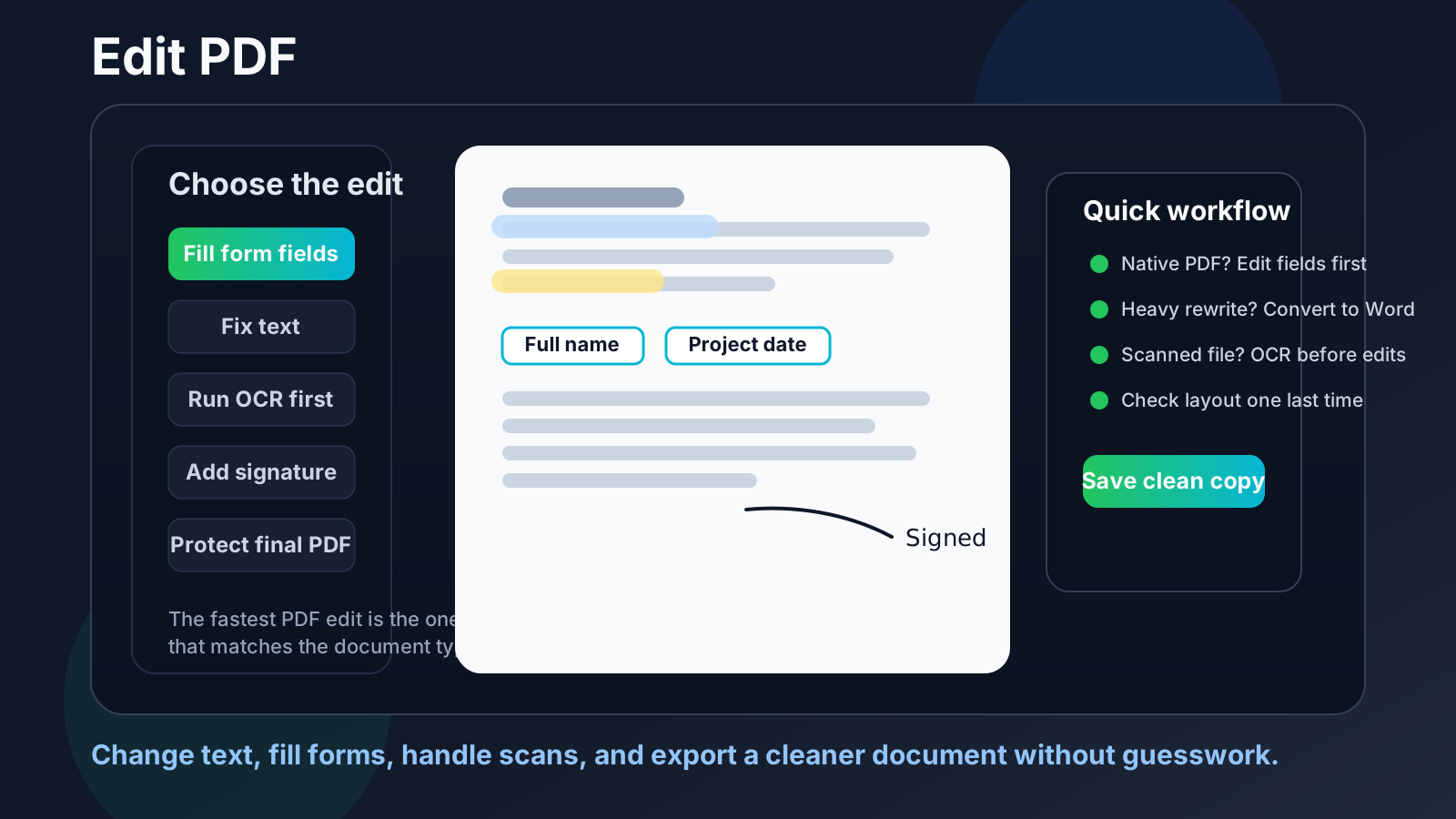
Table of contents
- Quick start: edit a PDF in a few minutes
- What “edit PDF” actually means
- Choose the right workflow before you make the first change
- Step-by-step: edit a PDF with LifetimePDF
- How to edit PDF text without wrecking formatting
- Forms, signatures, metadata, and simple visual fixes
- Scanned PDFs: OCR first, edits second
- Final review checklist before you send the file
- Related tools and articles
- FAQ
Quick start: edit a PDF in a few minutes
If you only need the shortest practical answer, this is the workflow that saves the most time:
- Decide what kind of edit you really need.
- Fillable form, text box, checkbox, or signature: use PDF Form Filler.
- Heavier text rewrite, paragraph replacement, or content refresh: convert with PDF to Word, edit the document, then convert back using Word to PDF.
- Scanned or image-only PDF: run OCR PDF first.
- Make the smallest useful change before you attempt a bigger one.
- Export the updated file and reopen it once.
- Check names, dates, totals, line breaks, page order, and signatures.
- If the document is sensitive, redact or protect it before sharing.
What “edit PDF” actually means
People say “edit PDF” when they mean several completely different jobs. That is why PDF editing feels inconsistent. One file behaves beautifully, the next fights back, and the third turns out to be a flat image that cannot really be edited until OCR happens.
Before you change anything, it helps to sort the job into one of these buckets:
1) Form edits
Best for applications, intake packets, contracts, and checklists where the PDF already includes fields, boxes, or clear places to type and sign.
2) Text corrections
Best for fixing typos, dates, clauses, names, or small copy changes. Bigger rewrites are usually safer in Word than inside the PDF layer.
3) Layout or page changes
Best for deleting pages, reordering them, combining files, splitting sections, or adding related pages before the final PDF goes out.
4) Scanned document recovery
Best for paper forms, photographed pages, or scanned archives where the “text” is really just an image until OCR makes it searchable.
The useful insight is simple: the phrase edit PDF covers all four cases, but the best workflow is different for each one. Once you accept that, the job gets easier.
Choose the right workflow before you make the first change
Here is the practical rule set that prevents most PDF editing headaches:
If the PDF already has fields, do not overcomplicate it
Use a field-based workflow. Typing into the document directly is cleaner than converting the whole file just to fill a name, date, checkbox, or signature line. For that, PDF Form Filler or PDF Field Editor is usually the fastest choice.
If you need to rewrite real body text, go back to an editable format
A PDF is usually designed as a final layout, not a living draft. If you need to change more than a few words, move to PDF to Word, make the rewrite there, then export again with Word to PDF. It is slower by a minute, but faster than chasing broken spacing for half an hour.
If the file is scanned, OCR is not optional
If you cannot highlight text, search it, or select a word, you probably are not looking at editable text. You are looking at an image of a document. Start with OCR PDF, then check the recognition quality before you try to correct anything.
If the real problem is structure, not wording, use page tools
Sometimes “edit the PDF” really means remove a blank appendix, combine two related documents, or split a giant packet into something sane. In those cases, use Delete Pages, Merge PDF, Split PDF, or Extract Pages instead of touching the text layer at all.
One good habit: keep the untouched original until the final copy is approved. It gives you a clean rollback point if a text change, OCR pass, or page move goes sideways.
Step-by-step: edit a PDF with LifetimePDF
If you want a repeatable process that works for most everyday documents, use this sequence:
- Open the PDF and identify the document type. Look for selectable text, fillable fields, scan quality, and whether the file came from Word, Excel, PowerPoint, or a paper scanner.
- Pick the least destructive tool. A smaller change path usually keeps formatting cleaner than a heavy conversion path.
- Make the edit. Fill the field, correct the copy, add the signature, or rearrange pages.
- Export the new PDF. Download it and open it once in a normal viewer, not just inside the editing interface.
- Do a final quality pass. Check the file name, page order, small text, signatures, totals, hyperlinks, and whether any hidden metadata should be cleaned.
If you are editing something high-stakes like a contract, client deliverable, medical intake form, school packet, or court-related submission, spend the extra minute on that final review. Most PDF mistakes are not dramatic. They are tiny and embarrassing: the wrong date, a shifted line break, a hidden comment, a missing signature, or an old title still sitting in metadata.
How to edit PDF text without wrecking formatting
This is where most frustration lives. People expect PDF text to behave like a Google Doc. It usually does not.
A PDF is often the finished output of some other document. Fonts may be embedded. Line wraps are fixed. Paragraph spacing can depend on invisible layout rules. That is why small changes sometimes work fine while big changes create awkward gaps, overflow, or shifted blocks.
Use direct editing for minor fixes
If you are correcting a name, a date, a short phrase, or a field-style line, a direct browser workflow can be enough. Keep the change small and review the page afterward at normal zoom.
Use conversion for larger rewrites
If you are replacing sentences, expanding a paragraph, or changing multiple sections, convert the document first. The most reliable path is PDF to Word, make the rewrite in Word, then export again with Word to PDF.
Whenever possible, go back to the source file
If you still have the original Word, Excel, PowerPoint, or design file, that is usually the best place to make serious edits. Then create a fresh PDF instead of repairing a layout that was never meant to be deeply edited in final form.
If text editing is your main use case, you may also want the narrower guide: Edit PDF Text.
Forms, signatures, metadata, and simple visual fixes
Not every PDF edit is about the visible body text. Some of the most common jobs are simpler and should stay simpler.
Filling forms
Use PDF Form Filler when the document already contains fields or when you need to place typed text and signatures onto a form-style layout. This is often the cleanest workflow for applications, onboarding documents, NDAs, and approval sheets.
Editing form structures or field behavior
If the issue is the field itself rather than the value inside it, open PDF Field Editor. That is the better fit when form elements need to be reviewed or adjusted.
Updating title, author, subject, or keywords
Some documents are “wrong” even when the page looks fine. The content is correct, but the title or author metadata is stale. In that case, use PDF Metadata Editor. It is faster and cleaner than trying to hide the problem through a full document remake.
Signing or protecting the final copy
Once the edits are done, the next step is often approval or delivery. Add signatures with Sign PDF, remove sensitive information with Redact PDF, and lock the final file using PDF Protect if the recipient should not casually alter it.
If your main need is review markup rather than structural editing, see Annotate PDF. Highlighting, comments, and arrows are often better than pretending a review pass is a full rewrite.
Scanned PDFs: OCR first, edits second
A scanned PDF is the place where people lose the most time. They open the file, try to click into a sentence, and assume the editor is broken. It is not. The file is usually just a photo of text.
The fix is to run OCR PDF first so the document becomes searchable and selectable. After that, you can review what the recognition engine found, correct any obvious errors, and decide whether the job needs a text-level edit or a more careful conversion workflow.
- If handwriting is involved, inspect the OCR result more carefully.
- If the scan is crooked, low-resolution, or shadowed, expect more cleanup.
- If exact wording matters, compare the final copy against the original scan side by side.
- If the goal is simply searchability, OCR alone may solve the problem without any deeper edits.
If that is your specific goal, read Make PDF Searchable for a deeper OCR-focused walkthrough.
Final review checklist before you send the file
The editing is not finished when the button says exported. It is finished when the file survives a calm final check.
- Open the exported PDF outside the editor once.
- Check names, dates, totals, and any legally meaningful wording.
- Zoom in on the smallest important text to catch overlap or clipping.
- Confirm the page order if you merged, split, or removed pages.
- Check that signatures appear where expected.
- Remove or fix stale metadata if it matters for sharing or filing.
- Redact sensitive information instead of merely covering it visually.
- Keep the untouched original until the new copy is accepted.
That last point matters more than people think. A clean original is what lets you redo the job quickly if one tiny issue appears after someone else opens the file.
Ready to edit the file now? Start with the tool that matches the document instead of trying to brute-force every PDF through the same process.
Related tools and articles
If your “edit PDF” task turns out to be more specific than you thought, these pages usually cover the next best step:
- PDF Form Filler - complete forms, add typed text, and place signatures.
- PDF Field Editor - review and manage PDF form fields.
- PDF to Word - better for deeper copy changes.
- Word to PDF - create the final clean PDF again after larger edits.
- OCR PDF - turn scans into searchable, selectable documents.
- Edit PDF Text - for text-specific changes.
- Annotate PDF - when markup is enough and a full rewrite is unnecessary.
- Make PDF Searchable - for scanned files that need OCR more than editing.
FAQ
What is the best way to edit a PDF?
The best way depends on the file. Fillable forms are easiest to edit directly, larger text rewrites are safer after converting to Word, and scanned PDFs should go through OCR before anything else.
Can I edit PDF text without ruining formatting?
Yes, especially for small corrections. But the more text you change, the more likely the PDF layout will fight back. For heavier rewrites, convert the file, edit the source content, and export a fresh PDF.
How do I edit a scanned PDF?
Start with OCR. A scanned PDF is often just an image, so recognition has to happen before the text becomes searchable or editable in a meaningful way.
Can I fill forms and sign a PDF in one workflow?
Yes. A browser-based form workflow is usually the fastest route for typing into fields, placing signatures, and saving a clean completed version.
Is it safe to edit PDFs online?
It can be, especially if you use reputable tools, keep an untouched original, review the exported file, and protect or redact sensitive information before sharing the result.