Annotate PDF: Add Highlights, Comments, and Clear Markup Without Rewriting the Original File
Yes — you can annotate PDF files by adding highlights, comments, arrows, circles, and notes on top of the page without rewriting the original text.
If your goal is review, feedback, study markup, or client revisions, annotation is usually faster and safer than full PDF editing.
That matters because people often open a PDF thinking they need a heavy editor when what they really need is a clear review pass. A contract needs comments on a few clauses. A proposal needs circles around pricing sections. A class handout needs highlights and margin notes. A scanned form needs a few review marks before it goes back to a teammate. Annotation handles all of that without forcing you into a full rewrite workflow.
Fastest practical path: open the PDF Form Filler, upload the document, add your markup, review the pages once, then download the annotated copy.
Need the short version? Jump to Quick start: annotate a PDF in a few minutes.
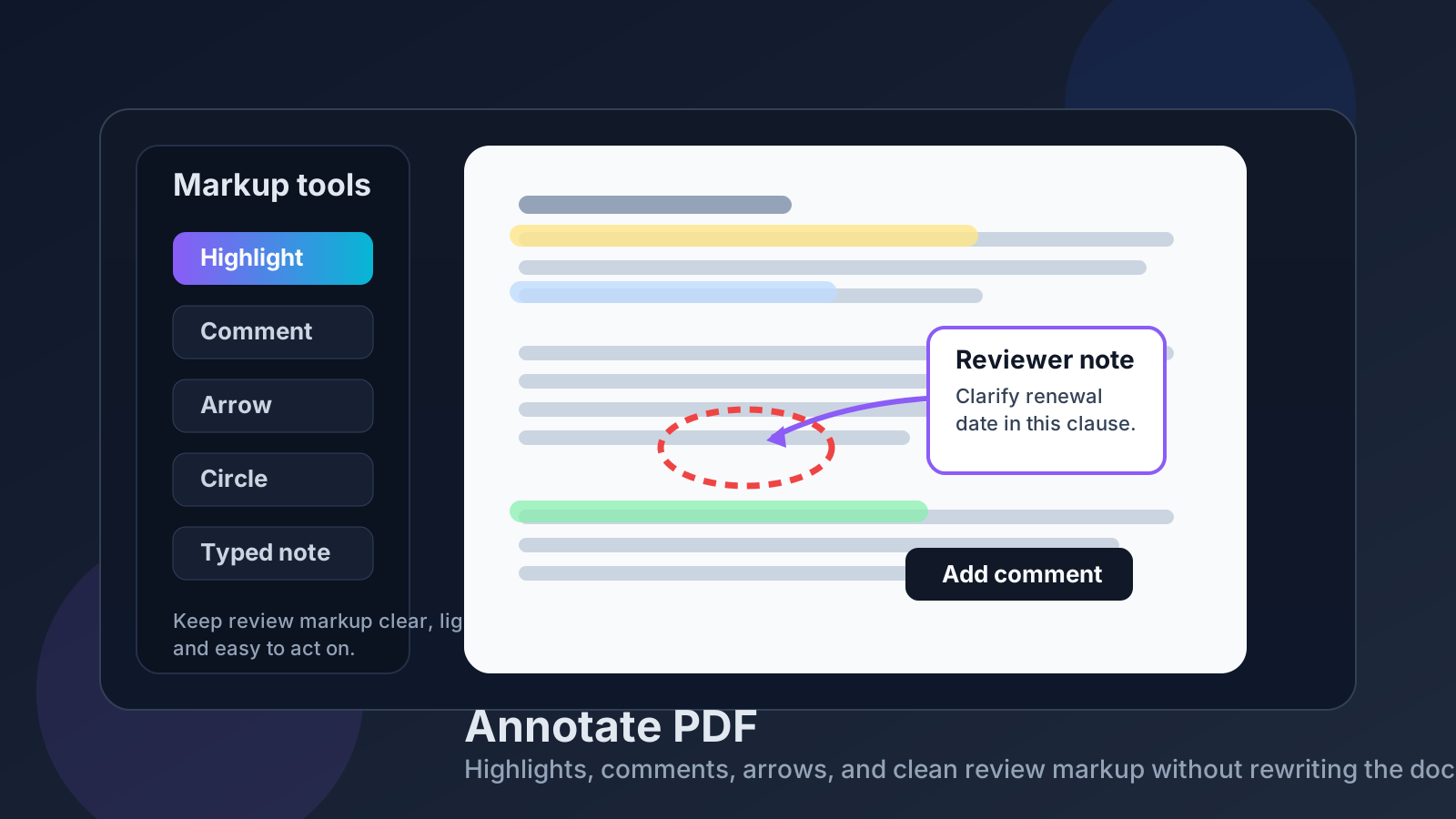
Table of contents
- Quick start: annotate a PDF in a few minutes
- What annotating a PDF actually means
- When annotation is the right move
- Best annotation types for real documents
- Step-by-step: how to annotate a PDF
- Scanned PDFs: OCR before you mark them up
- Common annotation mistakes to avoid
- What to do after annotating a PDF
- Useful LifetimePDF tools for the full workflow
- FAQ
Quick start: annotate a PDF in a few minutes
If you already know you just need to review or mark up a file, the fastest workflow is simple:
- Open PDF Form Filler.
- Upload the PDF you want to review.
- Add the markup that helps the next person act quickly: highlights, notes, arrows, circles, text, or signature fields.
- Scroll through every page once to confirm that your annotations are readable and land in the right spots.
- Download the annotated copy.
- If needed, follow up with PDF Protect, Redact PDF, or Sign PDF.
What annotating a PDF actually means
Annotating a PDF means placing review markup on top of the existing pages instead of replacing the original content. That markup can be as light as a highlight or as specific as an arrow with a typed note explaining what needs to change.
In practice, annotation is what people use when they want the document to remain recognizable while still showing feedback clearly. It works well for contracts, reports, academic reading, internal review rounds, approval workflows, design proofs, and almost any situation where another person needs context more than raw edits.
- Highlights call attention to important lines.
- Comments and notes explain what should change or why something matters.
- Shapes and arrows point directly to problem areas.
- Typed text or checkmarks help with forms, approvals, and review checklists.
That is why annotation is often the cleanest first step. It lets you keep context, preserve layout, and avoid accidental content changes while still giving useful feedback.
When annotation is the right move
Annotation is usually the right choice when the file is already close to final and you mainly need review, explanation, or approval markup.
- Client review: highlight the exact paragraph or price section that needs revision.
- Team collaboration: leave notes on a proposal, policy, or internal report without breaking the layout.
- Study and research: mark evidence, add reminders, and organize key passages for later reference.
- Contract feedback: point out clauses, missing initials, deadlines, or terms that need clarification.
- Form workflows: call out missing fields, signature lines, or attachments before a document goes back out.
If your real goal is changing names, rewriting sentences, replacing whole blocks of text, or rebuilding the document structure, you are probably beyond annotation. At that point, a direct edit, conversion, or form-field workflow may fit better.
Best annotation types for real documents
Not every annotation needs the same visual weight. Picking the right type makes the document easier to review and less cluttered.
Highlights for fast review
Highlights work best when the text itself is important and you only need to draw attention to it. Use them for deadlines, totals, policy language, deliverables, or exam-relevant passages. If everything is highlighted, nothing stands out, so reserve highlights for the truly important lines.
Comments for decisions and context
Comments are stronger than highlights because they explain why something matters. They are ideal when a teammate needs instruction, a client needs clarification, or a reviewer needs to ask a question without rewriting the source file.
Arrows, circles, and boxes for visual precision
Some issues are easier to point to than describe. Boxes work well for layout problems. Arrows help when the issue sits near a chart, signature block, image, or margin item. Circles are useful when you want the next person to focus on one exact field or number.
Typed entries for practical workflows
Sometimes annotation overlaps with lightweight completion. You may need to type a short correction, add a name, place initials, or insert a simple sign-off note. In those cases, a browser tool that blends annotation with form-filling is often more useful than a pure reader.
Step-by-step: how to annotate a PDF
Here is a practical annotation workflow that keeps the file clean and the feedback easy to follow.
1. Start with the final working copy
Upload the exact version you plan to review. That sounds obvious, but a surprising amount of confusion comes from annotating draft three while the team is already looking at draft four.
2. Decide what kind of markup the document needs
Before you start clicking around, decide whether your goal is review, approval, instruction, or completion. That single decision helps you avoid over-marking the file. A study PDF might need highlights and notes. A contract review might need arrows, circles, and comments. A form review might need typed callouts and a signature.
3. Add markup in reading order
Move through the document from top to bottom or page by page. That keeps your thinking organized and makes it easier for the next person to follow the review without bouncing around randomly.
4. Keep each annotation specific
A vague note like “fix this” creates extra work. A better note says “update renewal date to July 31” or “confirm whether this total includes tax.” Good annotations reduce back-and-forth instead of creating more of it.
5. Review visibility before exporting
Look for comments that cover text, arrows pointing to the wrong object, or markings that look obvious on desktop but confusing on mobile. A final pass usually catches the small issues that make feedback harder to act on.
6. Export the annotated copy and name it clearly
Save the reviewed version with a filename that tells people what it is, such as proposal-reviewed, contract-comments, or chapter-4-study-notes. That helps separate it from the untouched original.
Scanned PDFs: OCR before you mark them up
Scanned PDFs are different because the page often behaves like a single image rather than real selectable text. You can still place markup on top of the scan, but text-based actions such as precise highlighting or selecting one exact sentence are usually less reliable.
That is why OCR is often the smarter first step. OCR turns image-only pages into searchable, selectable text, which makes later annotation cleaner and more accurate. If your scan is sideways, skewed, or padded with huge borders, it is worth fixing those issues before OCR so the recognition step has better input.
Working with scanned pages? Run OCR first, then return to annotation once the document behaves more like real text.
Common annotation mistakes to avoid
Annotation looks simple, but a few habits make reviewed files much harder to use.
- Over-highlighting: if entire pages glow, the real priority disappears.
- Covering important content: comments or shapes should not block numbers, names, or legal language.
- Using markup without explanation: a circle alone can be ambiguous; a short comment often saves time.
- Skipping the scan cleanup step: poor-quality image PDFs create messy markup and weaker OCR results.
- Sharing without a final review: always open the exported copy once before sending it out.
The best annotated PDFs feel deliberate. They are easy to scan, easy to understand, and easy for the next person to act on.
What to do after annotating a PDF
Annotation is often just one step in a larger document workflow. After you finish your markup, the next action usually falls into one of four buckets.
- Share it: send the reviewed file back to a client, teammate, or student.
- Sign it: if the review is complete and the document now needs approval.
- Protect it: if the file should travel with limited access.
- Redact it: if the reviewed copy still contains sensitive information that should not leave the organization.
This is where a simple annotation workflow becomes more valuable than it first appears. You can keep the review stage lightweight, then move into protection, signatures, or cleanup only when the document is actually ready.
Useful LifetimePDF tools for the full workflow
If you want a clean browser-based path from markup to finished delivery, these are the most useful follow-up tools.
- PDF Form Filler for adding text, review markup, and lightweight document input.
- OCR PDF for scanned documents that do not behave like real text yet.
- Sign PDF when the reviewed file is ready for a signature step.
- Redact PDF for removing sensitive text before wider sharing.
- PDF Protect for locking down the final copy with extra access control.
Want the easiest annotate-PDF workflow? Start with the browser tool, keep the markup clean, then protect or sign the file only after the review is done.
FAQ
How do I annotate a PDF?
Upload the document to a PDF annotation tool, add highlights, notes, shapes, or typed feedback, then save the annotated copy. This lets you review the file without rewriting the original content.
Can I annotate a PDF without editing the original text?
Yes. That is the main advantage of annotation. You can layer comments and markup over the page while leaving the source wording intact.
What is the difference between annotating and editing a PDF?
Annotation adds review markup like highlights, arrows, and comments. Editing changes the actual text or structure of the PDF itself.
Can I annotate a scanned PDF?
Yes, but scanned PDFs are image-based, so precise text interaction is harder. OCR usually makes the document easier to search, select, and annotate accurately.
What should I do after annotating a PDF?
Download the reviewed copy and then decide whether it should be shared, signed, protected, or redacted before it goes to the next person.