Make PDF Searchable: Turn Scans Into Searchable Text You Can Find, Copy, and Reuse
Yes — you can make PDF searchable by running OCR so image-only pages gain a real text layer you can search, highlight, and copy.
If search does nothing and text selection feels like dragging over a photo, OCR is usually the missing step.
That matters because a non-searchable PDF slows down almost every useful follow-up task. A contract becomes harder to review. An invoice packet becomes painful to audit. A scanned report refuses to work with summaries or Q&A tools. A school handout cannot be searched for one key term. Once the file becomes searchable, the document stops behaving like a dead image and starts acting like something you can actually work with.
Fastest practical path: clean obvious scan issues, run OCR, test search and copy, then move into the next task only after the text layer is working.
Need the short version? Jump to Quick start: make a PDF searchable in a few minutes.
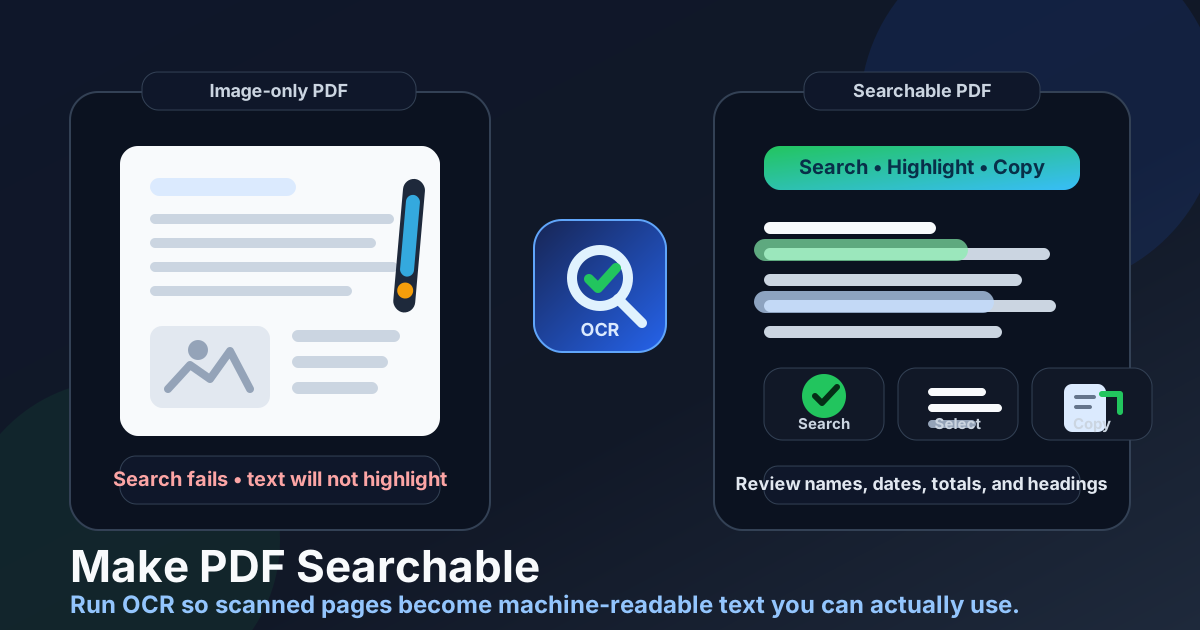
Table of contents
- Quick start: make a PDF searchable in a few minutes
- What it really means to make a PDF searchable
- How to tell if your PDF needs OCR
- Step-by-step: the clean searchable-PDF workflow
- How to improve accuracy before OCR
- What to review before trusting the result
- What to do after the PDF becomes searchable
- Common searchable-PDF problems and fixes
- Privacy and safer document handling
- Related LifetimePDF tools and guides
- FAQ (People Also Ask)
Quick start: make a PDF searchable in a few minutes
If you already know the file is a scan and just want the practical workflow, use this order:
- Open OCR PDF.
- Upload the scanned or image-only file.
- Fix sideways pages or heavy borders first if needed.
- Run OCR so the PDF gains a real text layer.
- Test the result with search, text selection, and copy-paste.
- Review names, dates, totals, headings, and reference numbers before relying on the output.
What it really means to make a PDF searchable
A searchable PDF contains text that software can understand. That lets you search for a clause, highlight a sentence, copy a paragraph, extract the content, or feed the file into later tools without treating every page like a flat image.
A non-searchable PDF usually comes from a scanner, copier, phone camera, fax workflow, or image-based export.
To a human, it looks like a normal document.
To a computer, it is often just a picture of text.
That is why Ctrl+F fails, why copying can return gibberish, and why AI tools sometimes miss obvious content that you can see with your own eyes.
| State of the file | What the software sees | Typical result |
|---|---|---|
| Image-only PDF | Mostly page images | Weak search, poor copying, unreliable extraction |
| Searchable PDF after OCR | Recognized text behind the page | Search, highlight, copy, summarize, and reuse work much better |
How to tell if your PDF needs OCR
Sometimes the problem is obvious. Other times the PDF looks clean enough that people assume it already contains text. These checks are faster than guessing.
1. Search test
Search for a word you can clearly see on the page. If nothing comes up, the file probably needs OCR.
2. Highlight test
Try selecting one sentence. If the whole page behaves like one big image, the text layer is probably missing.
3. Copy test
Copy a short paragraph into a text editor. If you get nothing useful, broken characters, or strange spacing, OCR is often the missing step.
4. AI workflow test
If a PDF summary or Q&A tool gives vague, incomplete, or clearly wrong answers, the real issue may be that the source file is not machine-readable yet. Make the PDF searchable first, then try again.
Step-by-step: the clean searchable-PDF workflow
The best way to make PDF searchable is not to treat it as a mystery button. It works better as a short sequence.
1. Clean the obvious page problems first
If pages are sideways, fix them with Rotate PDF. If there are giant borders, scanner shadows, or wasted space, trim them with Crop PDF. If you only need part of the document, use Extract Pages so you are not processing irrelevant pages.
2. Run OCR on the file
Open OCR PDF and process the document. This is the step that changes the PDF from a visual image problem into a usable text workflow.
3. Confirm that the PDF is really searchable now
Do not stop at the download. Search for a known word, highlight one sentence, and copy one short passage. Those quick checks tell you whether OCR actually created a workable text layer.
4. Review the details that matter most
OCR can be excellent and still make small mistakes in high-risk spots. Check names, dates, totals, clause numbers, headings, invoice references, addresses, and any short code that could change meaning if one character is wrong.
5. Move into the real task
Once the document is searchable, it becomes much easier to summarize, translate, ask questions about, extract into plain text, or archive for later use. The searchable text layer is often the unlock step rather than the final goal.
Best practical sequence: clean the scan, OCR it, verify the text layer, review the risky details, then continue into the next document task.
How to improve accuracy before OCR
OCR quality depends heavily on input quality. A tiny cleanup pass before OCR often saves more time than people expect.
Rotate first when the page is sideways
Upright text is easier to recognize accurately. A fast rotation fix is often worth doing before OCR begins.
Crop heavy borders and dark edges
Scanner shadows, desk backgrounds, and oversized margins can distract recognition. Cleaner page boundaries usually lead to cleaner OCR results.
Use the clearest source you have
If you still have the chance to rescan, better lighting, flatter pages, and less blur can make a visible difference. OCR is good, but better source pages still win.
Process only the pages you actually need
Smaller, focused files are easier to verify and often easier to recognize accurately. You do not need the entire packet if only five pages matter.
What to review before trusting the result
Most OCR mistakes are not spread evenly. They tend to cluster around the details that are hardest to read and most expensive to get wrong. That is why a short review pass matters.
- Names: people, companies, clients, vendors, and locations
- Dates and deadlines: contract terms, due dates, filing dates, and schedule references
- Money amounts and totals: invoices, quotes, receipts, and account summaries
- IDs and reference numbers: invoice numbers, order IDs, claim numbers, serials, and account codes
- Headings and labels: section names, form fields, warning labels, and table headers
If those parts look right, the rest of the output is often good enough to keep moving. If those parts are wrong, the document can create confident but costly mistakes.
What to do after the PDF becomes searchable
Making the file searchable is often the beginning of the useful work, not the end.
Extract plain text
If you need the content outside the PDF, move into PDF to Text after OCR. That is useful for notes, reports, spreadsheets, documentation, and other cleanup workflows.
Summarize or ask specific questions
Once the text layer exists, PDF Summarizer and AI PDF Q&A become much more reliable. A searchable file is far easier to work with than a raw scan.
Translate the document
OCR first, then use Translate PDF. Translation quality is usually better when the source file already contains recognized text.
Protect or redact the finished copy
If the document will be shared onward, use Redact PDF for sensitive details and PDF Protect when you want an extra layer of access control.
Common searchable-PDF problems and fixes
Search still does not work after OCR
The OCR run may have failed, or the source quality may be too weak. Check whether pages were sideways, blurry, shadowed, or heavily cropped in the wrong way.
The text is searchable but messy
That usually means the scan quality was poor or the layout was complex. OCR often gets the words close enough for searching and summarizing even when the formatting looks rough.
Copy-paste works but spacing is strange
That is common with multi-column pages, tables, receipts, and dense forms. The text layer may still be useful even if the visual line breaks are not perfect.
The file is too large to review comfortably
Use Extract Pages to isolate the section you need. Smaller batches are easier to process and validate.
The PDF is locked
If you are authorized to work with it, remove the restriction first using PDF Unlock. Permission barriers can block the rest of the workflow.
Privacy and safer document handling
Many non-searchable PDFs are also the most sensitive kinds of files: contracts, IDs, receipts, invoices, HR records, school documents, and internal business paperwork. That means the workflow should be careful, not just convenient.
- Process only the pages you actually need.
- Trim or isolate the relevant section before OCR when possible.
- Review the recognized text before forwarding it to someone else.
- Redact sensitive data if the outgoing copy should not include it.
- Protect the finished document if it will be stored or shared.
Cleaner workflows are usually safer workflows. The faster you turn the source into the exact usable copy you need, the less duplicated sensitive material you create.
Need the full scan-to-usable-document workflow?
A useful rhythm for sensitive files is clean the scan → OCR → verify → extract or summarize → redact or protect before sharing.
Related LifetimePDF tools and guides
Making a PDF searchable usually works best as one step in a short document workflow. These tools and articles fit naturally around the same job:
- OCR PDF - add a searchable text layer to scans.
- PDF to Text - pull text out once the file is searchable.
- Rotate PDF - fix sideways pages before OCR.
- Crop PDF - remove scanner noise and oversized borders.
- Extract Pages - keep only the pages that matter.
- PDF Summarizer - summarize the content once OCR makes it usable.
- AI PDF Q&A - ask targeted questions after OCR.
- Translate PDF - translate searchable content more reliably.
- Redact PDF - remove sensitive details before sharing.
- PDF Protect - secure the finished copy when needed.
Related blog guides
- Make PDF Searchable Online Free
- Make PDF Searchable Without Monthly Fees
- OCR PDF
- Convert Scanned PDF to Text
- Build a Searchable PDF Archive for Old Paper Files
- Chat with PDF
FAQ (People Also Ask)
How do I make a PDF searchable?
Run OCR on the PDF so the image-only pages gain a real text layer. After that, search, highlighting, and copying should work much more reliably.
Why is my PDF not searchable?
Many PDFs from scanners, copiers, and phone cameras are really just pictures of pages. OCR is what turns those images into text that software can understand.
Will making a PDF searchable change how it looks?
Usually not by much. OCR commonly adds a hidden text layer behind the scanned page, so the visible document can stay nearly the same while becoming searchable.
How do I know if OCR worked?
Search for a visible word, highlight a sentence, and copy a short paragraph into a text editor. If those actions work, the PDF is usually searchable now.
What should I do after making a PDF searchable?
Most people then search the file, extract text, summarize it, ask questions about it, translate it, redact it, or protect the final copy before sharing.