Edit PDF Text: Best Way to Fix Typos, Update Dates, and Keep the Layout Clean
To edit PDF text, open the file in a browser-based PDF editor, change the words you need, then save and review the page so the layout still looks right.
If the PDF is scanned, flattened, or behaves like one big image, run OCR first so the text becomes selectable before you try to edit anything.
Most people searching for PDF text editing are not trying to redesign an entire booklet. They are fixing a real-world problem that is annoyingly small but suddenly urgent: the wrong amount on an invoice, an outdated name in a form, a typo in a proposal, an incorrect date in a notice, a label that should have been changed before the document was sent, or a short sentence that needs to be added before someone signs, reviews, or archives the file. The easiest path is usually a direct edit, but the smartest path depends on what kind of PDF you have in front of you.
Fastest path: edit short text directly, use OCR for scanned files, and switch to Word only if the job turns into a genuine rewrite.
In a hurry? Jump to Quick start: edit PDF text in a few minutes.
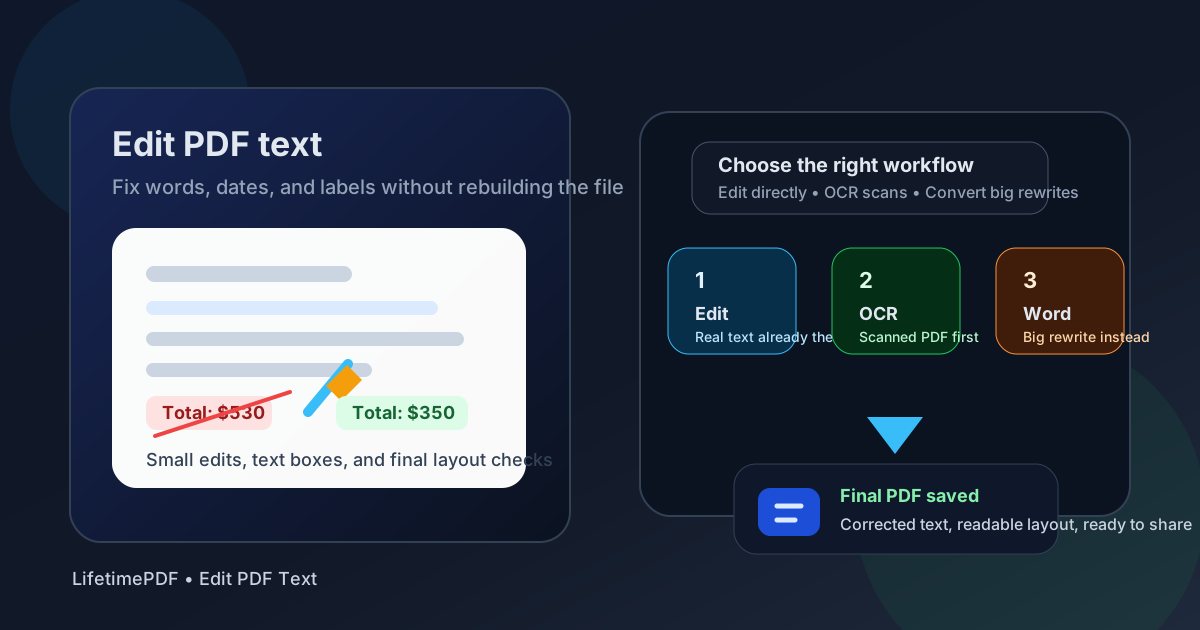
Table of contents
- Quick start: edit PDF text in a few minutes
- What editing PDF text really means
- When direct PDF text editing works well
- Step-by-step: how to edit PDF text
- What to do with scanned or locked PDFs
- When converting to Word is the smarter move
- Review habits that keep the final file trustworthy
- Related LifetimePDF tools and internal guides
- FAQ (People Also Ask)
Quick start: edit PDF text in a few minutes
If you only need the dependable workflow, keep it simple:
- Open Edit PDF.
- Upload the PDF you actually plan to send or save.
- Click into the text you need to change, or add a text box for a short addition.
- Make the correction and check nearby spacing, alignment, and line breaks.
- Download the file and reopen it once before sharing it.
What editing PDF text really means
PDF text editing sounds broader than it usually is. In practice, it works best for surgical changes: one word, one date, one amount, one label, one sentence, one field, or one small note. It can absolutely solve real problems quickly, but it is not the same thing as opening a Word document and rewriting a page however you like.
The reason is structural. PDFs are designed to preserve layout, not invite endless revision. That is exactly why they are good for contracts, receipts, applications, forms, proposals, and finalized reports. It is also why large edits can become awkward fast if you try to make a rigid PDF behave like a word processor.
| Situation | Best workflow | Why it makes sense |
|---|---|---|
| Typo, name, date, total, label, or short sentence | Edit the PDF directly | Fastest path with the lowest chance of introducing unnecessary file changes |
| Scanned or photographed PDF | Run OCR first | You need a real text layer before search, selection, and editing behave normally |
| Password-protected or locked file | Unlock it first if you have permission | Editing restrictions can block text changes even when the document itself is otherwise fine |
| Paragraph-heavy rewrite or formatting overhaul | Convert with PDF to Word | Large edits are easier, safer, and cleaner in a document editor |
When direct PDF text editing works well
The best candidates for direct editing are boring in the best possible way: files that already contain selectable text and only need a few practical fixes before they go out the door.
Good fits for editing PDF text directly
- Invoices and estimates: update a number, date, item label, or client detail.
- Applications and forms: fix a typo, add a missing word, or correct a short response.
- Client proposals: repair a name, timeline, figure, or small wording issue before sending.
- Internal reports: adjust a heading, caption, or explanatory note without rebuilding the file.
- Signed packets with one non-signature correction: make the smallest allowed fix and review the surrounding page carefully.
Cases where direct editing is usually the wrong tool
- Scans with no text layer: OCR is the real first step.
- Long paragraph rewrites: use PDF to Word.
- Layout-sensitive brochures or dense catalogs: small text changes can push spacing in ugly ways.
- Files with strong edit restrictions: unlock them first if you are authorized to do so.
Simple decision rule: short correction = edit the PDF, scan = OCR first, large rewrite = convert to Word.
Step-by-step: how to edit PDF text
Once you know the PDF is a good candidate for direct editing, the actual process is straightforward. The quality comes from choosing the smallest useful change and reviewing it immediately.
1. Start with the exact file that matters
It sounds obvious, but many mistakes happen because someone edits an old copy, downloads a corrected version, and later emails the untouched file from another folder. Use the version you truly plan to send, archive, or upload.
2. Test whether the text is really editable
Click into the line you want to change. If the cursor behaves reasonably or the text highlights in a sane way, you are in good shape. If the whole page behaves like one big picture, switch to OCR instead of wasting time.
3. Make the smallest useful correction first
Replace the typo, adjust the date, correct the amount, or add one short text box. Small changes usually preserve the surrounding layout better than aggressive rewrites. If the new text is much longer than the old text, expect the page to push back.
4. Check the nearby layout right away
After every important edit, inspect line wrapping, table cells, headings, form boundaries, page edges, and any signature or total area nearby. Most PDF editing problems are not content problems. They are spacing problems that only become obvious after the file is sent.
5. Save and reopen the result once
Reopening the saved file catches more issues than people expect. If the corrected PDF still looks calm and readable after a fresh open, it is usually ready to share.
- Open Edit PDF.
- Upload the file.
- Change the needed text or add a short text box.
- Download the updated PDF.
- Reopen it and inspect the changed areas.
- If accuracy matters, compare versions with Compare PDFs.
What to do with scanned or locked PDFs
Many failed PDF editing attempts are not actually editing failures. They are workflow failures. The user is trying to edit something that first needs OCR or unlocking.
Scanned PDFs
If the page came from a scanner, copier, or phone camera, the visible words may not be real text at all. That is why search fails, copying feels broken, and editing seems impossible. In that case, start with OCR PDF so the document gains a searchable text layer.
Locked or restricted PDFs
Some PDFs open normally but still block editing because the file has restrictions. If you are authorized to work on the document, use Unlock PDF first. Once the restriction is removed, direct editing often becomes much simpler.
Stuck because the file will not cooperate? The problem is often the document state, not the editor itself.
When converting to Word is the smarter move
Direct PDF editing is ideal for corrections. It is usually a bad bargain for true rewrites. If you keep changing sentence after sentence, fighting line breaks, nudging text boxes, or repairing page flow after every edit, the job has already outgrown direct PDF text editing.
Convert with PDF to Word when you need to:
- rewrite several paragraphs
- restructure pages or sections
- rebuild lists, headings, or tables
- apply formatting changes across the document
- treat the file like an active draft rather than a finished PDF
There is no prize for forcing a rigid file to behave like a word processor. The smarter workflow is the one that preserves both your time and the final document quality.
Review habits that keep the final file trustworthy
A corrected PDF is only useful if the finished file still looks believable. People trust documents that feel clean, aligned, and intentional. Even a correct edit can create doubt if the spacing around it looks clumsy.
- Keep the untouched original: you should always be able to roll back.
- Check changed areas twice: once immediately after editing and once after reopening the saved PDF.
- Compare versions when the stakes are high: use Compare PDFs for contracts, policies, or approval files.
- Redact instead of covering: if you need to remove sensitive information permanently, use Redact PDF.
- Use form tools when appropriate: some edits belong in structured fields rather than freehand page text.
- View the result at normal zoom: the real test is whether the document still feels polished when someone else opens it naturally.
Related LifetimePDF tools and internal guides
Editing PDF text usually sits inside a wider workflow. These tools and related articles pair naturally with the same job:
- Edit PDF - make direct text changes and add short text boxes.
- OCR PDF - turn scanned pages into selectable, searchable text.
- PDF to Word - better for heavy rewrites and formatting work.
- Unlock PDF - remove editing restrictions when you have permission.
- Compare PDFs - confirm exactly what changed.
- Redact PDF - permanently remove private data before sharing.
- Edit PDF Text Online - browser-focused version of the workflow.
- Edit PDF Text Online Free - free-use angle for the same job.
- Edit PDF Text Without Monthly Fees - subscription-free positioning for buyers comparing options.
- Unlock PDF for Editing - useful when restrictions block the edit itself.
Ready to fix the file and move on? Make the smallest clean correction, verify the layout, and save a version you can trust.
Best workflow: open the right file → test the text layer → make the smallest edit → review spacing → reopen once before sharing.
Published by LifetimePDF - Pay once. Use forever.
FAQ (People Also Ask)
How do I edit PDF text?
Open a PDF editor, upload the file, replace the text you need to fix or add a short text box, then save and review the updated PDF. If the file is really a scan, run OCR first so the text becomes selectable and editable.
Can I edit text inside a scanned PDF?
Yes, but scanned PDFs usually need OCR before editing works properly. OCR adds a searchable text layer so selection, copy-paste, and direct text correction behave far more normally.
What is the easiest way to fix a typo in a PDF?
Use a browser-based editor, make the smallest correction possible, then check the surrounding spacing immediately. Small edits are usually cleaner and safer than trying to rewrite large blocks of PDF text.
When should I convert the PDF to Word instead?
Convert to Word when you need longer rewrites, repeated formatting changes, paragraph movement, or several pages of edits. Direct PDF text editing is usually best for names, dates, amounts, labels, and short corrections.
How do I avoid breaking the layout when editing PDF text?
Keep the new text close in length to the old text, use text boxes for short additions, review nearby lines and tables after every change, and reopen the saved PDF once before you send it anywhere important.