Edit PDF Text Online: Fix Typos, Dates, and Small PDF Changes Without Breaking Layout
To edit PDF text online, open LifetimePDF's browser editor, upload the PDF, change the existing text or add a text box, then save the updated file.
If the PDF is scanned or behaves like an image, run OCR first so the text becomes selectable before you try to edit it.
For short fixes like names, dates, totals, labels, or typos, that workflow is usually faster than converting the whole document into another format.
Most people looking for online PDF text editing are not rebuilding a 40-page manual. They are fixing one practical problem before the document goes out: a wrong date in a form, a typo in a proposal, an outdated phone number in a brochure, a missing label in a report, or a note that needs to be added before someone signs, reviews, or forwards the file. The right workflow is not complicated, but it does help to know when direct editing works, when OCR is mandatory, and when a PDF is simply too rigid for anything beyond small changes.
Fastest path: use LifetimePDF's browser editor for small text fixes, and switch to OCR first only when the PDF is really a scan.
Need the shortest version? Jump to Quick start: edit PDF text online in a few minutes.
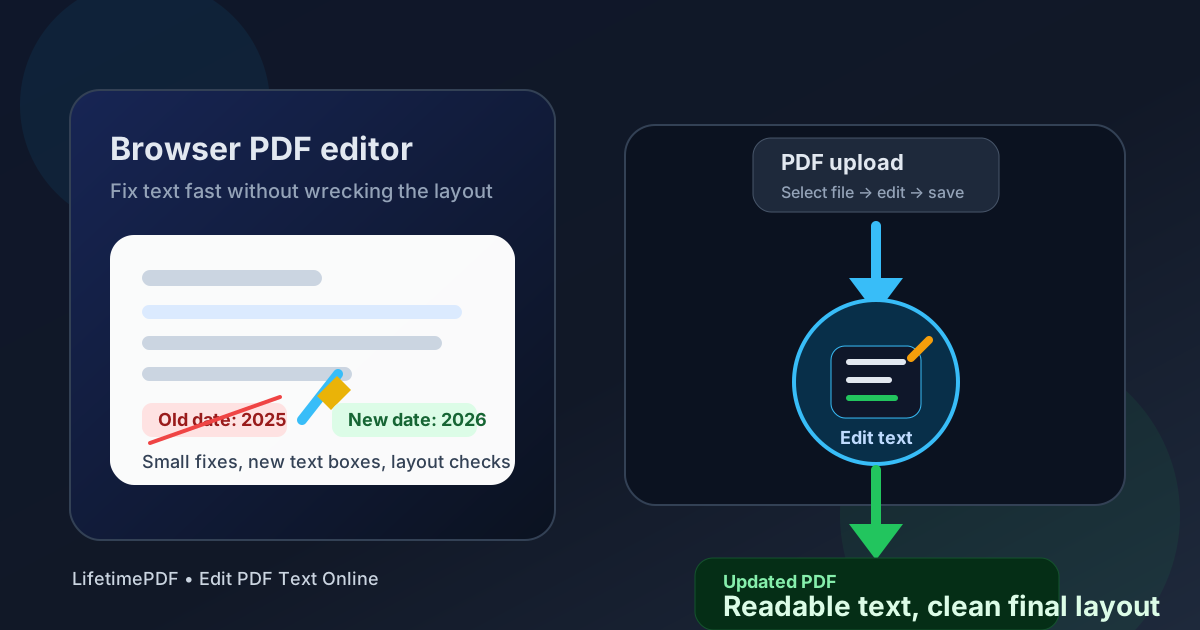
Table of contents
- Quick start: edit PDF text online in a few minutes
- What you can really change in a PDF
- Choose the right workflow before you touch the file
- Step-by-step: how to edit PDF text online
- How to avoid broken formatting and awkward layout shifts
- When OCR is mandatory before editing
- When PDF to Word is the smarter move
- Review habits and document safety tips
- Related LifetimePDF tools and internal links
- FAQ (People Also Ask)
Quick start: edit PDF text online in a few minutes
If your PDF already contains selectable text and you only need a practical fix, this is the fastest dependable workflow:
- Open LifetimePDF's PDF editor.
- Upload the file you need to update.
- Click into the text you want to replace, or add a text box where a short addition belongs.
- Make the correction and review spacing, alignment, and nearby line breaks.
- Download the edited PDF and reopen it once before sharing it.
What you can really change in a PDF
A lot of frustration comes from using the wrong expectation. PDF editing is usually great for corrections and small additions. It is usually worse for heavy rewriting, deep page redesign, or large blocks of text that need to move around.
Good use cases for direct online PDF text editing
- Fixing typos: names, dates, totals, headings, email addresses, phone numbers, and reference numbers.
- Updating short text: replacing outdated wording, changing a deadline, or correcting a title.
- Adding brief notes: labels, reviewer comments, initials, or a missing sentence.
- Form-style updates: entering values into a document that behaves more like a fillable page than a freeform layout.
- Last-mile edits: final document polish before sending a proposal, invoice, application, contract, or report.
Cases where direct editing is usually the wrong tool
- Scanned PDFs with image-only text: run OCR first.
- Large paragraph rewrites: convert with PDF to Word instead.
- Complex layout rebuilding: brochures, catalogs, or multi-column designs often need source-file editing rather than quick PDF corrections.
- Major document restructuring: if you need sections moved across pages, PDF editing becomes fragile fast.
| Situation | Best workflow | Why it works |
|---|---|---|
| Digital PDF with selectable text | Edit directly in the browser | Fastest route for names, dates, amounts, labels, and short sentence-level fixes |
| Scanned or photo-based PDF | Run OCR first | You need a real text layer before editing becomes practical |
| Form or application PDF | Use form-filling or field tools | Fields help keep spacing and alignment stable |
| Heavy rewrite across paragraphs or pages | Convert with PDF to Word | Word processors handle long-form revision better than rigid PDF layouts |
Choose the right workflow before you touch the file
The best way to edit PDF text online is to make one good decision first: Am I changing real text, or am I looking at a picture of text? That answer determines everything that follows.
Workflow 1: direct edit
Use this when the PDF came from Word, Google Docs, Excel, a website export, or another digital source that already contains real text. It is the fastest option for short corrections because you can change the file in place and move on.
Workflow 2: OCR first, then edit
Use this when the file came from a scanner, copier, phone camera, or flattened export. Even if the text looks sharp, the page may still be one large image. OCR adds a readable text layer so search, copy-paste, and editing start to behave normally.
Workflow 3: convert to Word for heavier rewriting
Use this when the document needs more than a cleanup pass. If you are rewriting paragraphs, changing whole sections, or fighting layout after every sentence, direct PDF editing has already stopped being the efficient choice.
Simple decision rule: short fix = edit directly, scan = OCR first, big rewrite = convert to Word.
Step-by-step: how to edit PDF text online
Once you know the PDF is a good candidate for direct editing, the actual workflow is straightforward.
1) Upload the PDF you actually plan to share
Work on the final document version, not a stale draft hidden three folders back. PDF errors often happen because someone edits the wrong copy, then later sends the untouched version by mistake.
2) Test the text before you start making changes
Click into the line you need to change. If the cursor behaves normally or the text selects in a sane way, you are in good shape. If the whole page acts like an image, go to OCR instead of wasting time.
3) Make the smallest useful edit first
Replace the exact word, date, amount, or sentence that needs fixing. This keeps surrounding spacing more stable than trying to rewrite everything at once. If you need to add context rather than replace text, a text box is often cleaner than forcing a long insertion into an already tight paragraph.
4) Review the nearby layout immediately
Tiny edits can create quiet damage around them. Check line breaks, alignment, nearby fields, page edges, bullet indentation, and any signature or total area that sits close to the changed content.
5) Save and reopen the result once
This sounds small, but it catches a surprising number of problems. If the reopened PDF still looks normal, the edit is usually safe to send onward.
- Open PDF editor.
- Upload the PDF.
- Change the existing text or add a new text box.
- Download the edited copy.
- Reopen it and inspect spacing, alignment, and page flow.
- If needed, compare the before-and-after versions with Compare PDFs.
How to avoid broken formatting and awkward layout shifts
Most bad PDF edits are not wrong in meaning. They are wrong in presentation. The number changed, but now the line wraps strangely, the text overlaps a border, or the spacing looks off enough to make the document feel sloppy.
Keep edits tight
Replacing June 4 with June 10 is low-risk. Replacing one short line with a three-sentence explanation is not. If the new content is much longer than the original, expect the layout to push back.
Use text boxes for short additions
When you need to add a note, label, or one missing line, placing a text box in a clean open area is often safer than forcing extra words into a rigid paragraph block.
Watch table cells, totals, and signature areas
These are the places where one extra character can make a document look broken. In invoices, forms, applications, and approvals, neat spacing matters almost as much as the text itself.
Check the file at normal zoom
Zoomed in, almost anything can look fine. The better test is whether the document still feels clean at the zoom level where the next person will actually read it.
When OCR is mandatory before editing
If the PDF came from a scanner, copier, photographed page, or low-effort system export, the visible words may not be real text at all. That is why some people say "the editor is broken" when the real problem is that the page is just an image.
Signs that your PDF needs OCR
- You cannot highlight one word cleanly.
- Search finds nothing, even for obvious words on the page.
- Copy-paste produces garbage or nothing at all.
- The whole page acts like a flat picture.
In that case, start with OCR PDF. After OCR, test search and text selection again before you try to edit anything. That step turns a dead scan into something you can actually work with.
Scanned PDF? OCR is usually the real first step, not optional extra cleanup.
When PDF to Word is the smarter move
Direct online editing is great for corrections. It is usually the wrong tool for rewrites. If you need to change several paragraphs, restructure a page, or keep adding text until every line starts moving around, you are past the point where a PDF editor is the efficient option.
Converting with PDF to Word makes more sense when you need to:
- rewrite long passages
- rebuild lists or tables
- move sections between pages
- adjust fonts and spacing across the whole document
- make editorial changes instead of simple corrections
After the rewrite is complete, export back to PDF and do a final visual check. That route is often cleaner and faster than forcing a rigid PDF to behave like a word processor.
Review habits and document safety tips
PDF editing is not only about getting the text right. It is also about not introducing new problems into a file that may be legal, financial, academic, or customer-facing.
- Keep an untouched original: always preserve the source file before you start editing.
- Review changed areas twice: once right after editing and once after reopening the saved PDF.
- Compare versions if accuracy matters: Compare PDFs is useful for confirming what changed.
- Redact instead of covering: if you need to remove sensitive information permanently, use Redact PDF rather than drawing over text.
- Use field tools when forms are involved: PDF Field Editor can be cleaner than freehand additions.
- Split long packets before sending: if the edited file became part of a large package, Split PDF can make the final delivery easier.
Related LifetimePDF tools and internal links
Editing PDF text online is usually one step in a broader document workflow. These tools pair well with it:
- PDF Editor - make short text corrections and add text boxes in the browser
- OCR PDF - turn scanned pages into searchable, editable text
- PDF Field Editor - update form-style fields more cleanly
- PDF to Word - better for major rewrites and paragraph-heavy changes
- Compare PDFs - verify the final changes before sending
- Redact PDF - remove private data permanently before sharing
- Split PDF - break large edited packets into cleaner delivery files
Suggested internal blog links
- Edit PDF Text Online Free
- Edit PDF Text Online Without Monthly Fees
- Edit PDF Text Without Monthly Fees
- Make PDF Searchable Online Without Monthly Fees
- PDF Form Filler Online Without Monthly Fees
- Convert PDF to DOCX Online Without Monthly Fees
- Compare Two PDF Files Online
FAQ (People Also Ask)
How do I edit PDF text online?
Upload the file to a browser-based PDF editor, replace the text you need to fix or add a new text box, then save and reopen the result once. If the text will not select cleanly because the file is really a scan, run OCR first so the PDF becomes searchable and editable.
Can I edit text in a scanned PDF online?
Yes, but most scanned PDFs need OCR before editing works properly. OCR creates a readable text layer so search, selection, copy-paste, and direct text edits all behave more normally.
What if editing a PDF makes the layout look wrong?
Keep edits short, check the area around each change immediately, and use text boxes for brief additions when replacing in-line text causes awkward wrapping. If the document needs large content changes, converting to Word is usually the cleaner option.
When should I convert the PDF to Word instead of editing it directly?
Convert to Word when the job involves long paragraph rewrites, major layout work, multi-page changes, or repeated formatting fixes. Direct PDF editing is usually best for names, dates, amounts, short corrections, and last-mile polish.
Is it safe to edit a PDF online?
It can be, especially when you keep an untouched original, use a trusted tool, review the final file carefully, and redact sensitive information instead of merely covering it. For important documents, compare the original and edited versions before sending the file onward.
Ready to fix your PDF text?
Best workflow: Open the right file → test the text layer → make small edits → review spacing → reopen once before sharing.
Published by LifetimePDF - Pay once. Use forever.