How to Check PDF Trapped on iPad: Read the Hidden Trapped Flag Before Print, Approval, or Handoff
To check PDF trapped on iPad, save the exact PDF into Files, open a metadata-aware properties workflow, and read whether the hidden Trapped flag says Trapped, Not Trapped, Unknown, or nothing useful at all.
Then compare that flag with the real print, proofing, archive, or approval job, because an iPad PDF can look perfectly normal in Files, Mail, or Safari while still carrying stale prepress metadata underneath.
That matters because iPad is often where fast approvals happen. A proof gets opened from email, a printer portal gets checked in Safari, a teammate drops a PDF into Slack, and you review everything side by side in Split View before forwarding it onward. The page preview may look calm, but the hidden production story can still be old, inherited, or simply wrong. A short trapped-status review helps you catch that mismatch before somebody downstream has to guess.
Fastest practical path: save the real iPad copy, read the Trapped flag on that exact file, compare it with the actual job, then cross-check output intent, ICC profile, bleed, and version before you share the PDF onward.
In a hurry? Jump to quick start: check PDF trapped on iPad in about 5 minutes.
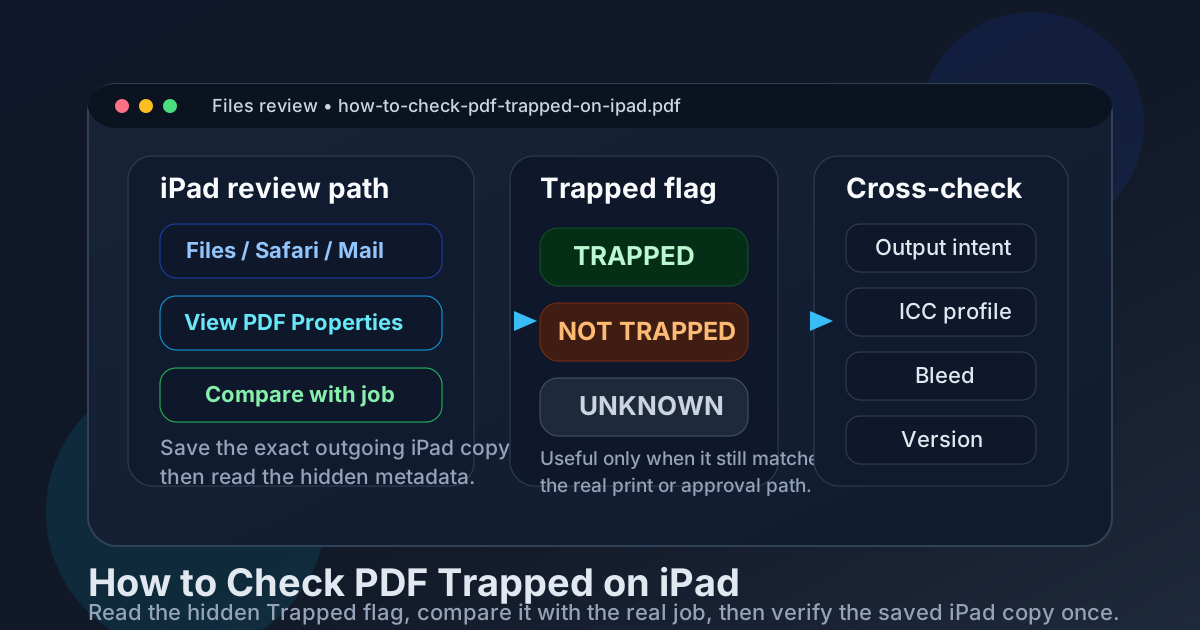
Table of contents
- Quick start: check PDF trapped on iPad in about 5 minutes
- What the Trapped flag means on iPad
- Where iPad previews can mislead you
- Step-by-step: how to review PDF trapped on iPad
- What else to check besides the Trapped flag
- Common iPad scenarios and what to do next
- Related LifetimePDF tools and guides
- FAQ
Quick start: check PDF trapped on iPad in about 5 minutes
If your real question is does this iPad PDF carry an honest trapped status before I upload, approve, or forward it, use this order:
- Save the exact PDF you plan to print, upload, approve, archive, or forward into local Files storage.
- Do not rely only on a quick look in Mail, Safari, a cloud preview, or a chat attachment window.
- Open a metadata-aware review path such as View PDF Properties and read the hidden Trapped value directly.
- Note whether it says Trapped, Not Trapped, Unknown, or gives you no reliable signal at all.
- Compare that value with the actual print, proofing, archive, or handoff workflow instead of trusting the file history blindly.
- Cross-check output intent, ICC profile, bleed, and version so the rest of the file tells the same production story.
- If the metadata is stale or misleading, rebuild or re-export the PDF and verify the final saved copy once before you share it.
What the Trapped flag means on iPad
The Trapped field is hidden metadata about the PDF's stated prepress condition. In practical terms, it tells you whether the file claims to be trapped, not trapped, unknown, or not clearly labeled at all. That can be useful when the PDF is headed toward print, vendor review, archived compliance copies, or any workflow where hidden production notes still matter.
What it does not do is certify that the artwork is perfect. A PDF can say it is trapped and still be outdated after a later export. It can say it is not trapped even though another downstream stage will handle that. The flag is a clue, not a guarantee, which is why it belongs inside a broader review rather than standing alone.
Trapped
The file says trapping has been accounted for. Your job is to confirm that claim still belongs to the exact iPad copy you are about to send.
Not Trapped
The file says trapping has not been applied at the PDF level. That may be fine or risky depending on the real workflow.
Unknown
Treat this as a signal to stop guessing and review the rest of the production context more carefully before approval.
Missing value
No reliable trapped signal is showing, which means the surrounding workflow clues matter even more.
Common iPad mistake
People often trust the cleanest-looking tablet preview instead of the metadata-aware path that actually exposes the hidden Trapped field. The page can render beautifully while the production story underneath is stale, vague, or simply wrong.
Where iPad previews can mislead you
iPad gives you many polished ways to glance at a PDF, and that convenience is exactly why trapped-status problems survive. The file opens in Files, a printer portal preview looks fine in Safari, Split View makes review feel organized, and nobody feels much urgency to inspect what the metadata is quietly claiming.
| iPad path | What it is good for | What it cannot safely prove |
|---|---|---|
| Files, Quick Look, or a fast open from another app | Confirming that you saved the right file and that the PDF opens normally on your tablet. | That the hidden Trapped flag still matches the real print or prepress state of the outgoing PDF. |
| Mail preview, Slack attachment preview, or Safari download tab | Spotting whether the attachment or download looks like the right document. | That the final saved copy is the same one whose metadata you are about to trust or send onward. |
| Cloud-drive preview from iCloud Drive, Dropbox, or Google Drive | Checking the PDF quickly while away from your desktop setup. | That the preview is telling the truth about hidden prepress metadata rather than only about the visible page. |
| Dedicated properties or metadata workflow | Reading the Trapped field directly and comparing it with nearby production clues. | It cannot decide for you whether the export itself is honest. You still need to judge whether the metadata and the job agree. |
Step-by-step: how to review PDF trapped on iPad
This workflow is fast enough for routine mobile approvals and strong enough to catch the trapped-status mismatches that cause unnecessary back-and-forth later.
1) Save the exact iPad copy first
Inspect the file that will actually be printed, uploaded, archived, or delivered. Do not judge only a cached preview if another saved copy is the real outgoing document.
2) Read the Trapped field directly
Use View PDF Properties or another properties-aware path so you can read the hidden value instead of inferring it from how the page looks.
3) Compare the label with the actual job
Ask one plain question: does this trapped status still describe the file that is leaving your iPad today, or is it leftover metadata from an older export, shared folder, or template?
4) Review related production signals
Check output intent, ICC profile, bleed, and version so the metadata fits one coherent story.
5) Decide whether the flag is useful, stale, or irrelevant
A correct flag on a real print handoff is helpful. A stale flag on a casual internal share may matter less. Judge the mismatch by the destination, not by perfectionism.
6) Reopen the final copy once
If you rebuild or re-export the PDF, verify the saved iPad copy again. That final reopen catches the common mistake where the source changed, but the outgoing file in Files or cloud storage did not.
Best default sequence: save the real iPad copy → read the Trapped flag → compare it with the actual job → verify output intent, ICC profile, bleed, and version → only rebuild the PDF when the hidden and visible production story no longer matches.
What else to check besides the Trapped flag
The trapped value is more useful when it agrees with the rest of the PDF's production clues. On iPad, these are the neighboring checks that usually make the biggest difference:
- Output intent: the declared destination should fit the same print or archive workflow the trapped flag is implying.
- ICC profile: embedded color-profile data should not point toward a conflicting color-management story.
- Bleed and page geometry: if the file is truly headed to production print, the page structure should also look intentional.
- PDF version: a file that needs standards-aware delivery should not rely on one correct flag while the broader format assumptions are off.
- The real business handoff: if the printer, vendor, archive owner, or prepress team gave a specific requirement, compare the PDF against that instruction instead of trusting old metadata.
In other words, the Trapped flag is one production clue among several. It becomes useful when those clues support one another instead of pulling in different directions.
Tablet review is useful, but it is not magic
If the PDF is headed to a real print workflow, your iPad is an excellent checkpoint for the exact saved file. It is not a reason to skip the deeper metadata review that confirms the hidden prepress story still makes sense.
Common iPad scenarios and what to do next
These are the patterns that show up most often when an iPad PDF looks normal on screen but still deserves a trapped-status check.
Marked trapped, but the PDF was rebuilt later
The metadata may belong to an older export stage. If the artwork or output path changed afterward, confirm the hidden label still tells the truth.
Marked not trapped, but the workflow handles it elsewhere
This may be completely acceptable if another production stage or vendor workflow applies the needed trapping later. The point is to know that, not guess it.
Unknown or missing value
Do not treat a vague flag as a quiet yes. It simply means the metadata did not settle the question for you, so the surrounding production checks matter more.
Metadata and portal instructions disagree
If the hidden flag says one thing and the print portal or handoff notes say another, the safest move is to rebuild confidence before you upload the PDF, not after someone downstream rejects it.
| Situation | Best move | Why |
|---|---|---|
| The Trapped flag matches the real workflow | Leave it alone | Correct metadata does not need extra tinkering just to feel active. |
| The flag is clearly stale or inherited | Correct or rebuild the file | Stale production metadata creates confusion during handoff and review. |
| The artwork or export path is actually wrong | Re-export from the source | Changing one hidden field does not fix a broken production workflow. |
| The destination does not care about prepress metadata | Use judgment | Not every internal reading copy needs a full production cleanup pass. |
Healthy decision rule
If the trapped flag, output intent, ICC profile, and real destination all describe the same workflow, leave the file alone. If they disagree because the export itself is stale, rebuild the PDF so the hidden metadata and visible pages finally tell the same story again.
FAQ
How do I check PDF trapped on iPad?
Save the final PDF locally in Files, open a metadata-aware properties or preflight-style workflow, read the hidden Trapped value, and compare it with the actual print or approval workflow before you send it onward.
Can I check the Trapped flag with a normal iPad PDF preview?
A normal preview is helpful for confirming that you saved the right file, but a fuller properties workflow is better when you need to inspect the Trapped metadata clearly.
What Trapped values might I see?
You may see the file marked Trapped, Not Trapped, Unknown, or not clearly labeled at all. Different software presents the wording a little differently, but the underlying review logic is the same.
If a PDF says it is trapped, is it ready to print?
No. The Trapped flag is metadata about the file's stated production status, not proof that the artwork, output intent, bleed, and real handoff requirements are all correct.
Should I change the Trapped flag if I am unsure?
Only when you know the metadata is stale or misleading. If the real export or artwork is wrong, the safer fix is usually a clean rebuild of the PDF instead of editing one hidden field and hoping the bigger workflow problem disappears.
Check the hidden trapped status before the PDF surprises someone downstream.
On iPad, the calmest workflow is simple: inspect the exact saved file, read the Trapped flag clearly, compare it with the real job, and only rebuild the PDF when the hidden metadata and the actual production plan no longer agree.
Published by LifetimePDF — Pay once. Use forever.