How to Check PDF Tab Order on iPad: Files, Split View, and Keyboard Flow Before You Share
To check PDF tab order on iPad, open the final form in Files or Acrobat, connect a Magic Keyboard, Smart Keyboard, or Bluetooth keyboard when possible, start in the first field, and move through the file with Tab and Shift + Tab so you can catch jumps into the wrong box, signature block, or page before you share it.
If you are touch-only on iPad, use Split View to keep the page visible while you tap through the expected field sequence, then confirm the same file on a keyboard-capable setup before you trust the form completely.
That is the short iPad answer. The useful answer is that a larger tablet screen can make a broken form feel more polished than it really is. On iPad, the layout often looks roomy and organized, so people assume the field order underneath must be sensible too. Then the real problem shows up later, when a keyboard user, switch user, signer, or reviewer lands in the wrong field and has to fight the document.
Fastest practical path: test the real iPad copy, use a hardware keyboard if you can, keep the page visible in Split View, spot-check signatures and page breaks, repair the messy section, then run one more pass before anyone else touches the file.
In a hurry? Jump to quick start: check PDF tab order on iPad in about 7 minutes.
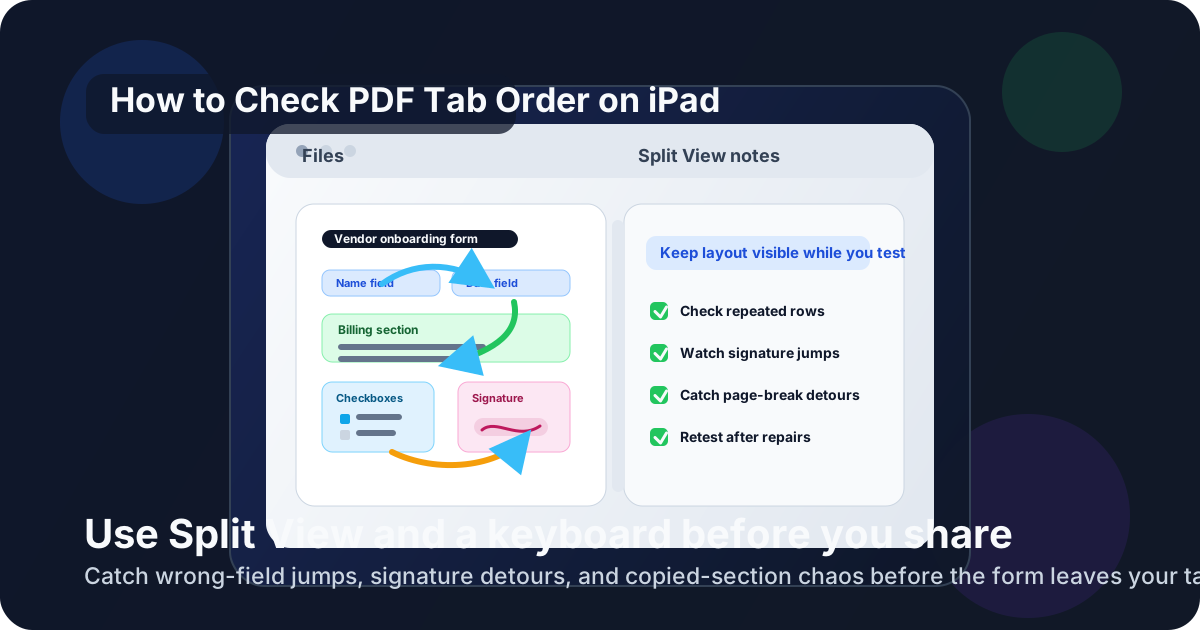
Table of contents
- Quick start: check PDF tab order on iPad in about 7 minutes
- What you are really checking on iPad
- Where iPad users get misled
- Step-by-step: how to check PDF tab order on iPad
- Why Split View helps on iPad
- Fast signs that the form flow is broken
- Tab order versus reading order
- When to rebuild the form instead of patching it
- Related LifetimePDF tools and guides
- FAQ
Quick start: check PDF tab order on iPad in about 7 minutes
If your real goal is simply tell me whether this iPad form will behave properly for keyboard users, use this order:
- Open the exact PDF you plan to email, upload, sign, submit, or archive, not only the temporary preview inside Mail, Messages, Safari, or a cloud-drive overlay.
- If possible, connect a Magic Keyboard, Smart Keyboard, or Bluetooth keyboard so you can run a real Tab and Shift + Tab pass.
- Place focus in the first field a normal user should complete.
- Move through the document and confirm focus follows the visible order of names, dates, checkboxes, dropdowns, initials, attachments, and signatures.
- Use Split View if needed so the page stays visible while you review whether the next field still makes sense.
- If focus jumps into the wrong section, use PDF Field Editor to repair the sequence instead of telling people to tap around the problem manually.
- Run one more pass on the repaired file before you share it.
What you are really checking on iPad
Checking PDF tab order on iPad is not only confirming that form fields exist or that the page looks clean on a bigger screen. The more useful question is whether focus travels through those fields in the same order a real person would naturally complete the document.
A healthy file keeps the focus path aligned with the visual path. A weak file makes the order feel random, even when the form looks polished. On iPad, touch interaction can hide that weakness because you can tap directly into any field you want. Keyboard navigation is what exposes whether the document actually holds together.
Good outcome
Names, dates, checkboxes, repeated rows, and signature sections move in a calm, predictable sequence that matches how the form is laid out on the iPad screen.
Warning outcome
Focus jumps into the footer, a later page, the right column, or the signature block before the current section is actually finished.
Typical root cause
The form fields were copied, added out of order, or stitched together during export, so the visual layout looks normal while the field sequence underneath is quietly scrambled.
Where iPad users get misled
iPad sits in a tricky middle ground. It feels more capable than a phone, but it still encourages touch-first testing. That creates a few predictable blind spots:
- Direct tapping hides bad focus order. You can tap the right field even when keyboard users would be sent somewhere else entirely.
- The bigger screen makes the form look healthier than it is. Spacious layouts and visible columns often mask the fact that the hidden field order was never cleaned up.
- Preview layers are not the same as the final file. A document opened from Mail, Drive, or a browser may not show the exact behavior of the version you actually share.
- Apple Pencil markup can distract from the real issue. Notes and annotations may help review content, but they do not prove the fillable-field sequence is logical.
- One successful page does not clear the whole form. Copied sections, attachments, repeated rows, and signature pages often break later in the file.
Step-by-step: how to check PDF tab order on iPad
Step 1: Start with the final iPad copy
Test the exact document that will leave your hands. Save the real PDF to Files or open the actual final file in Acrobat instead of relying on a temporary preview. If the version users receive is different from the one you tested, your tab-order check is already weaker than it should be.
Step 2: Use a hardware keyboard when you need the real answer
A Magic Keyboard, Smart Keyboard, or ordinary Bluetooth keyboard gives you the clearest signal because tab order is a focus-navigation problem. If you only tap, you can accidentally validate the page design instead of the true field sequence. Even a short keyboard pass often reveals whether the form is genuinely usable.
Step 3: Use Split View to compare the page and the focus path
Put the PDF on one side and your notes, extracted field checklist, or another view of the same page on the other. Split View helps because you can keep the visible layout in mind while focus moves. When the cursor jumps somewhere strange, you notice it immediately instead of mentally reconstructing the page from memory.
Step 4: Spot-check the sections that usually fail first
On iPad, do not stop after the first few fields behave. Spend extra time on side-by-side columns, billing and shipping blocks, repeated rows, checkbox groups, date clusters, initials, signature sections, and page transitions. These are the places where copied templates and late-stage edits usually create the worst jumps.
Step 5: Separate field existence from field sequence
A field can be perfectly visible, easy to tap, and still be in the wrong place in the tab order. That distinction matters. If the signature box appears early in the keyboard path, or if the next field lives in another section, the document is still broken even though every field technically works.
Step 6: Repair the order instead of teaching people to work around it
If the sequence is wrong, fix the file. Clean up the field order in the source document or use PDF Field Editor when the PDF itself needs a focused repair. Then retest the final export. Workarounds like skip that field for now or come back to the signature later are not a real fix.
Why Split View helps on iPad
Split View is one of the most useful iPad-specific advantages in this workflow because it keeps the document visible while you stay oriented. That makes it much easier to notice when focus order and page order stop agreeing.
A simple Split View setup
Keep the PDF open in Files or Acrobat on one side, then place notes, a source version, or a checklist on the other. You do not need a complex setup. The point is simply to reduce the chance that you lose the thread of the form while moving through fields.
What a healthy file looks like
The focus path stays inside the section you are working on, then moves naturally to the next visible group. Page breaks feel predictable. Signature or initials areas appear when they should, not halfway through the user journey.
What a weak file looks like
Focus drifts into the wrong column, skips unfinished fields, lands in a footer, or leaps to a later page while the current section still has unfinished inputs. Split View makes those detours much easier to see in real time.
Fast signs that the form flow is broken
Healthy default
- The next field always feels obvious.
- Columns, repeated rows, and grouped checkboxes stay together.
- Signatures and initials appear after the setup fields, not before them.
- Page transitions feel logical instead of surprising.
Fast warning signs
- You need to explain where users should tab next.
- The cursor lands in a box you cannot justify from the layout.
- Touch interaction feels fine but keyboard navigation feels chaotic.
- A copied template section behaves differently from the section above it.
Tab order versus reading order
Tab order and reading order are related, but they are not the same thing. Tab order is about the sequence of interactive fields when someone navigates with a keyboard. Reading order is about how text content is read, copied, or extracted.
A PDF can have acceptable reading order and still be miserable as a form. It can also have decent field order while the text layer around it is weak. If your form also contains instructions, sidebars, or multi-column content, review both.
When to rebuild the form instead of patching it
Not every bad tab-order file deserves a total rebuild. Some only need a careful repair. Others are warning you that the form was assembled too messily to trust.
Patch lightly when
- The problem is limited to one section, one repeated row, or one signature block.
- The source document is otherwise stable and the field naming is consistent.
- You can retest the repaired file quickly on the same iPad workflow.
Rebuild when
- Focus order is broken across multiple pages or sections.
- Field groups were copied and pasted repeatedly from a bad template.
- The form already has other accessibility or signing problems at the same time.
- You keep patching the PDF but every export reintroduces the same navigation mess.
FAQ
How do I check PDF tab order on iPad?
Open the final PDF in Files or Acrobat on iPad, use a hardware keyboard if possible, begin in the first field, and move through the form with Tab and Shift + Tab. If the next field keeps matching the order a real person would naturally follow, the tab order is healthy.
Can I review tab order on iPad without a hardware keyboard?
Yes, but it is a weaker check. A touch-only review can catch obvious detours, yet a real keyboard pass is much better at exposing hidden focus-order problems before the form reaches users or signers.
Why does touch testing on iPad miss tab-order issues?
Because touch lets you choose the next field yourself. The form can feel fine when you tap directly into each box, even though keyboard focus would move in a frustrating order for someone else.
What is the difference between tab order and reading order?
Tab order is about keyboard focus through interactive fields. Reading order is about how text content is read or extracted. A PDF can handle one reasonably well and still fail the other.
Should I flatten the PDF before testing tab order on iPad?
No. Keep the file interactive while you test and repair it. Flatten only after the form is complete if you need a locked final record and no longer need keyboard navigation.
Published by LifetimePDF — Pay once. Use forever.